Down Hole Prompt
Assigning the correct depth field link from the database
If the option for downhole variography is disabled, it is because a critical link to the database is missing. Clicking on the Down Hole option found in the Properties panel will initiate a prompt to display.
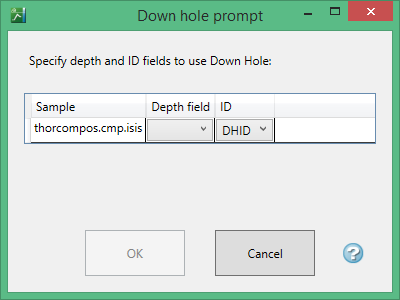
Select the field that indicates a missing value and use the drop-down list to select the correct link to the database.
Click OK to return to the Properties panel interface. From there you can set up the parameters needed for the downhole variogram.
Alternate method of assigning depth field
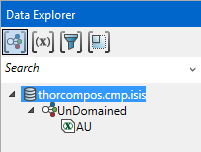
To reassign the depth field, click on the name of the database in the Data Explorer. The Properties panel will then allow you to link the proper database field.
To determine which field is missing data and link the proper data source to it, highlight the database name in the Data Explorer as shown below.
The Properties panel will change to show the data source links. Verify that all are correctly assigned to the proper database fields. In the example below, the depth field is missing in the example on the left. However, the image on the right shows the same panel with the correct Depth field linked.
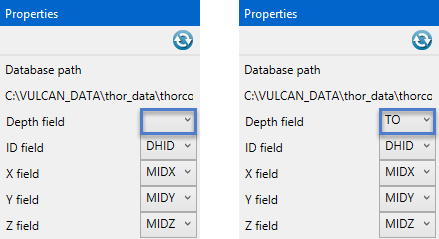
The downhole option will now be enabled and ready to run.

