Kriging Neighborhood Analysis (KNA)
This tool provides optimal parameters for block size, number of samples, and search radius to perform an estimate.
On the Block menu, point to Grade Estimation, then click Kriging Neighborhood Analysis to open the following interface.
Specifications
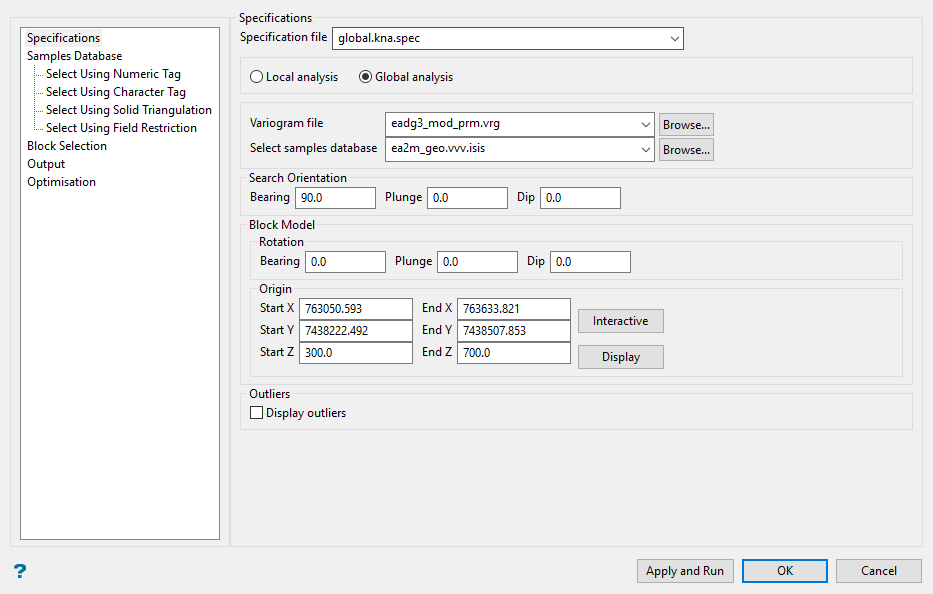
Specification file
Select the specification file (.kna.spec) from the drop-down list, or enter the name of a new one.
Local analysis
This option provides an optimal search strategy locally (only for a sector).
Note: Local analysis will create 1 block model with 1 block per step.
Global analysis
This option provides an optimal search strategy globally (considering the whole area of the drilling).
Note: This option could take a long time to process if you create a large block model with small block sizes.
Variogram file
Select the variogram file (.vrg). This is a mandatory field.
Select samples database
Select a samples database. This is a mandatory field.
Search Orientation
Enter the values for the search orientation.
Origin
The origin corresponds to the centroid of the block. You can enter the values manually or use the Interactive button to select the point from Vulcan.
Outliers
Display outliers
Click to display the bounding box created by the starting and ending coordinates.
Note: This option is only available when using Global analysis. It is not available when using Local analysis.
Samples Database
Sample Field
Sample group
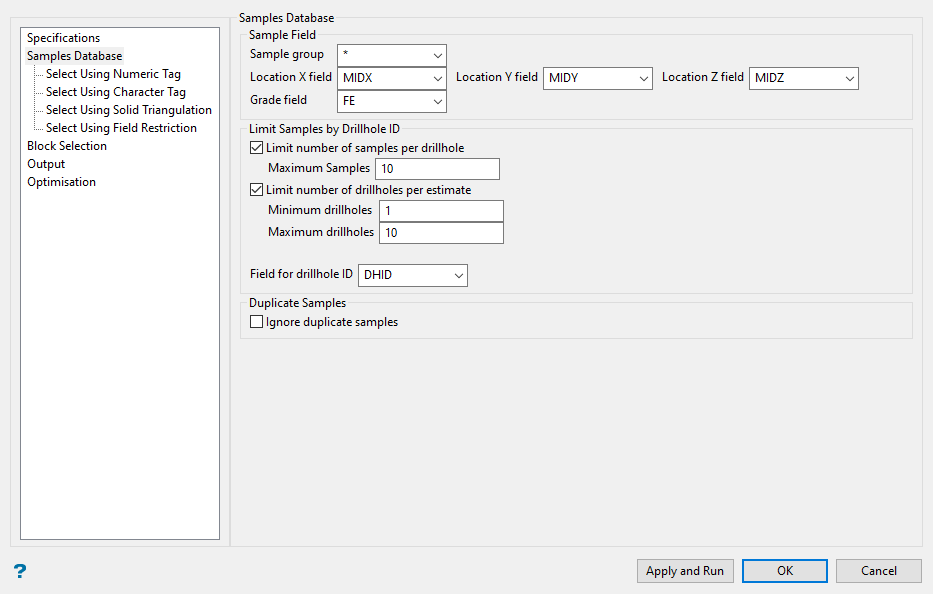
Select the sample group from the drop-down list, or use a * (wildcard) to include all samples.
Location X Y Z field
Match the X, Y, and Z fields.
Grade field
Identify the grade field.
Limit Samples by Drillhole ID (Optional)
Limit number of samples per drillhole
Select this option to limit the number of samples per drillhole.
Limit number of drillholes per estimate
Select this option to limit the number of drillholes per estimate.
Field for drillhole ID
Identify the drillhole ID field.
Duplicate Samples
Ignore duplicate samples
-
If selected, the process will not discard any samples, but use all samples in the estimation.
-
If not selected, the process will stop and a message will notify you that duplicate samples were found.
Sample Selection Using a Numeric Tag
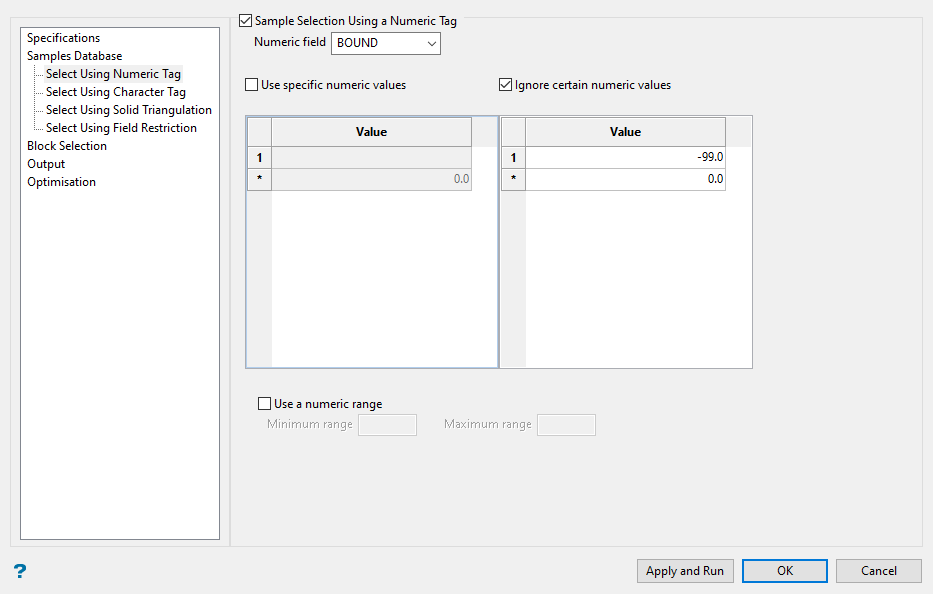
Numeric field
Select the field from the database that you want to apply the filter to.
Use specific values
Select this option if you wish to include or exclude specific values.
Use numeric range
Select this option if you wish to use a range of values, then enter the minimum and maximum values.
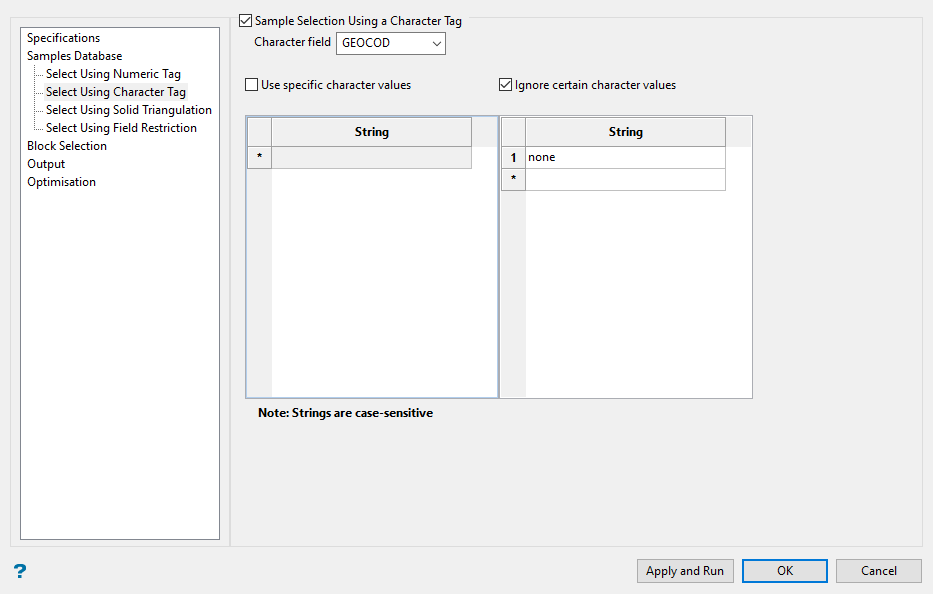
Sample Selection Using a Character Tag
Character field
Select this option to use a character field from the database.
Use specific values
Select this option if you wish to include or exclude specific values.
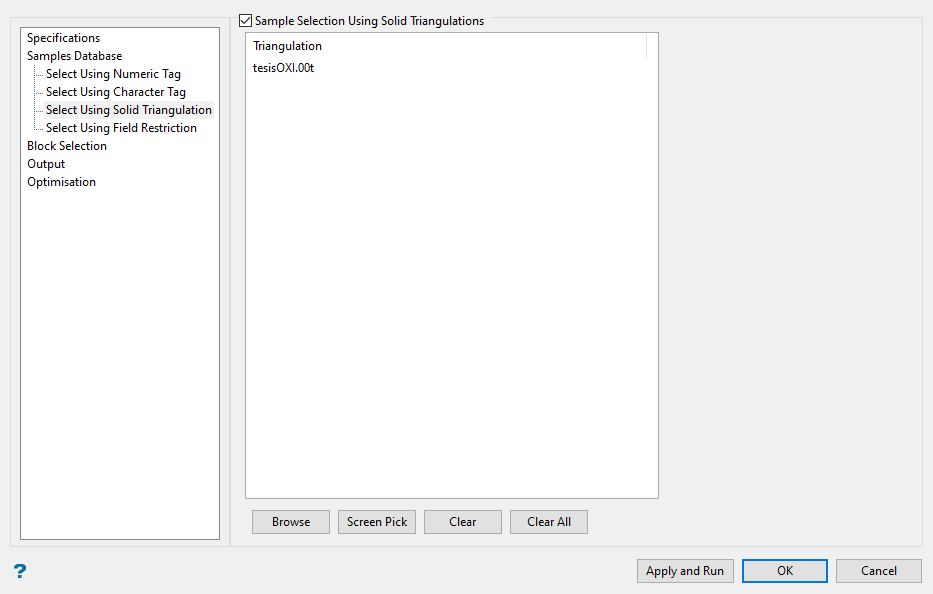
Sample Selection Using Solid Triangulations
Triangulation
List of triangulations selected.
|
Browse |
Click this button to select the triangulation(s) from an Explorer window. |
|
Screen Pick |
Click this button to choose the triangulation(s) from the screen. |
|
Clear |
Highlight a triangulation in the list, then click the Clear button to remove it from the list. |
|
Clear All |
Click this button to clear the list completely. |
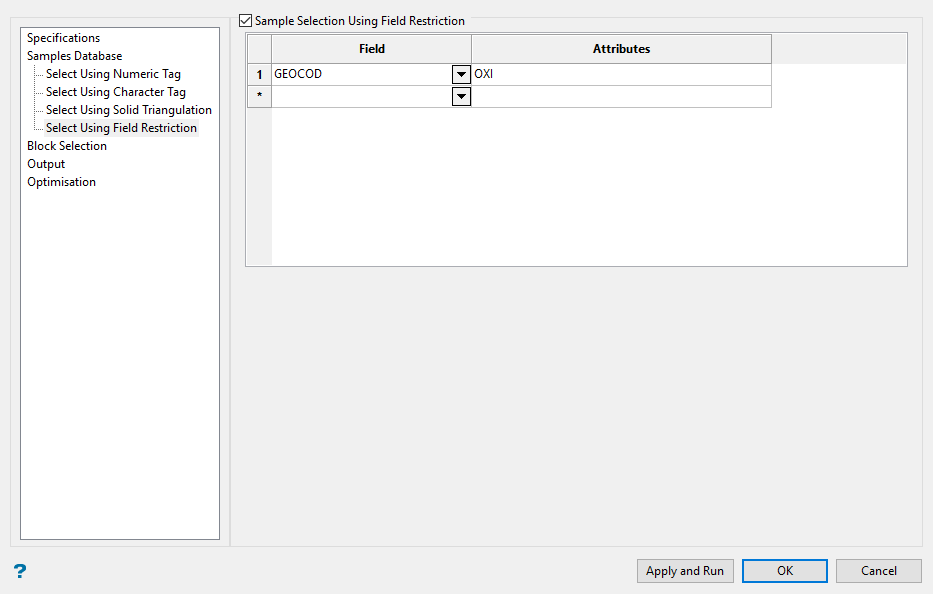
Sample Selection Using Field Restriction
Select this checkbox to limit the samples to those with fields that match certain selection criteria. Select a Field from the drop-down list and enter applicable selection criteria in the Attributes column.
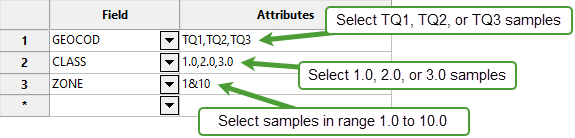
Include spaces in the entries in the Attributes column only if spaces are included in the desired field values.
When entering a range, always enter the smallest number specified before the largest number.
Example: -792&-720 since -792 is smaller than -720. This range is evaluated as -792.0 ≤ VALUE < -720.0.
Note: The selection methods accumulate, that is if more than one method is chosen, then the samples must satisfy each selected method before being included. Within a method, however, selection is based on the OR selection criterion except for field restrictions, which allows AND/OR selection criteria.
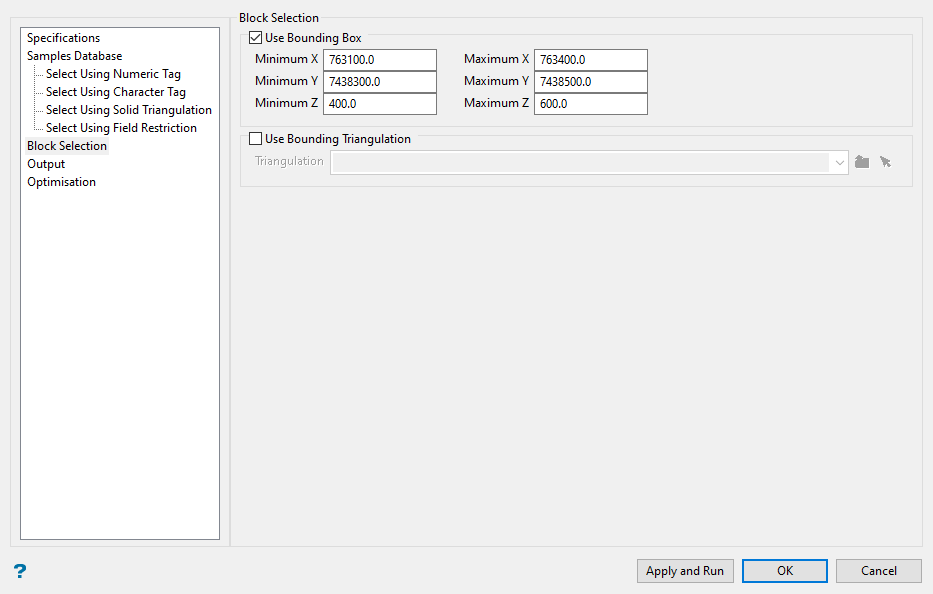
Block Selection
Use bounding box (block model coordinates)
Select this checkbox to restrict the blocks by a box. If you select this option, you must enter the minimum and maximum coordinates for X, Y, and Z in the block model coordinates (X. Y, Z CENTRE). If the block model origin is set at 0,0,0, then real world coordinates should be entered in the x y z minimum and maximum coordinates. If the block model origin is set at real world coordinates, then enter coordinates for the bounding box that are offset a certain distance from the origin. The distance of offset will be determined by the dimensions of your bounding box. It will be the distance to the minimum and the distance to the maximum X, Y and Z from the origin of the block model.
Use Bounding Triangulation
Select this checkbox to restrict the blocks by a triangulation. This is useful when, for example, you want to evaluate reserves within a particular solid triangulation such as a stope.
To select blocks outside of the bounding triangulation, select the Select blocks outside the solid only option.
You may also select the Use block centres checkbox and use it with this restriction.
Note: This option is not applicable to open or 2D triangulations
Output
This panel allows you to export the data to a CSV file.
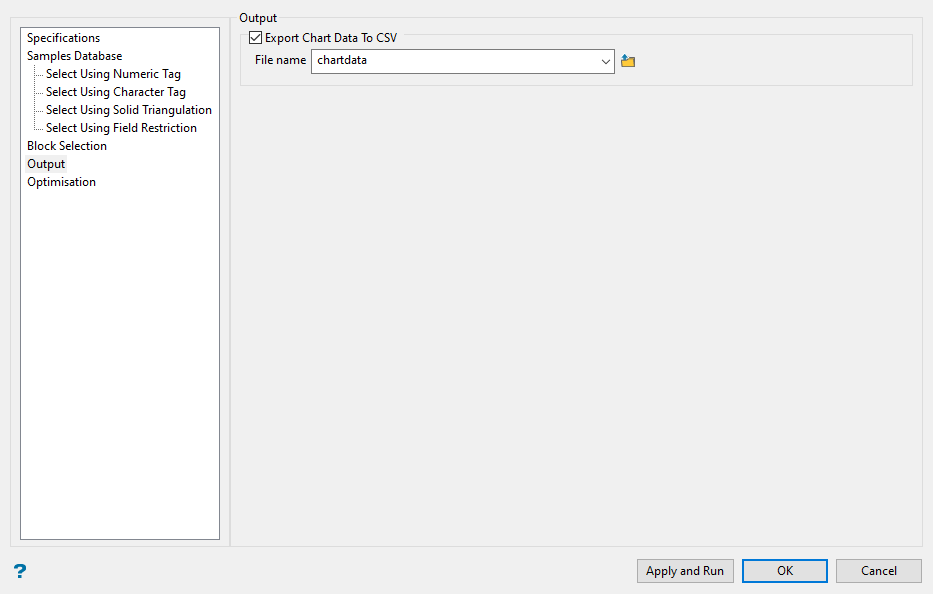
Select Export Chart Data To CSV, the enter a file name.
Optimization
The panel will change slightly as each section is selected.
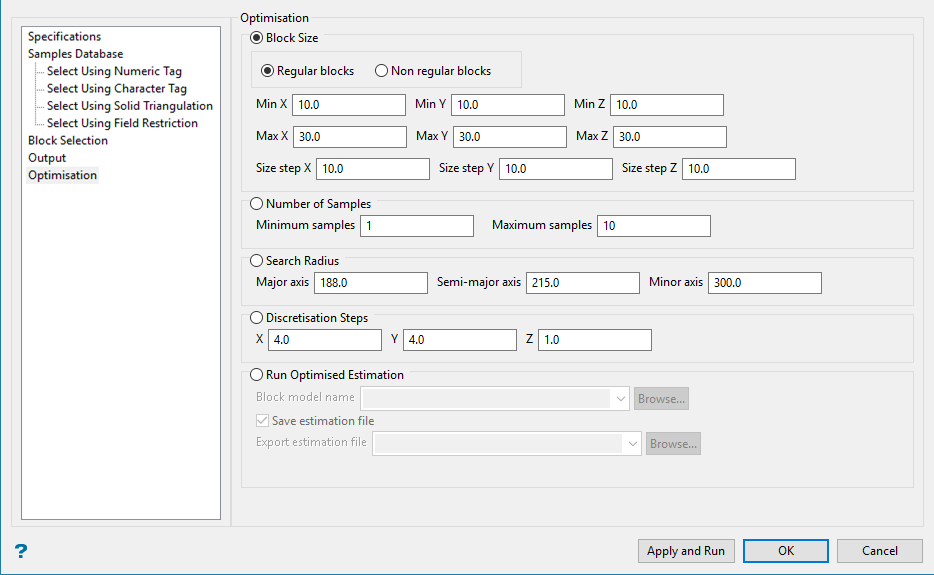
Block size
-
Select Regular blocks (X equal to Y) or Non regular blocks (X not equal to Y).
-
Enter the values for the Min, Max, and Size step for X, Y, and Z to evaluate.
-
Enter the Number of Samples.
-
Enter the Search Radius.
-
Enter the Discretisation Steps.
-
Click the Apply and Run button.

Number of samples
-
Enter the optimal values for Block Size.
-
Enter the Min, Max, and Samples step.
-
Enter the Search Radius.
-
Enter the discretisation steps.
-
Click the Apply and Run button.
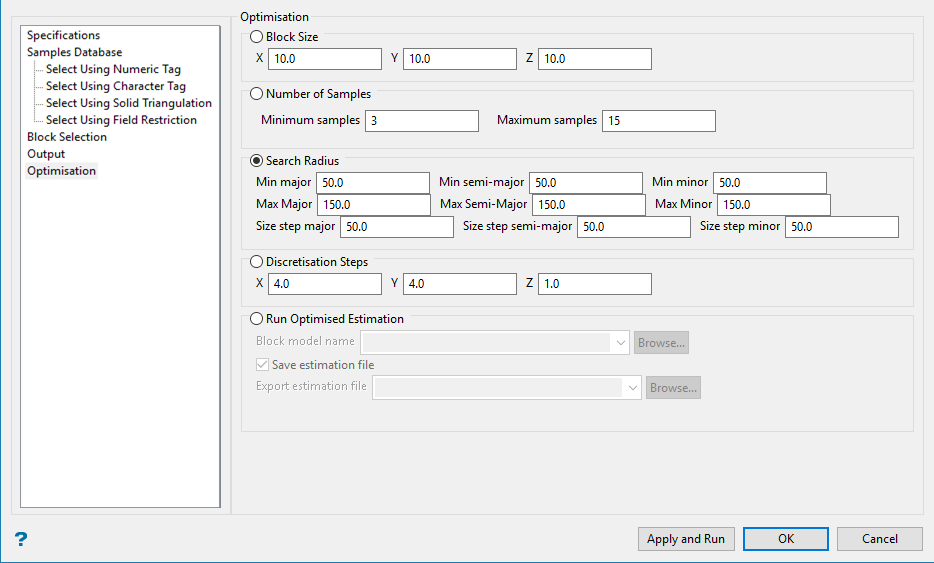
Search Radius
-
Enter the optimal values for Block Size.
-
Enter the optimal values for Number of Samples.
-
Enter the Search Radius.
-
Enter the Discretisation steps.
-
Click the Apply and Run button.
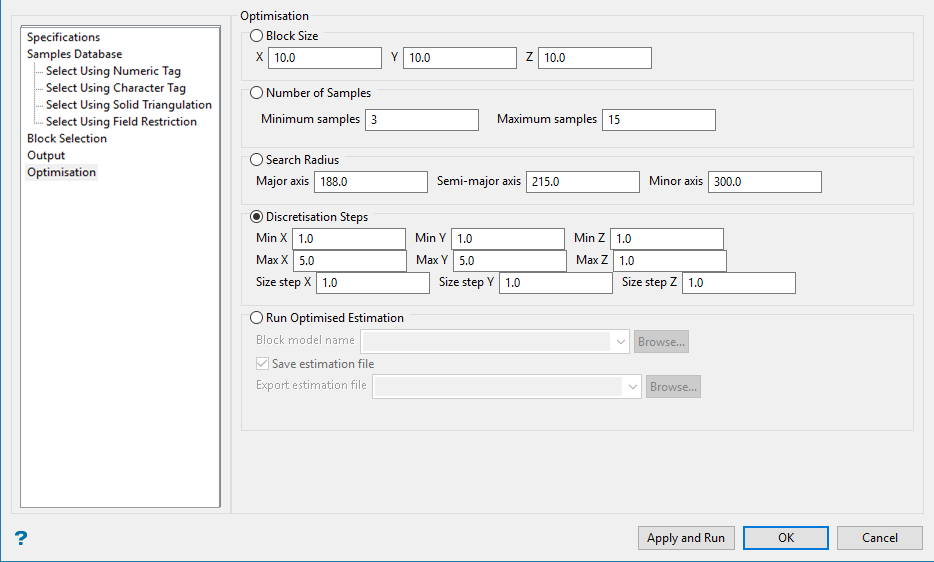
Discretisation Steps
-
Enter the optimal values for Block Size.
-
Enter the optimal values for Number of Samples.
-
Enter the optimal values for Search Radius.
-
Enter the Min, Max, and Size step values for X, Y, and Z to evaluate.
-
Click the Apply and Run button.
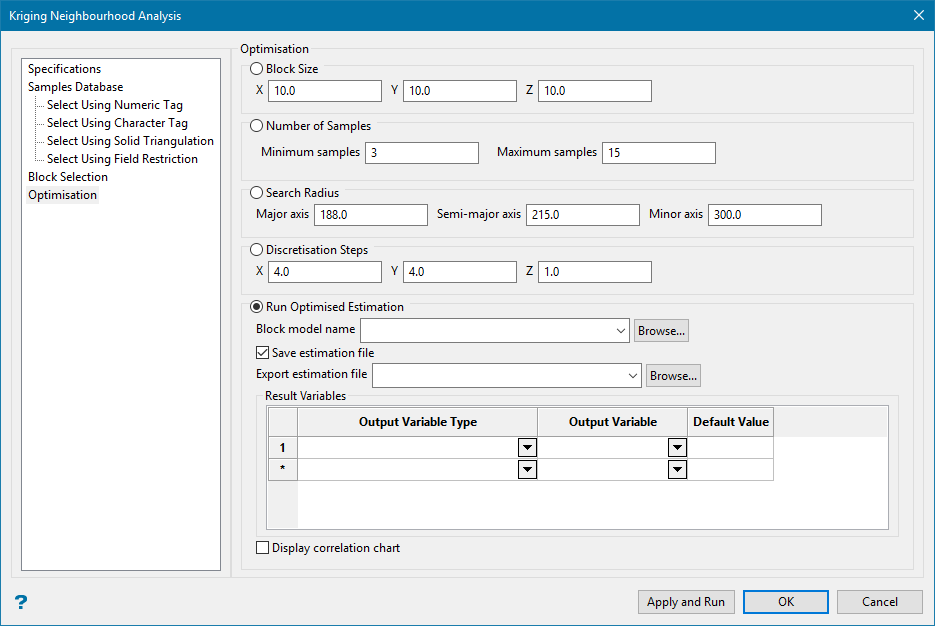
Run Optimized Estimation
Select this option to run an optimized estimation creating a new block model or using an existing one. The bef file can then be opened and used in the Estimation Editor to run a more complete estimation.
-
Enter the optimal values for Block Size.
-
Enter the optimal values for Number of Samples.
-
Enter the Search Radius.
-
Enter the Discretisation steps.
-
If you are using an existing block model, select it from the Block model name drop-down list. If you are creating a new block model, enter a name for the model.
-
If you want to save the estimation file ( *.bef ), select the option Save estimation file. Enter a name in the Export estimation file box, or use the drop-down list to find an existing file, or click Browse to open an Explorer window.
-
Select the Output Variable Type.
-
Select or enter a name for the Output Variable.
-
Enter a Default Value.
-
Select Display correlation chart to show the resulting chart when the analysis completes.
-
Click the Apply and Run button.
Results
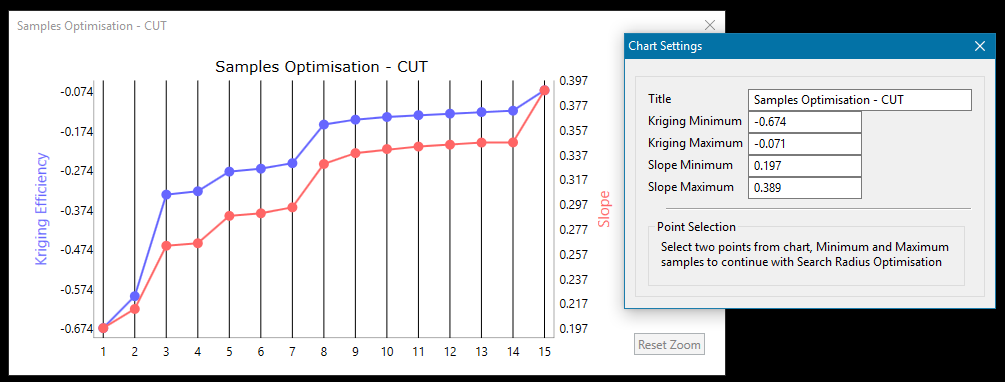
When Apply and Run is clicked a chart will be displayed. Use the chart to select the minimum and maximum sample values to continue with the Search Radius Optimisation. Simply click on the data points in the chart and the information will automatically be transferred to the optimisation panel, and the process will continue.