Assign Values
Selection pane
Assign Block Values from Input to Output Model
Use Assign Values to assign block variable values from an input model to an output model. The values are assigned based on their common block overlap and the calculation method chosen.
The details are stored in the file <proj><name>.bassign_spec, which resides in your working directory. An example is given in Appendix A .
You can also use the external program bassign to assign block values from one model to another.
Instructions
On the Block menu, point to Manipulation, and then click Assign Values to display the Assign Block Values pane.
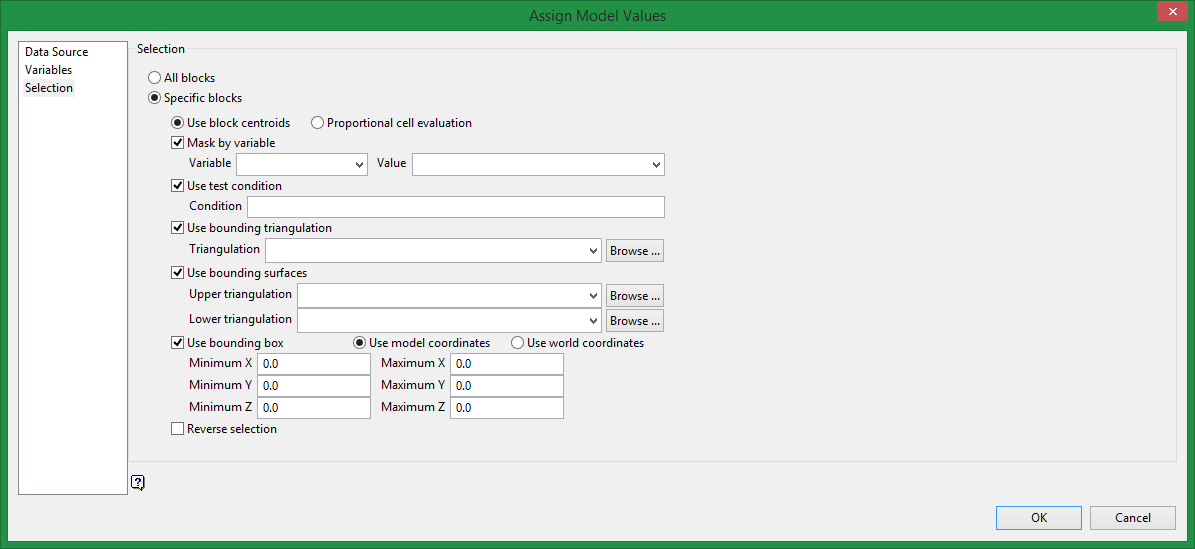
All blocks
Selects all blocks.
Specific blocks
Selects specific blocks based on selected criteria.
Use block centroids
Select this option to include blocks if the block centroid is within the region. Note the entire block is included.
Proportional cell evaluation
Select this option to include those blocks that touch the region, and evaluate reserves according to the proportion of the block's volume that lies within the region. Proportional cell evaluation calculates and reports the exact proportion of a block within a solid triangulation. When selecting blocks, all blocks that touch the region are selected.
Mask by variable
Select this option if you want to restrict the blocks by a variable. You will need to specify a particular value.
For example, to restrict blocks to those where Material equals Ore, select Material as the variable (from the drop-down list) and enter Ore as the value. However, if you require all blocks thatdo nothave this specified value, then enable the Reverse selection check box found at the bottom of the panel. The block model variable may be numeric (for example a grade variable such as Au) or character (for example Geology).
Use test condition
Select this option to use a further constraint upon a numeric variable, for example Fe GT 10.0 (iron value greater than 10.0). The maximum size of a condition is 132 alphanumeric characters. A list of available operators/functions is provided in Appendix B of the Core Documentation.
Use bounding triangulation
Select this option to restrict the blocks by a triangulation. You will be required to specify the bounding triangulation.
Note: This option is not applicable to open or 2D triangulations.
Use bounding surfaces
Select this check box to restrict the blocks by bounding surfaces. You will be required to select the upper (top) and lower (bottom) surface triangulations.
Use bounding box
Select this check box to restrict the blocks by a box. You will be required to enter the minimum and maximum X, Y and Z values in either model coordinates or real world coordinates.
Reverse selection
Select this check box to exclude (not display) the selected blocks within the slice. This option works in combination with the other options on this panel. For example, if you set up Mask by variable to display all blocks that have a gold grade of (-99.0), then selecting Reverse selection will prevent any block with a gold grade of (-99.0) from being displayed. Or as another example, if you set up a bounding box to limit Z values between 2300m and 5500m, selecting Reverse selection will prevent blocks with Z values between those elevations from being displayed and show blocks with all other Z values.

