Transforming Data
Perform a log normal or normal scores transform on your data.
Click for tutorial: Data Transformation
Note: Before being able to activate the transformation button, you must first select a variable from the list in the Data Explorer panel. You can select multiple variables by holding down the control key while clicking with your mouse.
Click on the New Transformation button to open the Transformation dialog window.
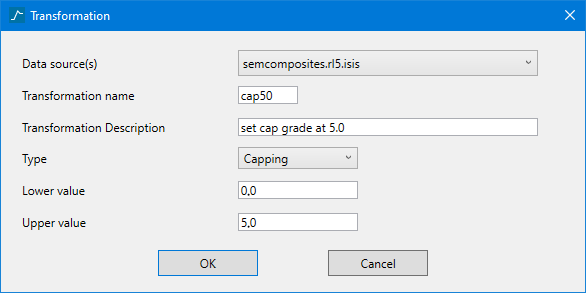
Data Source
Select the data source from the drop-down list.
Transformation Name
Enter a name for the transformation. The name you select will become part of the name displayed in the charts produced. There are no character restrictions.
Transformation Description
Enter a description of the transformation.
Type
Normal Scores
When you select Normal Scores as the type of transformation, you will be presented with the choice of selecting a primary weight. All weights summed together equal 1.
Log
When you select Log as the type of transformation, you will be presented with the requirement of entering a minimum value.
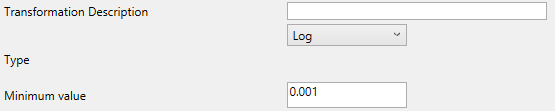
Minimum Value
Enter the minimum value. By default, this field is set at a value of 0.001. Recall that log transformations cannot be applied to zero or negative values.
When all fields requirements have been satisfied the OK button will become active. Click OK to return to the main Vulcan Analyser Interface.
Capping
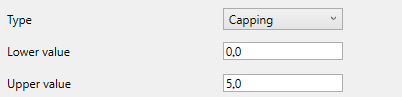
Enter a lower and upper value. Samples outside of these limits will still be used, but their values will be raised or lowered to match the caps.

