

Workflow Recorder
The Workflow Recorder is a Maptek Workbench tool that allows you to record a series of user actions in Vulcan and save them to a file. You can then open and run the actions in a workflow in the Workflow Editor.
To launch the Workflow Recorder, open Vulcan and go to Workbench > Record Workflow. This will open a panel which will look like this:
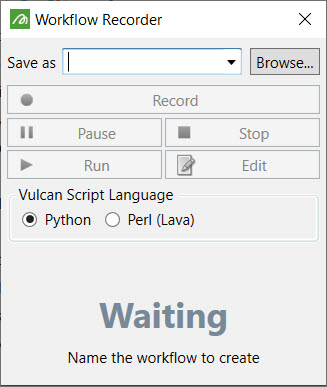
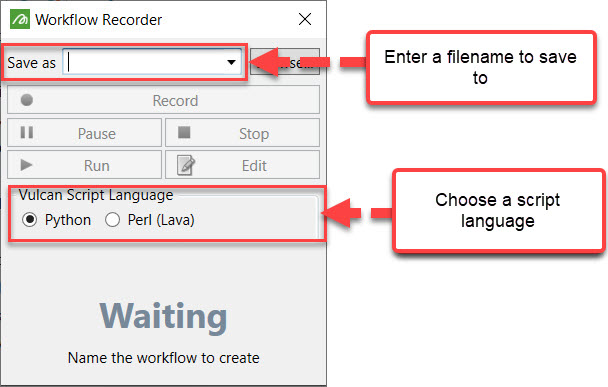
Choose an appropriate name and scripting language for the workflow you are about to record. The status of the Workflow Recorder will be set to Waiting.
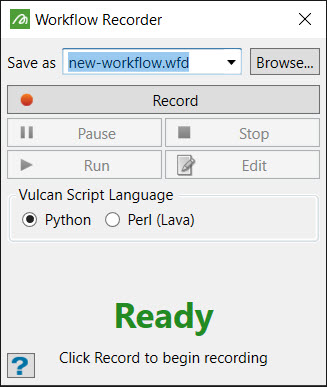
The Workflow Recorder state is now Ready. Click Record to start recording your workflow. When you are finished, click Stop.
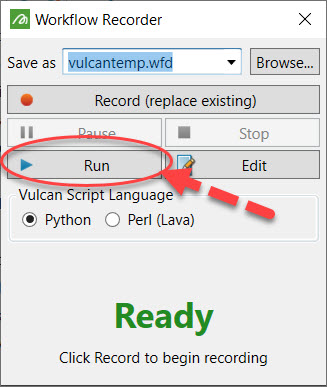
You can now run the workflow, either by opening the file in the Workflow Editor or directly by clicking Run on the panel.
Here is an example of a Vulcan workflow that can be recorded. Note that you will need an existing triangulation.
-
Start recording as described above.
-
Go to Model > Triangle Utility > Smooth.
-
Select a triangulation in the Viewer.
-
On prompt, set Smoothness passes and Smoothness factor and click OK.
-
On prompt again, select Create new.
-
On a new panel, select the directory and choose an appropriate name for the newly created triangulation. Click OK.
-
Vulcan should create a new smoothed triangulation. Before testing the workflow, delete this triangulation.
-
Stop recording.
Your workflow should look like this:
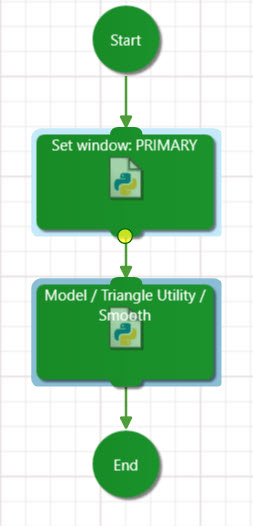
Delete the triangulation and run the workflow again to recreate it.
