Tie-Up
The Tie-Up context sensitive ribbon contains tools specifically related to tie-ups.

Edit
Design tie-up sheet
For information on designing a tie-up sheet, see Design Tie-up Sheet.
View tie-up sheet
Clone
To clone a tie-up, follow these steps:
-
Select a tie-up in the data explorer or view window.
-
On the Tie-Up ribbon, in the Edit group, select Clone. BlastLogic will clone the tie-up and add the cloned version to the blast’s Tie-up folder. BlastLogic will also open the cloned tie-up in the view window.
Publish
Validate
To validate a tie-up, follow these steps:
-
Select the tie-up in the data explorer or view window.
-
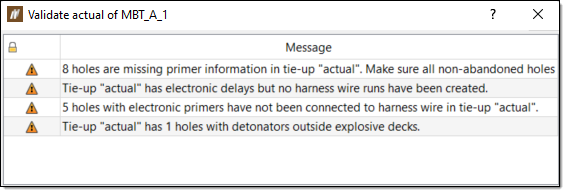
On the Tie-Up context ribbon, in the Publish group, select Validate. The Validate <tie-up name> of <blast name> panel will appear, displaying any tie-up warnings and messages.
 Note:
Note:If you have not published the tie-up to the server, you will be able to interact with the messages by selecting the buttons in the Action column.
Publish
For information on publishing a tie-up, see Publishing a tie-up.
Delete From Server
To delete a tie-up from the server, follow these steps:
-
On the Tie-Up context sensitive ribbon, in the Publish group, select Delete From Server. A Question panel will appear.
-
Review the panel message.
-
Click Yes to delete the tie-up from the server. Click No to keep the tie-up on the server.
Export
Export Tie-up Sheet to PDF
To export a tie-up sheet to a PDF, follow these steps:
-
On the Tie-Up context sensitive ribbon, in the Export group, select Export Tie-up Sheet to PDF. The Export <tie-up sheet name> panel will appear.
-
Specify an export location in the Save PDF to field by entering a folder location or by clicking
 and selecting the desired location from the file explorer.
 -
Review any warning messages in the Message column of the panel table.
-
Click OK.
Export Electronic Data
For information on exporting electronic data, see Exporting an electronic tie-up.
Model
Timing Envelope
For information on generating a timing envelope diagram, see Timing Envelope.
Timing Contour
For information on generating a timing contour diagram, see Timing Contour.
Burden Relief Surface
For information on generating a burden relief surface diagram, see Burden Relief Surface.
First Movement Diagram
For information on generating a firs movement diagram, see First Movement Diagram.
Animate Tie-up
For information on animating a tie-up , see Animate Tie-up.
Fragmentation
For information on modelling fragmentation, see Fragmentation Modelling.
Vibration
For information on modelling vibration, see Vibration Modelling.
Overpressure
For information on modelling the overpressure, see Overpressure Modelling.
Report
Bill of Materials
To generate a Bill of Materials report, follow these steps:
-
Select a tie-up in the data explorer or view window.
-
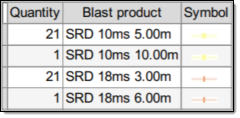
On the Tie-Up context ribbon, in the Report group, select Bill of Materials. BlastLogic will open the Bill of Materials report in a new view window. This report contains a table of the quantities and symbols of the blast products used in the tie-up.