View Window Toolbar
The view window toolbar allows you to modify the display of data in the view window.

| Icon | Label | Description |
|
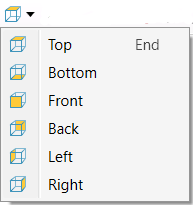
Predefined Views | Displays the data from a fixed direction. Tip: Click this icon to reset the view so all data is visible. |

|
Set View Point | Prompts you to set the position and orientation of the camera. |

|
Centre of Rotation |
When rotating a view, the centre of rotation is at the position of the axes in the view window. You can change the centre of rotation by clicking on the button in the view window toolbar and then clicking at the desired new location for the axes. Tips: Set the centre of rotation near the area of interest in the data set. This will ensure that the data you are interested in does not disappear when you rotate the view. If the axes are blocking data from view, right click and select Show axes to hide them. Select it again to redisplay the axes. Hold down SHIFT when manipulating to slow the rate of movement. If data is moved in the view window unintentionally, right click and select Back to return the data to the previous position. |
|
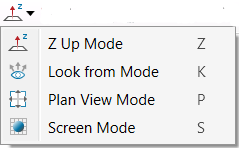
Manipulation Mode |
Z up mode: keeps the Z axis vertical. This is the default mode. Look from mode: fixes the viewpoint. Use this option to maintain a fixed location in space. Plan view mode: fixes the view to look down on the data. Screen mode: allows rotation in any orientation. |

|
Projection Mode |
Toggles between Orthographic and Perspective projection. Perspective projection displays data as it would appear if you were looking at it, showing distant objects as smaller. Orthographic projection displays all data at the same size regardless of distance from the camera. |

|
Zoom to Selection | Zooms into selection. |

|
Select All | Selects everything in the view. |

|
Invert selection | Select everything in the view that hasn't been selected and clears what was previously selected. |

|
Image render | Allows a screen capture of the view window. For more information on this tool, refer to the Image Render page. |
|
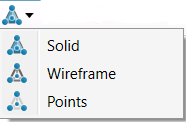
Surface render mode |
Toggles the display of data between solid, wireframe, and points mode. The wireframe mode presents a visual presentation of a three-dimensional object with edge lines drawn where two mathematically continuous smooth surfaces meet. |
|
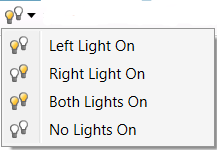
Side light | Changes the headlight direction to alter the display of shadows. |

|
Headlight | Turns the headlights on and off. |

|
Dimension | Toggles the view between 2D and 3D mode. |

|
Label | Turns the hole labels on or off. |
|
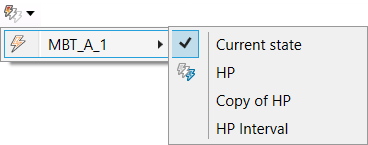
Snapshots | Displays the snapshots of the blast in the view window. You can also switch between the snapshots in the view window by selecting the desired snapshot from the drop-down menu. For more information on snapshots, see Snapshot. |

|
Visualisation |
Contains options to change the visualisation of information about the holes in the view window. For more information on this tool, refer to the Visualisation page. |

|
Coordinate grid on | Turns the coordinate grid on and off. |

|
Profile | Enables easy visualisation of a single row or echelon of holes with only the relevant data visible in the view. This tool is used to easily modify hole charge plans and intervals by directly manipulating them. Direct manipulation allows fine tuning of intervals and charge plans more closely to relevant measurements such as accurate coal surfaces and hole water measurements. For information on how to use this tool, refer to the Profile page. |

|
2D Hole view | Displays a two dimensional view of the hole including planned charge products. |

|
Find hole | Used to search for a particular hole currently displayed in the view. |
|
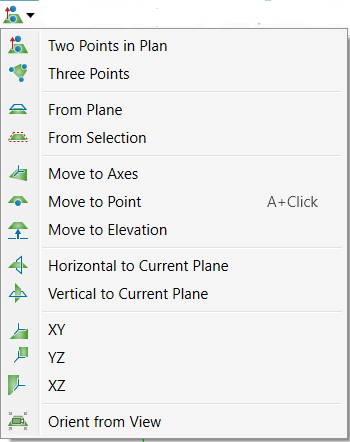
Set | Set action plane toolbar |
|
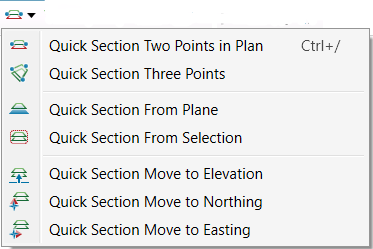
Quick section | |
|
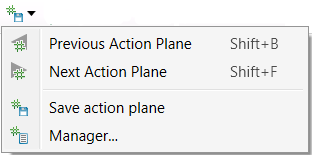
Save planes | |

|
Action plane visibility | The action plane toolbar is used to control the action plane in the View window. |

|
Action plane manipulator | |

|
Action plane predefined views | |
|
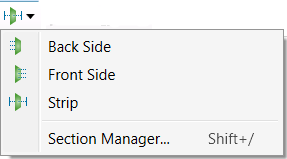
Section mode | Enables the user to load multiple objects and surfaces into View, and step by step view in detail relative positions and potential interactions. For more information on this tool, refer to the Section Mode page. |
|
Toggle boundary visibility | |

|
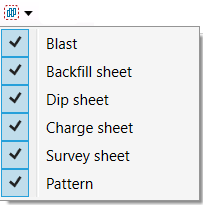
Visibility editor | Allows you to show or hide objects in the view. |

|
Juxtaposition view | An option which allows you to view two separate views side to side in order to compare data. For more information on using the tool, refer to the Juxtaposition View page. |
