Process Overview
Source file: process-overview.htm
BlastLogic is a high-performance data entry software package that allows you to associate data with different processes within the drill and blast system.
Key steps
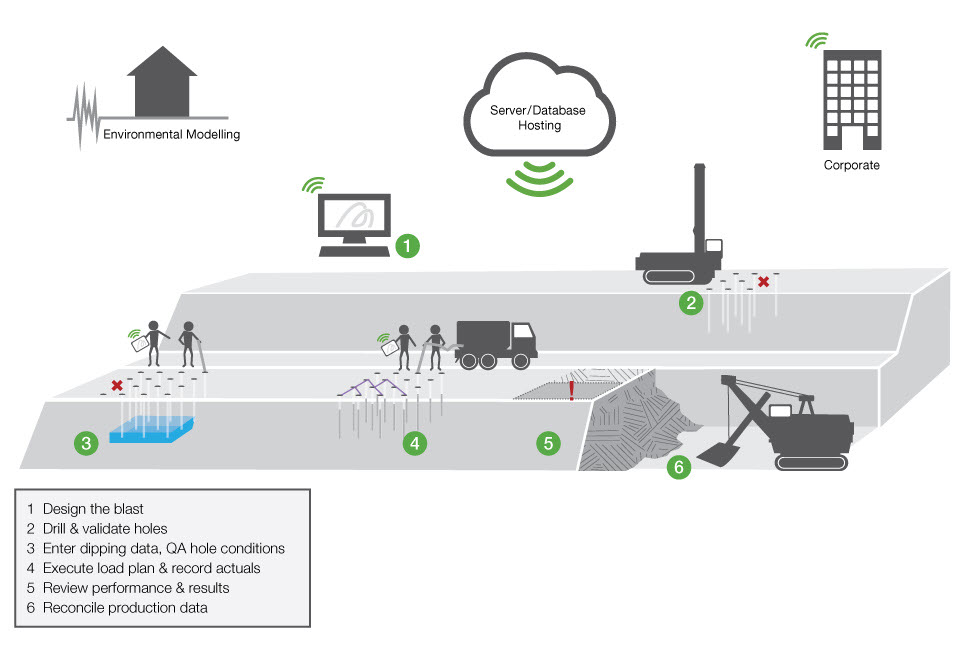
To get started with BlastLogic, you can use the following steps as a general guide:
-
Perform drillhole design
The first step when using BlastLogic is to design and import a blast. You must first create a blast pattern design in an external design software package, such as Maptek Vulcan. You can then import this design into BlastLogic using comma-separated values (
.csv) files or Vulcan design database (.dgd.isis) files.Once you import the blast design, you can modify the original file and update the blast in BlastLogic, using the same source files.
See the following topics for more information:
-
Perform drilling and validation
Once the blast pattern is finalised, drilling and validation can take place. In this step, you must first enter the actual drill data information into BlastLogic. BlastLogic can sync with the drill data navigation system, which allows for the live transfer of drilling data. Alternatively, you can enter drill data using the BlastLogic tablet, a CSV file import, or manually in the drill entry panel.
You must then perform drill data validation in which you compare and review the actual drill data and the design parameters. This step is necessary to eliminate errors in recording information, such as:
- Holes with missing data
- Redrills
- Ad hoc holes not included in the design
Validation also gives you a quick overview of the drill progression along a pattern and accuracy in collar location and hole depth. If there are any issues, BlastLogic captures the information while the drill is still on the bench, allowing you to rectify the problem.
You can also view a number of reports after performing drilling and validation.
See the following topics for more information:
Manual drill data entry Drill Data Entry Importing drill data using a CSV file Importing a CSV file Drill Validation Validate Drilling Drilling reports Drilling Report Drill Measurement Drill Measurements -
Enter the dipping data
Similarly to drill data entry, BlastLogic allows you to enter dipping data in a number of ways:
- Directly on the tablet
- Manually on the desktop application
- By importing a CSV file
To allow the blast crew to enter data on the tablet, you can create a dip sheet that will be sent to the tablet for users in the field. You can also print this sheet, allowing crews to enter information in the field.
Once the crews have entered the dip information, there are several reports you can use to review and adjust the explosive selection and placement.
See the following topics for more information:
Manual dip data entry Dip Data Entry Importing drill data using a CSV file Importing a CSV file Dipping reports Report -
Execute charging
To execute charging, you must apply one or more charge rules to the holes to create each individual hole charge plan. Charge rules are highly customisable and you can adapt them to suit specific mining conditions and blast requirements. At each step, you can choose to update charge plans to reflect the hole's latest data record (design, drilling, or dipping).
Once you have finalised the charge plans, you must create a charge sheet for the entire blast or section. Similarly to dip sheets, you can enter information onto a charge sheet via BlastLogic tablet application, or print the sheet and enter the information manually. If you recorded the information on a physical sheet, you have to enter it into BlastLogic desktop application using the Charge Data Entry tool.
After completing the charge data entry, you can generate and view several charging reports.
See the following topics for more information:
Generating a charge rule Create Charge Rule Loading a charge rule Applying a charge rule Applying a charge rule Entering charge data Charge Data Entry -
Design the tie-up
To begin designing a tie-up, you will need to consider the type of tie-up you wish to create. BlastLogic provides you with the option to create either of the following:
- Pyrotechnic tie-up (pyro)
In a pyrotechnic tie-up, operators physically connect detonators and set the initiation timings manually. - Electronic tie-up (elec)
In an electronic tie-up, you can program the initiation timings.
Basing on the type of detonators you add to the tie-up design, BlastLogic will automatically detect if you create a pyrotechnic or an electronic tie-up. If you use a mix of detonator types, BlastLogic will create a hybrid design.
You can also publish a tie-up at different stages as an actual, design, or draft tie-up. This allows you to compare the design or draft tie-ups with the actual tie-up.
See the following topics for more information:
Creating an electronic tie-up Creating an electronic tie-up Creating a pyrotechnic tie-up Creating a pyrotechnic tie-up Publishing a tie-up Publishing a tie-up - Pyrotechnic tie-up (pyro)
-
Review the blast performance
To review the blast performance, BlastLogic provides you with several timing and modelling tools. On the tablet or via the desktop, you can enter blast observation parameters, such as wind and fragmentation.
Once a blast has been charged, there are a number of reports you can generate to compare the design and actual data. You can also create surfaces to visualise data, such as errors in charge placement and drill depth per hole.
In addition to creating surfaces from blast or hole geometry (e.g. charge depth error, blast volume, or powder factor), you can also estimate fragmentation size visually with given geotechnical parameters, charge, and initiation plans. You can attach the fragmentation surface you create to the blast, which you can use later (once digging has commenced) to compare the actual and estimated state.
After completing a blast, you can also reconcile product usage, deplete stocks and compare design versus actual data. To do this, you can generate inventory and analysis reports to display the data in graphs or a tabular format.
See the following topics for more information:
Charging reports Report Timing tools Timing Modelling tools Modelling Inventory reports Report Analysis reports Report
See also: Key Concepts
