

Groups
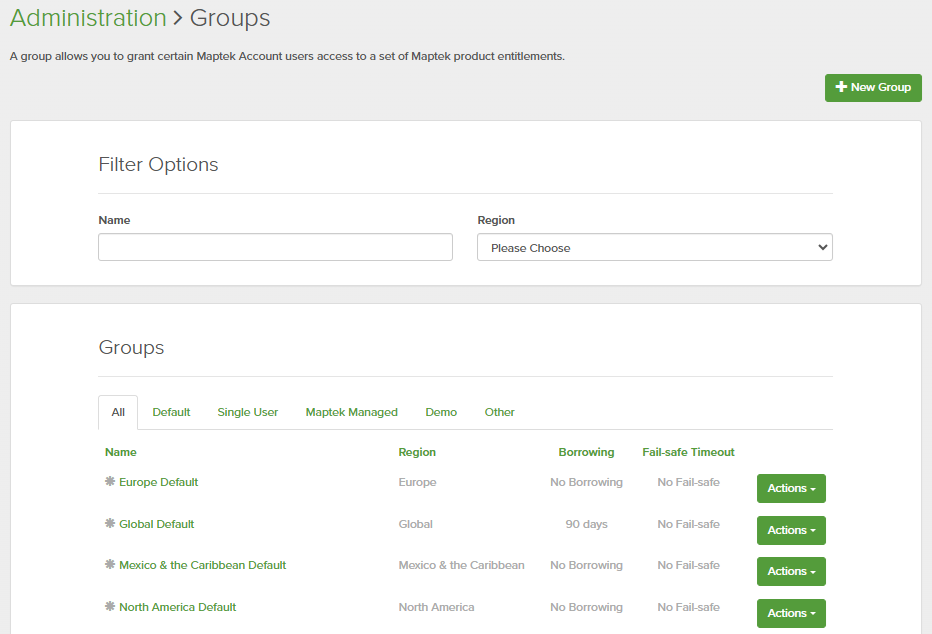
The Administration > Groups menu lists the groups for the organisation. Groups are sorted into tabs according to their settings, as follows:
-
All: Displays all groups in one alphanumerically sorted list.
-
Default: Displays only default groups.
Note: A default group is automatically created for each region, and is indicated by a leading asterisk (
 ). Default groups cannot be manually created, but can be edited.
 -
Single-user: Displays groups designated as single-user.
-
Maptek Managed: Lists all groups managed by Maptek. Only authorised Maptek staff can edit these groups.
-
Demo: Lists only groups set up for demonstration purposes.
-
Other: Lists only groups that do not fit any of the other categories.
Note: You will be unable to edit groups belonging to regions of which you are not an administrator.
The groups list displays the group’s details under the following respective headings:
-
Type: Displays an icon indicates the type of group, corresponding to the tab.
-
Name: Group name. Click to see the group’s details.
-
Region: Displays the Maptek region.
-
Unit Membership: Displays the number of units the group is assigned to. Click to see the group’s details.
Note: Unit Membership is only available if unit administration has been activated for the organisation. See Unit Administration Setup and Configuration for details.
-
Borrowing: Indicates the group’s maximum licence borrowing time.
-
Fail-safe Timeout: Indicates the group’s maximum fail-safe licensing time.
-
Actions: Contains the group’s actions menu button. Click to access the menu items.
Filter Options
The Filter Options pane enables you to find specific groups easily.
To search for a group, start typing any part of the group name into the Name field. The filter is applied as you type. If necessary, narrow the search by selecting the group’s region from the Region drop-down or select applicable units in the Unit Membership drop-down (if available).
New Group
Administrators can create new groups, as follows:
-
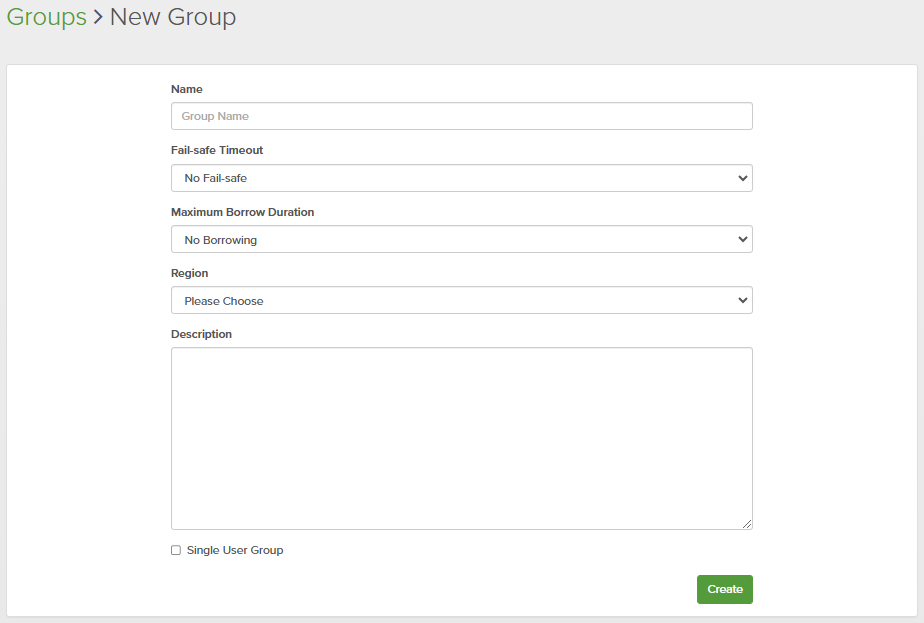
Click New Group at the top right of the Groups page to open the New Group pane.
-
Configure the new group’s parameters as follows:
-
Name: Enter a name that describes the group and its purpose.
-
Fail-safe Timeout: Specify the time a user can operate a licence while off line and in fail-safe mode. If No Fail-safe is selected, fail-safe mode cannot be used for entitlements in this group.
-
Maximum Borrow Duration: Specify the maximum amount of time a user can borrow a licence. If No Borrowing is selected, borrow mode cannot be used for entitlements in this group.
-
Region: Specify the operating region for this group. Members must have a matching region to use entitlements in the group.
-
Unit Membership: Assign the group to units. Select applicable units from the drop-down.
-
Description: Enter an appropriate description for the group.
-
Single User Group: Select to indicate that the group will only have one user.
-
-
Click Create to finish.
Actions
Each group in the list has its own Actions button with drop-down menu options for managing its parameters, users, and entitlements. These are described below.
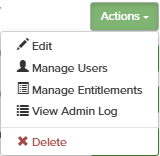
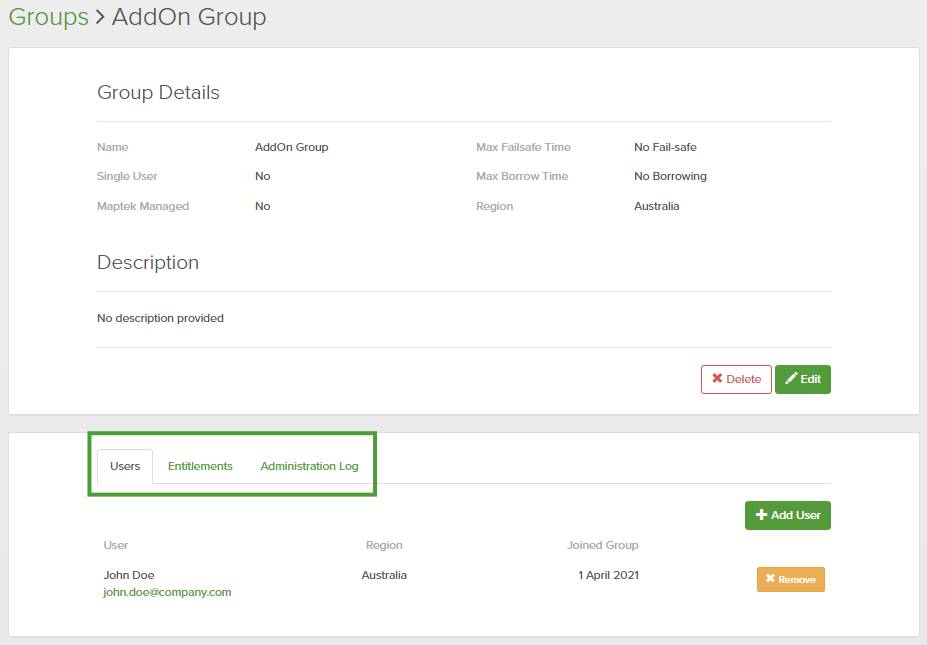
Tip: The Manage Users, Manage Entitlements, and View Admin Log options all open the Groups > Group name page, with the same Group Details pane, and each with a different tab selected. You can select these tabs directly, rather than returning to the groups page to select a different drop-down option.
Edit
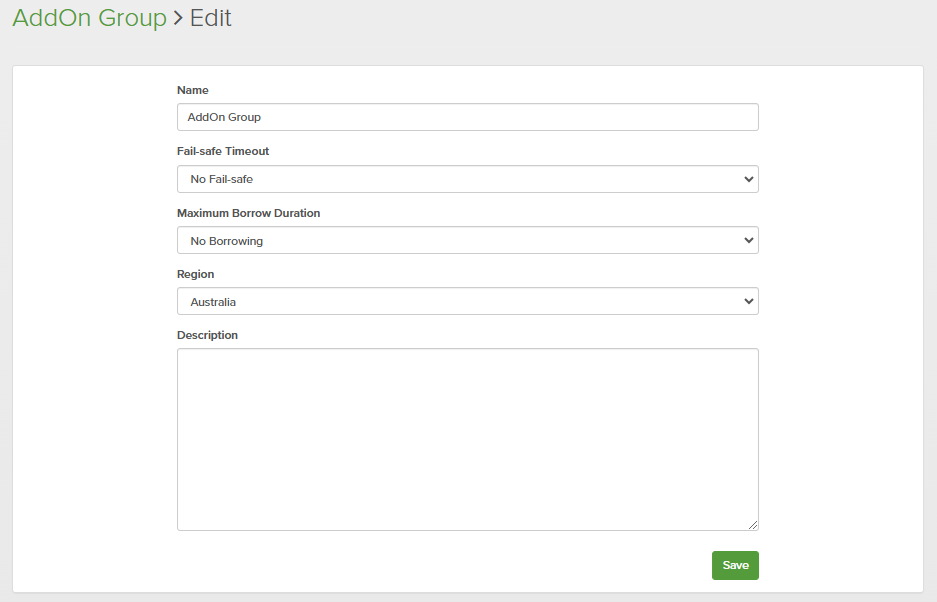
IT administrators can edit the following group parameters: Name, Fail-safe Timeout, Maximum Borrow Duration, Unit Membership, Region, and Description.
Manage Users
Administrators can add and remove users in the group.
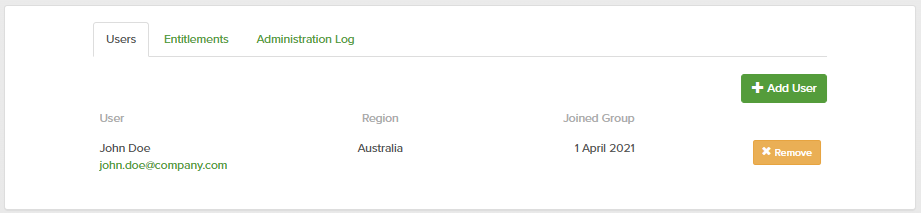
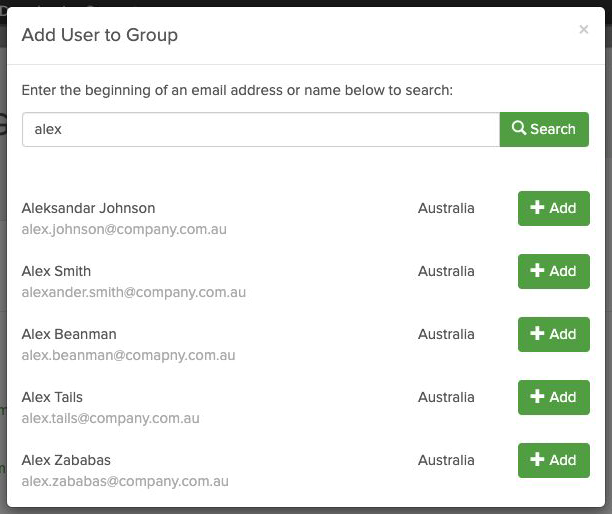
To add a user to a group, click Add User. In the pop-up search panel, type the first part of an email address or name and click Search to find matching users. Click Add next to a user to add them to the group.
-
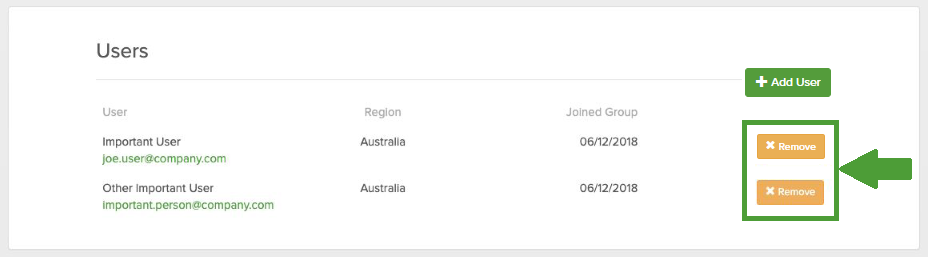
To remove users from a group, click Remove next to their names.
Manage Entitlements
On this tab you can add a new entitlement to the group and move a seat of an entitlement to another group.
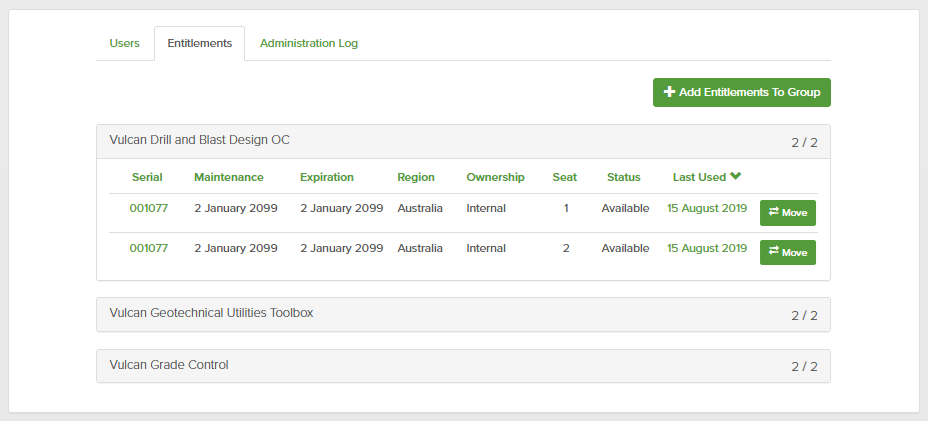
Moving an entitlement to another group
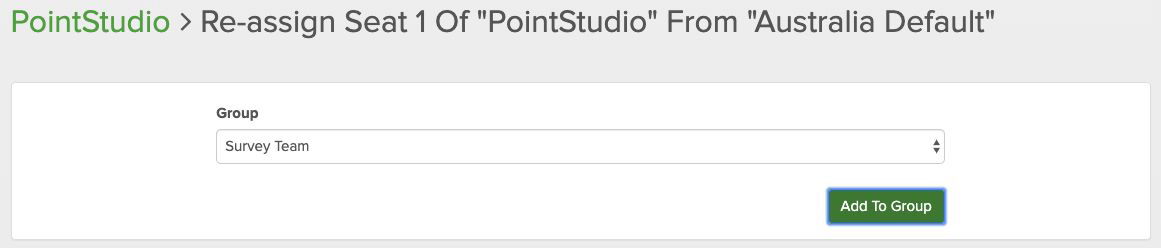
To move a seat of an entitlement to another group, do the following:
-
Select the entitlement to open its seats list.
-
Click Move next to the entitlement you want to move.
-
Choose the destination group from the drop-down list.
-
Click Add to Group.
Adding entitlements to a group
Click Add Entitlements to open the entitlement management page.
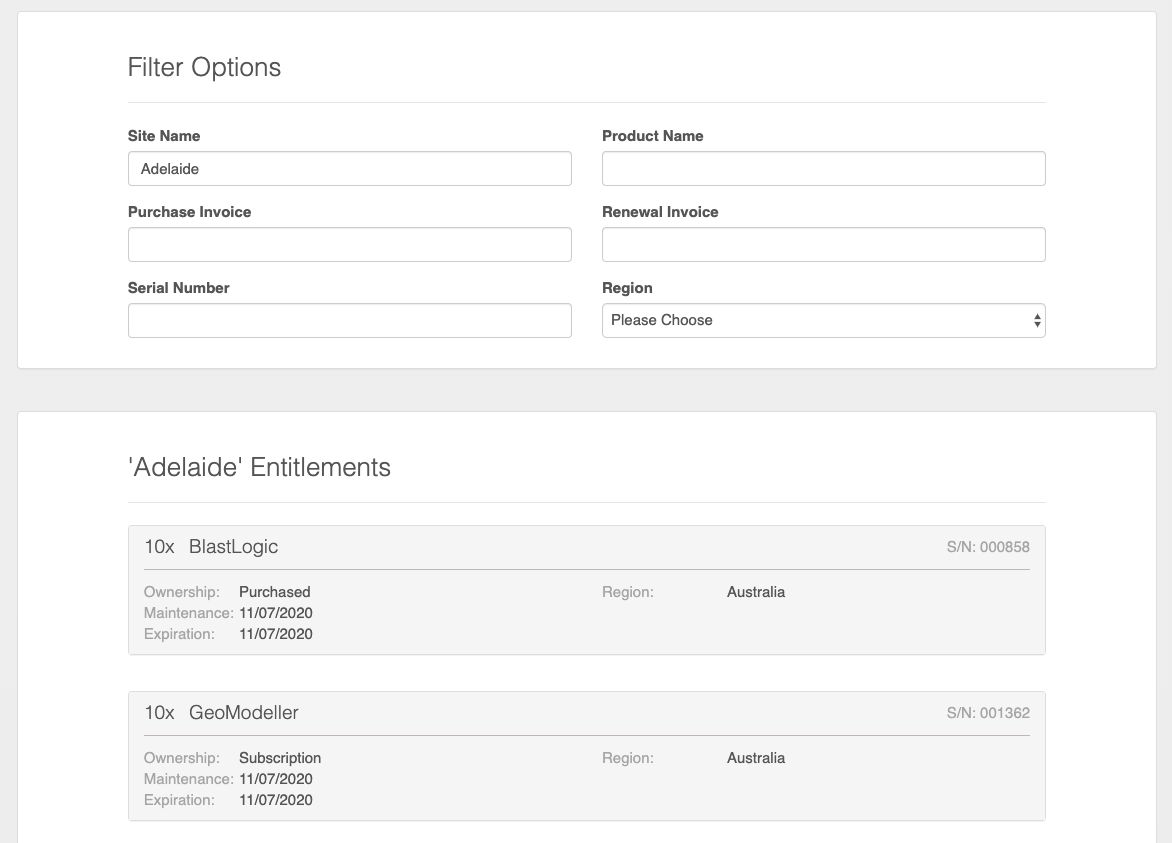
The entitlement management page has the following main panes:
-
Filter Options: Enter specific criteria in the relevant fields to search your organisation’s entitlements.
-
Entitlements: View all the entitlements for each site that match your filter criteria. Each site has a separate pane.
-
Click on an entitlement to show all of its individual seats and their associated groups.
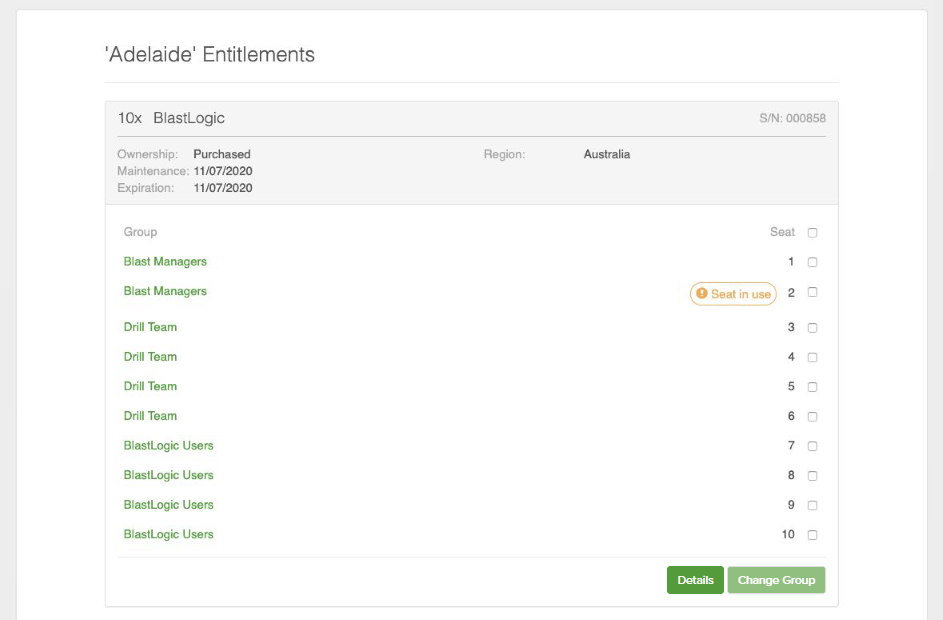
Note: Expired seats are highlighted in red.
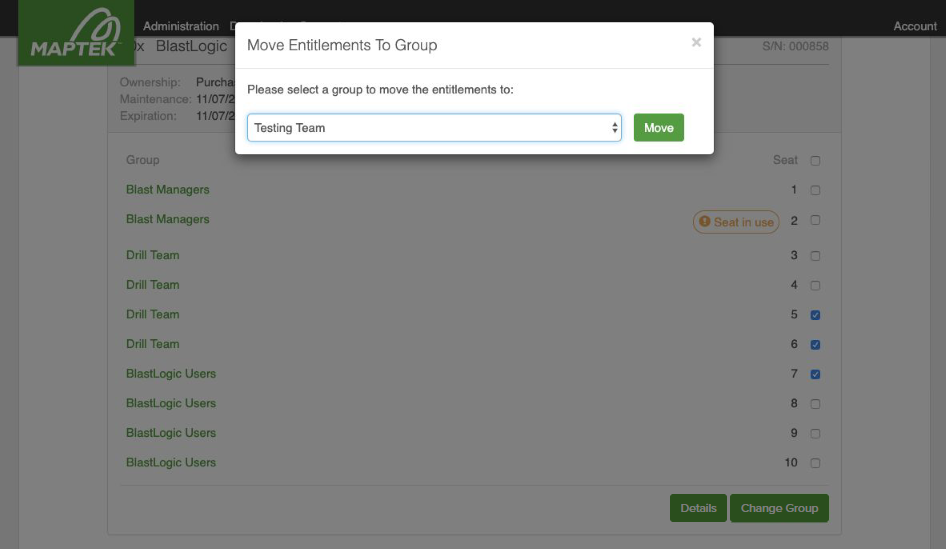
To re-assign individual seats, do the following:
-
Select the checkbox for each seat to be moved.
-
Click Change Group.
-
Select a group in the dialog that appears.
-
Click Move.
View Admin Log
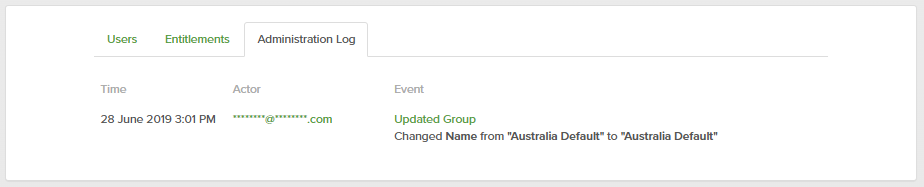
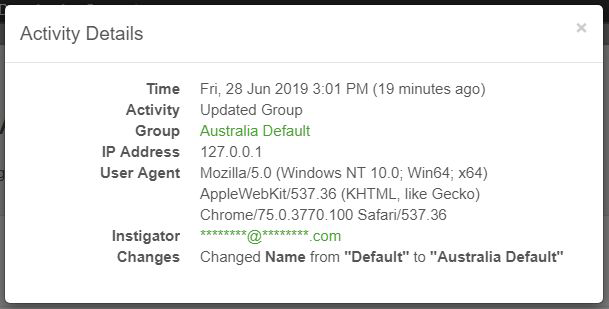
Click View Admin Log to see the administrative changes made to the selected group. This will show the times of any changes, which administrators performed the actions, and the changes or events that occurred. Click on an event to display more information.
Delete
To delete an unused group, simply click Delete.
Note: A group can only be deleted when it has no users and no entitlements. This action is permanent and cannot be reversed.
