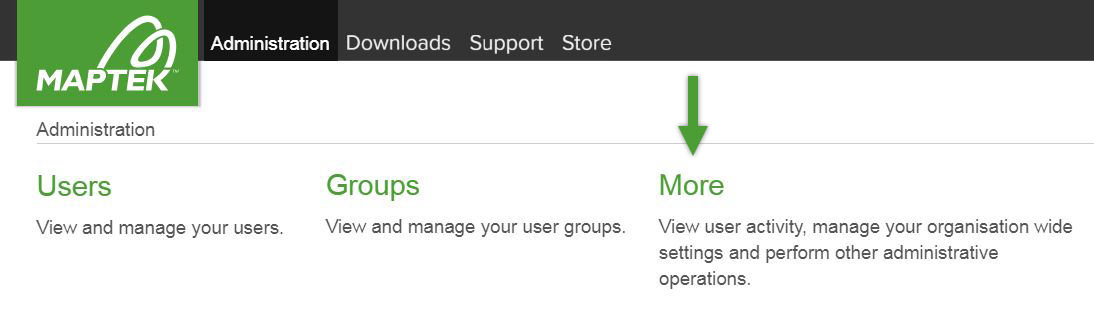
More
The More menu provides access to advanced administration functions.
Manage Users and Entitlements
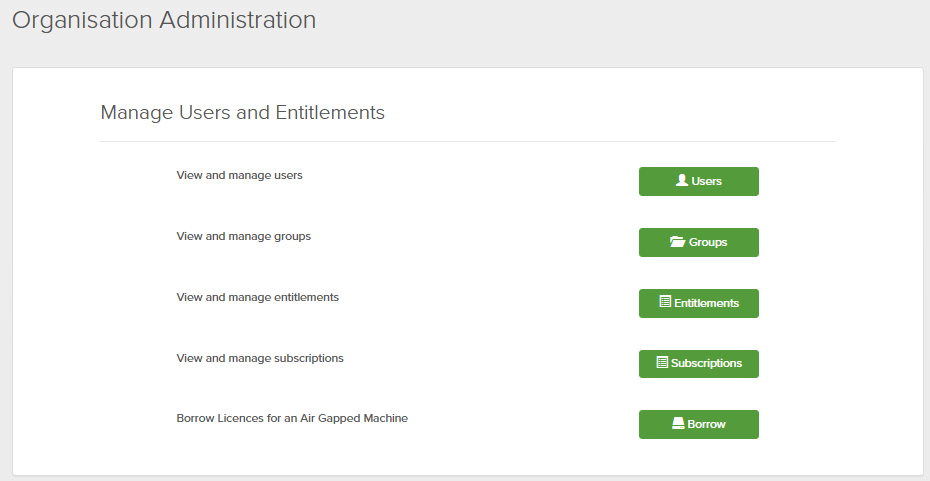
The Manage Users and Entitlements section contains the following functions:
-
View and manage users: Manage individual user accounts. Duplicates the functions in the User menu. See Users.
-
View and manage groups: Manage groups within the organisation. Duplicates the functions in the Groups menu. See Groups.
-
View and manage entitlements: Manage all entitlements in the organisation.
-
View and manage subscriptions: Manage all subscriptions in the organisation.
-
Borrow Licences for an Air Gapped Machine: Manage licensing for machines without an internet connection.
View and manage entitlements
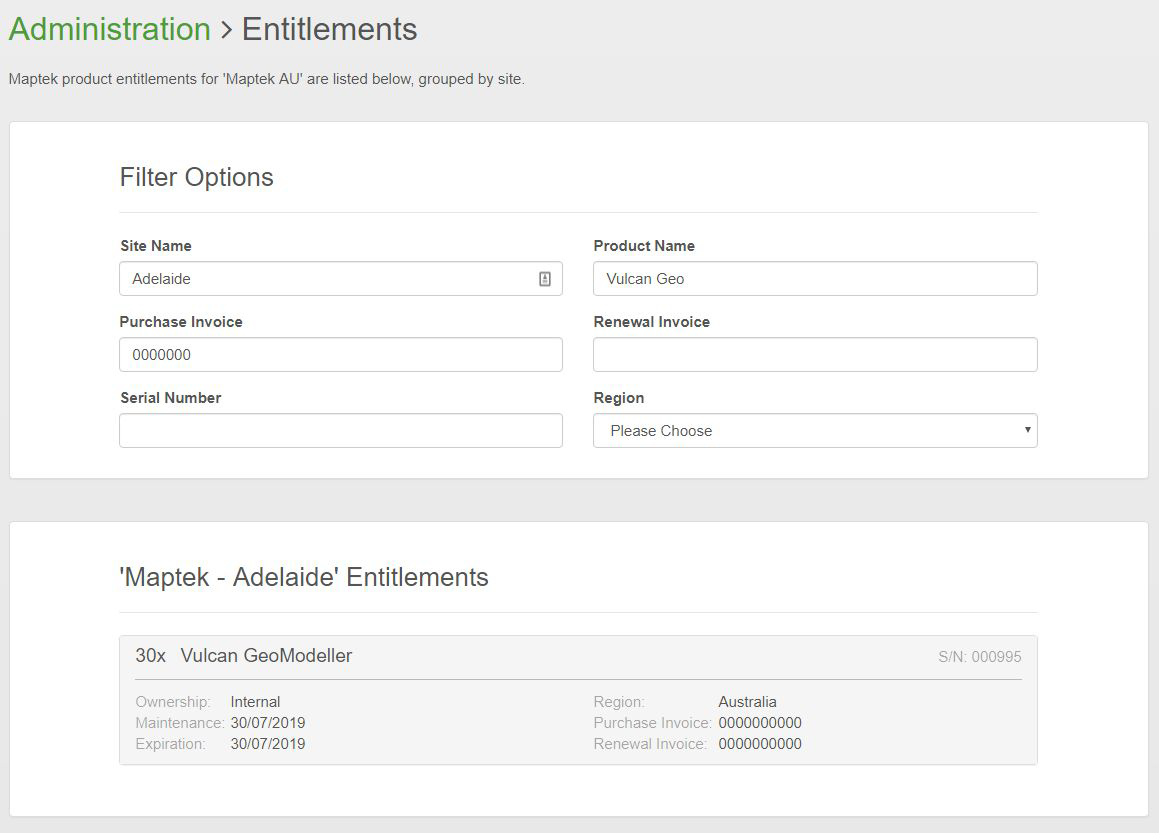
Administrators can view and move all entitlements in the organisation. Filters allow for searching on different properties of an entitlement.
See also: Manage Entitlements
-
Click on an entitlement to expand it and display the group that each seat is assigned to.
View and manage subscriptions
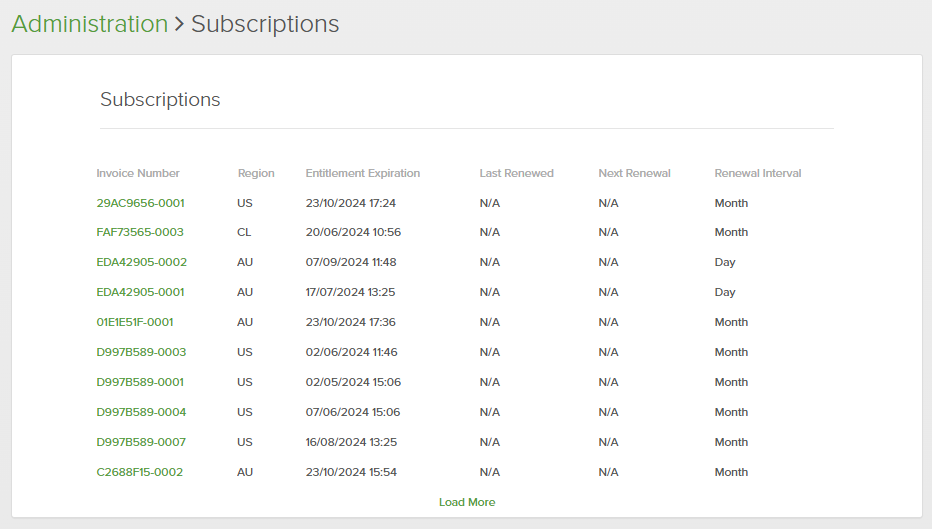
Administrators can view the organisation licences to check on expiry dates and plan for renewal.
-
Click on an invoice number to see more details about the corresponding licence.
Borrow Licences for an Air Gapped Machine
This feature allows you to borrow licences to use applications and add-ons on a computer without an internet connection. For complete instructions on offline licence borrowing, see Borrowing licences in Workbench Help.
User Activities
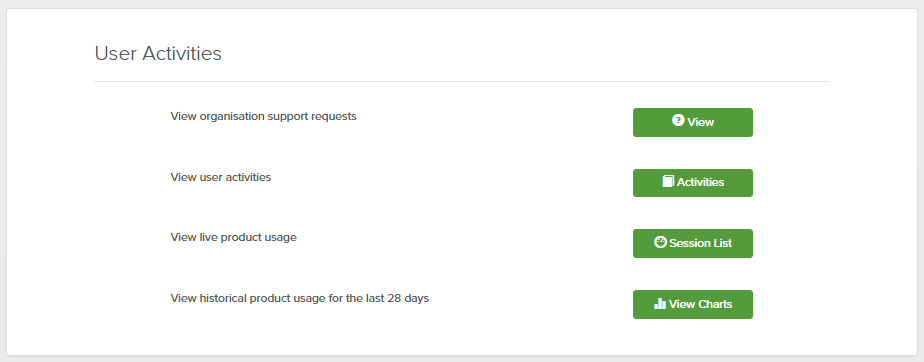
This section includes functions that relate to the following actions of users: organisation support requests, a master log of all user activities, and software usage.
View organisation support requests
Administrators can review the list of all the support requests that users have submitted, including a summary of their statuses and subjects. By default, only the open requests are shown; click on All to display closed cases as well.
-
Click View to open the Support Requests page.
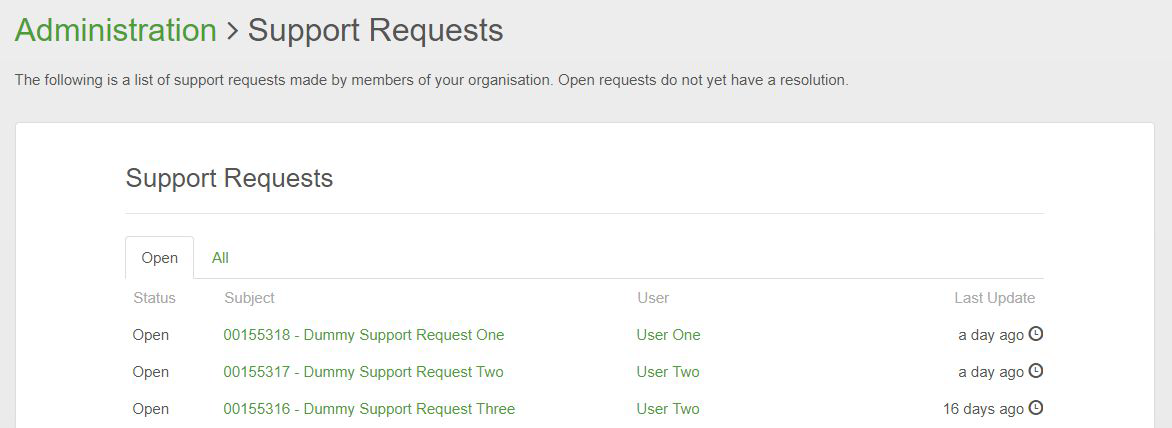
Note: As an administrator, you can view and participate in any of the support requests.
-
Click on a support request to view its details.
View user activities
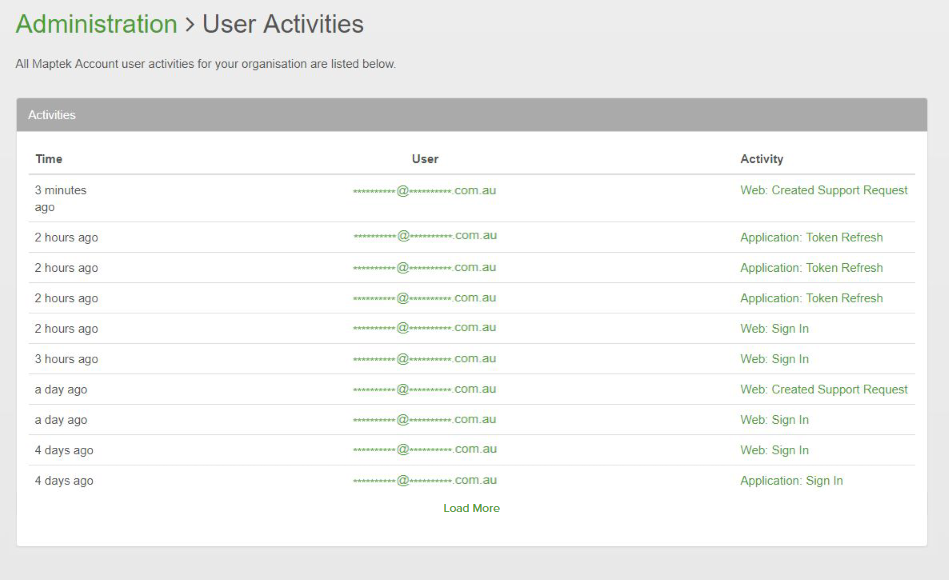
Administrators can view a chronological list of all the activities users have performed in the organisation, including events such as signing in from the website or Workbench, creating support requests and changing personal details.
-
Click Activities to open the User Activities page.
-
Click on the user to open their profile page.
-
Click on an activity to show more information.
-
Click Load More to show the full list.
View live product usage
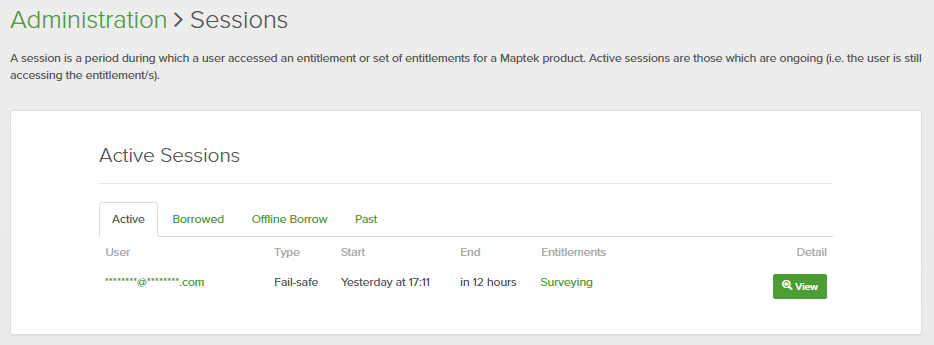
View live product usage shows software usage sessions, listing users accessing entitlements, sorted into the following tabs:
-
Active: Displays sessions that are currently in use.
-
Borrowed: Displays all current borrowed licences.
-
Offline Borrow: Displays all current offline borrowed licences.
-
Past: Lists all closed sessions chronologically.
-
Click Sessions List to open the Active Sessions page.
-
Click a user to view and manage their details. See Users > Manage for more information.
-
Click an entitlement to manage that entitlement. See View and manage entitlements for details.
User’s software session detail
-
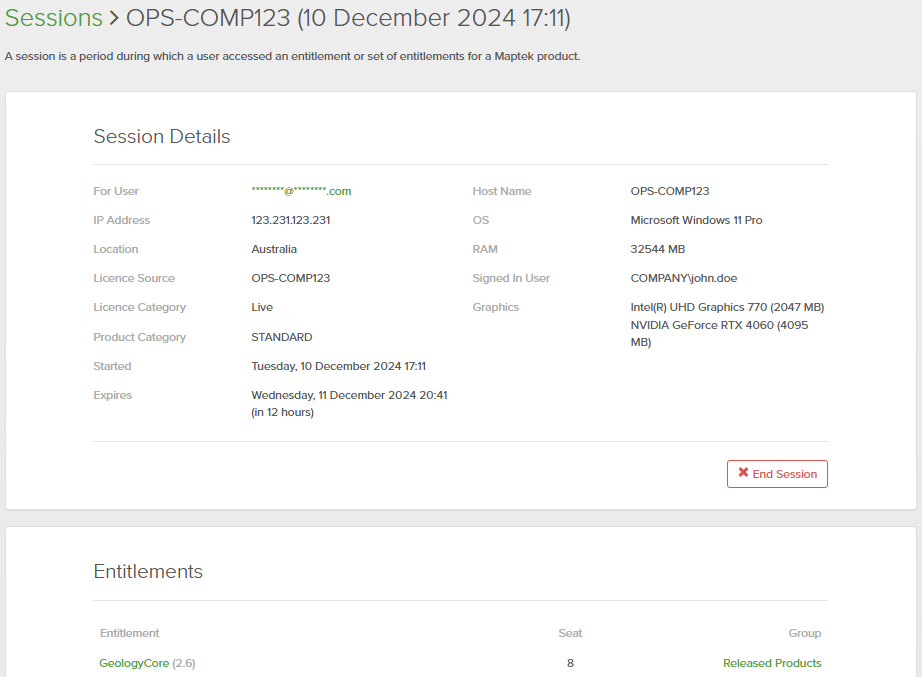
Click View next to a session to show the details of that session.
-
Click End Session to instruct the user’s software to return the in-use entitlements.
Note: This may take a few minutes as the Workbench checks against the Maptek Account service to see if there has been a request to end the session.
Administrators can download the licence file for any Borrowed, Offline Borrow, or Fail-safe sessions. This is useful if a licence has been borrowed to a dongle for use on a computer that cannot be connected to the internet. Where licence download is possible, the End Session button is replaced with Download Licence File. Click Download Licence to download.
View historical product usage for the last 28 days
Administrators can view usage patterns for different products or groups for up to the previous four weeks.
-
Click View Charts to open the Usage Analytics page.
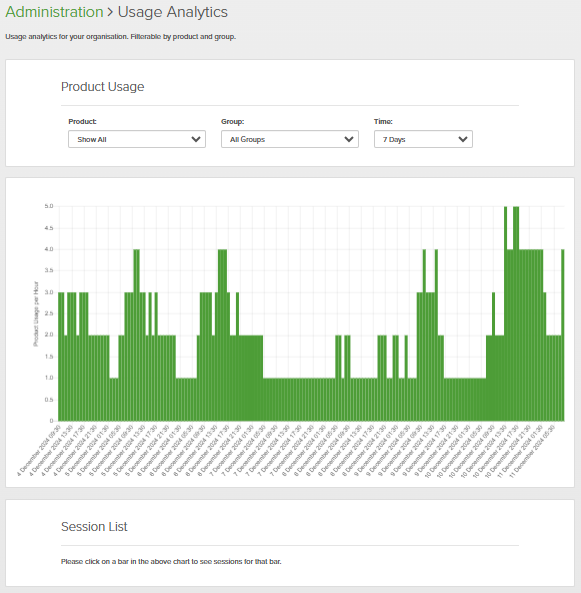
Initially, a chart of total hourly product usage for the last seven days is displayed. You can configure the chart with the following drop-downs in the Product Usage pane:
-
Product: Select the specific software product you are interested in.
-
Group: Select the user group of interest.
-
Time: Select a different time period for analysis. Choose from 1 day, 7, 14, or 28 days.
Sessions Summary
When you click on a bar in the chart, a Sessions Summary pane will appear below, with a pie chart displaying active users according to the time they were active.
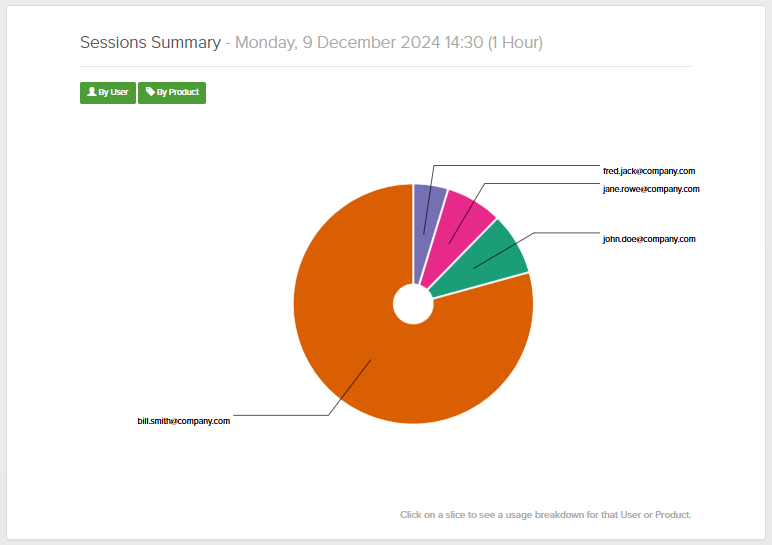
You can find more information from the pie charts by doing the following:
-
Hover over each segment to see the aggregate time the user was live.
-
Click on a segment to see which products the user was using.
-
Click By Product to display the pie chart based on time each product was in use. Hover over or click on a segment for similar statistics, as with By User.
Session List
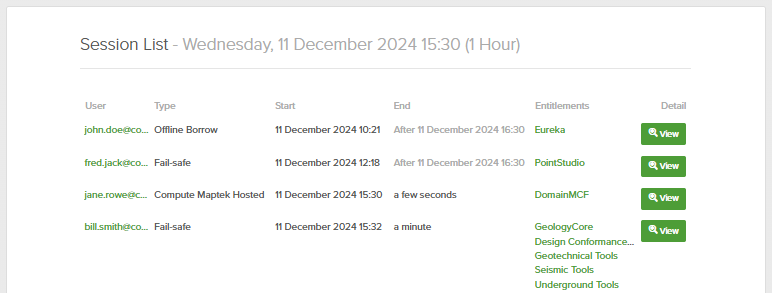
When you click on a bar in the chart, the Session List pane will populate with all active sessions for that hour, sorted by start time. As with other user lists, you can click on links and buttons for other information and actions.
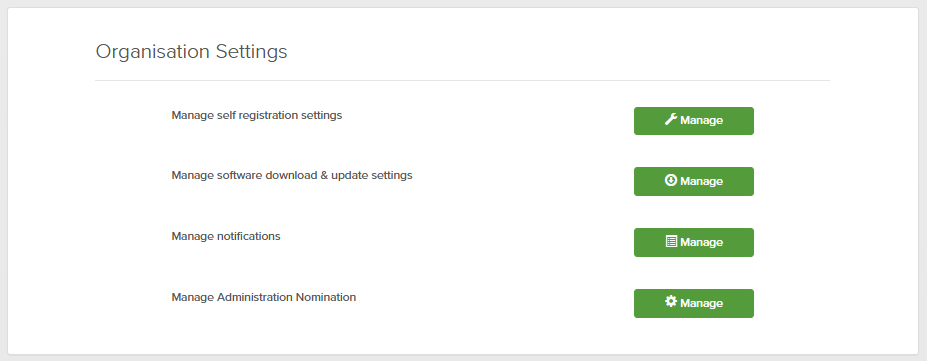
Organisation Settings
Global settings for the organisation include self registration, software download and update settings, defining how notifications are managed, single sign-on, and unit administration (if activated).
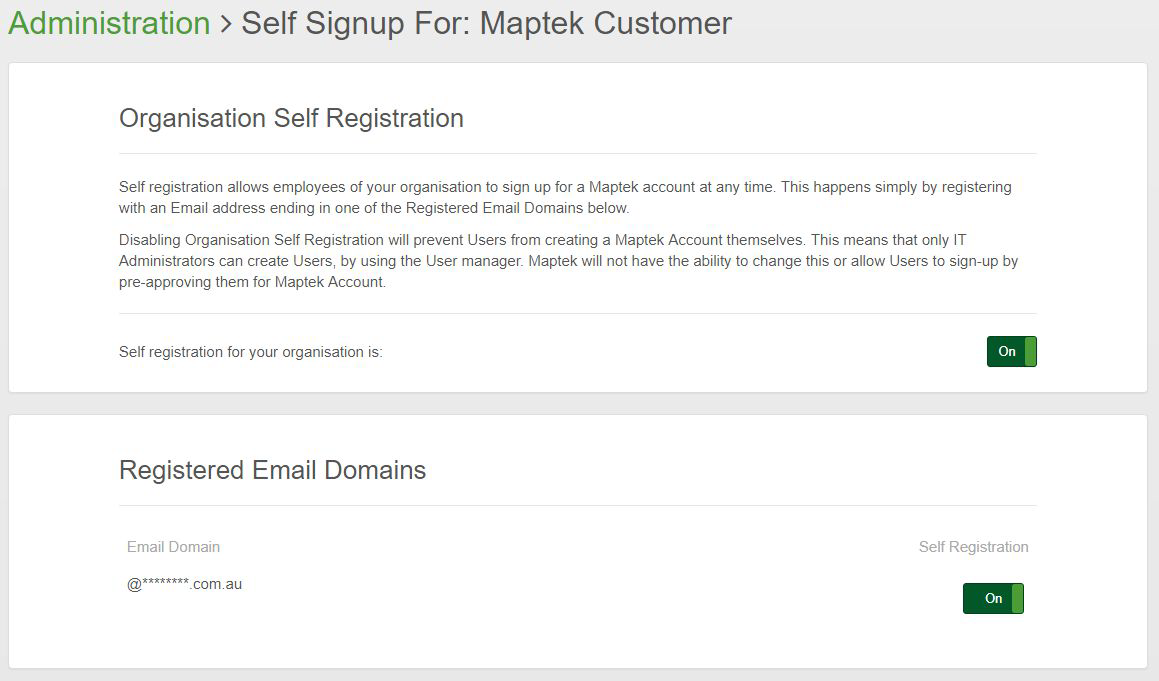
Manage self registration settings
Maptek is able to register email domains on your behalf for self registration. This means that:
-
Any user with a suitable corporate email address can create a Maptek Account within your organisation.
-
No other companies can create a new user using your registered domain without Maptek pre-approving the specific email address to be used.
The self-registration settings control who can sign up for Maptek Account.
You can completely disable self-registration such that the only way for a new user to join your organisation is for an IT administrator to create a new user.
Alternatively, you can disable self-registration on a per-email domain basis.
You can contact Maptek to add or remove registered email domains.
Manage software download & update settings
Maptek Account includes a download and update service for its clients, especially for Workbench. You can manage the settings in the Maptek Account administrative interface at account.maptek.com.
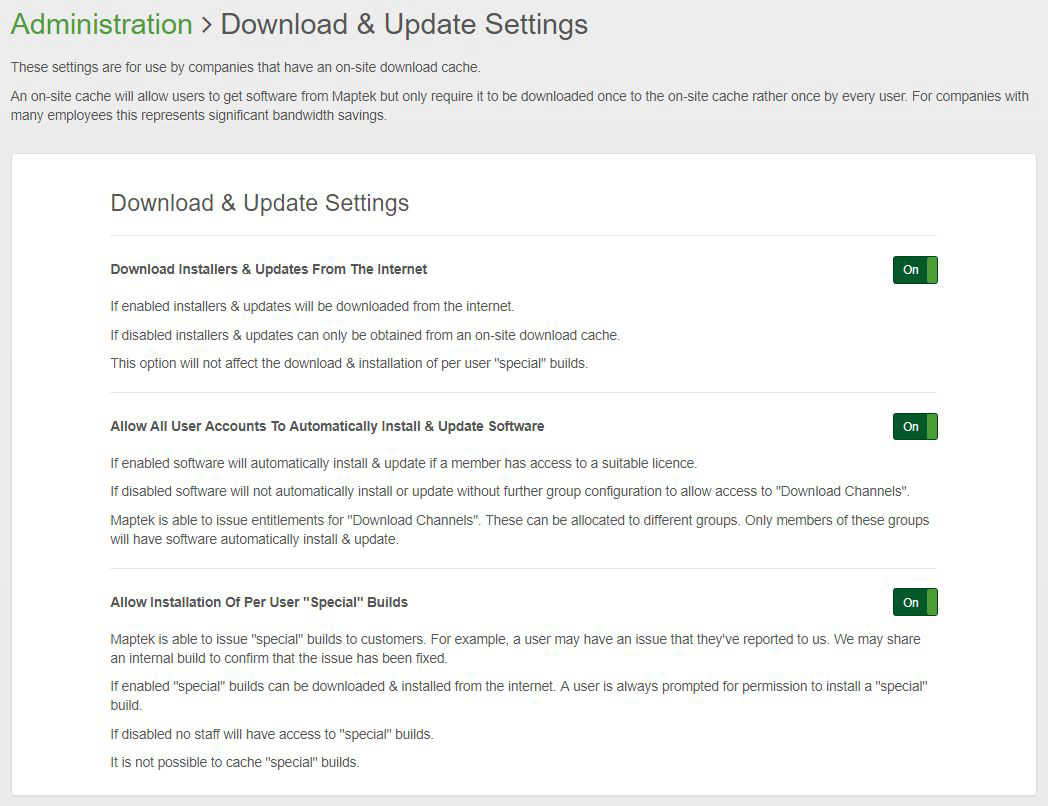
Download Installers & Updates From The Internet
-
If enabled, installers and updates will be downloaded from the internet.
-
If disabled, installers and updates can only be obtained from an on-site download cache.
Note: This option will not affect the download and installation of per user ‘special’ builds.
Allow All User Accounts To Automatically Install & Update Software
-
If enabled, software will automatically install and update if a user is a member of a group with access to a suitable licence.
-
If disabled, software will not automatically install or update without further group configuration to allow access to download channels.
Note: Maptek is able to issue entitlements for download channels. These can be allocated to different groups. Only users who are members of these groups will have software automatically install and update.
Allow Installation Of Per User "Special" Builds
Maptek is able to issue special builds to customers. For example, if a user has reported an issue, Maptek may share an internal build to confirm that the issue has been fixed.
-
If enabled, special builds can be downloaded and installed from the internet. A user is always prompted for permission to install a special build.
-
If disabled, no users will have access to special builds.
Manage notifications
Maptek Account can send support notifications to any email addresses that you specify. Add or modify email addresses here.
You must set up a default address to receive all support notifications before you can add other support addresses. Proceed as follows:
-
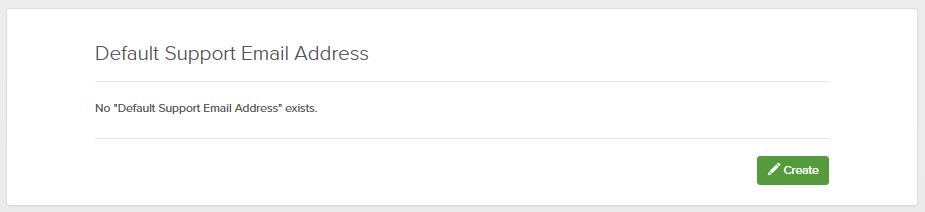
In the Default Support Email Address pane, click Create.
-
Enter an email address and click Create.

-
Confirm the address from the email sent. If you do not receive a confirmation email, click Resend Email.
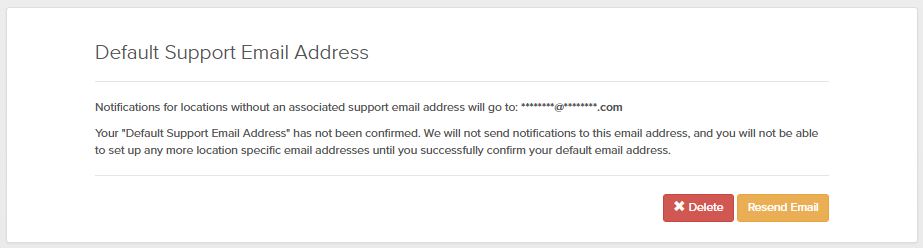
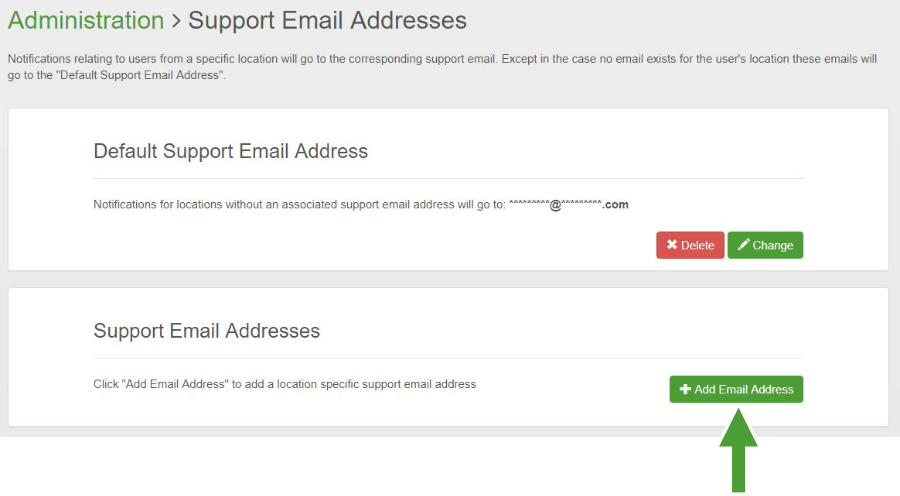
When the you confirm the default email, you will be able to delete or change the default address. You will also be able to add other addresses, as follows:
Note: Any cases not managed by these customised emails, are sent to the Default Support Email Address.
-
In the Support Email Addresses pane, click Add Email Address.
-
Enter an email address.
-
Select a location from the drop-down list.
-
Select the types of notifications to receive from the listed options (described below).
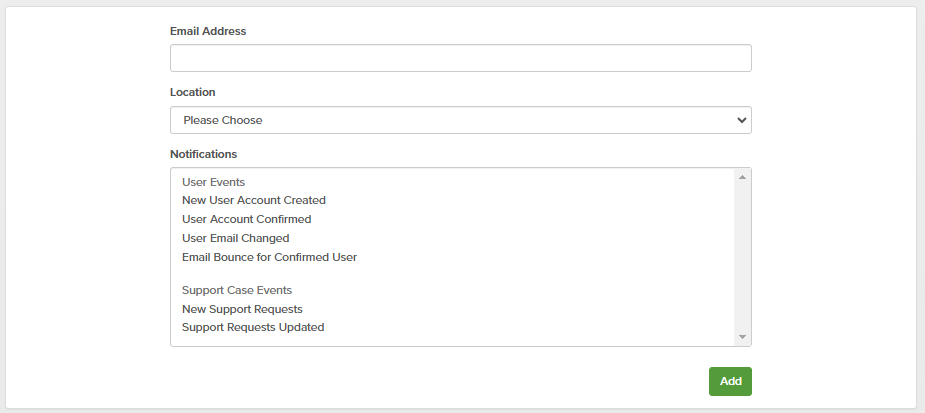
Tip: Select multiple options by holding Ctrl while clicking.
-
New User Account Created
Applies when a user registers for Maptek Account, either through self sign-up or because they were pre-approved by Maptek. No notification is sent when a user is created by an IT administrator.
-
User Account Confirmed
Applies any time a new user confirms their account, including users created by administrators.
-
User Email Changed
Applies if a user has changed their own email for their account.
-
Email Bounce for Confirmed User
Applies when an email from Maptek Account to a confirmed user has failed to arrive. This bounce can happen for several reasons, including:
-
The recipient's mailbox is full and cannot accept any more messages.
-
The content of the message was rejected due to rules set up on the recipient’s mail server.
-
The email address has been deactivated and is no longer valid.
-
-
New Support Requests
Applies when a new support request is received via Maptek Account.
-
Support Requests Updated
Applies when an existing support request has been updated with a new status (for example, from Open to Closed), or a new message was posted.
-
-
Click Add.
The email account holder will receive an email with a confirmation link, and must click that link to complete the process.
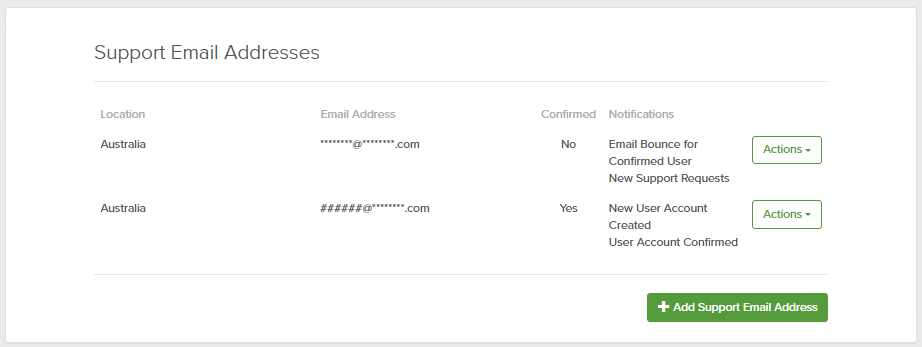
If the account holder did not receive or lost the confirmation email, click Resend Email from the corresponding Actions drop-down.
From the Actions drop-down, you can also do the following:
-
Edit options for a confirmed address.
-
Delete an address.
Manage Administration Nomination
With this option, you can allow Maptek support staff to make changes to your Maptek Account configuration.
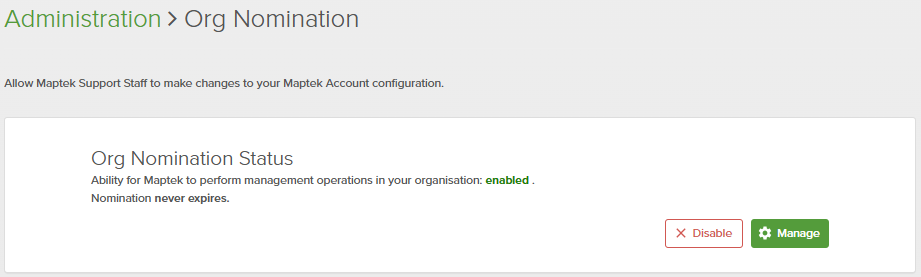
To do so, click Manage, select a duration and click Enable. Maptek support staff will be able to make changes for as long as this permission is enabled.
Tip: Click Disable to terminate permission immediately.
Manage SSO Settings
Root Admins may configure SSO connections and API token management settings. Click Manage to open the Organisation SSO Settings page.
Note: Manage SSO Settings must be enabled by Maptek and is then only available to Root Admins.
SSO Connections
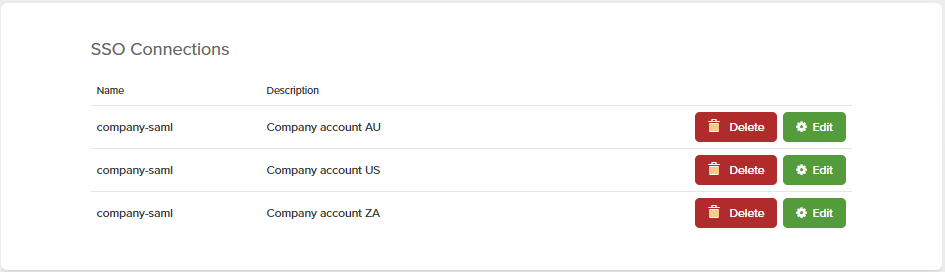
All available SSO connections are listed here.
-
Click Delete to remove a connection.
-
Click Edit to modify a connection’s settings. Follow the instructions on the subsequent page.
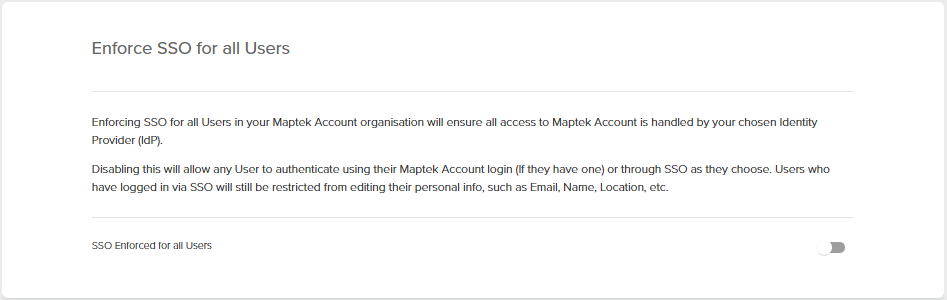
Enforce SSO for all Users
Toggle on or off the requirement to log in with SSO.
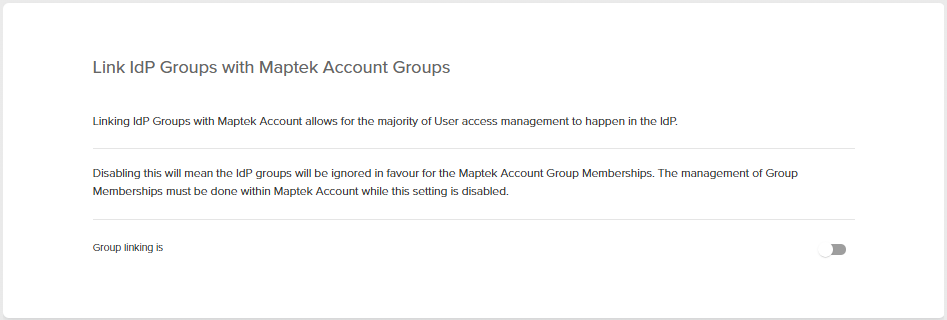
Link IdP Groups with Maptek Account Groups
Toggle on to allow access management to happen in the identity provider.
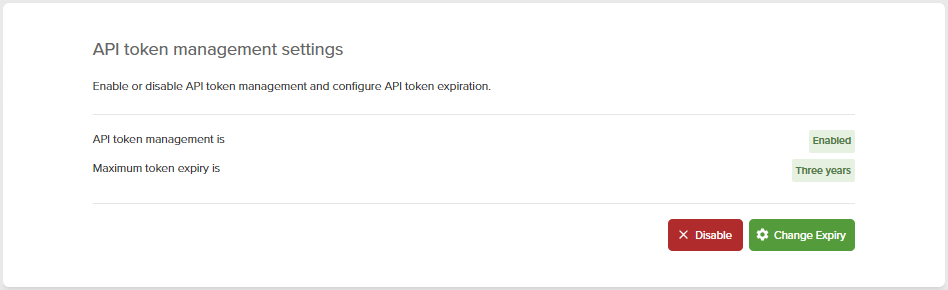
API token management settings
Manage API tokens.
-
Click Change Expiry to set a different maximum expiry. Select a period from the drop-down and click Change Expiry.
-
Click Disable to disable the API token. You can re-enable a token by clicking Enable, selecting a period, then clicking Change Expiry.
Manage Unit Administration
Unit administration is not available by default. If your organisation would like to use unit administration, please raise a support case with Maptek.
Once activated, users with appropriate administrator permissions can create and manage units via Maptek Account.
Administrators may deactivate and re-activate unit administration as well as create, configure and delete units, according to their permission levels, as follows:
-
Root Admins may perform all functions.
-
Regional Admins may only assign and manage users, groups, and entitlements for groups in their regions.
-
Unit Admins have a limited ability to manage units that they are assigned to.
See also: Regions, Groups, and Units > Units
Click Manage Unit Administration to open the Unit Administration page.
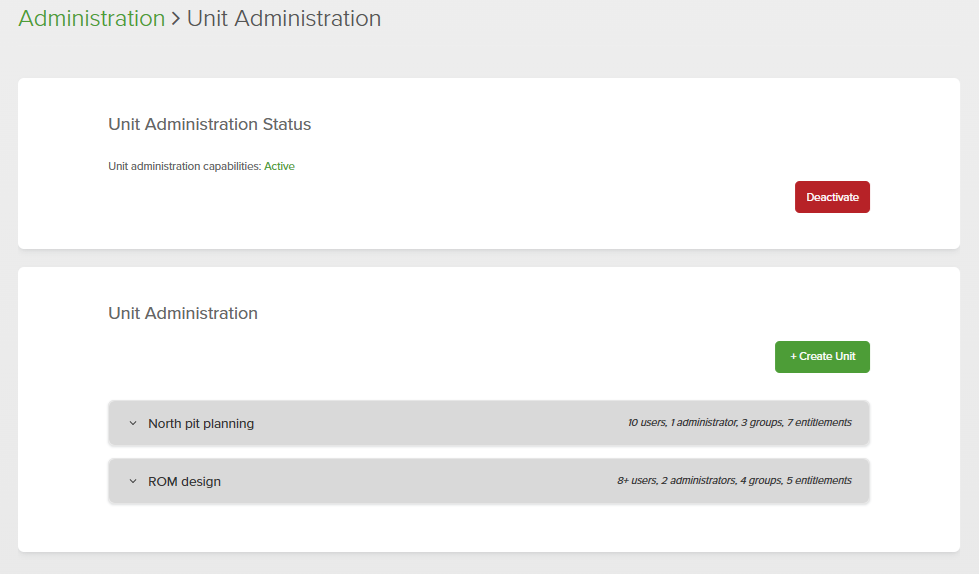
Unit Administration Status
-
Click Deactivate to disable all unit administration capabilities. A confirmation panel will open; click Continue or Cancel as appropriate.
-
If administration is deactivated, click Activate to restore. No confirmation is required.

Unit Administration
-
Click Create Unit to set up a new unit. Complete the following details in the subsequent panel:
-
Unit Name: Enter a suitable name.
-
Administration: Enter the names of registered users as administrators. As you type, a list of possible candidates will appear. Select the required name from the list.
-
Click Create Unit in the panel to finish and add the new unit to the list.
-
-
Click on the new unit header to expand it. You will see the following options:
-
Delete <unit name>: Click to delete the unit. In the confirmation panel, type
delete <unit name>and click Delete to finish. -
Edit <unit name>: Click to edit the unit name and administration, as above. Click Save Changes to confirm.
-
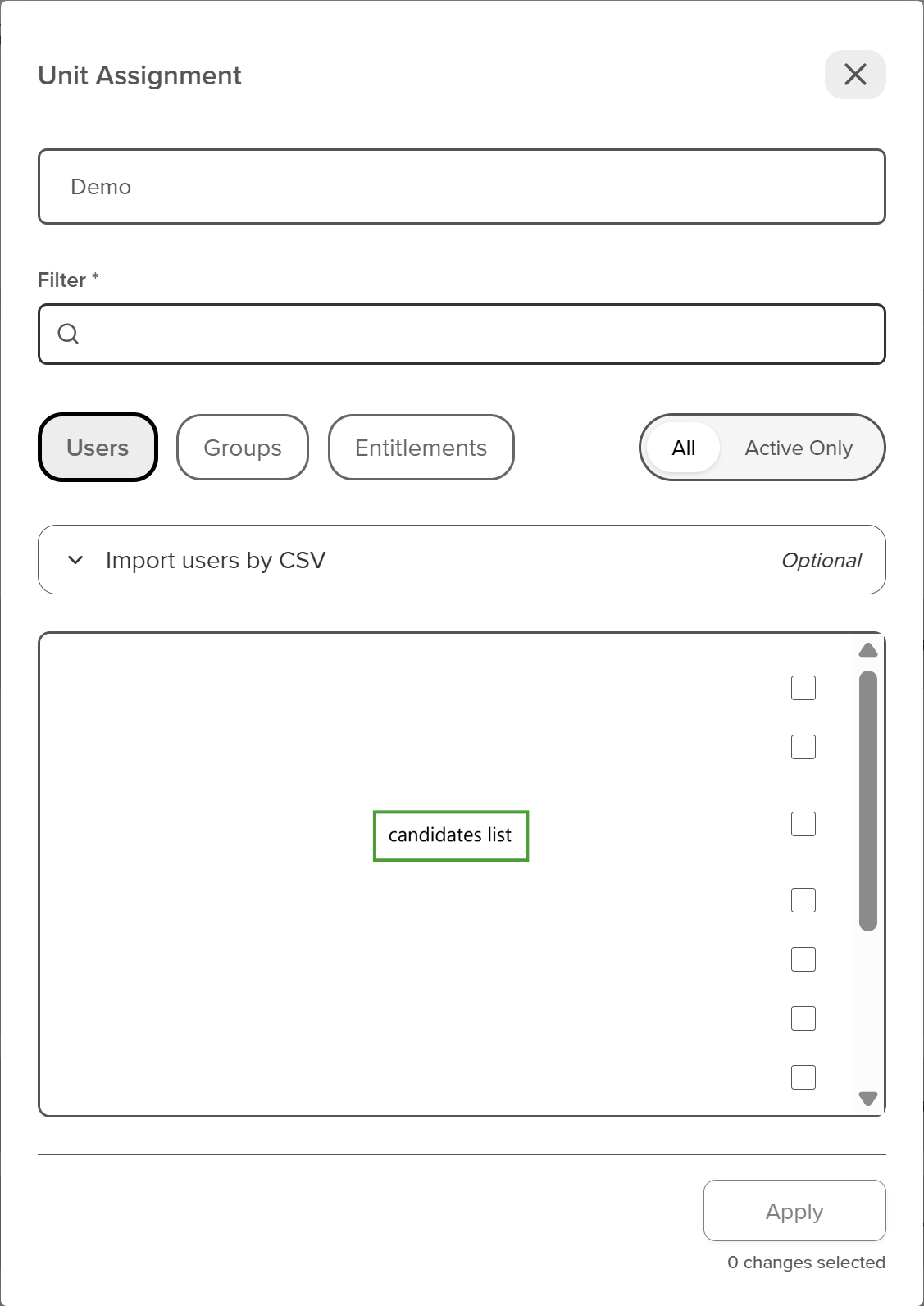
Unit Management: Click to open the Unit Assignment panel, then populate the unit with users, groups, and entitlements, as detailed below.
-
Select Users, Groups and Entitlements in turn, selecting the required members for each from the candidates list.
Tip-
Enter characters in the Filter field to narrow the list of available candidates.
-
Narrow the list further by clicking Active Only. This will hide all inactive candidates.
TipRoot Admins can import a list of users to assign to the unit in a CSV file. Click Import users by CSV, then Choose file and Import CSV to finish.
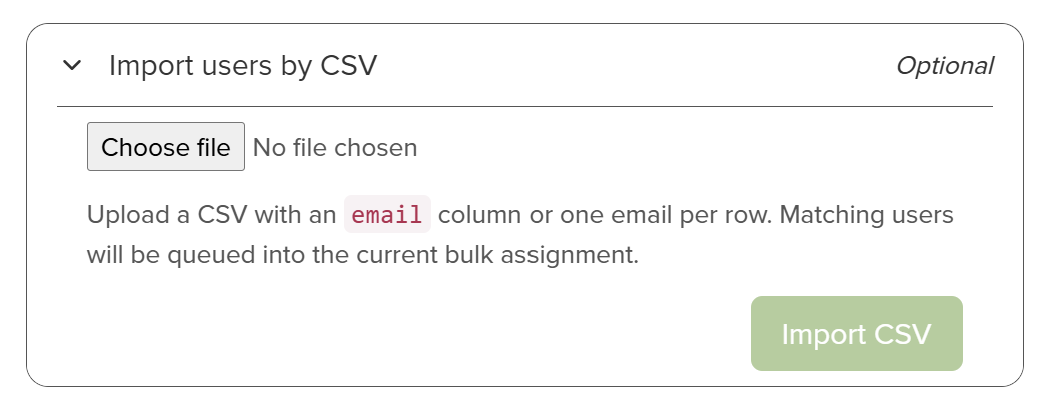
This option is only visible to Root Admins.
See Unit Administration Setup and Configuration > Unit Administration Setup and Configuration for more details.
-
-
Click Apply to finish.
-
-
Admin Activities
This section contains logs of changes administrators have made to users, groups, entitlements, or the global organisation settings.
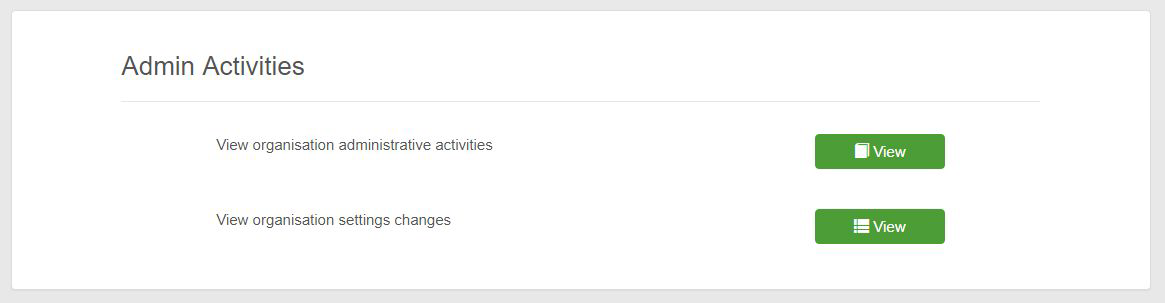
View organisation administrative activities
This option allows you to see a log of all changes to users, groups, and entitlements by administrators of the organisation.
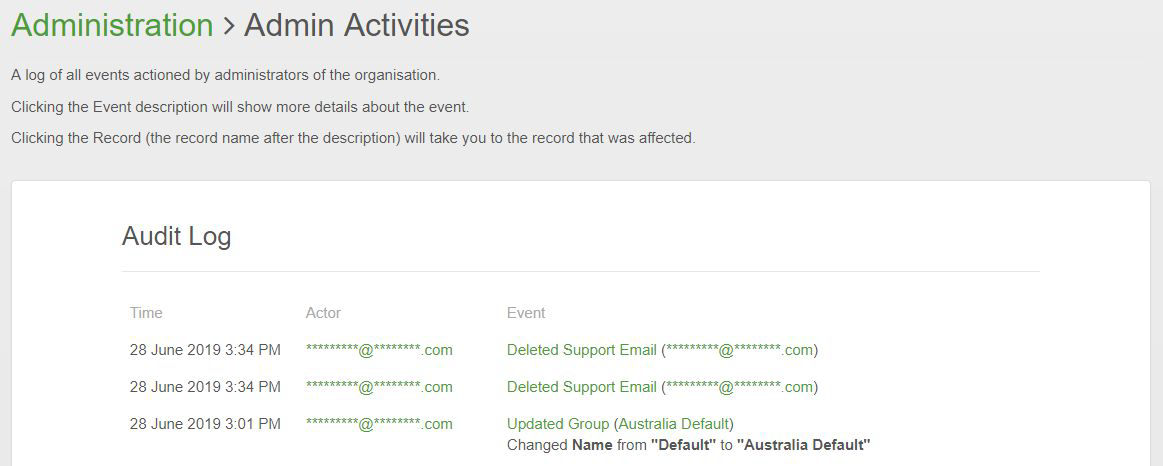
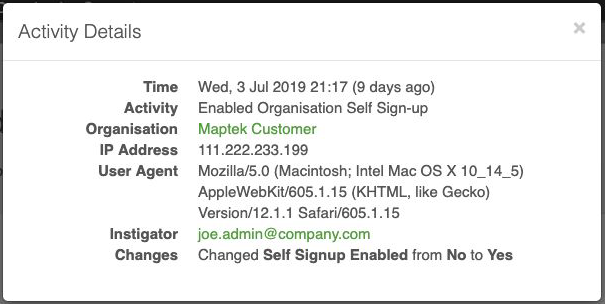
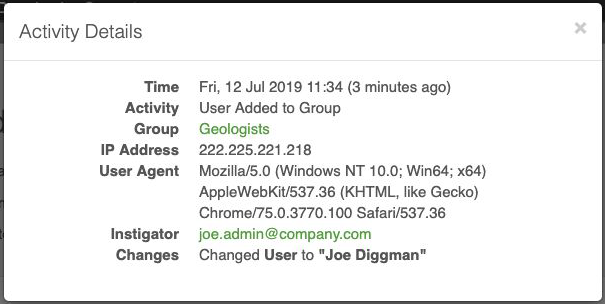
Click on an event link to show more information about the change.
View organisation settings changes
This option allows you to see a log of all events related to the organisation’s global settings, such as download and self registration settings.
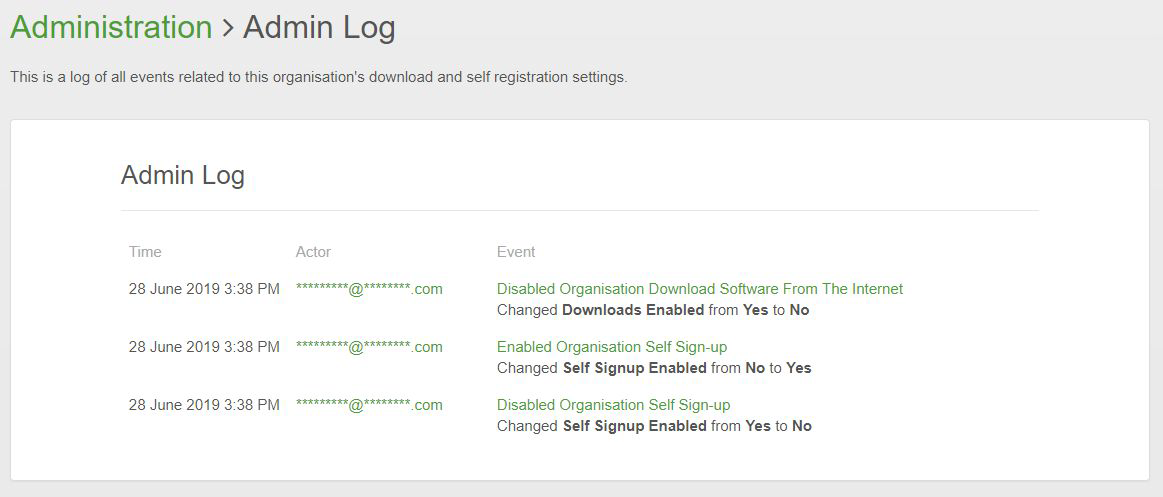
Click on an event link to show more information about the change.