Blast
The Blast context sensitive ribbon contains tools specifically related to blasts.

Properties
Blast Properties
For information on the Blast Properties tool, see the Blast properties section on the blast page.
Multiple Blast Properties
For information on the multiple blast properties tool, see the Multiple blast properties section on the blast page.
Holes
Assign Holes to Blast
For information on assigning holes to a blast, see Assign Holes to Blast.
Update Blast
For information on updating a blast, see Updating a Blast.
Publish
Publish Blast
For information on publishing a blast, see Publishing a Blast.
Snapshot
For information on snapshots, see Snapshot.
Exports
Export Blast to Vulcan
To export a blast as a Vulcan design database file (*.dgd.isis), follow these steps:
-
On the Blast context sensitive ribbon, in the Exports group, select Export Blast to Vulcan. The Export Blast to Vulcan panel will appear.
-
Specify an export location in the Export to field by entering a folder location or by clicking
 and selecting the desired location from the file explorer.
 -
Optionally, select an export unit from the Export as drop-down.
-
Select the blast data source you wish to export from the Source column drop-down. The drop-down contains four types of sources:
-
Current
Select the Current option to create a tie-up using reconciled data. If there is no reconciled data, BlastLogic will load the plan data instead (but not any loaded data). This option is in bold to signify that it is a special data type and not a snapshot. -
Reference design snapshot
The name of the reference design snapshot will appear as an option in the drop-down. For example, in the image below, the snapshot HP, is in bold to represent that it is the reference design snapshot. Select this option to create a tie-up using the reference design snapshot data.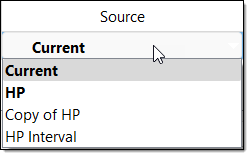
-
Other snapshots
Any other snapshots related to the blast will also appear in the drop-down. Select the name of the desired snapshot to create a tie-up using that snapshot’s data. These snapshots will not be in bold.
-
-
Click OK.
Export Blast to Eureka
To export a blast as a Eureka drillhole database object file (*.dhobj), follow these steps:
-
On the Blast context sensitive ribbon, in the Exports group, select Export Blast to Eureka. An export panel will appear.
-
Specify an export location in the Export path field by clicking
and selecting the desired location from the file explorer. -
Click OK or Apply.
Attachments
Add Attachment
For information on the Add Attachment tool, see the Add attachment section on the attachment page.
Browse Attachments
For information on the Browse Attachments tool, see the Browse attachments section on the attachment page
Open Attachment
The Open Attachment tool allows you to view and open attachments associated with the selected blast. Select the tool drop-down to view the attachments and select the desired attachment to open it in a new view window.

