View
The View context sensitive ribbon contains tools specifically related to the view window.

Hole
Profile view
For information on the hole profile view, see Profile.
2D Hole View
Select 2D Hole View to bring up a side panel displaying a 2D view of the selected holes.
Find Hole
For information on finding holes in the view window, see Find Hole.
Snapshots
For information on Snapshots, see Snapshot.
Current State
Select Current State to display the current state of the holes in the view window.
As-Drilled by wet sides
Select As-Drilled by wet sides to colour the holes in the view window by their dip information.
Drill depth variation
Select Drill depth variation to colour the holes by the difference in their design and as-drilled depth.
Charge depth variation
Select Charge depth variation to colour the holes by the difference in their charge and as-drilled depth.
Charge decks
Select Charge decks to display the charge decks in each hole in the view window.
Plan charge decks
Select Plan charge decks to display the planned charge decks of each hole in the view window.
Primers
Select Primers to display the primer information and charge decks of each hole in the view window.
Intervals
Select Intervals to display the intervals in each hole in the view window.
Drill Measurements
Select a drill measurement from the Drill Measurements drop-down, to view the corresponding measurements of the holes in the view window.
Export
Capture Scene
The Capture Scene drop-down contains the Image Render tool. For information on this tool, see Image Render.
Effects
Coordinate Grid
Select Coordinate Grid to display a coordinate grid over the view window.
Visibility Editor
For information on the Visibility Editor, see Visibility Editor.
Surface Render Mode
For information on the surface render modes, see Surface render mode.
Side Light
The Side Light drop-down allows you to change the headlight direction to alter the display of shadows.
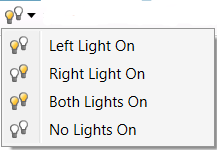
Headlight
Select Headlight to turn the headlight on in the view window.
Camera
Set Centre of Rotation
For information setting the centre of rotation, see Set Centre of Rotation.
Zoom to Selection
Select Zoom to Selection to zoom into a selected area in the view window.
Set View Point
Select Set View Point to select a point in the view window to set as the position and orientation of the view camera.
Projection Mode
For information on the projection modes, see Projection mode.
Predefined Views
For information on predefined views, see Predefined views.
Camera Back
Select Camera Back to switch back to the previous camera view.
Camera Forward
Select Camera Forward to go to the next camera view.
Saved Cameras
Select the Saved Cameras drop-down to view or select saved camera views. You can also select Save Camera from the drop-down to save the current camera view or select Manager... to edit, import or export cameras.

Set Manipulation Mode
For information on manipulation modes, see Manipulation mode.
Tie To
For information on tying multiple windows, see Tied views.
