

Maptek Account scripting
To use Workbench applications, you must be signed in to Maptek Account. Sign-in provides access to your licence entitlements. As indicated above, you can manage sign-in via Workbench.
However, the Workbench software package includes an executable file, MaptekAccountSignIn.exe, that enables you to manage your Maptek Account sign-in using a command line interface (CLI). This can be useful, for example, in setting up a script or workflow to run periodically without user interaction.
Location
You can find MaptekAccountSignIn.exe in the following Windows folder:
C:\Program Files\Common Files\Maptek\MaptekAccountServices
You can add the .exe file to the Windows Path in the Windows Advanced System Settings under Environment Variables to simplify command line parameters.
Usage
MaptekAccountSignIn.exe runs with arguments that define the actions you require. When using MaptekAccountSignIn.exe, choose the appropriate arguments from the following:
|
Or
|
Provide a list of required add-ons, separated by spaces. When using this argument, you must also specify the base packages that will be used with the add-on, using the This is equivalent to selecting add-ons for an application in the Maptek Account Licence Tool in the Workbench. Syntax:
Or
|
| --anonymous | Connect to an anonymous session. (Default: false) |
|
Or
|
Provide a list of required base package names, separated by spaces. This is equivalent to selecting base packages for an application in the Maptek Account Licence Tool in the Workbench. Syntax:
Or
|
|
Or |
Email address of the Maptek Account user to sign in as. Syntax:
Or
|
|
Or
|
Provide a list of feature codes, separated by spaces. Syntax:
Or
|
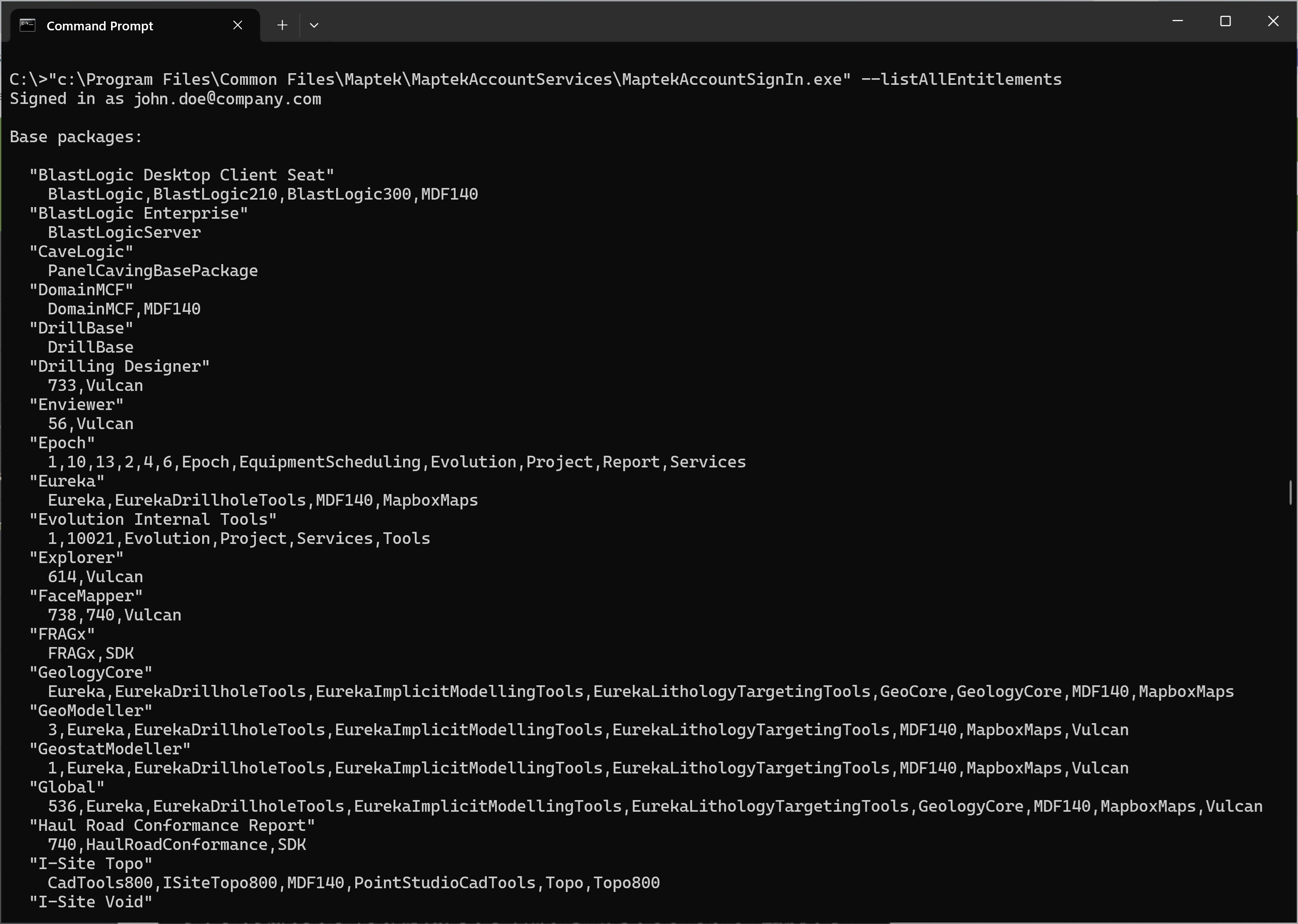
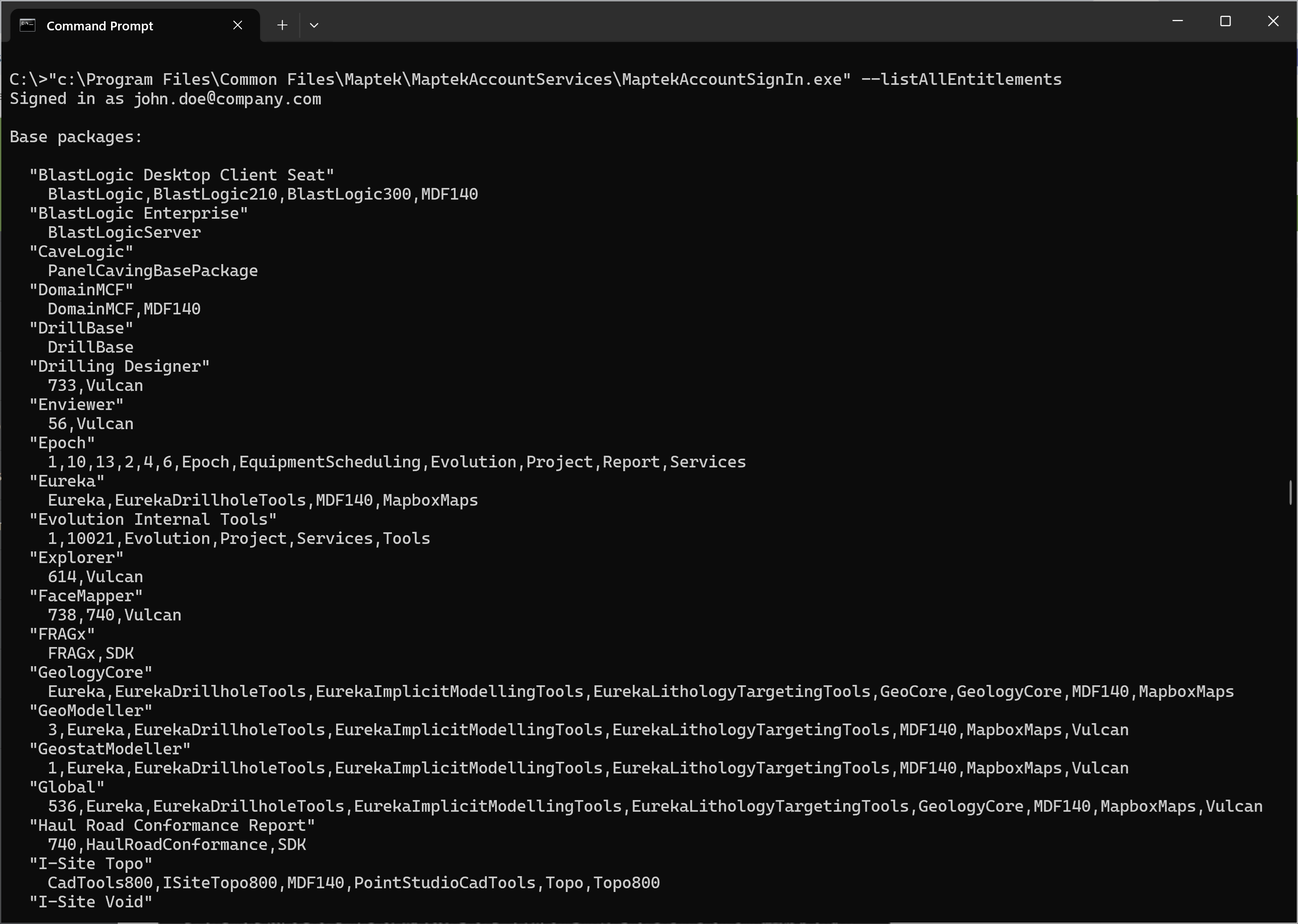
--listAllEntitlements
|
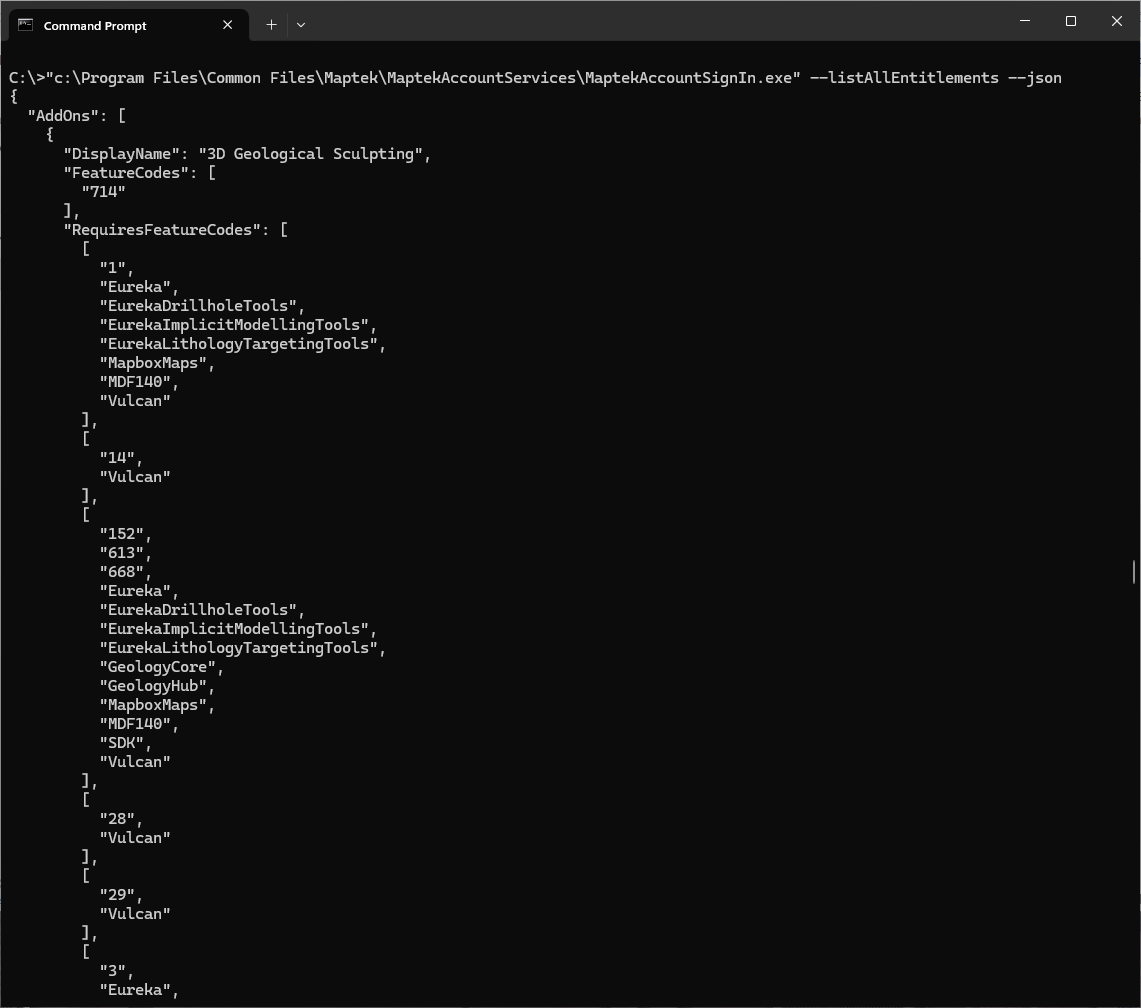
Returns a list of the entitlements available to the Maptek Account user. Each entitlement is presented as its name and its set of feature codes. Additionally, RequiredFeatureCodes for each add-on will be shown; each required set of feature codes is printed within square brackets. |
|
Or - |
Sign in to Maptek Account using an API token. Syntax:
Or
|
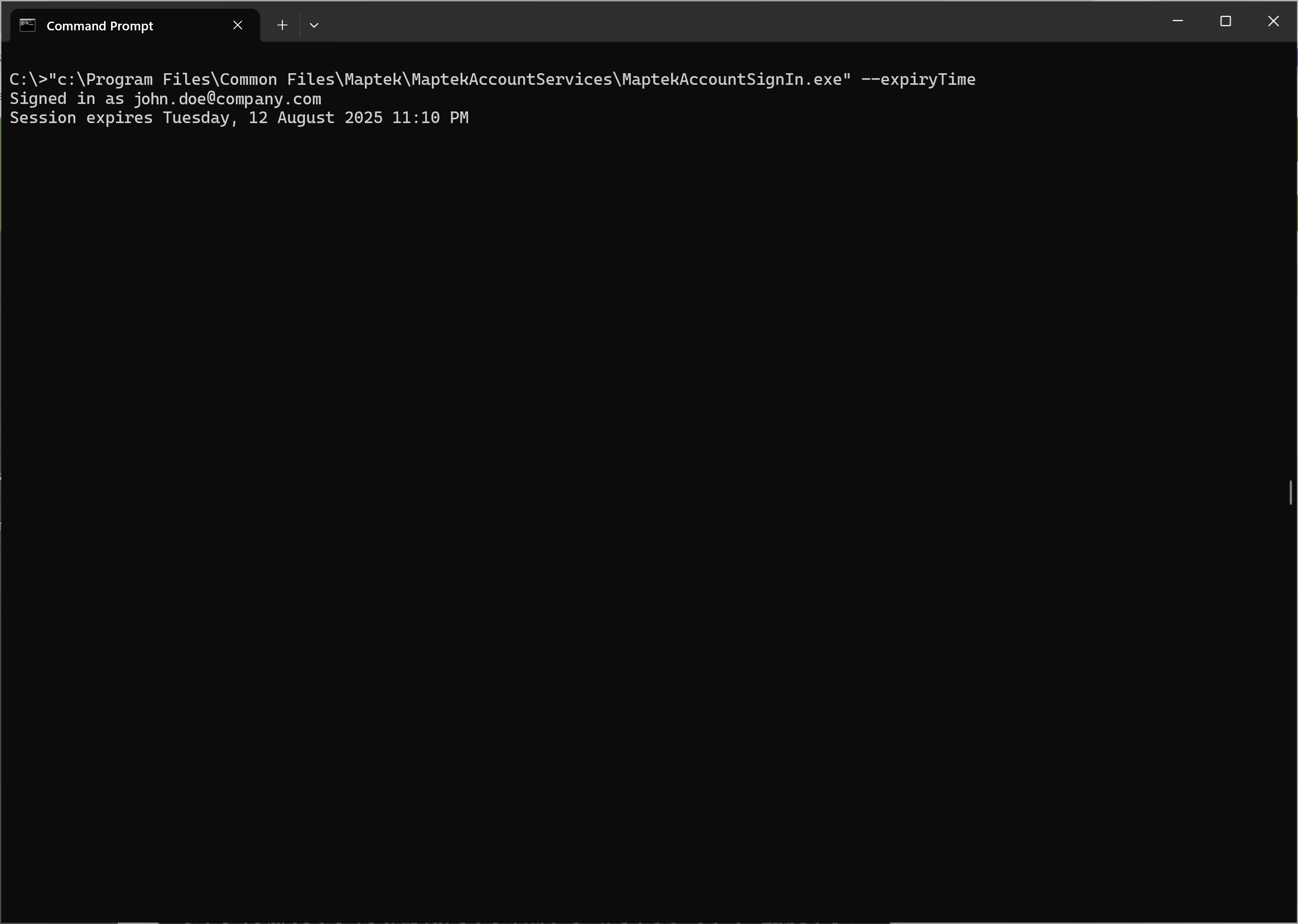
--expiryTime
|
Check when the signed-in Maptek Account session will expire. |
--no-interactive
|
Don't show the manual sign-in page. (Default: false) |
--json
|
Display output in a JSON format. (Default: false) |
--setLicenceType
|
Set the licence type used by Maptek applications to Maptek Account. Applies to this Windows user. Note: This parameter forces the sign-in to use Maptek Account instead of Flexnet (Only works for Vulcan) |
|
Or
|
Show help for all arguments. |
|
Or
|
Show version information. |
Examples
Run these from the Windows Command Prompt. Replace YOUR_API_TOKEN
with the actual API Token generated from Maptek Account. See Manage your API Tokens for more information.
Note: If you are already signed in, you can omit the token argument -t YOUR_API_TOKEN.
Vulcan Geomodeller License
"c:\Program Files\Common Files\Maptek\MaptekAccountServices\MaptekAccountSignIn.exe" -t YOUR_API_TOKEN -b Geomodeller
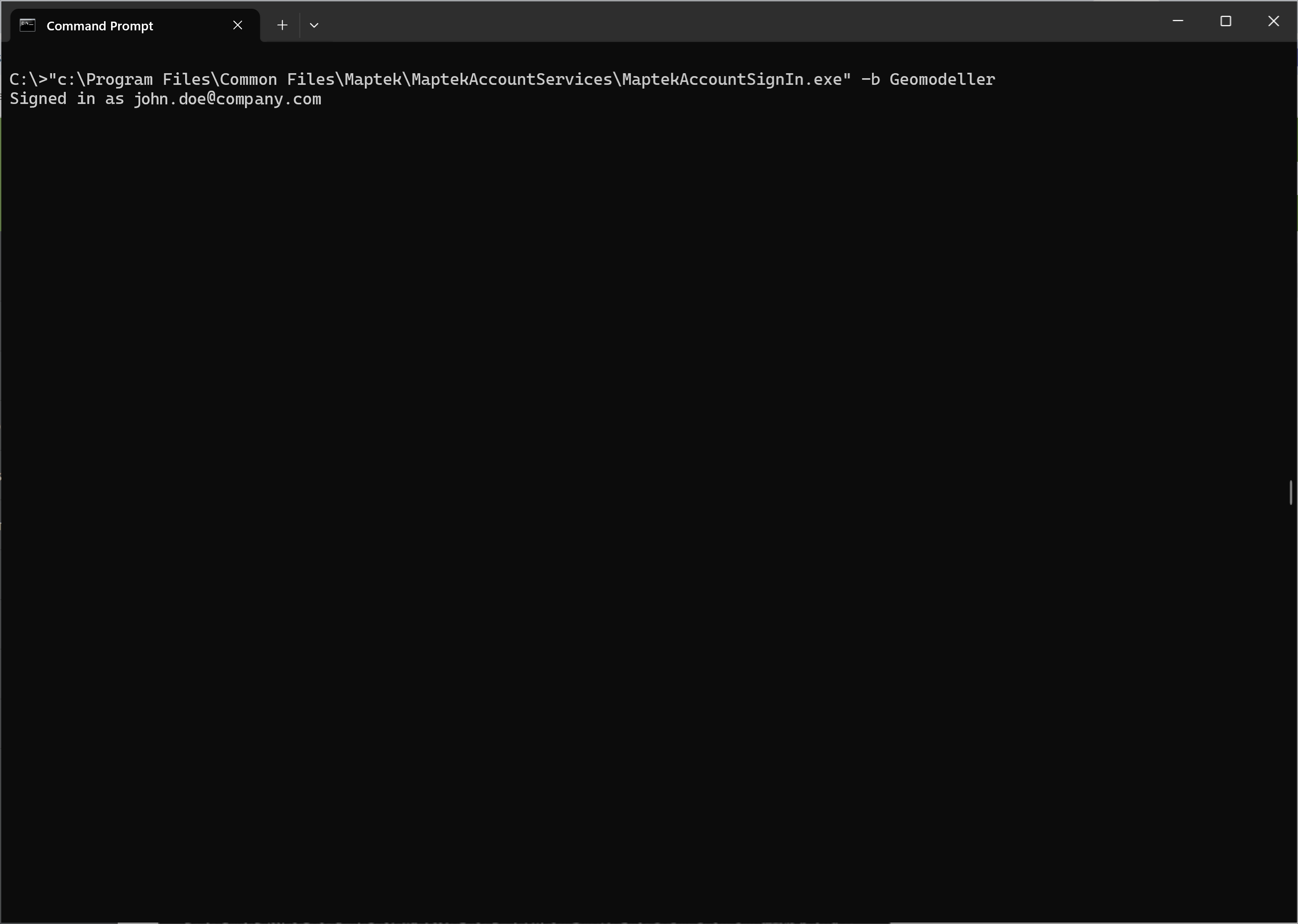
Maptek Account API Token Sign In
"c:\Program Files\Common Files\Maptek\MaptekAccountServices\MaptekAccountSignIn.exe" -t YOUR_API_TOKEN
Note: Any attempt to run an application or script that needs a licence, such as Maptek Extend, will use the sign-in to check out that licence.
Force Vulcan to use Maptek Account
"c:\Program Files\Common Files\Maptek\MaptekAccountServices\MaptekAccountSignIn.exe" -t YOUR_API_TOKEN -b Geomodeller --setLicenceType
Check Maptek Account session expiry
"c:\Program Files\Common Files\Maptek\MaptekAccountServices\MaptekAccountSignIn.exe" --expiryTime
List all entitlements
"c:\Program Files\Common Files\Maptek\MaptekAccountServices\MaptekAccountSignIn.exe" -t YOUR_API_TOKEN --listAllEntitlements
List all entitlements in JSON format
"c:\Program Files\Common Files\Maptek\MaptekAccountServices\MaptekAccountSignIn.exe" -t YOUR_API_TOKEN --listAllEntitlements ––json
Next topic: Working with Applications
