

Other licensing methods
Depending on the application and use-case, other licensing methods are available.
Dongle and floating licences
If you have a dongle or floating licence server for your application, you will need to configure the licence details.
To do this, follow these steps:
-
On the
 Start Page, click the licence tool button (
 )located beneath an application tile. From the drop-down menu, click
  Dongle and Floating Licence. The licence tool will launch.
 -
Switch to the Get licence tab.
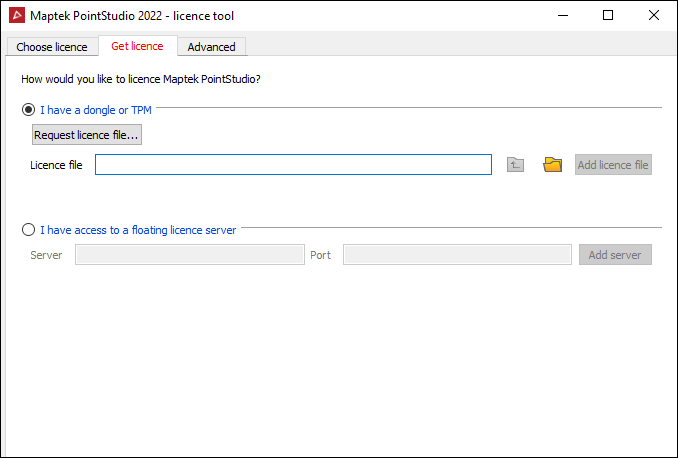
 Expand to see the steps for using a dongle
-
Select I have a dongle or TPM.
-
Click Request licence file... to request a licence file.
-
Copy the details that appear in the dialog and email them to the email address indicated. A licence file will be emailed to you in reply.
-
When you receive the licence file, save it to your computer and specify its location in the Licence file field.
Expand to see the steps for using a floating licence server
-
Select I have access to a floating licence server.
-
Fill out the Server and Port fields as appropriate.
-
Click Add server.
-
-
Switch to the Choose licence tab and select the licence you wish to use.
-
Click Use licence.
Borrowing licences for offline machines
To use applications on a computer without an internet connection, borrow licences with either of the following methods (detailed below):
-
Offline borrow to host: Borrow a licence to use on a specific offline computer name.
-
Offline borrow to dongle: Borrow a licence to use on any offline computer name.
Offline borrow to host
To borrow a licence in this scenario you will need the following:
-
Another machine connected to the internet
-
A flash drive or alternative medium for transferring files between the two machines
-
A Maptek Account administrator for the organisation
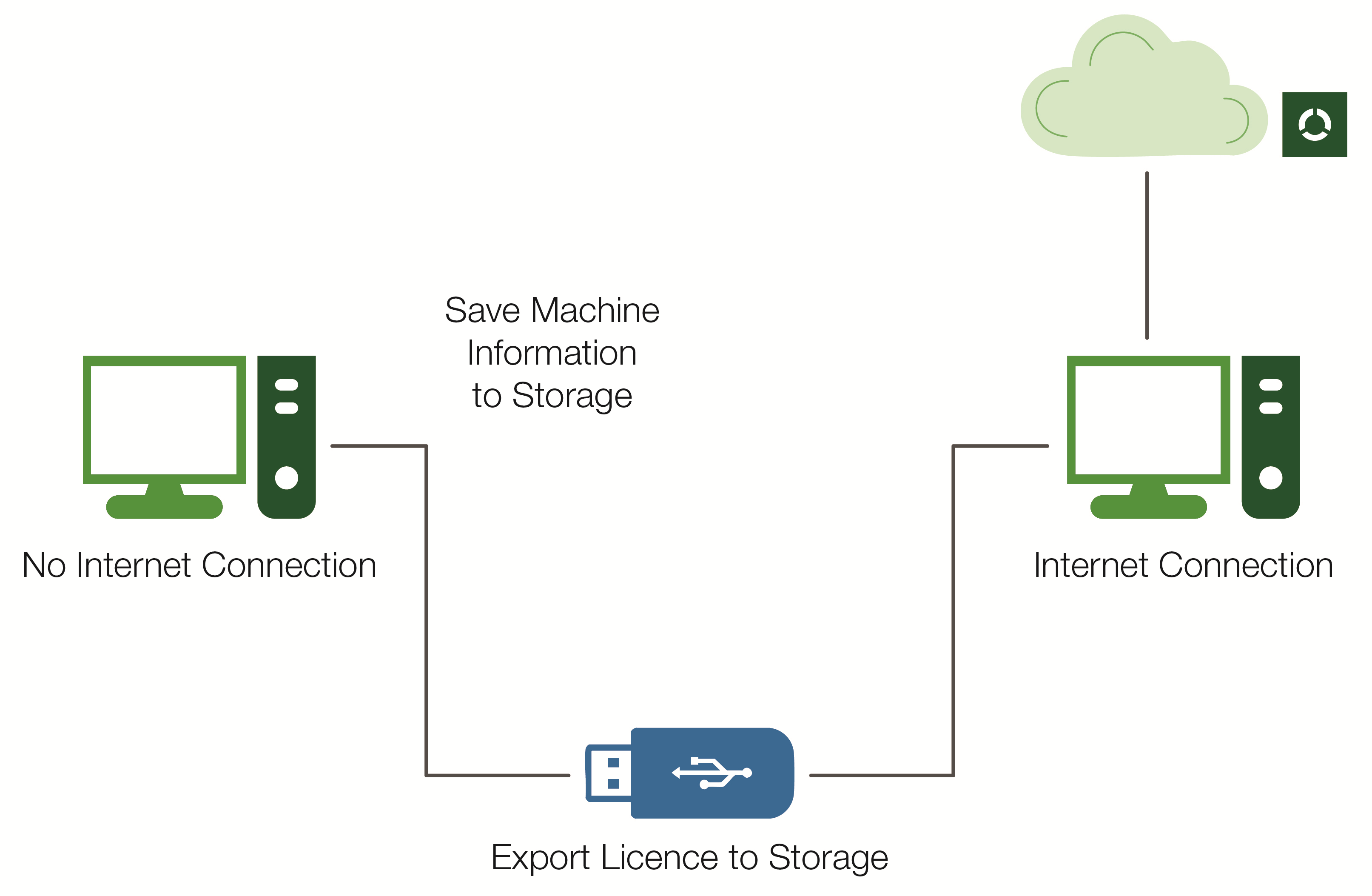
To borrow to host, follow these steps:
-
Plug the flash drive into the machine without an internet connection.
-
Start Workbench.
-
On to the Workbench ribbon or menu, go to the Licence group and from the
 Offline Borrow drop-down, click
  Save Machine Information....
A file browser will appear with a suggested file name,
MachineInformation.json. -
Save the JSON file to the flash drive, then eject the flash drive from the machine.
-
Plug the flash drive into the machine with an internet connection.
-
Open a web browser and sign in to account.maptek.com with an Administrator account.
-
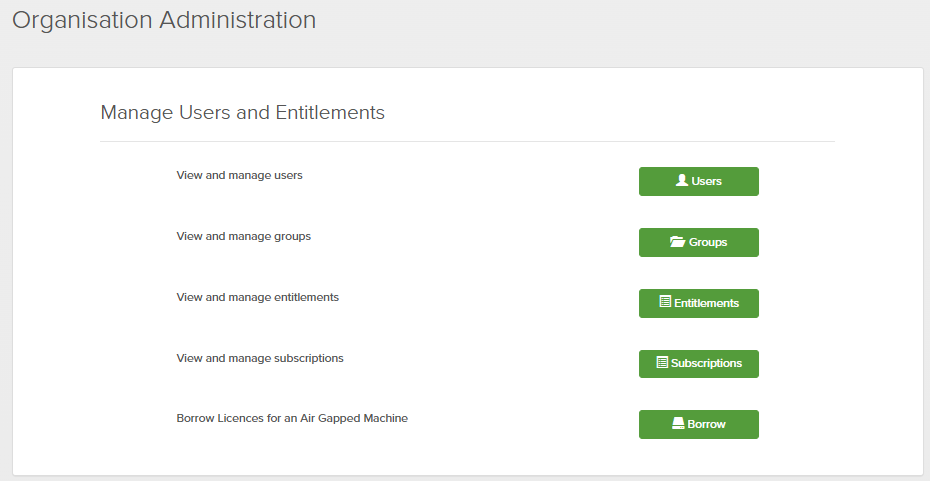
Click Administration > More and then, from the Manage Users and Entitlements section, click Borrow Licenses for an Air Gapped Machine.
-
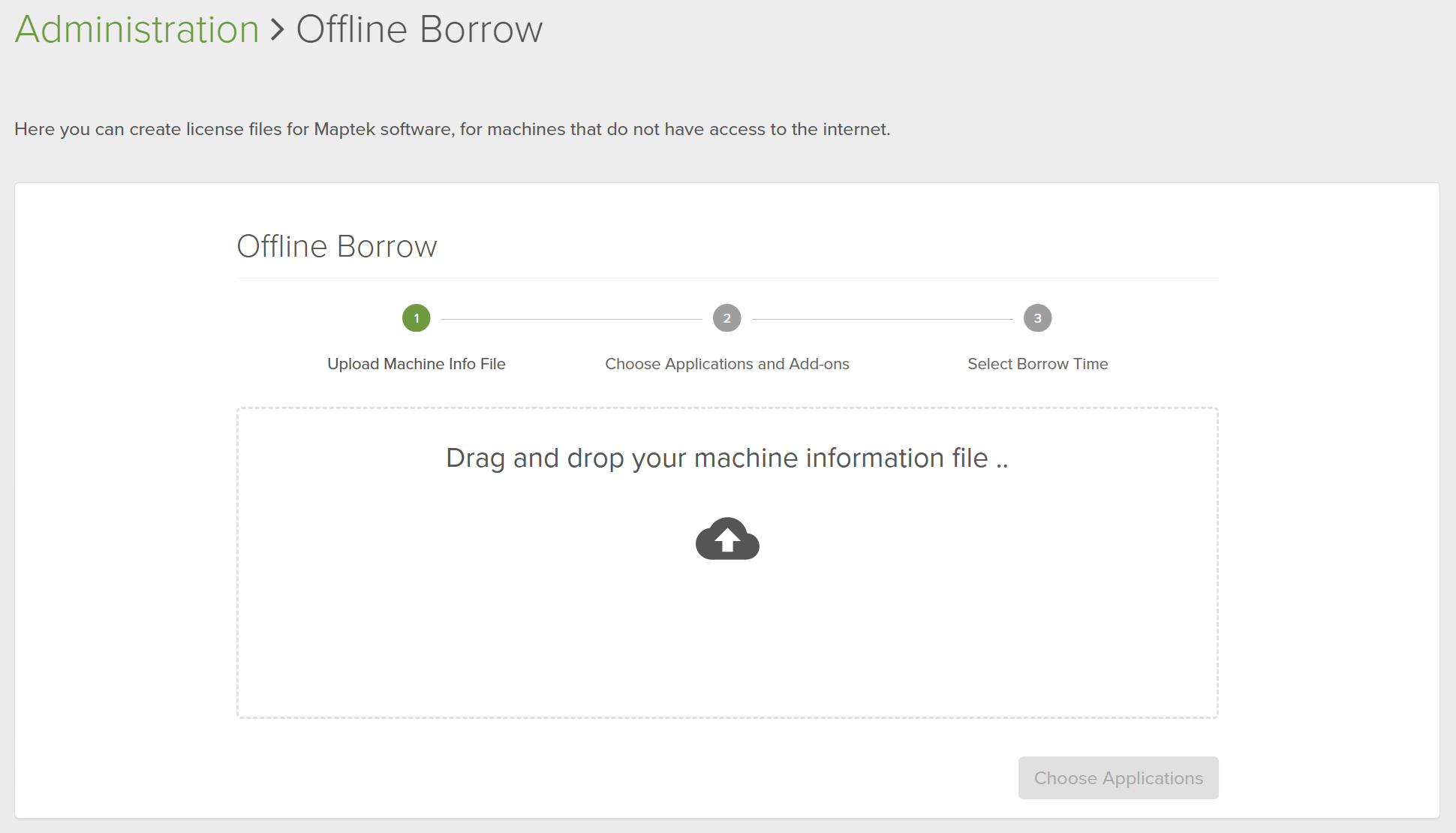
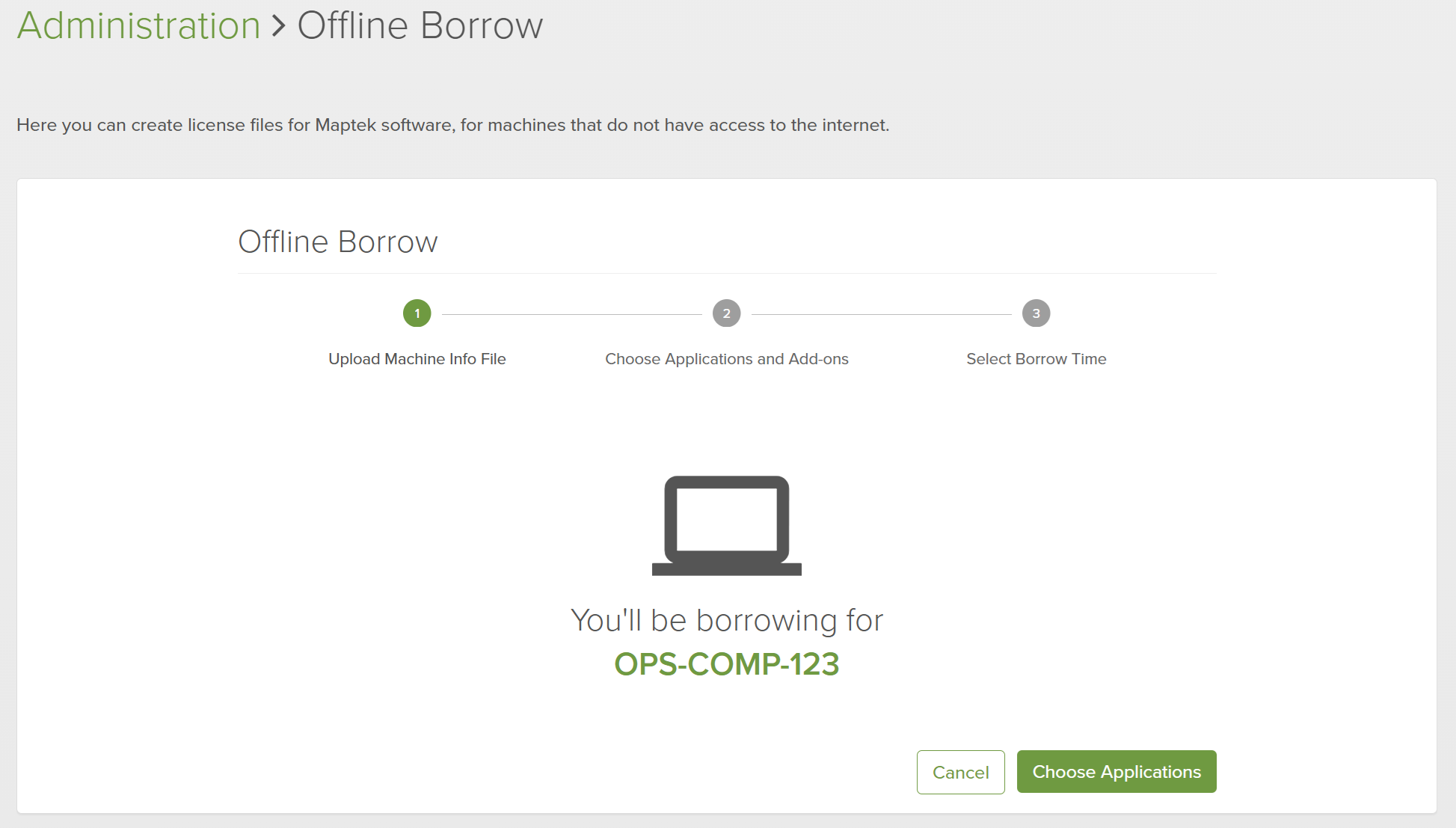
Drag the JSON file from the flash drive onto the drop area for the machine information file.
 →
→ 
-
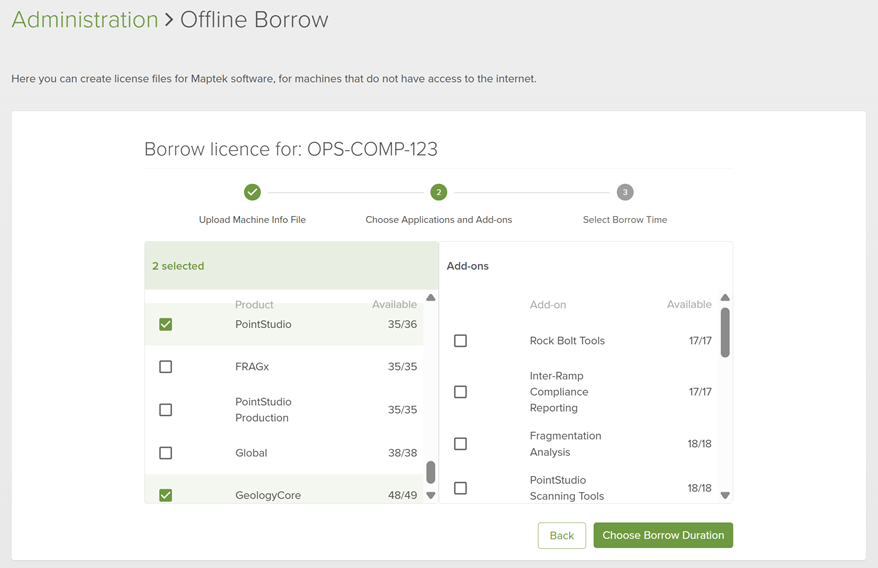
Select the applications and add-ons you would like to borrow.
Note: This may take some time to load, depending on the number of licence entitlements.
-
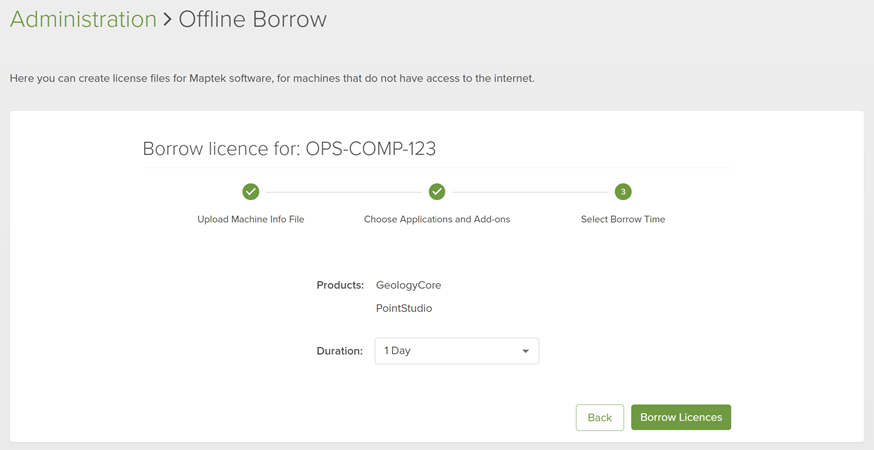
In Duration, select the number of days you need the licence, then click Borrow Licence.
-
Click Borrow Licence to confirm and that you understand you cannot return the licence manually.
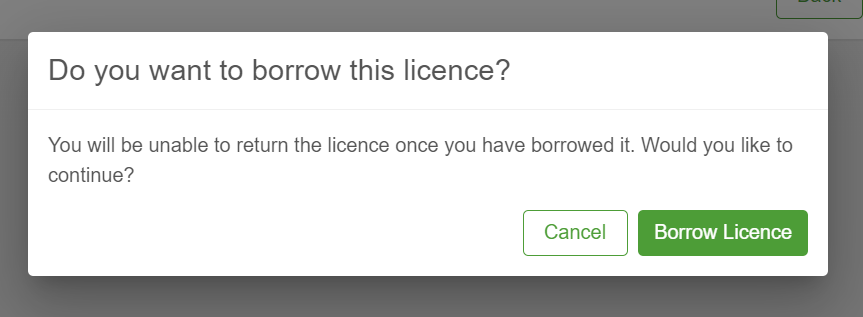
Note: The licence will be returned automatically when the borrowing period expires.
-
Once confirmed, the licence file (
.mlfz) should automatically download and a summary page for the borrow will open.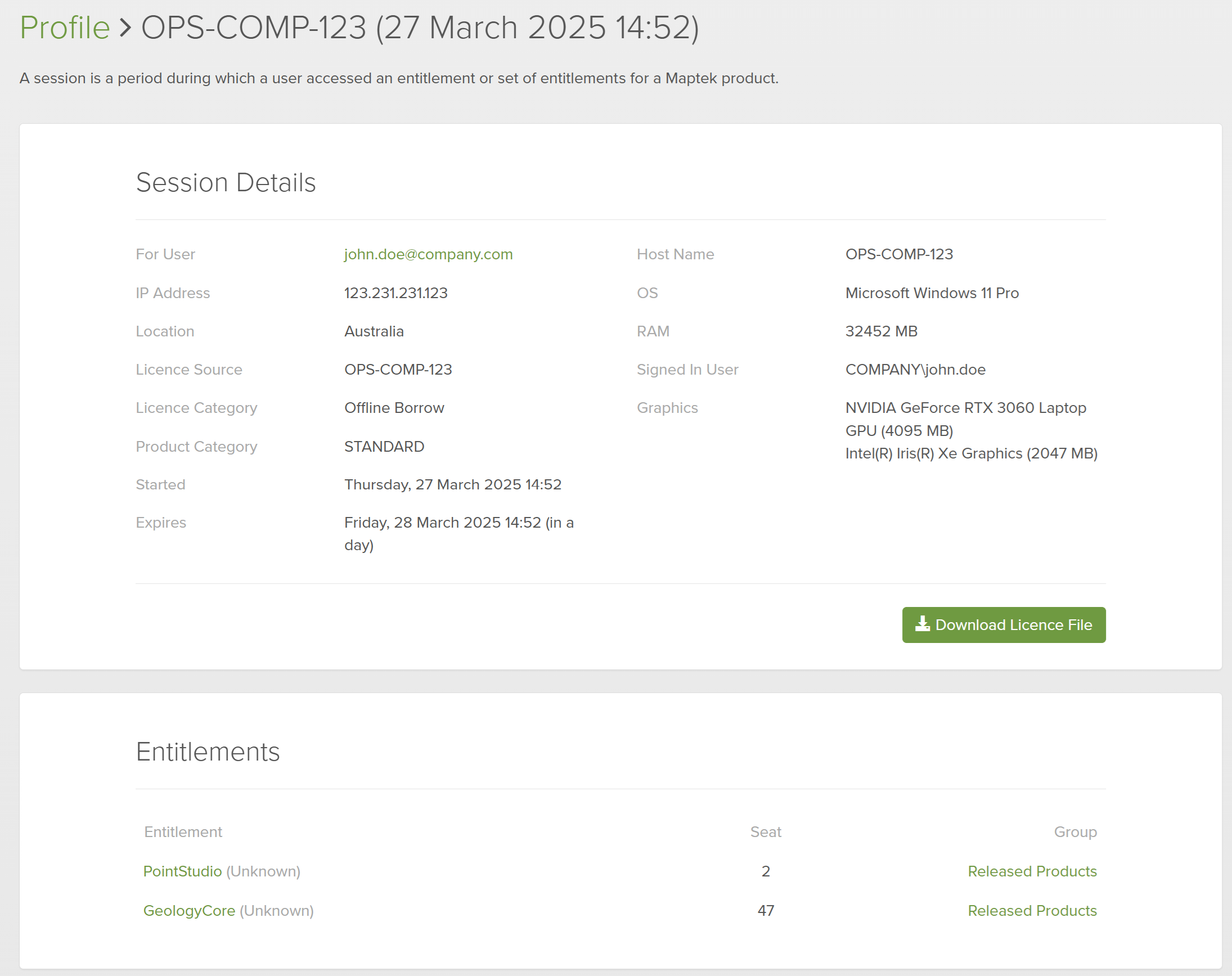
Note: If the licence fails to download automatically, click Download Licence File on the summary page.
-
Copy the licence file (
*.mlfz) onto the flash drive and eject it from the machine. -
Plug the flash drive into the machine not connected to the internet.
-
Start the Workbench and open Workbench >
Offline Borrow > Import Borrowed Licence.... -
Select the licence file (
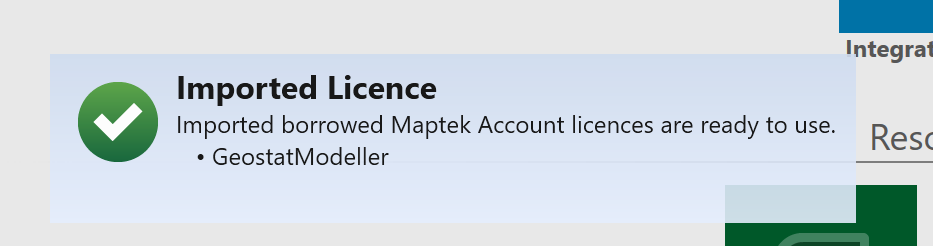
*.mlfz) from the flash drive and click Open.A confirmation toast notification of the imported application licences appears.
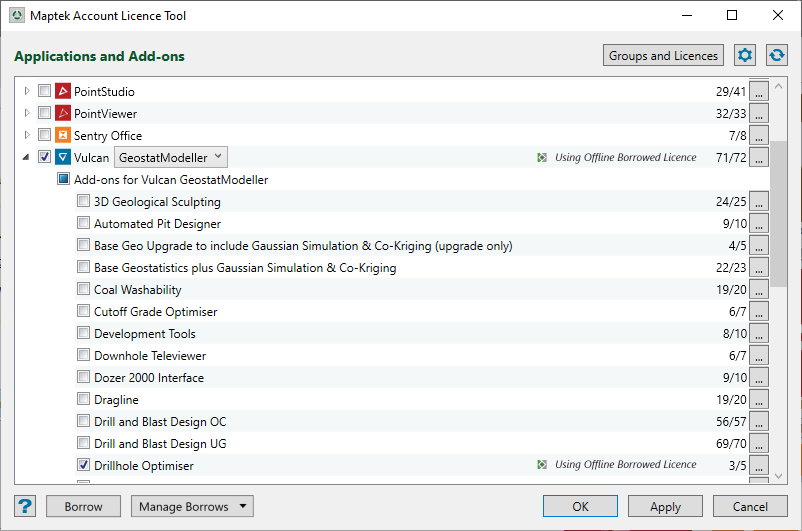
The borrowed licences are indicated in the Maptek Account Licence Tool.
-
Start the application.
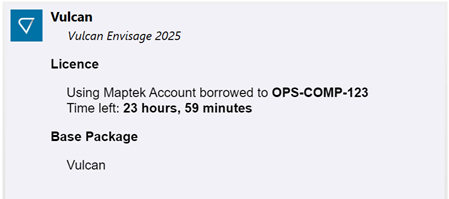
The borrowed licence will be used, which you can confirm in the licence tool (as above). You can also check in the Session Information tab of the Help > About panel.
Offline Borrow to Dongle
To borrow a licence in this scenario you will need the following:
-
Another machine connected to the internet with the Workbench installed
-
A Maptek licensing dongle
-
A flash drive or alternative medium for transferring files between the two machines
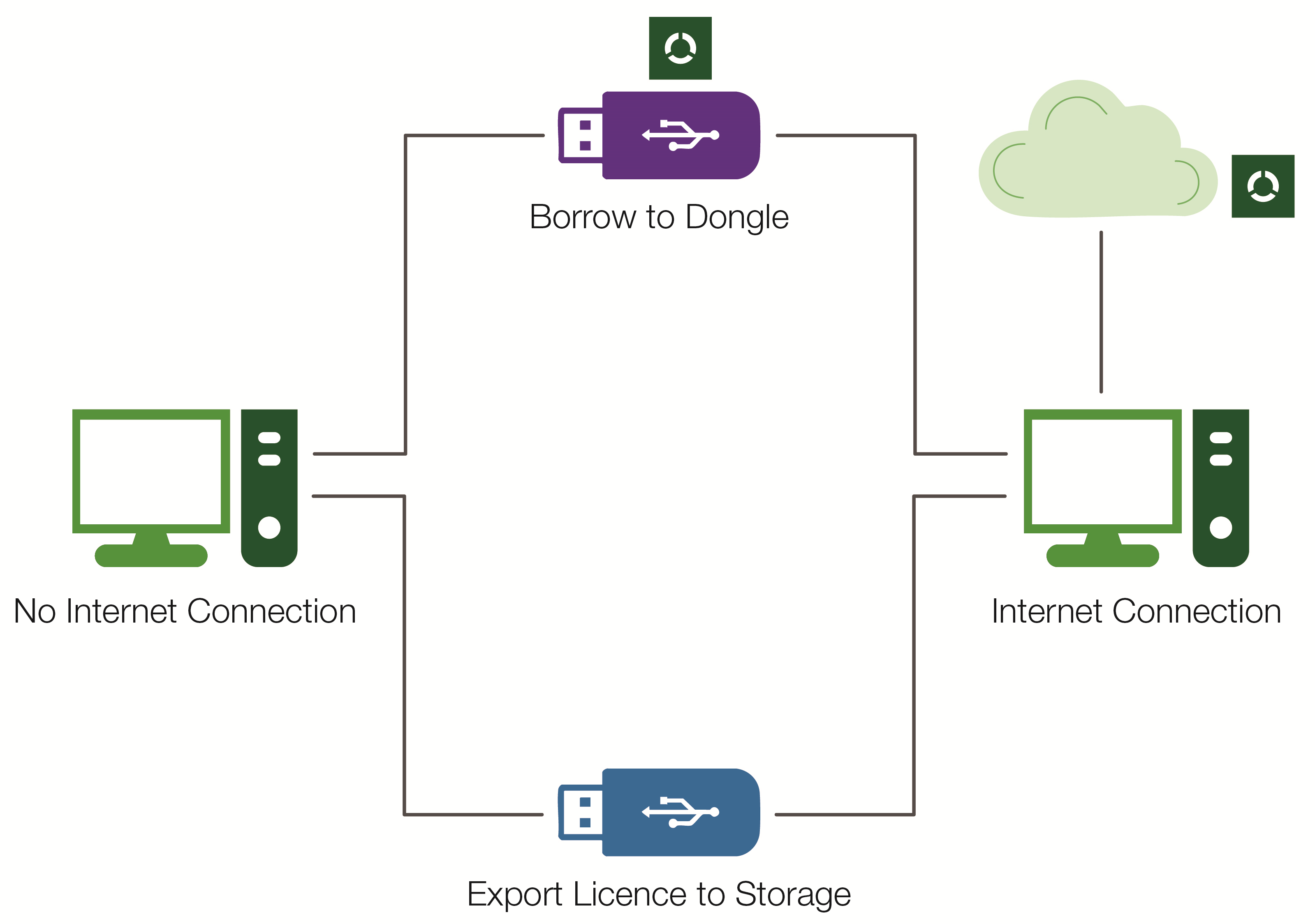
To borrow to dongle, follow these steps:
-
Plug the Maptek licensing dongle into the machine with an internet connection.
-
Start the Workbench and open Workbench >
Maptek Account Licence Tool. -
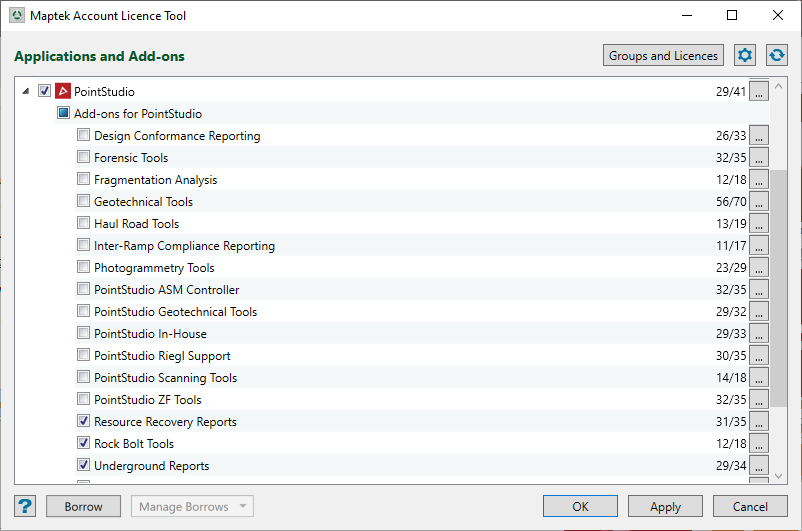
Select the desired licences in the Maptek Account Licence Tool.
-
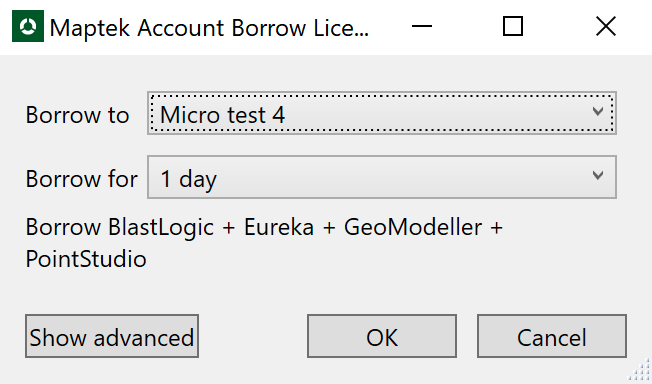
Click Borrow in the Maptek Account Licence Tool.
NoteIf the dongle is detected then it will automatically be the selected option in the Borrow to field.
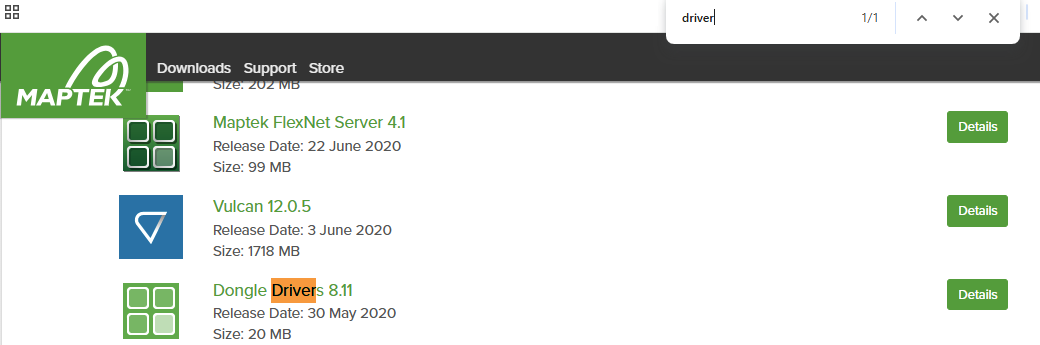
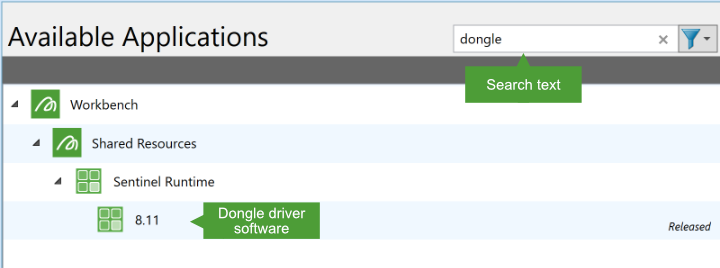
If you see the computer name instead, the dongle has not been detected or the dongle drivers may require installation.
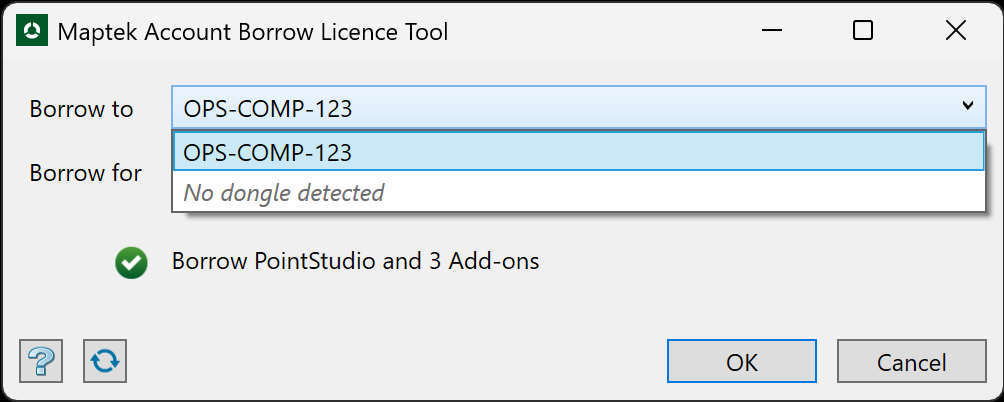
You can download the drivers installer from your Maptek Account > Downloads page or from the Workbench Download Manager.
-
Select the desired borrow duration from the Borrow for drop down and then click OK.
Note: If you can't borrow for as long as needed, the Maptek Account group configuration for the maximum borrow duration will need to be edited by a Maptek Account administrator for the organisation.
-
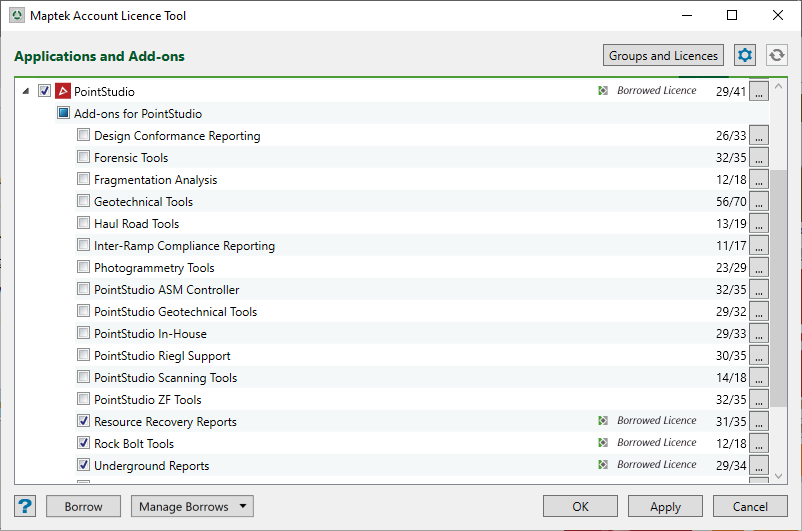
You should now see indications of the borrowed licences in the licence tool.
-
Plug the flash drive into the machine with an internet connection.
-
On the Workbench ribbon or menu, go to the Licence group and from the
Offline Borrow drop-down, click Export Borrowed Licence... and save the licence file on the flash drive. -
Click Workbench >
 Safely Eject Dongle > dongle name, then remove the Maptek licensing dongle from the machine.
 -
Use Windows to safely eject the flash drive from the machine.
-
Plug the Maptek licensing dongle and flash drive into the machine without an internet connection.
-
Start the Workbench and open Workbench >
Maptek Account Licence Tool. -
The Maptek Account Sign In window will open. Because the machine does not have an internet connection, close this window. The Maptek Account Licence Tool will then open.
-
On the Workbench ribbon or menu, go to the Licence group and from the
Offline Borrow drop-down, click Import Borrowed Licence... and select the licence file from the flash drive.
The borrowed licences will show in the Maptek Account Licence tool.
