

Unit Administration Setup and Configuration
This topic is a guide to setting up and using unit administration in Maptek Account.
About unit administration
Unit administration in Maptek Account makes it easier to manage the administration of users, groups and software entitlements across larger organisations. It allows you to organise administration into smaller units, such as sites, departments, project teams or other operational areas, and delegate management to the appropriate administrators. This means day-to-day administration tasks, such as adding and removing users from groups or reassigning entitlement seats, can be managed locally without providing organisation-wide administrative access.
Important: Units control administration, not software access. A unit determines what a Unit Admin is authorised to manage. Software access for users is obtained through membership of groups to which entitlements are assigned.
For more explanation of units, see Regions, Groups, and Units > Units.
Before you start
Unit administration must be activated for your organisation by Maptek. To do this, you will need at least one Regional Admin promoted to Root Admin. The promotion request should come from any Regional Admin via Support > Request Support in Maptek Account, nominating specific Regional Admins to be promoted.
When promoted, a Root Admin can submit a request to Maptek Support to activate unit administration.
Once unit administration is activated, the Root Admin can create units and assign Unit Admins to them at Manage Unit Administration (in Administration → More → Organisation Settings).
See More > Manage Unit Administration in Maptek Account help for detailed instructions.
Note: An organisation can have up to 20 units. Users, groups and entitlements can be associated with one or more units.
Activating unit administration does not change how users obtain access to entitlements. Unit membership does not grant, remove or restrict entitlement access. Users must be in a group assigned with the required entitlements.
Administrator roles
Once Maptek has enabled unit administration, a Root Admin can manage the feature for your organisation.
Below is a summary of the available administrator roles and the actions they can perform.
| Root Admin | Manage unit administration across the organisation. |
| Regional Admin | Perform limited unit administration. |
| Unit Admin | Manage permitted resources within the units they have been assigned to administer. |
Root Admin
Root Admins can do the following:
- Activate or deactivate unit administration.
- Create, rename and delete units.
- Assign or remove Unit Admins.
- Assign users, groups and entitlements to units.
- Bulk-assign users via CSV file.
- Manage unit-related resources.
Regional Admin
Regional Admins can do the following:
- View unit information.
- Assign users, groups and entitlements to units.
- Manage permitted resources.
Regional Admins cannot activate or deactivate unit administration, create or delete units, or assign Unit Admins. A Regional Admin with access to all regions may sometimes be referred to as a Global Admin; this is not a separate role and does not provide Root Admin permissions.
Unit Admin
Unit Admins have delegated access to the units they have been assigned to manage. They can perform permitted management activities (e.g. adding and removing users from groups, assigning entitlement seats to groups) for users, groups and entitlements within their authorised unit scope, subject to the following criteria:
-
Users and groups: Unit Admins can manage users or groups that are associated with at least one of their assigned units. Users or groups that have no Unit assigned are outside a unit Admin's scope.
-
Entitlements: Unit Admin can manage entitlement reservations only when all units associated with that entitlement are managed by the Unit Admin. If an entitlement is associated with a unit outside the administrator's scope, the Unit Admin cannot move its reservations.
Note: These rules only determine what an administrator can manage. They do not affect user entitlement access.
Access is limited for Unit Admins, so they cannot:
- Create, rename or delete units.
- Assign other Unit Admins.
- Manage resources outside their authorised unit scope.
Note: Maptek software users who do not have admin roles are unable to view or use unit administration.
Getting started
Once unit administration has been activated, follow the procedures below to work with units.
Creating a unit
A Root Admin must do the following to create a unit:
-
In Organisation Administration, under Organisation Settings, select Manage Unit Administration.
-
Select Create Unit.
-
Enter a unit name.
-
Assign a user as Unit Admin by entering a name or email address in Administration.
Note: Unit Admins can be assigned later, but we recommend assigning at least one at this stage.
-
Click Create Unit.
Assigning Unit Admins
Once the Unit has been created, a Root admin can assign Unit Admins as follows:
-
Open the unit, then click Edit <unit name>.
-
Start typing a name or email address in Administration.
-
Select a matching user to be a Unit Admin.
-
(Optional) Repeat steps 2 and 3 to assign more Unit Admins.
-
Click Save Changes.
The user will have Unit Admin permissions only for the Units they have been assigned to administer.
Assigning users
Root, Regional, and assigned Unit Admins can assign users to a unit, as follows:
-
Open the unit, then click Unit Management.
-
Find and select the required users from the candidates list.
Tip-
Enter characters in the Filter field to narrow the list of available candidates.
-
Narrow the list further by clicking Active Only. This will hide all inactive candidates.
TipRoot Admins can import a list of users to assign to the unit in a CSV file. Click Import users by CSV, then Choose file and Import CSV to finish.
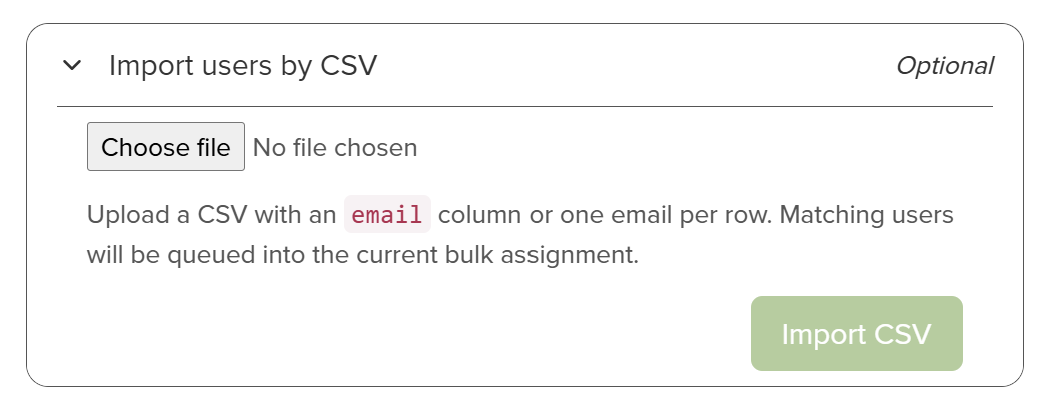
This option is only visible to Root Admins.
See Unit Administration Setup and Configuration for more details.
-
-
Click Apply to finish.
Note: When unit administration is active, Unit membership can also be managed as part of the normal user creation and editing process. A user can belong to any number of units.
Assigning a primary unit
A primary unit determines which Unit's MDS plan takes precedence when MDS services determine which plan should apply to that user. The following criteria apply to a primary unit:
- Must be one of the user's assigned units.
- Required when the user belongs to one or more units.
- Not required when the user has no unit memberships.
By default, a user’s first unit assigned from the Unit Administration page is designated the primary. You can change the primary unit by editing the user’s profile via Administration > Users. In the Unit Membership drop-down, select the star next to the required unit name.
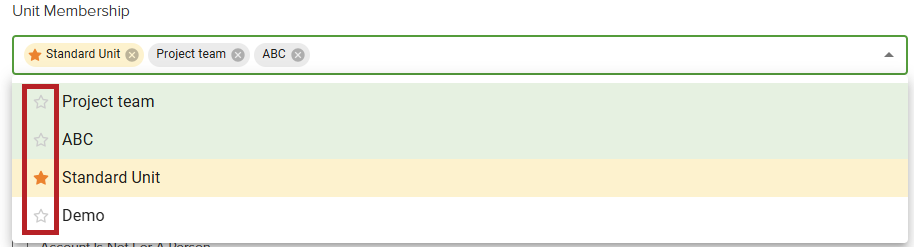
Note: If you remove a user's current primary unit, you must select another assigned unit as a replacement.
Click Save when done.
Managing groups and entitlements
Groups
When unit administration is active, Root Admins and Regional Admins can assign groups to one or more Units when creating or editing a group. Unit Admins may manage groups that fall within their authorised Unit scope, where their permissions allow. Unit Admins may add and remove membership of any users (regardless of the user's assigned units) for groups that belong to their unit scope. Thus, a Unit Admin can control which users have access to entitlements assigned to their jurisdiction.
Entitlements
Entitlements can be associated with one or more units for administrative purposes. A Unit Admin may manage an entitlement and reassign its reservations only when they administer every unit associated with that entitlement.
Once authorised to manage the entitlement, the Unit Admin may reassign its reservations between any eligible groups in the same organisation and region. The source and destination groups do not need to belong to units administered by the Unit Admin.
Associating an entitlement with a unit does not grant users access to it. User access still depends on the user belonging to a group to which the required entitlement reservation is assigned.
See also: Users, Groups, and More > View and manage entitlements
Searching and filtering
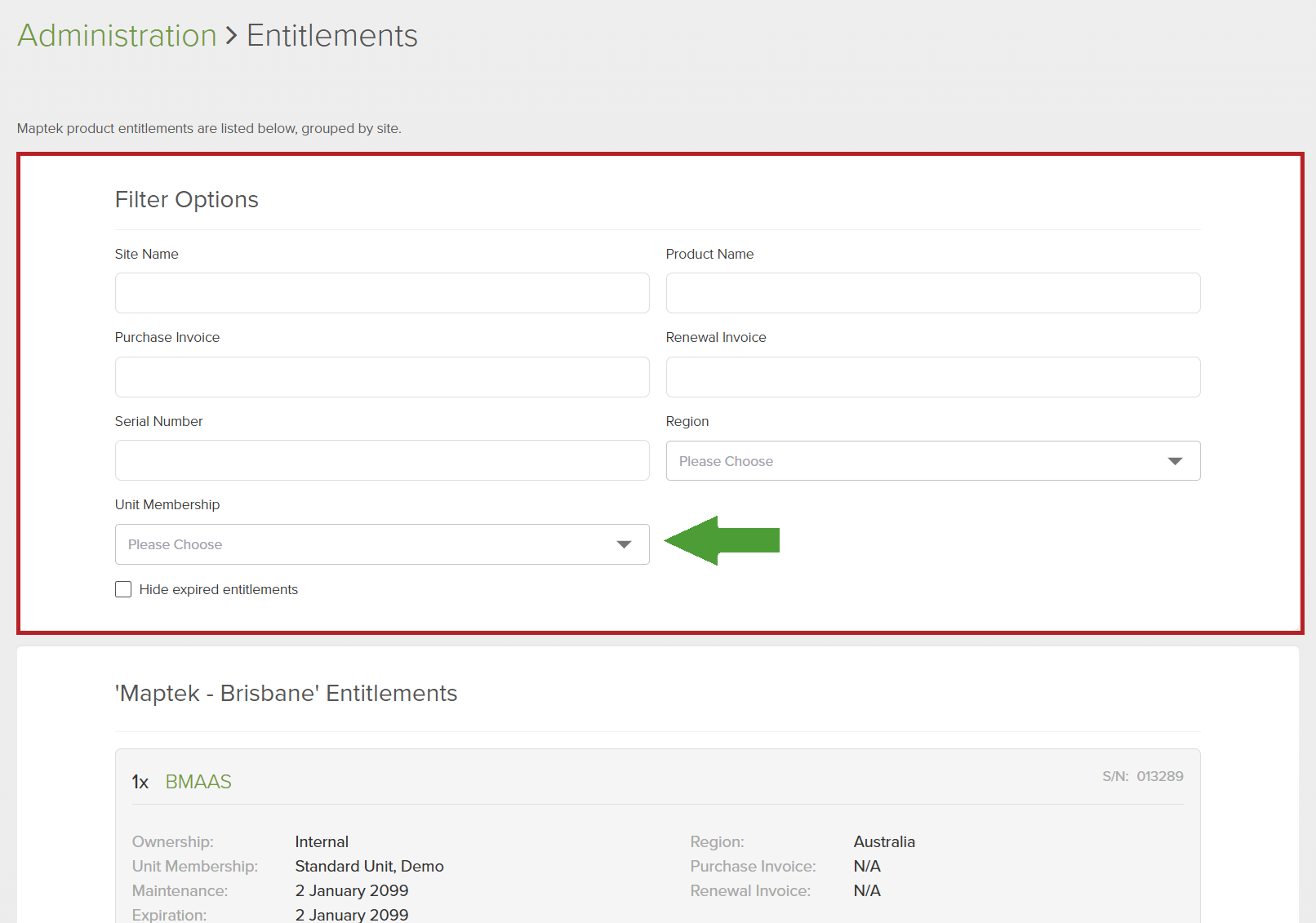
If unit administration is active, unit filters are available when viewing users, groups and entitlements. Select all required units to filter from the Unit Membership drop-down list. The filter will list all users, groups or entitlements (items) assigned to at least one of the selected units.
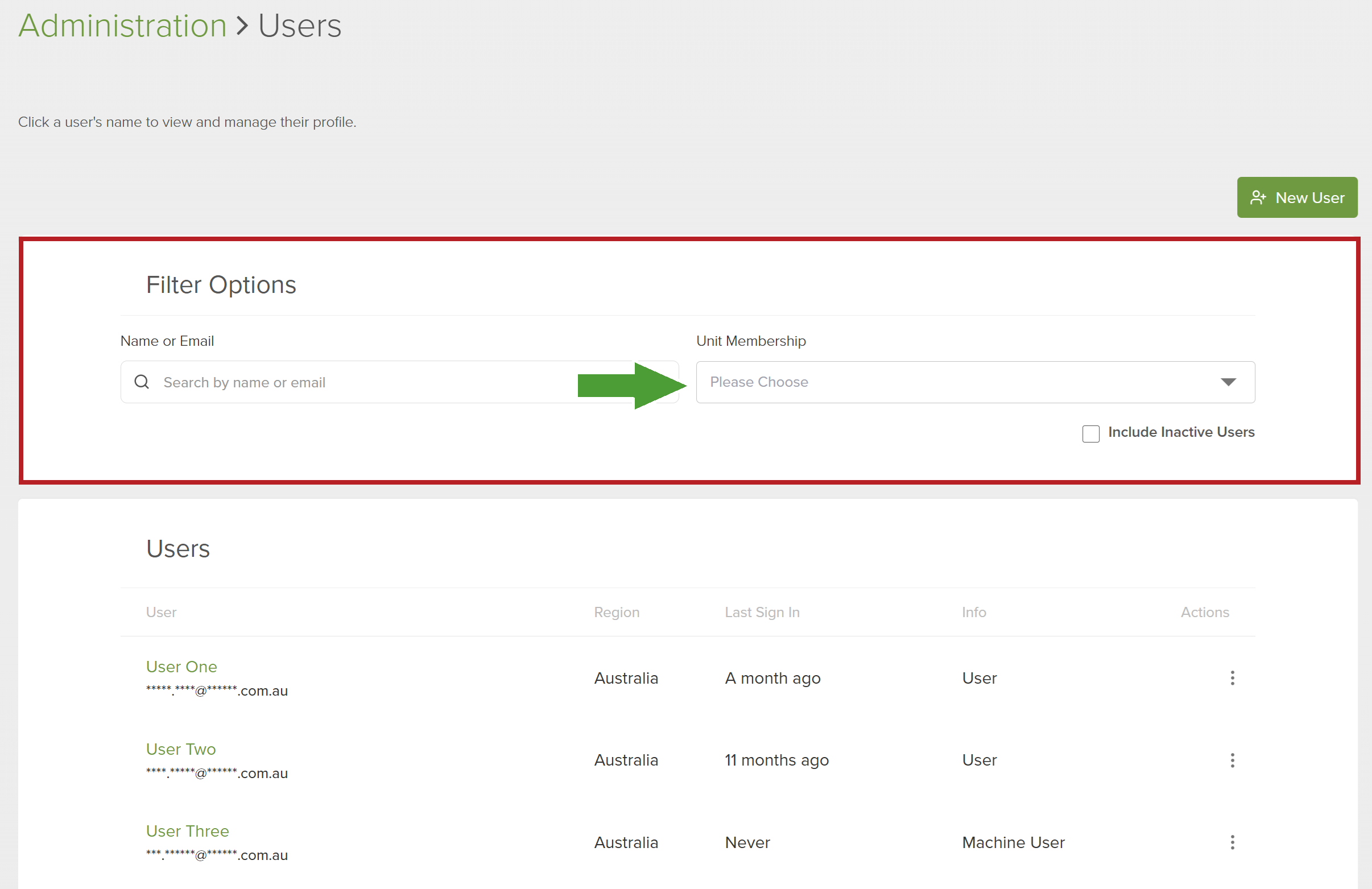
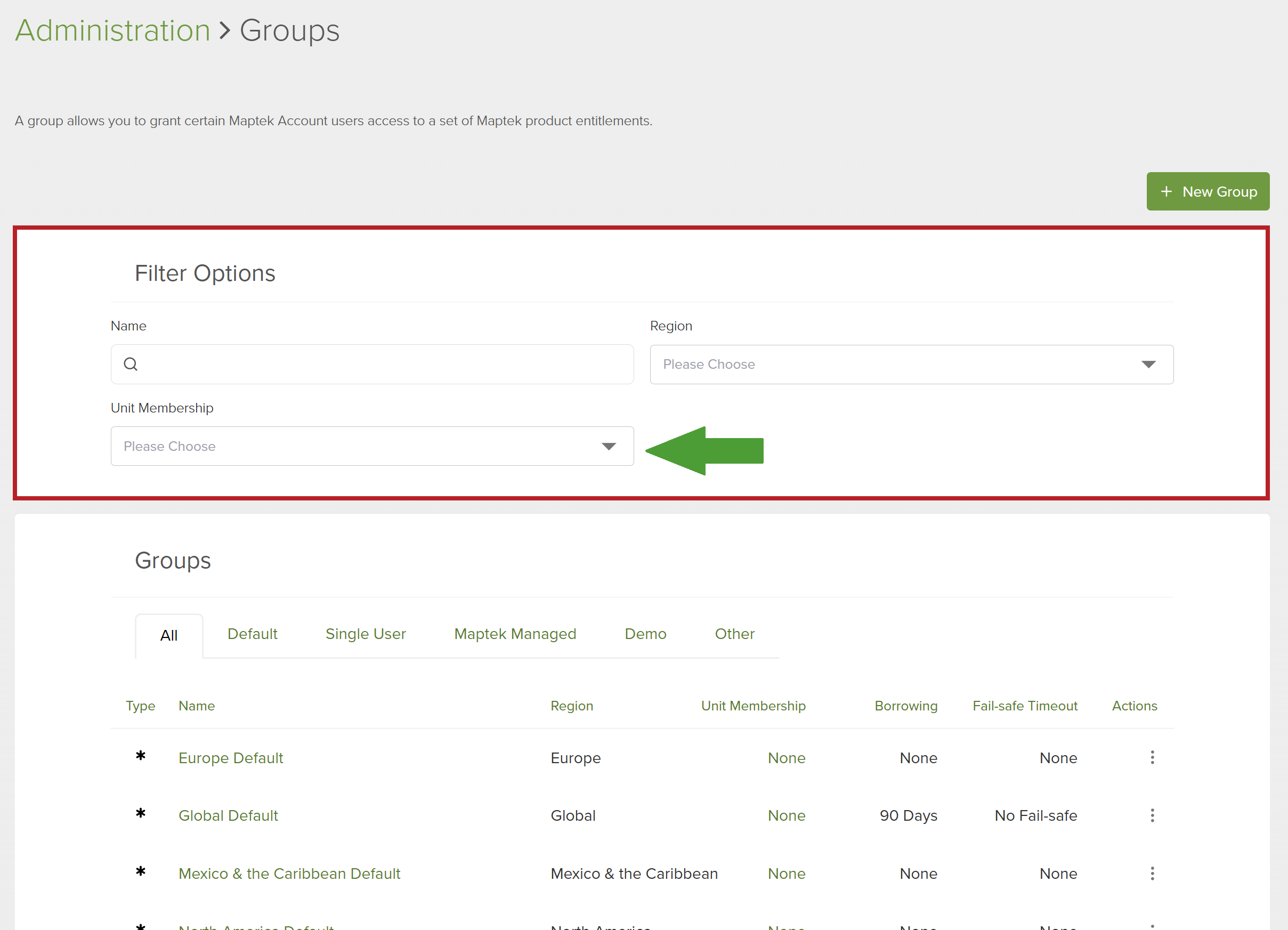
Being able to see an item does not always mean that you can edit it. If you cannot edit an item, it may be for one of the following reasons:
- Your administrator role does not allow the action.
- The resource is outside your authorised unit scope.
- Unit administration is not active.
- The workflow allows you to view the resource but not edit it.
Unit administration
Unit administration allows authorised administrators to update multiple Unit relationships at the same time. In Administration > More, under Organisation Settings, select Manage Unit Administration. Update relationships as follows:
-
Open the unit you want to update
-
Select Unit Management.
-
Locate the users, groups or entitlements that you want to manage.
-
Select the items to be added or removed.
-
Review the changes.
-
Click Apply to submit the update.
Unit Admins can use Unit Management only for users within their authorised unit scope. They cannot bulk-assign groups or entitlements.
Bulk-assigning users by CSV
Root Admins can use a CSV file to assign multiple existing users to a unit simultaneously.
The CSV file must meet the following criteria:
-
UTF-8 encoded
-
No larger than 10 kB
Tip: If your file is larger than 10 kB, split it into smaller files before uploading.
-
Contains user email addresses
Note: Only email addresses are mandatory. Any other details are optional.
-
Has a header row indicating the order of data.
Examplename,email
Alice Smith,alice.smith@example.com Bob Jones,bob.jones@example.com Charlie Lee,charlie-lee@example.comor
email,name,region
alice.smith@example.com,Alice Smith,Australia
bob.jones@example.com,Bob Jones,Europe
charlie-lee@example.com,Charlie Lee,South Africa
Import a CSV file as follows:
-
Open Unit Management for the required Unit
-
Select Import users by CSV.
-
Click Choose file, browse to the CSV file, then click Open.
-
Click Import CSV.
The CSV importer analyses the list and reports on the validity of the list, as follows:
Queued
The user was found and is selected in the valid users list, ready to be added.
Already assigned
The user is already assigned to the unit.
Note: Already assigned users are also selected in the valid users list.
Invalid email
The email address is missing or invalid.
Duplicate email
The same email appears more than once.
Not found
No matching user was found in your organisation.
-
Review the validation results. Click Show for each displayed status to view the affected entries.
-
If any details need to be corrected, edit the CSV file and repeat the above steps.
-
Continue with the valid users.
The selected users are added to the unit. Unit management reports Bulk assigned successfully at the top of the page.
Troubleshooting
Below are the most likely problems you may encounter with possible solutions. Check here before contacting Maptek.
| Problem | Solution |
|---|---|
|
I can see an option but cannot select it. |
Ensure that the following are true:
|
|
A Unit Admin cannot manage a user or group. |
Check that the user or group is associated with at least one Unit managed by that Unit Admin. |
|
A Unit Admin cannot manage an entitlement. |
Check all units associated with the entitlement. A Unit Admin must manage all of those units before they can move the entitlement's reservations. |
|
I cannot save changes to a user's unit membership. |
If the user belongs to one or more units, ensure a valid primary unit has been selected. The primary unit must be one of the units that the user is assigned to. |
