

System Bar Overview
The system bar is the row of icons and clock in the top-right corner of the browser tab. It is used to configure MaterialMRT system and user parameters, and to display the current system status, including user notifications. The available functions are summarised below.

Note: Some icon may not be available to all users, particularly those requiring administrative privileges. The full range of tools is as follows:
|
System clock
|
The clock is set to the site’s Region and time zone. It also opens the Historical mode system clock. |
|
|
Historical mode allows power users to retroactively perform tasks and publish changes from a selected date and time. When events are published in historical mode, MaterialMRT recalculates their downstream effects along the historical timeline, applying updated results up to the present. To enter historical mode, click the system clock and use the Choose New Effective Time panel to set the date and time via the Date Time Picker. Confirm by clicking
While historical mode is active, any events that occur are logged in the Event Manager, and a historical change notification appears in the notification panel. Publishing an event triggers MaterialMRT to perform the required calculations, reprocessing downstream impacts. To exit historical mode, click For more information on publishing events, see System Preferences > Publishing Events. |
|
System Status |
The system status icon changes to indicate the state of the system, as follows: |
 : The system is processing events and data. : The system is processing events and data. |
|
 : The system is up-to-date. There are no events to process. : The system is up-to-date. There are no events to process. |
|
 : Rewinding events. The system is going back to a point in time. : Rewinding events. The system is going back to a point in time. |
|
 : Replaying events. The system is reprocessing data from a past point in time up to the current time. : Replaying events. The system is reprocessing data from a past point in time up to the current time. |
|
|
|
|
|
System Configuration |
System configuration includes the following administrative tools: |
|
|
|
|
|
|
|
|
|
|
|
|
|
|
|
|
For more details on each tool, see Site Configuration |
|
|
System Preferences |
System Preferences contains the following tools: |
|
|
|
|
|
|
|
|
|
|
|
|
|
|
|
|
|
|
|
To learn more about each system preference tool, see System Preferences. |
|
|
Contact Maptek |
Request support by filling in the Contact Maptek form.
|
|
Recent Notifications |
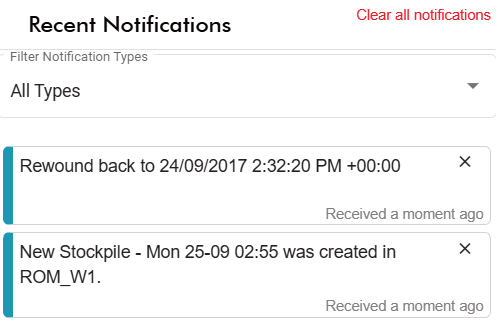
This opens a panel that lists recent unread notifications which appear when certain events occur. When new notifications appear, the bell icon displays a number showing the number of unread notifications. A single notification therefore appears as A drop-down allows users to filter notifications by type by enabling its checkbox
When the panel is opened, the indicator is cleared.
Tip: Click anywhere outside the notification panel to close it. |
|
Full screen view |
Click |


 . The clock will then display the set date and time with a red background to indicate historical mode.
 . Any unpublished changes will be lost.

 Site parameters: Enables administrators to configure key modelling behaviours, set zone categories and stockpile attributes, manage rule-driven processes, and optimise system performance by setting domain event thresholds and waste management policies—from global settings to specific stockpiling practices.
 Preferences: Allows administrators to configure technical, operational, and user-specific settings for the site, including units, coordinate systems, metadata synchronisation, shift calendars, colour schemes, terrain assets, and language/regional options, providing a customisable framework for effective system use and visualisation.
 Material Properties Schema: This tool enables geotechnical users to manage all property types—numeric, text, list, and time—using its editor to create properties and assign necessary attributes, including assay value ranges.
 Rules Editor: This tool enables advanced users to define and manage operational logic that automates and validates material tracking processes.
 Zone Maintenance: This tool allows operations supervisors or users of similar capacity to manage, import, and create new zones.
 Users: This tool allows users to be added or removed, their activation status set, and roles assigned to control their permissions.
 Roles: This tool enables administrators to create and manage user roles for operational and administrative staff, controlling permissions to manage access and functionality within MaterialMRT.
 Event Manager: This tool records and maintains an active log of system and operational activity in MaterialMRT. Power users can review and manage live or past events, including replaying, reverting, or importing events from an external source.
  User Preferences: Users can choose whether to send usage data to Maptek and, in addition, allow MaterialMRT to collect personalised usage data in accordance with the Maptek EULA Privacy Notice.
 Maptek Help: Opens the online help for MaterialMRT.
 Log Out: Exits the MaterialMRT session.

 .
.
 .
.
 by moving the mouse pointer towards the top-left corner of the browser window to reveal the icon.