Getting Started
Get started with GeologyCore.
Launching GeologyCore
To launch GeologyCore from Maptek Workbench, either:
-
Double-click the
 GeologyCore application icon. GeologyCore will launch using your current data folder.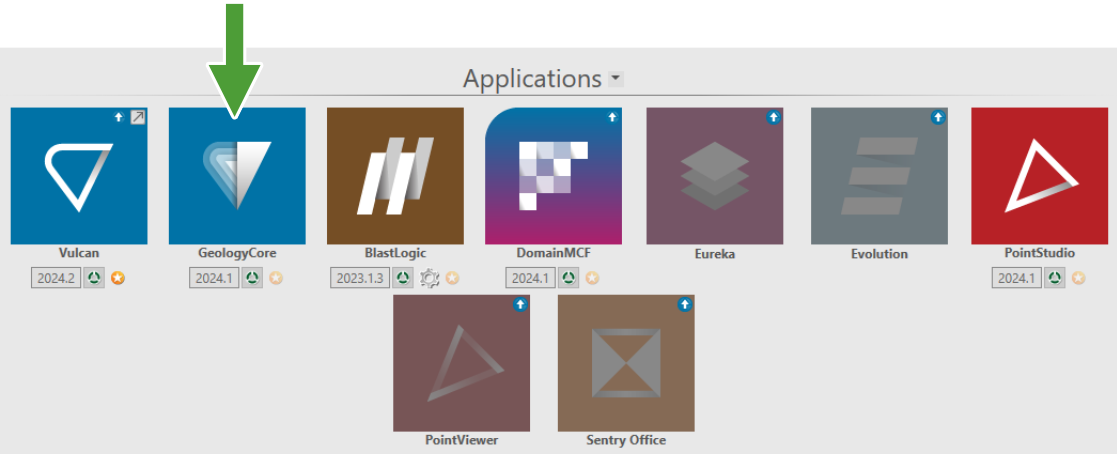
-
Alternatively, under Recent Folders, right-click on a data folder and navigate to Open With >
GeologyCore from the context menu.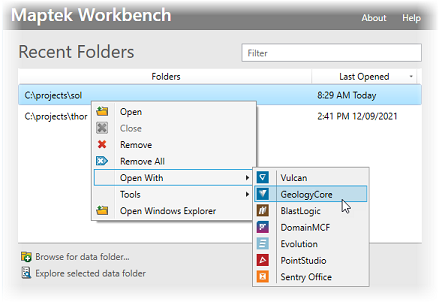
Projects and Data Management
Data Folder
The data folder tells GeologyCore where your project files live. This is the default location that data is loaded from and published to.
Projects
All data you work with in GeologyCore is represented in a project. When you first launch GeologyCore from a Vulcan project folder, a GeologyCore project is automatically created for you. If your data folder is not a Vulcan data folder, you will be prompted to open or create a new GeologyCore project.
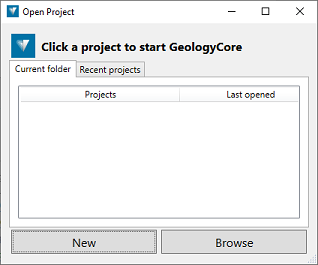
To create a new project, click New in the panel that opens, then enter a name for your project and press Save.
Your GeologyCore project is stored physically on disk in a database folder with a .maptekdb extension.
Importing Data
External data needs to be explicitly loaded into your GeologyCore project. When you load data into your project, it is usually imported as a copy, although some data can be loaded as a live link back to the source file(s). This means that mostly, any changes you make to the data do not affect the source until you publish or export.
Saving Data
You do not need to save your work in GeologyCore. All changes are saved automatically in the project.
Configuring Preferences
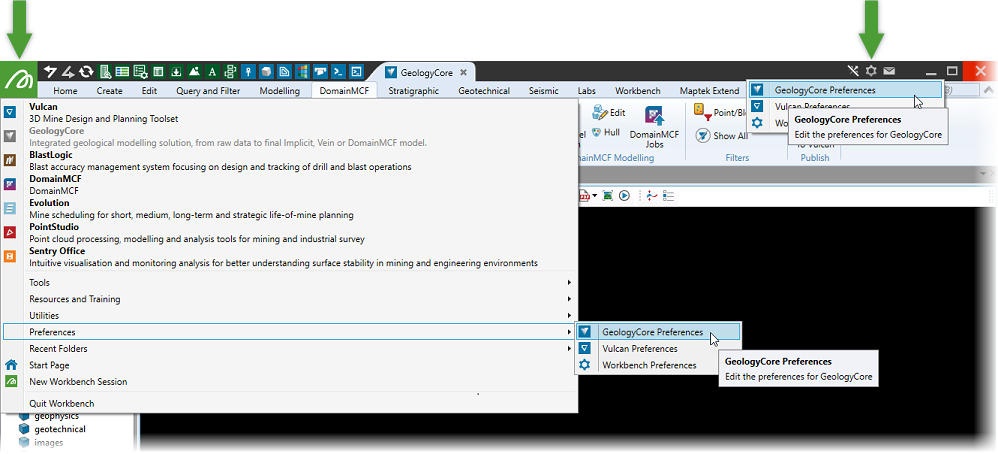
To configure application preferences, such as units, coordinate systems, and view window defaults, navigate to GeologyCore Preferences from either the Maptek launch button  or the Preferences button
  , both located in the Workbench title bar.