

Colour
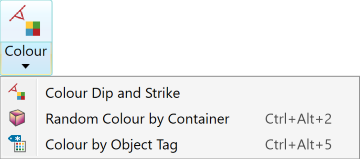
The geotechnical Colour group enables you to colour discontinuities for easier analysis.
|
|
Colour by Dip and Strike Colour facet networks based on the dip or strike values of the individual facets. |
|
|
Random Colour by Container (Ctrl+Alt+2) Automatically apply random colours to selected objects, according to the containers in which they are stored. |
|
|
Colour by Object Tag (Ctrl+Alt+5) Colours discontinuity objects based on values of particular tags. |

Colour Dip and Strike
Colour by dip and strike colours facet networks based on the dip or strike values of the individual facets. This helps to highlight discontinuities and planar areas and makes it easy to see fractures.
The Colour by dip and strike tool is a preliminary way of marking exposed discontinuities. The resulting information may be used for further analysis using the geotechnical tools.
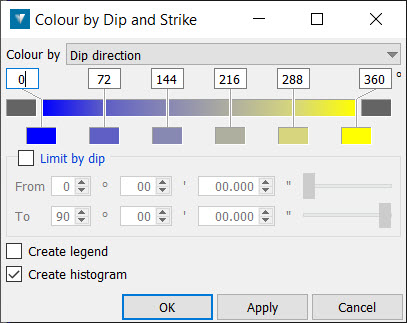
To colour by dip or strike:
-
Go to Geotechnical > Colour > Colour Dip and Strike.
-
Set the Colour by field to dip direction, dip or strike.
-
The colour scale of the colour scheme editor may be adjusted manually by sliding the vertical edges of the coloured cells representing the colour bands. Colours may be selected from a colour palette for individual cells, or preset colour schemes may be applied to colour the entire range. Calculate range determines the distance settings for the colour scheme based on minimum and maximum separation between the base object(s) and the selected object. Right clicking on the top line of coloured cells displays further options for editing colour bands and the automated arrangement of colours. These include:
-
New — This option splits a colour band in two, adding a new colour band to the range of colours in the colour scheme editor.
-
Intervals — This option provides further numerical control over the spacing of colours.
-
Spread evenly — This option distributes the total colours evenly over the distance range.
-
Colour scheme — This option lets you select from preset arrangements of colours.
-
Copy/Paste/Undo/Redo — These options let you perform the selected operation to the colour scheme editor.
-
-
The From and To dip and strike fields may be used to limit the colouring to a particular set. This highlights which fractures are part of the same set.
-
Checking the Create legend checkbox creates a secondary container named Colour by dip and strike legend.
-
Checking the Create histogram checkbox to create a histogram.
By Container
The Random Colour by Container tool (Ctrl+Alt+2) automatically applies random colours to selected objects, according to the containers in which they are stored.
Select the objects to colour then select  Random Colour by Container from the Colour drop-down on the Geotechnical tab. GeologyCore automatically applies colours.
Note: This tool also resides on the Geotechnical ribbon, in the Colour drop-down.
Colour by Object Tag
The Colour by Object Tag tool (Ctrl+Alt+5) colours discontinuity objects based on values of particular tags.
Proceed as follows:
-
Select
 Colour by Object Tag from the Colour dropdown on the Geotechnical tab.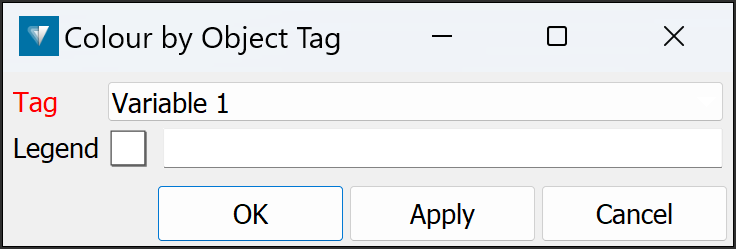
-
Drag a legend with the colour scheme to be used into the Legend field.
-
Select the objects to be coloured.
-
Select the appropriate tag from the Tag drop-down.
-
Click OK or Apply.
