

Export the View Window
You can export the View Window as an image, a 3D PDF file, or a U3D file in GeologyCore.
To do this, on the View > Export group, select the required export format from the Capture Scene  drop-down menu. The configuration options will depend on the format of the output.
Image File
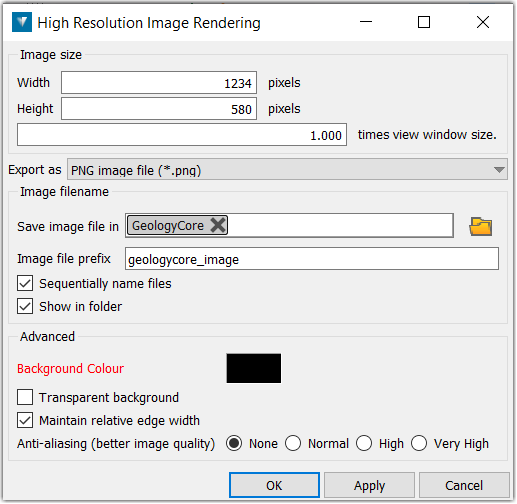
To configure your image file output, complete the following. GeologyCore will attempt to guess these settings for you.
-
Specify the size of the image you want to export by setting the width, height and times view window size fields. The size of the output image will be the width multiplied by the height multiplied by the times view window size.
-
Choose the format of the output file by setting the Export as field to one of the following options: PNG image file, BMP image file or JPEG image file.
-
Specify the location you want to save the image in by setting theSave image file in field.
-
Provide a prefix for the image file name by setting the Image file prefix field.
-
In the Advanced Settings:
-
Set the Background Colour or choose a transparent colour for the background by selecting the Transparent background checkbox.
-
To make sure that the relative edge width in the image is the same as in the view, select the Maintain relative edge checkbox.
-
Choose the level of anti-aliasing you would like to apply to the image from the following options: none, normal, high, very high. The greater the anti-aliasing , the greater the quality of the image but the longer it will take to generate the image.
-
