

Adding Progress Indication
When processing large amounts of data, scripts can take a significant amount of time to complete. If a user receives no feedback on the progress of a long-running script, it can be difficult for them to know when it will finish. For scripts that run for more than a few minutes, a progress indicator helps users gauge how much of the process is complete and how much longer it might take.
Basic example
The following example script demonstrates performing a hypothetical processing task on all selected surfaces in the connected application. It provides a progress indicator that fills up as each surface is processed:
import time

from mapteksdk.data import Surface, ObjectID
from mapteksdk.operations import show_message, Severity
from mapteksdk.project import Project

TITLE = "Process Surfaces"


def process_surface(surface_id: ObjectID[Surface]):
    # Process the surface here.
    # To keep this example simple, this will wait for one second.
    time.sleep(1.0)


def progress_example(project: Project):
    surfaces = project.get_selected().where(Surface)
    if len(surfaces) == 0:
        show_message(
            title=TITLE,
            message="This operation requires a surface to be selected.",
            severity=Severity.ERROR,
        )
        return
    with project.progress_indicator(
        max_progress=len(surfaces),
        title=TITLE,
        message="Processing...",
    ) as progress_indicator:
        for surface in surfaces:
            process_surface(surface)
            progress_indicator.add_progress()


if __name__ == "__main__":
    with Project() as main_project:
        progress_example(main_project)
The animation below shows this script running with five surfaces selected.
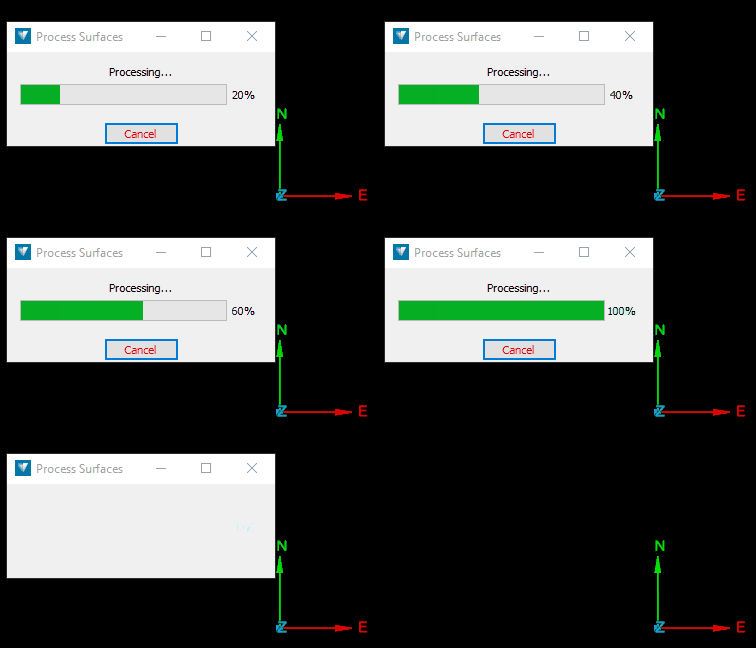
The example above demonstrates the standard usage of a progress indicator. The max_progress parameter passed to the Project.progress_indicator() method defines the total number of progress units that will be added to the progress indicator during execution of the script. The progress indicator starts empty (0 units of progress) and ProgressIndicator.add_progress() is called max_progress times, resulting in a full progress indicator (max_progress units of progress). The progress indicator is then closed when the with block for the progress indicator ends.
-
The example above uses time.sleep() rather than doing anything meaningful. If you use the example code in a script, be sure to remove the time.sleep() calls to prevent wasting time.
-
To display accurate progress, the ProgressIndicator.add_progress() method should be called after each call to process_surface(). If it were called before, then the progress indicator would appear full (implying processing was complete) while it was processing the last surface. By calling ProgressIndicator.add_progress() afterwards, the progress indicator only appears full once all surfaces have been processed.
-
The progress indicator window in the attached application is automatically closed when the with block for the progress indicator closes.
-
It is an error to pass max_progress=0 to Project.progress_indicator(). The example script above displays an error to the user in this case.
Adding more than one unit of progress at a time
The example in the previous section naively calculates maximum progress, which can lead to inaccurate progress indicators. For example, if one surface has 100 facets and another has 900, the progress would incorrectly show as 50% complete after processing the first surface. To maintain accuracy, the progress indicator should be weighted based on the relative length of each operation.
The modified script below calculates the total facet count for all surfaces, setting it as the maximum progress. After processing each surface, it increments the progress by the number of facets on that surface, ensuring accurate progress indication:
import time

from mapteksdk.data import Surface, ObjectID
from mapteksdk.operations import show_message, Severity
from mapteksdk.project import Project

TITLE = "Process Surfaces"


def process_surface(project: Project, surface_id: ObjectID[Surface]) -> int:
    """Process the surface here.


    To keep this example simple, this just sleeps for 1 second.
    Returns the facet count of the surface as that is how much progress should
    be written to the progress indicator.
    """
    with project.read(surface_id) as surface:
        count = surface.facet_count
    time.sleep(1.0)
    return count


def progress_example(project: Project):
    surfaces = project.get_selected().where(Surface)
    if len(surfaces) == 0:
        show_message(
            title=TITLE,
            message="This operation requires a surface to be selected.",
            severity=Severity.ERROR,
        )
        return
    total_facets = 0
    for surface_id in surfaces:
        with project.read(surface_id) as surface_id:
            total_facets += surface_id.facet_count
    with project.progress_indicator(
        max_progress=total_facets,
        title=TITLE,
        message="Processing...",
    ) as progress_indicator:
        for surface_id in surfaces:
            progress = process_surface(project, surface_id)
            progress_indicator.add_progress(progress)
        # Wait for a second once the progress indicator is full to make the
        # animation recorded for the documentation look nicer.
        time.sleep(1.0)


if __name__ == "__main__":
    with Project() as main_project:
        progress_example(main_project)
If three surfaces are selected, with 51%, 18%, and 31% of the total facets, respectively, the progress indicator will accurately reflect these proportions, as shown in the animation below.
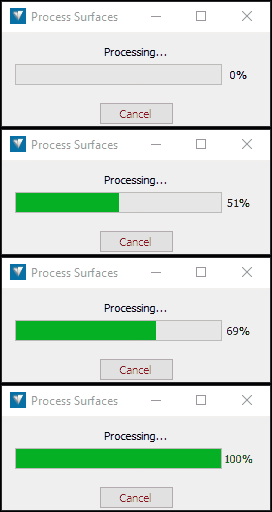
Note: Weighting by facet count may still be inaccurate depending on the algorithm's computational complexity. If the complexity depends on points rather than facets, or if it is not linearly dependent on facet count, this approach may need to be adjusted.
Long-running operations
For long-running or background operations, it may be preferable to display progress in a less intrusive manner, such as in the status bar at the bottom of the view. While this approach is less distracting, it is also easier for users to overlook.
A key limitation is that only one background progress indicator can be displayed at a time, so they should be used sparingly. You can create a background progress indicator by setting background=True in the Project.progress_indicator() method, as demonstrated in the following script:
import time

from mapteksdk.project import Project

TITLE = "Background Surface"


def background_progress_example(project: Project):
    max_progress = 10
    with project.progress_indicator(
        max_progress=max_progress,
        title=TITLE,
        message="Loading...",
        background=True,
    ) as progress_indicator:
        time.sleep(5)
        for _ in range(max_progress):
            time.sleep(0.5)
            progress_indicator.add_progress()
        # Keep the progress indicator open for a second when full so that
        # the animation for the documentation looks good.
        time.sleep(1.0)


if __name__ == "__main__":
    with Project() as main_project:
        background_progress_example(main_project)
Running this script results in the following progress indicator:

Note: Background progress indicators do not display a title.
Changing the message of the progress indicator
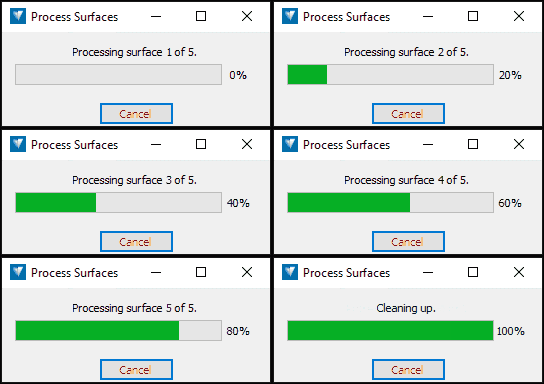
The ProgressIndicator.update_message() method can be used to change the message displayed with the progress indicator. The following script displays a progress indicator that states which surface it is processing:
import time

from mapteksdk.data import Surface, ObjectID
from mapteksdk.operations import show_message, Severity
from mapteksdk.project import Project

TITLE = "Process Surfaces"


def process_surface(surface_id: ObjectID[Surface]):
    # Process the surface here.
    # To keep this example simple, this will
    time.sleep(1.0)


def progress_example(project: Project):
    surfaces = project.get_selected().where(Surface)
    if len(surfaces) == 0:
        show_message(
            title=TITLE,
            message="This operation requires a surface to be selected.",
            severity=Severity.ERROR,
        )
        return
    with project.progress_indicator(
        max_progress=len(surfaces),
        title=TITLE,
        message="Setting up.",
    ) as progress_indicator:
        time.sleep(1.0)
        total_surfaces = len(surfaces)
        for i, surface_id in enumerate(surfaces):
            progress_indicator.update_message(
                f"Processing surface {i + 1} of {total_surfaces}."
            )
            process_surface(surface_id)
            progress_indicator.add_progress()
        progress_indicator.update_message("Cleaning up.")
        # Wait for a second once the progress indicator is full.
        time.sleep(1.0)


if __name__ == "__main__":
    with Project() as main_project:
        progress_example(main_project)
This script results in the following progress indicator (when run with five surfaces selected):
Fake progress
In situations where it is difficult or impossible to provide an accurate indication of progress—such as when working with external code or unknown operation times—fake progress can be useful. This can reassure users that the script is running and has not frozen. Fake progress is triggered by calling ProgressIndicator.fake_progress(), as demonstrated below:
import time

from mapteksdk.project import Project

TITLE = "Background Surface"


def fake_progress_example(project: Project):
    max_progress = 6
    with project.progress_indicator(
        max_progress=max_progress,
        title=TITLE,
        message="Loading...",
        background=True
    ) as progress_indicator:
        time.sleep(1.0)
        for i in range(max_progress + 1):
            if i == 3:
                # On the third step, run fake progress.
                progress_indicator.fake_progress()
            else:
                progress_indicator.add_progress()
            time.sleep(1.0)


        # Keep the progress indicator open for a second when full so that
        # the animation for the documentation looks good.
        time.sleep(1.0)


if __name__ == "__main__":
    with Project() as main_project:
        fake_progress_example(main_project)
Running this script results in the following progress indicator:
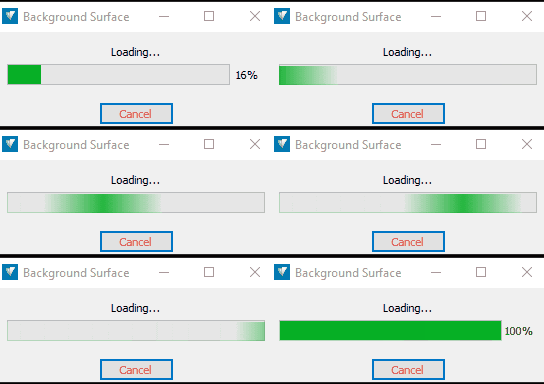
When fake progress is invoked, the current progress level is stored, allowing the indicator to resume from the same progress point when ProgressIndicator.add_progress() or ProgressIndicator.set_progress() is called.
Handling cancellation
Users can cancel an operation with a progress indicator by pressing the cancel button on the progress indicator panel or by closing the panel. When this happens, a ProgressCancelledError is raised in the Python script the next time a method is called on the progress indicator (e.g., ProgressIndicator.add_progress()).
In most cases, letting this exception propagate will stop any ongoing calculations and cause the script to exit, as expected. However, if the script creates any temporary objects, these may remain (for example, in a view) after the operation is cancelled. To prevent this, it’s advisable to catch the ProgressCancelledError and perform cleanup, as shown in the following example:
def main(project: Project):
    # The main function goes here.
    pass


if __name__ == "__main__":
    with Project() as main_project:
        try:
            main(main_project)
        except ProgressCancelledError:
            # This is a good place to run clean up functions.
            clean_up()

            # Re-raise the exception so that external tools know that the
            # script did not run to completion.
            raise
The best place to handle the ProgressCancelledError will vary depending on the script. Generally, it is best to include as little of the script as possible within the try-except block (unlike the example above), but this decision should be made on a case-by-case basis.
