

Selection File Objects
Maptek Vulcan uses selection files (.sel) to select drillholes from a drillhole database by name. These files can be imported into Maptek GeologyCore and saved within a project. The Python SDK allows you to programmatically create, edit, and read selection file objects stored in a project.
Selection file objects are represented in the SDK using the SelectionFile class.
Note: Selection file objects in GeologyCore are objects stored within the project and are not necessarily linked to a physical file. If a selection file object is created by importing a Vulcan selection file (.sel), the original file is recorded with the object. However, creating a selection file object via the SDK does not generate a physical selection file.
Creating a selection file object
You can create a new selection file object using Project.new(). Then, add name patterns to be matched using the SelectionFile.add() function.
The example script below creates a new selection file object and adds the single name pattern “dog”:
from mapteksdk.project import Project
from mapteksdk.data import SelectionFile

def main(project: Project):
    with project.new("selection files/examples/add", SelectionFile) as selection_file:
        selection_file.add("dog")

if __name__ == "__main__":
    with Project() as main_project:
        main(main_project)
Running this script creates a selection file object named add. If you right-click this object in GeologyCore and select Edit Selection... from the context menu, the following panel will open:
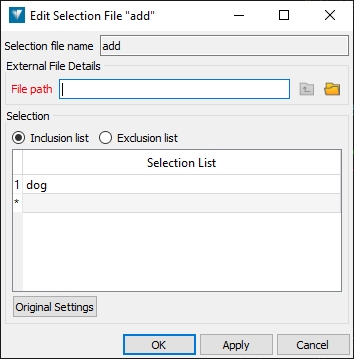
This selection file will only match the exact name “dog”. Selection files are case-sensitive, so the pattern in this example will not match names like “Dog” or “DOG”.
To add multiple patterns to the selection file at once, you can used the SelectionFile.extend() function, as demonstrated in the following example:
from mapteksdk.project import Project
from mapteksdk.data import SelectionFile

def main(project: Project):
    with project.new(
        "selection files/examples/extend", SelectionFile
    ) as selection_file:
        selection_file.extend(("dog", "cat"))

if __name__ == "__main__":
    with Project() as main_project:
        main(main_project)
Running this script will create a selection file object that will match only the exact names “cat” and “dog”.
Checking for matches in selection files
The in operator can be used to check if a string is matched by a selection file. For example, the following script uses the selection file created in the previous example and checks whether the strings “cat”, “dog” and “bat” are matched by the selection file:
from mapteksdk.project import Project
from mapteksdk.data import SelectionFile

def main(project: Project):
    with project.read(
        "selection files/examples/extend", SelectionFile
    ) as selection_file:
        print("dog - ", "dog" in selection_file)
        print("cat - ", "cat" in selection_file)
        print("bat - ", "bat" in selection_file)

if __name__ == "__main__":
    with Project() as main_project:
        main(main_project)
Running this script will result in the following output:
dog - True
cat - True
bat - False
Wildcards
Wildcards allow names matching a specific pattern to be included in the selection, simplifying the creation of selection files by reducing the number of patterns required.
The following wildcards are available:
| Wildcard | Interpretation | Example |
|---|---|---|
?
|
Match any character at this position exactly once. |
|
*
|
Match zero or more characters as this position. |
|
?*
|
Match one or more characters at this position. |
|
Wildcards can appear at any position in the pattern, and can be combined to produce complex matching patterns, as demonstrated in the following example:
from mapteksdk.project import Project
from mapteksdk.data import SelectionFile

def main(project: Project):
    with project.new("selection files/examples/Many wild cards", SelectionFile) as selection_file:
        selection_file.add("m?n?*g")
        print("mining   -", "mining" in selection_file)
        print("manning  -", "manning" in selection_file)
        print("managing -", "managing" in selection_file)
        print("mounting -", "mounting" in selection_file)

if __name__ == "__main__":
    with Project() as main_project:
        main(main_project)
The pattern m?n?*g matches any string that starts with the letter m, followed by any other single character, followed by the letter n, followed by one or more characters, followed by the letter g.
Running this script will produce the following output:
mining   - True
manning  - True
managing - True
mounting - False
Inclusion vs exclusion selection files
By default, a selection file is an inclusion file, meaning any pattern added is included in the selection. However, a selection file can be converted into an exclusion file by setting the SelectionFile.is_inclusion property to False. In an exclusion file, any added pattern is excluded from the selection.
The following script demonstrates how to create an exclusion selection file:
from mapteksdk.project import Project
from mapteksdk.data import SelectionFile

def main(project: Project):
    with project.new(
        "selection files/examples/exclusion", SelectionFile
    ) as selection_file:
        selection_file.extend(("dog", "cat"))
        selection_file.is_inclusion = False
        print("dog -", "dog" in selection_file)
        print("cat -", "cat" in selection_file)
        print("bat -", "bat" in selection_file)

if __name__ == "__main__":
    with Project() as main_project:
        main(main_project)
Running this script results in the following output:
dog - False
cat - False
bat - True
Since "dog" and "cat" were added to the exclusion file, they are excluded from the selection. However, "bat" was not excluded, so it remains part of the selection.
