

Creating User Interfaces
The following operations allow Python scripts to instruct the application to create user interface (UI) elements. Because the application creates the UI instead of the Python script, this ensures that the created windows are properly parented to the application so that they will not appear behind the application.
Requesting a string from a text field
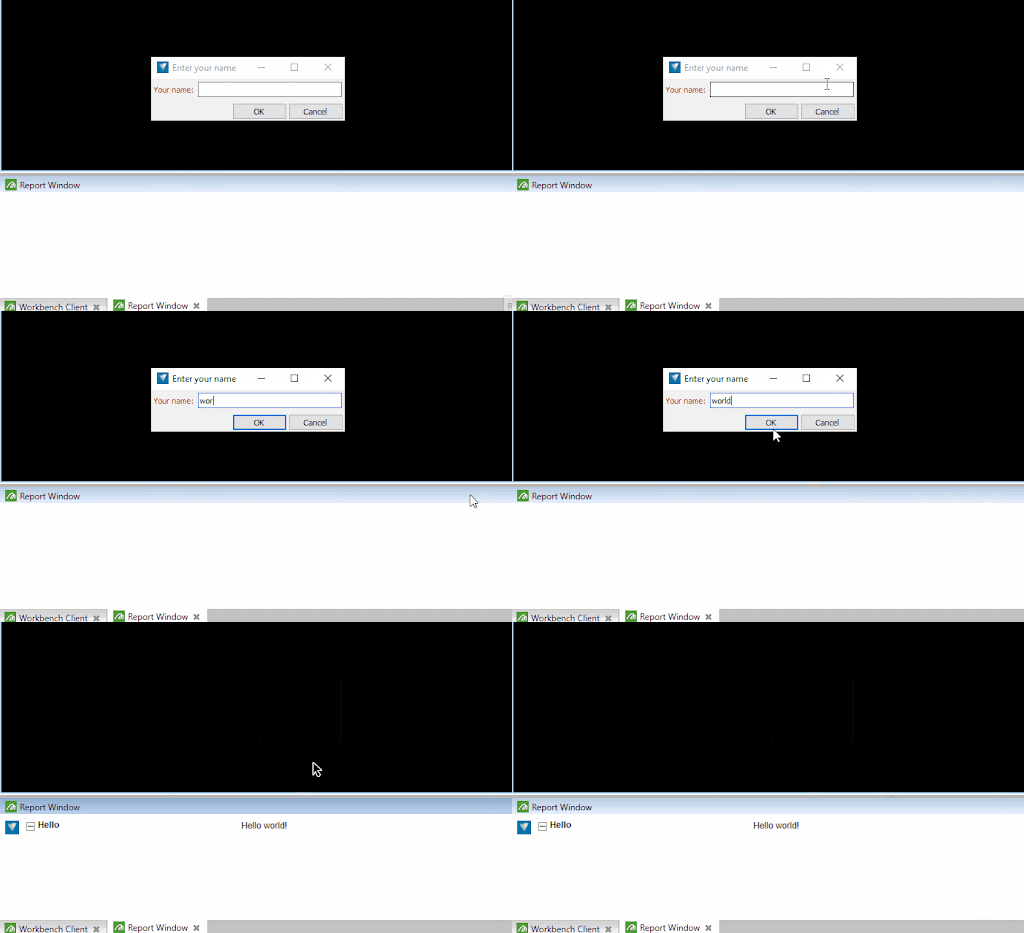
The request_string() operation creates a window in the connected application that the user can type into. For example, the following script asks the user what their name is and then writes a report to say hello to them:
from mapteksdk.project import Project
from mapteksdk.operations import request_string, write_report

if __name__ == "__main__":
    with Project() as project:
        name = request_string(
            label="Your name:",
            title="Enter your name"
        )
        write_report("Hello", f"Hello {name}!")
The following animation shows this script in action:
Requesting a string from a drop-down box
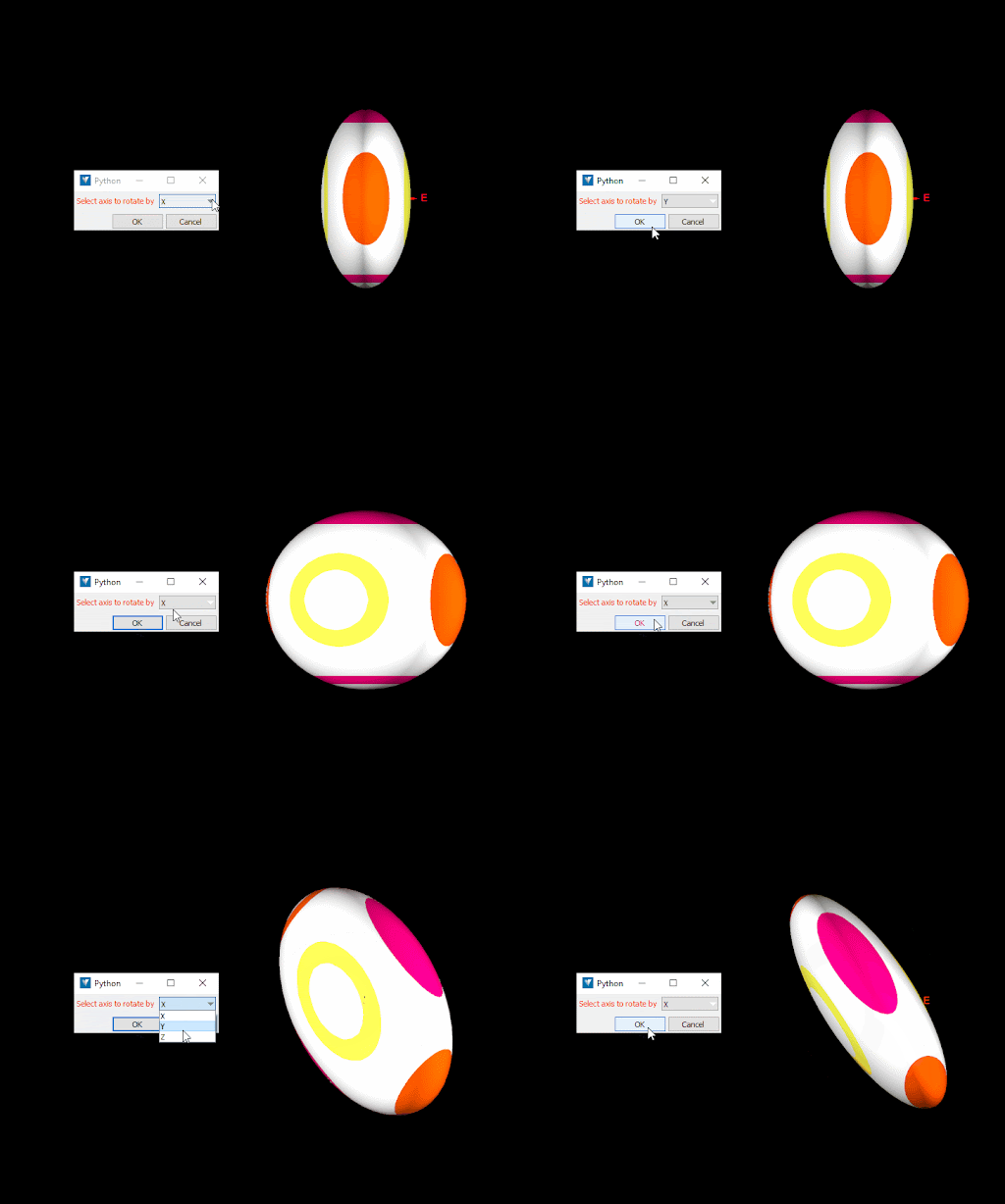
The request_string() operation has an optional choices parameter that allows for specifying a list of options for the user to choose from. If this argument is specified, then instead of a text field the window will contain a drop-down box containing the options. For example, the following script displays an ellipsoid and requests the user to select which axis they wish to rotate it around:
import math
from mapteksdk.project import Project
from mapteksdk.data import Ellipsoid, Axis
from mapteksdk.operations import open_new_view, request_string, OperationCancelledError

CHOICES = {
    "X" : Axis.X,
    "Y" : Axis.Y,
    "Z" : Axis.Z
}

if __name__ == "__main__":
    with Project() as project:
        with project.new("geotechnical/example/rotation", Ellipsoid) as ellipsoid:
            ellipsoid.size = (1, 2, 3)
            ellipsoid.centre = (0, 0, 0)
            ellipsoid.colour = (255, 255, 255, 255)

        open_new_view(ellipsoid)

        while True:
            try:
                choice = request_string("Select axis to rotate by", choices=CHOICES.keys())
            except OperationCancelledError:
                # Exit the loop if the user cancels the operation.
                break
            with project.edit(ellipsoid.id) as edit_ellipsoid:
                axis = CHOICES[choice]
                edit_ellipsoid.rotate(math.pi / 4, axis)
The above script is demonstrated in the following animation:
Requesting a floating-point value
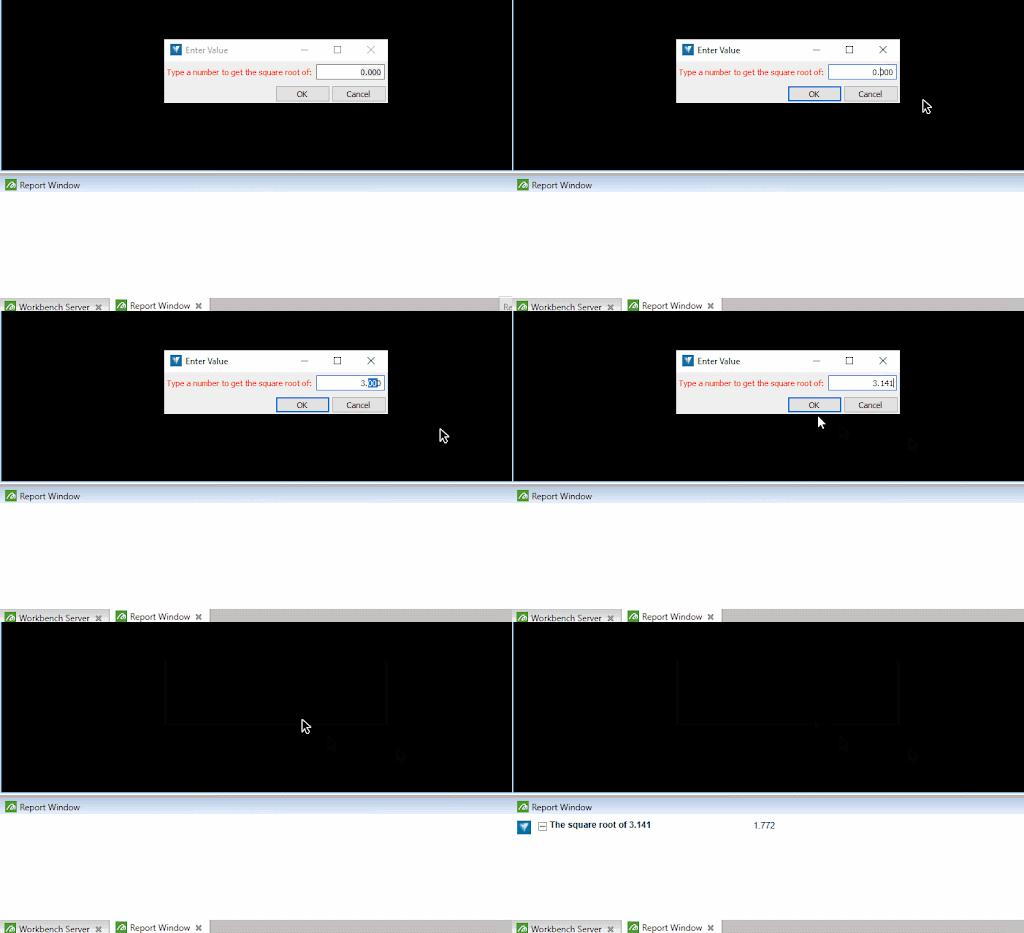
The request_float() operation is similar to the request_string() operation, except that it restricts the user to entering a decimal number. For example, the following script creates a window that the user can only enter a number into. It then writes a report stating the square root of the number the user entered:
import math

from mapteksdk.project import Project
from mapteksdk.operations import request_float, write_report

if __name__ == "__main__":
    with Project() as project:
    number = request_float(
    label="Type a number to get the square root of:",
    )
    write_report(
        f"The square root of {number}",
        f"{math.sqrt(number):.3f}")
The following animation shows the script in action:
Requesting an integer value
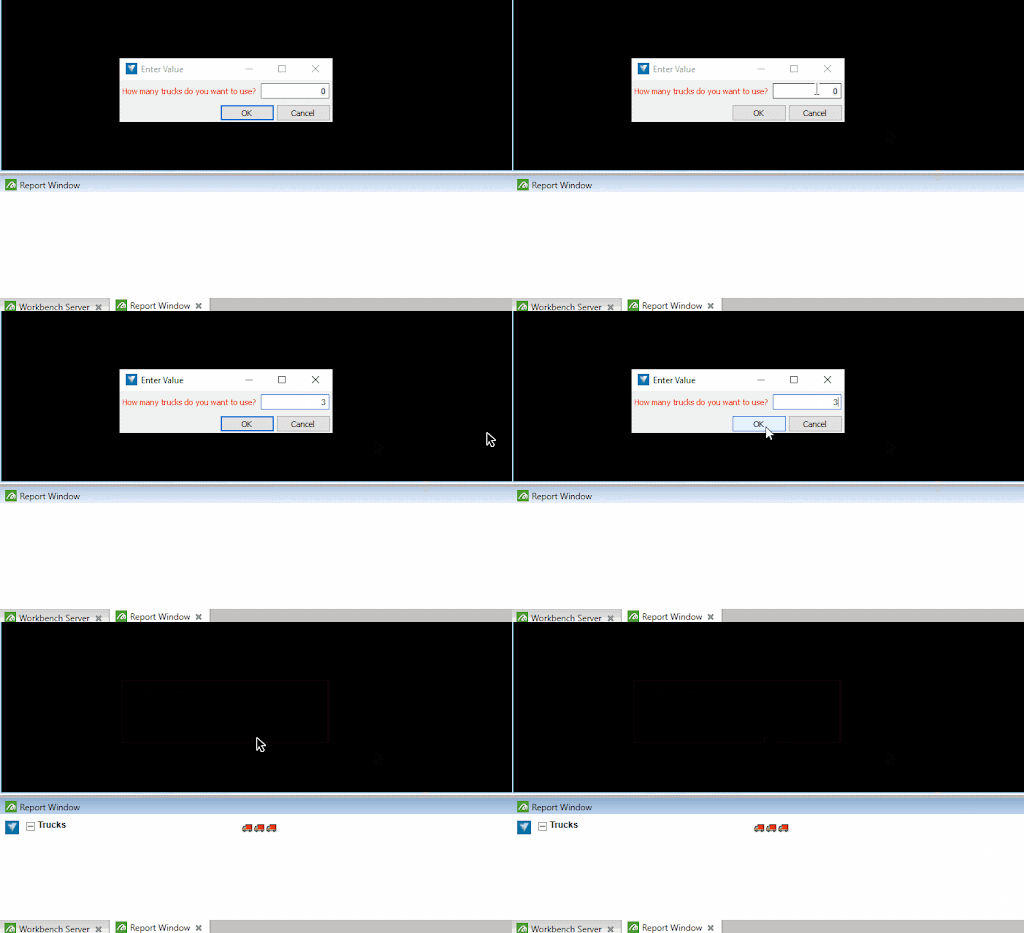
Sometimes it doesn’t make sense for the user to enter a decimal number. For example, if your script needs to know the number of trucks to include in a schedule, it wouldn’t make sense for the user to supply a value of 2.5. In such cases request_integer() should be used instead of request_float() because it only allows the user to enter a whole number. The following script prompts the user for a whole number of trucks and writes a report containing that number of truck emojis:
from mapteksdk.project import Project
from mapteksdk.operations import request_integer, write_report

if __name__ == "__main__":
    with Project() as project:
        count = request_integer(
        label="How many trucks do you want to use?",
    )
    write_report(
        f"Trucks",
        "\u1F69A" * count)
The following animation shows this script in action:
Asking a yes/no question
The ask_question() operation allows the script to create a confirmation dialog displaying a question with Yes and No buttons. A good use of this operation is asking the user if they’d like to overwrite an object, as shown in the following script:
import sys

from mapteksdk.project import Project
from mapteksdk.data import Surface
from mapteksdk.operations import open_new_view, ask_question

def ask_user_to_overwrite(project: Project, path: str) -> bool:
    """Ask the user if it is okay to overwrite the object at the specified path.

    This will not ask the user if there is no object at the specified path.

    Parameters
    ----------
    project
        Project to check the path in.
    path
        Path to ask the user if the script can overwrite the object.

    Returns
    -------
    bool
        True if there is no object at path or if there is an object at path
        and the user selected accepted overwriting it.
        False if there is an object at path and the user refused to
        overwrite it.
    """

    if project.find_object(path):
        return ask_question(
            title="Overwrite",
            question=f"The object at '{path}' already exists. Would you like to overwrite it?"
        )
    return True

if __name__ == "__main__":
    with Project() as project:
        path = "surfaces/ask_question_example"
        overwrite = ask_user_to_overwrite(project, path)
    if not overwrite:
        sys.exit(0)

    with project.new(path, Surface, overwrite=overwrite) as surface:
        surface.points = [[-10, -10, 0], [10, -10, 0], [10, 10, 0], [-10, 10, 0]]
        surface.facets = [[0, 1, 2], [0, 2, 3]]
    open_new_view(surface.id)
This script creates the following dialog in the connected application:
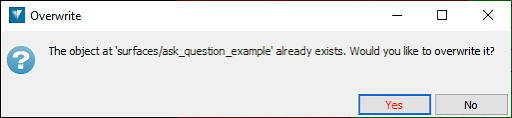
If the user presses Yes, the existing object is overwritten. If the user presses No, the script exits and the existing object is left unchanged.
Requesting a choice from the user
The multi-choice question operation creates a dialog box in the connected application that allows the user to choose between multiple choices. The following script demonstrates a minimal example with only a single choice:
from mapteksdk.project import Project, OverwriteMode
from mapteksdk.data import Text2D
from mapteksdk.operations import (
    multi_choice_question,
    Option,
    OperationCancelledError,
    Icon,
)

def can_overwrite(_: Project):
    """Ask the user if this script should overwrite the existing object."""
    accept = Option(
        "Continue", "The existing object will be overwritten.", Icon.warning()
    )
    try:
        result = multi_choice_question(
            accept,
            title="The object already exists.",
            message="Would you like to overwrite it?",
            icon=Icon.warning(),
        )
        return result.title == accept.title
    except OperationCancelledError:
        # The user clicking the cancel button is treated as aborting the operation.
        return False

def create_object(project: Project, path: str, overwrite_mode: OverwriteMode):
    """A contrived function which creates an object at the path.


    This creates a Text2D object at the specified path. In a real world script,
    this would do something more useful.
    """
    with project.new(path, Text2D, overwrite=overwrite_mode) as text:
        text.location = [0, 0, 0]
        text.text = path

def main(project: Project, path: str):
    """Main function for this script."""
    if project.find_object(path):
        if not can_overwrite(project):
            return
    create_object(project, path, OverwriteMode.OVERWRITE)

if __name__ == "__main__":
    with Project() as main_project:
        main(main_project, "cad/multi_choice_question_example")
The first time this script runs, it will usually complete without issue because there is unlikely to be an object at cad/multi_choice_question_example. If the script is run again it will display the following dialog to the user:
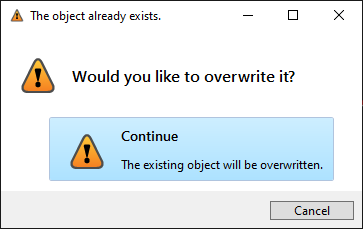
If the user clicks Continue, the script will overwrite the existing object. If the user clicks Cancel, the script will abort the operation.
The example script above uses only a single option. Although this is allowed, the ask_question() operation can do the same thing with less code. The main advantage of the multi_choice_question() operation is that it can provide the user with more than two options to choose from. For example, the following script (an expanded version of the previous script) gives the user three options:
from mapteksdk.project import Project, OverwriteMode
from mapteksdk.data import Text2D
from mapteksdk.operations import (
    multi_choice_question,
    Option,
    OperationCancelledError,
    Icon,
)

def query_overwrite_mode(_: Project) -> OverwriteMode:
    """Ask the user if this script should overwrite the existing object."""
    unique_name = Option(
        "Unique name",
        "Postfix the path with a number to avoid overwriting.",
        Icon.okay(),
    )
    overwrite = Option(
        "Overwrite", "The existing object will be overwritten.", Icon.warning()
    )
    abort = Option("Abort", "Abort the operation.", Icon.minus())
    try:
        result = multi_choice_question(
            unique_name,
            overwrite,
            abort,
            title="The object already exists.",
            message="Would you like to overwrite it?",
            icon=Icon.warning(),
        )
        if result.title == unique_name.title:
            return OverwriteMode.UNIQUE_NAME
        if result.title == overwrite.title:
            return OverwriteMode.OVERWRITE
        return OverwriteMode.ERROR
    except OperationCancelledError:
        # The user clicking the cancel button is treated as aborting the operation.
        return OverwriteMode.ERROR

def create_object(project: Project, path: str, overwrite_mode: OverwriteMode):
    """A contrived function which creates an object at the path.


    This creates a Text2D object at the specified path. In a real world script,
    this would do something more useful.
    """
    with project.new(path, Text2D, overwrite=overwrite_mode) as text:
        text.location = [0, 0, 0]
        text.text = path

def main(project: Project, path: str):
    """Main function for this script."""
    overwrite_mode = OverwriteMode.ERROR
    if project.find_object(path):
        overwrite_mode = query_overwrite_mode(project)
        # We have already detected that the object exists,
        # so the call to create_object would raise
        # an error. Exit early to avoid that.
        if overwrite_mode == OverwriteMode.ERROR:
            return

    # Note that this can still raise an error if another process creates
    # an object at path between the call to find_object() returning False
    # and the call to create_object().
    # This script does not handle this error for brevity.
    create_object(project, path, overwrite_mode)

if __name__ == "__main__":
    with Project() as main_project:
        main(main_project, "cad/multi_choice_advanced")
If the object at the destination already exists, then this script will display the following options to the user:
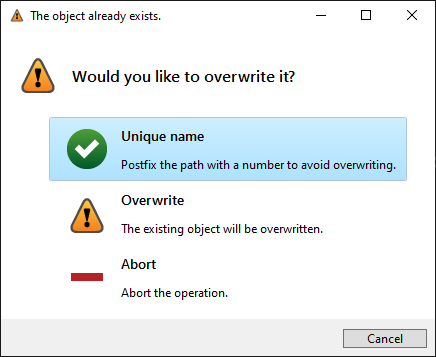
By providing two additional Option objects to the operation, this has resulted in the user having three mutually exclusive options to choose from (or four if you count the Cancel button).
-
From mapteksdk 1.7, it is not possible to suppress the Cancel button in the multi-choice question. Thus the operation can always raise an OperationCancelledError.
-
From mapteksdk 1.7, the maximum number of Option arguments supported by the multi-choice question operation is five. This is also the maximum number supported by GeologyCore 2024 and PointStudio 2024.
-
In the above examples, the functions can_overwrite() and query_overwrite_mode() accept a Project parameter but do not use it. All operations require the script to be connected to an application via the Project class. The unused parameter is intended to act as a reminder to callers that the functions will raise an error if the script is not connected to an application when they are called.
