

Requesting Picks from the User
A pick is an action performed by the user of an application to choose an object, a primitive, or a coordinate as part of a procedure, usually by clicking on it in a view window. Requesting a pick in an SDK script is the way to prompt the user to make a pick in the connected application.
Requesting an object pick
The object_pick() function requests the user to select an object in the running application. When you click on an object, its ObjectID is returned to the Python script. This provides you an intuitive way to select an object. The following example shows how to query the path and type name for the picked object.
from mapteksdk.pointstudio.operations import object_pick, write_report
from mapteksdk.project import Project

project = Project()

oid = object_pick()

path = oid.path
type_name = oid.type_name

write_report("Object pick", f"The object at {path} is a {type_name}")
Object picks for specific types
The object_types parameter of object_pick() allows you to restrict an object pick to a specific type. For example, the following script restricts an object pick to only accept Surface objects:
from mapteksdk.project import Project
from mapteksdk.data import Surface
from mapteksdk.operations import (
    object_pick,
    primitive_pick,
    SelectablePrimitiveType,
    PickFailedError,
)
import numpy as np


if __name__ == "__main__":
    with Project() as project:
        try:
            surface_id = object_pick(object_types=Surface, label="Pick a surface")
            while True:
                # Because the pick was restricted to a Surface, surface_id
                # must be the id of a Surface. This ensures
                # pick_primitive_on_object() won't enter an infinite loop.
                facet_primitive = primitive = primitive_pick(
                    SelectablePrimitiveType.FACET,
                    label=f"Pick a Facet on {surface_id.path}",
                    locate_on=(surface_id,),
                )
                with project.edit(surface_id) as surface:
                    # A bitwise not will invert the colour. The slice ensures
                    # the alpha component is not inverted, because that would
                    # make a fully-visible facet invisible.
                    np.bitwise_not(
                        surface.facet_colours[facet_primitive.index][:3],
                        out=surface.facet_colours[facet_primitive.index][:3],
                    )
        except PickFailedError:
            pass
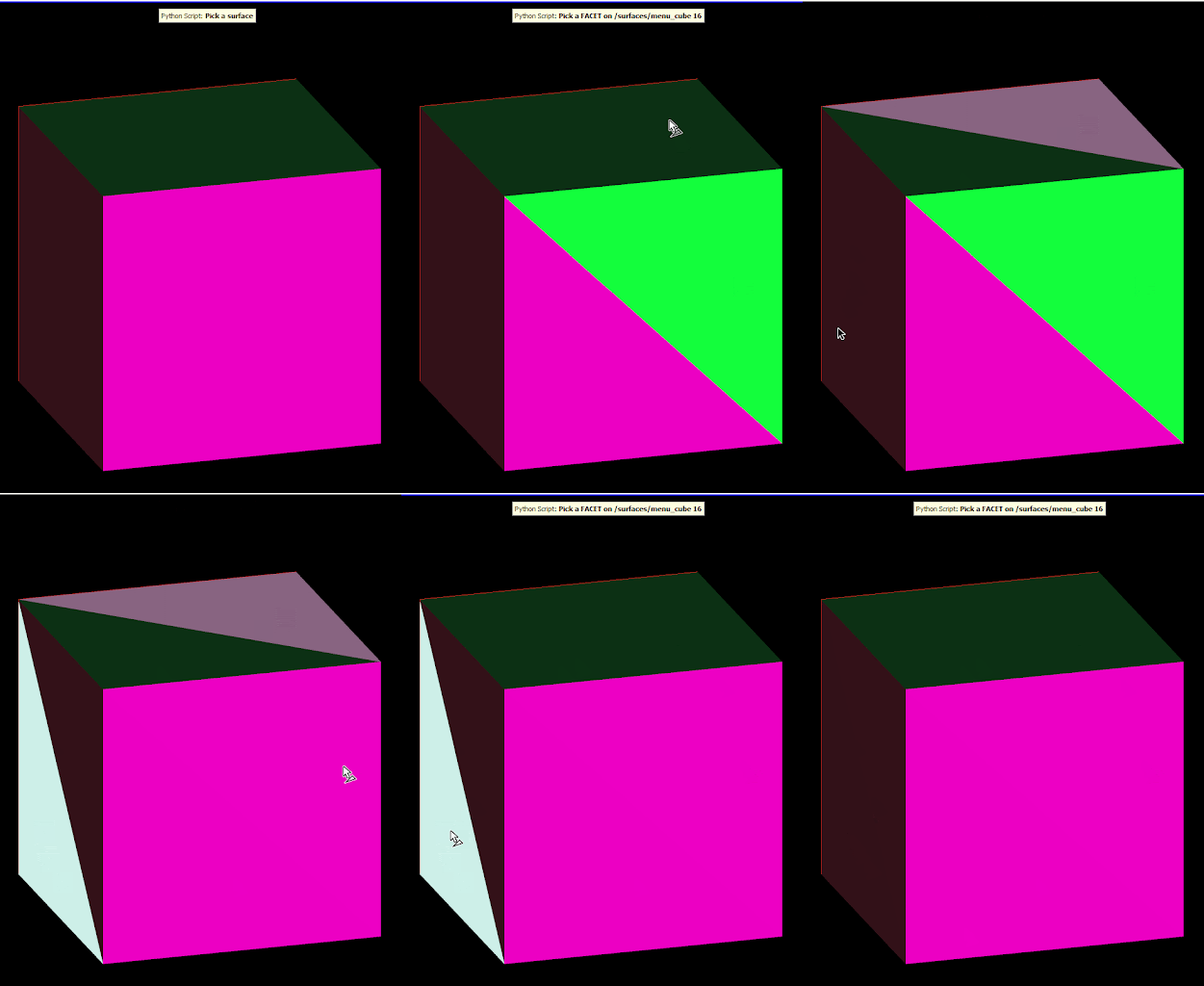
The following animation represents this script using a simple cube as an example:
-
Assigning object_types to a single type will restrict the pick to that type. For example, to restrict the pick to Surface objects:
surface_id = object_pick( object_types=Surface, label="Pick a surface") -
Assigning object_types to a tuple of types will allow the pick to accept an object of any of the specified types. For example, to restrict the pick to a dense, subblocked or sparse block model:
block_id = object_pick(
    object_types=(
        DenseBlockModel, SubblockedBlockModel, SparseBlockModel),
        label="Pick a block model")
Customising the pick operation messages
The messages that appear in the application during the pick operations can be customised by the label, support_label and help_text parameters of the function. The example below demonstrates using those three parameters to customise the messages shown by an object pick operation.
from mapteksdk.pointstudio.operations import object_pick, write_report
from mapteksdk.project import Project

project = Project()

object = object_pick(label="This is the label",
                     support_label="This is the support label",
                     help_text="This is the help text")
If you run this script, before picking a point, you will see:
-
The support label text, which will appear at the top of the view in a yellow box.

-
The label text, which appears in the bottom left hand corner of the screen.

-
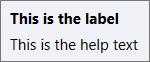
The help text, which will appear in a tooltip when the mouse hovers over the label.
Requesting a coordinate pick
The coordinate_pick() function requests the user to select a coordinate in the running application. This can either be a coordinate on an object or a coordinate in the action plane.
For example, the script below requests the user to select a point in the view and writes the selected point to the report window.
from mapteksdk.pointstudio.operations import coordinate_pick, write_report
from mapteksdk.project import Project

project = Project()

point = coordinate_pick()

write_report("Coordinate pick", ", ".join([str(x) for x in point]))
Customising the pick operation messages
The messages that appear in the application during the pick operations can be customised by the label, support_label and help_text parameters of the function. The example below demonstrates using those three parameters to customise the messages shown by a coordinate pick operation.
from mapteksdk.pointstudio.operations import coordinate_pick, write_report
from mapteksdk.project import Project

project = Project()

point = coordinate_pick(label="This is the label",
                        support_label="This is the support label",
                        help_text="This is the help text")
If you run this script, before picking a point, you will see:
-
The support label text, which will appear at the top of the view in a yellow box.
-
The label text, which appears in the bottom left hand corner of the screen.

-
The help text, which will appear in a tooltip when the mouse hovers over the label.
Requesting a primitive pick
The primitive_pick() function allows a script to request the user to pick a primitive in the running application. This returns a primitive object that contains the path to the object the picked primitive belongs to and the index of the primitive. This allows for the picked primitive to be uniquely identified.
Point primitive pick
Point primitive picks allow the user to pick a point from an object. In the example below, we demonstrate how to print the index of the point in the points array, the path to the object that contains the point and the coordinate of the point you have picked.
from mapteksdk.pointstudio.operations import (primitive_pick, write_report, SelectablePrimitiveType)
from mapteksdk.project import Project

project = Project()

primitive = primitive_pick(SelectablePrimitiveType.POINT)

with project.read(primitive.path) as picked:
  point = picked.points[primitive.index]
  point_string = ", ".join([str(x) for x in point])
  message = (f"Picked point {primitive.index} of object {primitive.path} "
             f"which is located at ({point_string}).")

write_report("Point primitive pick", message)
Edge primitive pick
Edge primitive picks allow the script to prompt you to pick an edge in the currently running application. The following example reports the index of the picked edge in the edges array, the path to the object that contains the picked edge and the length of the picked edge in metres.
import numpy

from mapteksdk.pointstudio.operations import (primitive_pick, write_report,
                                              SelectablePrimitiveType)
from mapteksdk.project import Project

project = Project()

primitive = primitive_pick(SelectablePrimitiveType.EDGE)

with project.read(primitive.path) as picked:
  edge = picked.edges[primitive.index]
  start = picked.points[edge[0]]
  end = picked.points[edge[1]]
  length = numpy.linalg.norm(start - end)
  message = (f"Picked edge {primitive.index} of object {primitive.path} "
             f"which is {length} metres long.")

write_report("Edge primitive pick", message)
Facet primitive pick
Facet primitive picks allow for scripts to prompt you to select a facet in the running application. The example below reports the index of the picked facet in the facets array, the path to the object that contains the picked facet and the area of the picked facet.
import numpy
from mapteksdk.pointstudio.operations import (primitive_pick, write_report,
                                              SelectablePrimitiveType)
from mapteksdk.project import Project

project = Project()
primitive = primitive_pick(SelectablePrimitiveType.FACET)

with project.read(primitive.path) as picked:
  facet = picked.facets[primitive.index]
  A = picked.points[facet[0]]
  B = picked.points[facet[1]]
  C = picked.points[facet[2]]
  AB = B - A
  AC = C - A
  area = 0.5 * numpy.linalg.norm(np.cross(AB, AC))
  message = (f"Picked facet {primitive.index} of object {primitive.path} "
             f"which has an area of {area} square metres.")

write_report("Facet primitive pick", message)
Cell primitive pick
Cell primitive picks allow for scripts to prompt you to select a cell in the running application. The example below reports the index of the picked cell in the cells array, the path to the cell that contains the picked cell and finally the area of the picked cell.
import numpy
from mapteksdk.pointstudio.operations import (primitive_pick, write_report,
                                              SelectablePrimitiveType)
from mapteksdk.project import Project

project = Project()
primitive = primitive_pick(SelectablePrimitiveType.CELL)

with project.read(primitive.path) as picked:
  cell = picked.cells[primitive.index]
  p0, p1, p2, p3 = picked.points[cell]
  area = 0

  # The squared length of the diagonals.
  diagonal_1 = numpy.sum(numpy.square(p0 - p2))
  diagonal_2 = numpy.sum(numpy.square(p1 - p3))

  # Calculate the area using the shorter diagonal.
  # This ensures correct results for concave cells.
  # This still gives incorrect values for degenerate cells.
  if diagonal_1 < diagonal_2:
    area += numpy.linalg.norm(numpy.cross(p1 - p0, p2 - p0))
    area += numpy.linalg.norm(numpy.cross(p2 - p0, p3 - p0))
  else:
    area += numpy.linalg.norm(numpy.cross(p0 - p1, p3 - p1))
    area += numpy.linalg.norm(numpy.cross(p2 - p1, p3 - p1))
  area /= 2
  message = (f"Picked cell {primitive.index} of object {primitive.path} "
              f"which has an area of {area} square metres.")

write_report("Cell primitive pick", message)
Primitive pick on a specific object
The locate_on parameter of primitive_pick() allows for restricting a primitive pick to only accept primitives which are on the listed objects. For example, passing a single object id to the function causes a pick which can only be satisfied by picking on the given object:
primitive = primitive_pick(SelectablePrimitiveType.FACET, locate_on=(oid,))
The following script presents the user with a gold and green square, but the facet pick can only be satisfied by picking on the gold coloured square:
from mapteksdk.project import Project, OverwriteMode
from mapteksdk.data import Surface
from mapteksdk.operations import primitive_pick, open_new_view, SelectablePrimitiveType


def main(project: Project):
    with project.new(
        "surfaces/gold_square", Surface, OverwriteMode.UNIQUE_NAME
    ) as gold:
        gold.points = [[-5, -5, 0], [5, -5, 0], [5, 5, 0], [-5, 5, 0]]
        gold.facets = [[0, 1, 2], [0, 2, 3]]
        gold.facet_colours = [212, 175, 55, 255]


    with project.new(
        "surfaces/normal_square", Surface, OverwriteMode.UNIQUE_NAME
    ) as normal:
        normal.points = [[10, -5, 0], [20, -5, 0], [20, 5, 0], [10, 5, 0]]
        normal.facets = [[0, 1, 2], [0, 2, 3]]
        normal.facet_colours = [0, 220, 0, 255]


    open_new_view([gold.id, normal.id])


    _ = primitive_pick(
        primitive_type=SelectablePrimitiveType.FACET,
        label="This pick can only be satisfied by picking on the gold square.",
        locate_on=(gold.id,),
    )


if __name__ == "__main__":
    with Project() as main_project:
        main(main_project)
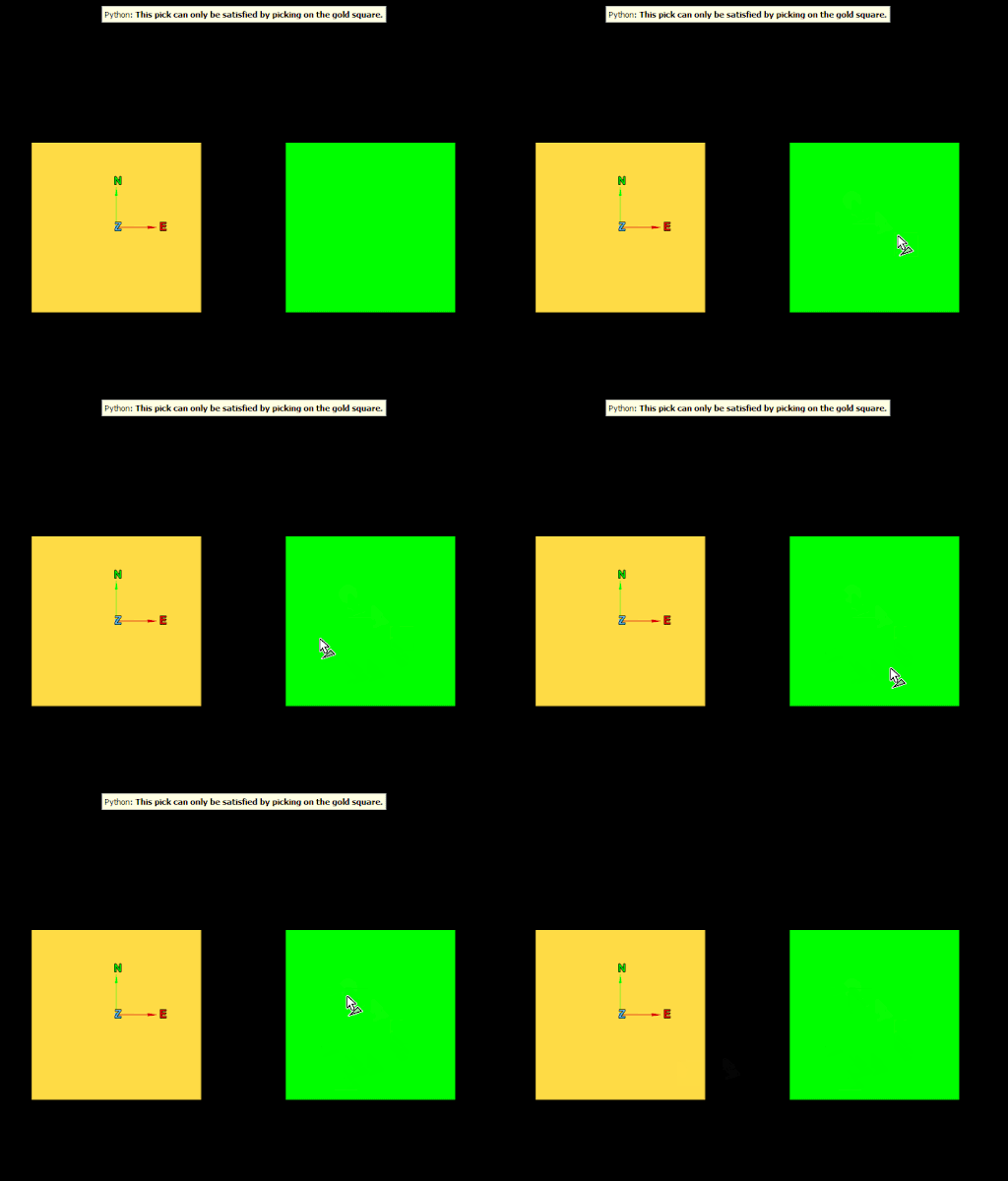
This is demonstrated in the following animation, where no matter how many times the green square is clicked on, the pick is never satisfied until the gold square is picked:
Passing multiple object IDs to the locate_on parameter allows for restricting the pick to only be satisfied by picking a primitive on one of many objects:
primitive = primitive_pick(SelectablePrimitiveType.FACET, locate_on=(oid, other_oid,))
Example: drawing on a surface
The following example uses the locate_on parameter to allow the user to draw on a canvas. Because the pick is restricted to being on the canvas object, the script does not need to handle the user clicking on a different object, which significantly reduces the complexity.
import itertools


from mapteksdk.project import Project, OverwriteMode
from mapteksdk.data import Surface, ObjectID
from mapteksdk.operations import (
    primitive_pick, open_new_view, SelectablePrimitiveType, PickCancelledError)


def create_canvas(project: Project, row_count: int, col_count: int) -> ObjectID[Surface]:
    """Create a canvas for the user to paint on."""
    with project.new(
            "art/canvas",
            Surface,
            overwrite=OverwriteMode.UNIQUE_NAME) as canvas:
        canvas.points = [
            [x, y, 0] for x, y in itertools.product(range(row_count), range(col_count))
        ]
        facets = []
        for row in range(row_count - 1):
            for col in range(col_count - 1):
                facets.append([
                    row + (row_count * col),
                    row + (row_count * col) + 1,
                    row + (row_count * col) + row_count])
                facets.append([
                    row + (row_count * col) + 1,
                    row + (row_count * col) + row_count,
                    row + (row_count * col) + row_count + 1,
                ])
        canvas.facets = facets


        canvas.facet_colours = [255, 255, 255, 255]
        return canvas.id


def paint(
        project: Project,
        canvas_id: ObjectID[Surface]):
    """The user picks a facet and its colour is changed."""
    pick_result = primitive_pick(
        SelectablePrimitiveType.FACET,
        label="Pick a facet to colour.",
        locate_on=[canvas_id]
    )


    with project.edit(canvas_id) as canvas_model:
        # The canvas is made of squares, each of which are made of two facets.
        # When the user clicks on either facet, colour both.
        target_index = pick_result.index
        extra_index = target_index + (1 if target_index % 2 == 0 else -1)
        canvas_model.facet_colours[target_index] = [0, 0, 0, 255]
        canvas_model.facet_colours[extra_index] = [0, 0, 0, 255]


def main(project: Project):
    try:
        canvas_id = create_canvas(project, 20, 20)
        open_new_view([canvas_id])
        while True:
            paint(project, canvas_id)
    except PickCancelledError:
        pass


if __name__ == "__main__":
    with Project() as main_project:
        main(main_project)
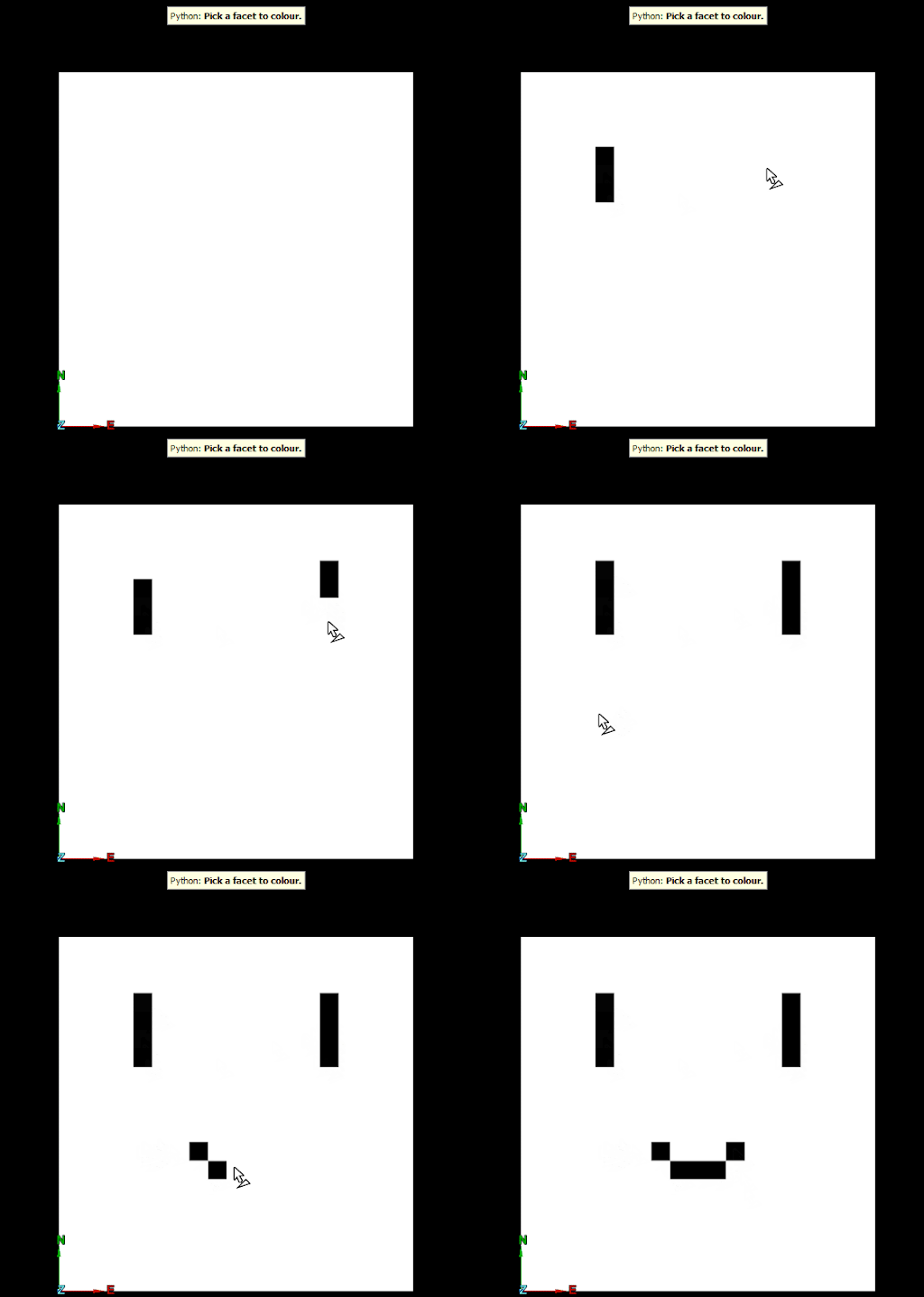
The following animation shows this script in action:
Customising the pick operation messages
The messages that appear in the application during the pick operations can be customised by the label, support_label and help_text parameters of the function. The example below demonstrates using those three parameters to customise the messages shown by a primitive pick operation.
from mapteksdk.pointstudio.operations import primitive_pick, write_report, SelectablePrimitiveType
from mapteksdk.project import Project

project = Project()

primitive = primitive_pick(SelectablePrimitiveType.POINT,
                           label="This is the label",
                           support_label="This is the support label",
                           help_text="This is the help text")
If you run this script, before picking a point, you will see:
-
The support label text, which will appear at the top of the view in a yellow box.
-
The label text, which appears in the bottom left hand corner of the screen.

-
The help text, which will appear in a tooltip when the mouse hovers over the label.
