

Visual Containers
A visual container is a place for storing other objects. It can be thought of as similar to a folder in a file system. Visual containers are also objects, and so they can be nested inside other visual containers.
The Maptek Python SDK class VisualContainer represents visual containers in your project. This class inherits from the Container base class, but you will not typically need to interact with the base class directly.
Container operations
Creating a visual container
A VisualContainer can be created in two ways, using Project.new() or Project.new_visual_container().
Creating using Project.new() is preferred for similarity with creation of other objects. It also conveniently handles the creation of a hierarchy defined by the given path that may not yet exist (e.g. the path /1/2/3/4 would create folders 1, 2, 3, and 4).
The following script creates a new visual container using Project.new():
from mapteksdk.project import Project
from mapteksdk.data import VisualContainer
project = Project() # Connect to default project

# Create a VisualContainer under the project root
with project.new("/my_container", VisualContainer):
    pass
The next script creates a visual container using Project.new_visual_container():
from mapteksdk.project import Project
project = Project() # Connect to default project

# Create a VisualContainer under the project root
project.new_visual_container("/","my_container_a")
The result of running these scripts is shown in the screenshots below.
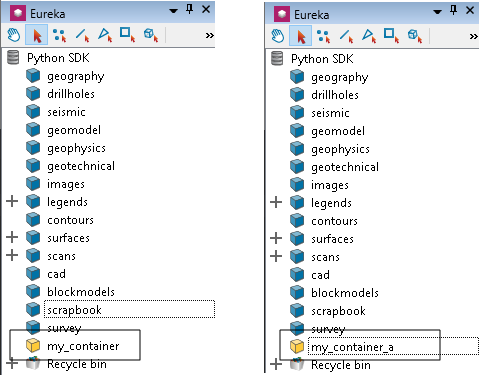
These objects can be referenced as part of a path for deleting, renaming, editing and creating objects. The root path is / or an empty path. Working with objects under my_container would use the path /my_container/object_name.
The following example demonstrates creation of a tree of containers:
from mapteksdk.project import Project
from mapteksdk.data import VisualContainer
project = Project() # Connect to default project

for i in range(4):
    for j in range(2):
        for k in range(2):
            with project.new("/i_{}/j_{}/k_{}".format(i, j, k), VisualContainer):
                pass
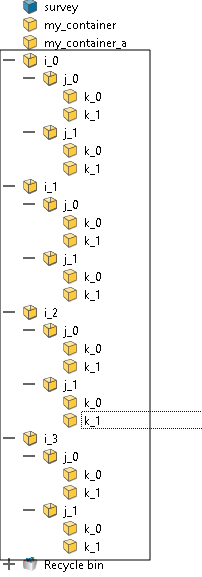
Note: You do not need to create containers for new objects before creating the objects. If a path is used for a new object that would nest it in containers that don't yet exist, the SDK will manage their creation.
Reading the children of a container
The contents of a container can be read by opening the container for reading and then using VisualContainer.names(), VisualContainer.ids(), or VisualContainer.items() functions, which return lists of the names of the children, the object IDs of the children, and the name and object ID of the children, respectively.
This is an alternative to Project.get_children().
Querying the number of children
The number of children can be queried by calling len() on the opened object.
Querying the name of a child
The name of a given object can be queried by ObjectID using the VisualContainer.name_of_object() method.
Note: An object can appear in more than one container and can have more than one name.
Querying the object ID of child by name
The ObjectID associated with a given name in a container can be queried by calling the VisualContainer.get() method with the name of the object. If the name is not used within the container then the null object ID is returned (i.e. if you test it for the truth value, it will be False).
Checking if a name or object ID is in a container
To check if there is a child of a given name or ObjectID within the container, you can use the in keyword on the container in a conditional expression. For example, if cad in root_container or if cad_object in root_container.
Clearing the contents of a container
The VisualContainer.clear() method on a container removes all the children from a container. Any child object that is not in another container will be deleted.
Note: This method does not clear the object attributes of the container, only the objects that are within it.
Adding objects to a container
Objects can be added to a container using the VisualContainer.append() and VisualContainer.insert() methods. They both require the child to be expressed as a tuple of its name and ObjectID.
The VisualContainer.append() method adds the child object at the end of the container, whereas VisualContainer.insert() allows you to insert it at a position within the container, where an index of 0 will ensure it is inserted at the start of the container.
Removing children from a container
A child object can be removed from a container either by name using the VisualContainer.remove() method or by using the del keyword (e.g. del container["child_name"]).
It is possible to remove a child by ObjectID using the VisualContainer.remove_object() method, which will remove only the first child that matches. This is because the same object can be in a container more than once under different names.
Replacing a named object with a different object
You can replace an object with a given name with a different object within the container by using the VisualContainer.rename() method. This is different from simply calling VisualContainer.remove() then VisualContainer.append() because it will preserve the position. This is useful in the situation where you want to make a substitution.
Renaming items in a container
A limitation of Project.rename_object() is that it only allows the caller to rename one item at a time. You can call it multiple times in a loop, but this is suboptimal (especially when there are more than about a dozen objects in the container) because it will open the container for edit, rename the object, close it and repeat. This process will often be seen by the user of the script in the application’s project explorer as they will see things change one at a time.
In the following example, the items will be renamed object 1, object 2, object 3 using VisualContainer.rename(). This might not seem useful in itself, but it illustrates the principle, which can be extended to rename objects to something more meaningful, such as the value of an object attribute.
# For each selected container, rename the children to be of the form
# object 1, object 2, object 3, ... object N.
from mapteksdk.data import VisualContainer
from mapteksdk.project import Project

if __name__ == '__main__':
    with Project() as project:
        containers = [selected_object
                      for selected_object in project.get_selected()
                      if selected_object.is_a(VisualContainer)]

        for container_id in containers:
            with project.edit(container_id) as container:
                # Take a copy of the container names as otherwise the names
                # would change while looping over them.
                original_names = container.names()[:]
                for number, original_name in enumerate(original_names,
                                                       start=1):
                    container.rename(original_name, f'object {number}')
