

Point3D
The Point3D Connector Type allows for Python Scripts to accept inputs of three-dimensional coordinates and to write three-dimensional coordinates to output connectors. The following script uses the Point3D Connector Type to accept a coordinate that is used as the centroid for the cube that it creates.
import numpy

from mapteksdk.project import Project
from mapteksdk.data import Surface
from mapteksdk.workflows import (WorkflowArgumentParser, WorkflowSelection,
                                 Point3DConnectorType, DoubleConnectorType,
                                 StringConnectorType)

parser = WorkflowArgumentParser()
parser.declare_input_connector("path", StringConnectorType, default="/scrapbook/my_object")
parser.declare_input_connector("centroid", Point3DConnectorType, default=[0,0,0])
parser.declare_input_connector("size", DoubleConnectorType, default=10)

parser.declare_output_connector("selection", WorkflowSelection)

parser.parse_arguments()

points = numpy.array([[-0.5, -0.5, -0.5], [-0.5, -0.5, 0.5], [-0.5, 0.5, -0.5],
                   [-0.5, 0.5, 0.5], [0.5, -0.5, -0.5], [0.5, -0.5, 0.5],
                   [0.5, 0.5, -0.5], [0.5, 0.5, 0.5],])

points *= parser["size"]
points += parser["centroid"]

project = Project()

facets = [[0, 2, 1], [1, 2, 3],
          [4, 5, 6], [5, 7, 6],
          [0, 1, 5], [5, 4, 0],
          [1, 3, 5], [5, 3, 7],
          [2, 7, 3], [7, 2, 6],
          [0, 6, 2], [4, 6, 0]]

with project.new(parser["path"], Surface) as surface:
  surface.points = points
  surface.facets = facets

parser.set_output("selection", surface)
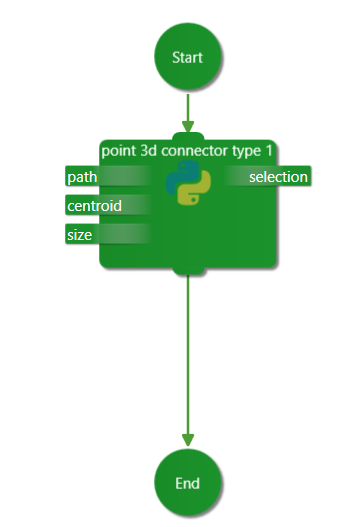
To run the above script, drag and drop the script onto an empty workflow. The workflow should look like this:
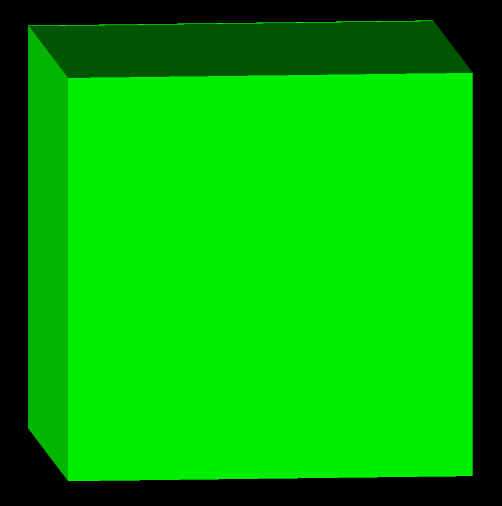
When you run the workflow, you should create an object in Maptek PointStudio that looks like this:
Was this page helpful?
