

File Management |
Source file: appendix-1-file-management.htm
Apply the principles and software features below to manage your project data appropriately.
Project files
Sentry project files are stored on disk in a folder structure named <Name>.maptekdb, where <Name> is a custom name supplied on creation. The image below shows the typical project structure for a project named Setup1.maptekdb:

It is generally not necessary to access these files directly, except for the following purposes:
-
Sending the project to Maptek for support reasons
-
Deleting specific files to save disk space or improve performance
Sending projects to Maptek
If you need to send a project to Maptek for support reasons, create a ZIP archive (.zip) of the entire project directory (Setup1.maptekdb in the example above) and send the ZIP archive, not individual files within the directory (sending index.maptekdb is not sufficient).
Deleting files to save disk space
Over time, projects used for active monitoring with Sentry Field can grow quite large as data accumulates. To reduce the footprint of a project on disk, you can delete the project subfolder named sentry.scans.archive. This will delete the archived source scan files, and can be done safely at any time, even when Sentry is running. Only do this if you no longer need to access the source scans and are not going to roll back a scene to be used for further monitoring to when the scans occurred. Deleting archived scans does not remove any data from the scene within your project.
There are other files within the project, including hidden ones. Deleting any of these may cause the application to behave unexpectedly or stop working. Do not delete files except as recommended in this
Upgrading projects from older versions
The first time you open a project created in an earlier version of Sentry, you will be prompted to upgrade the project with a dialog similar to this:
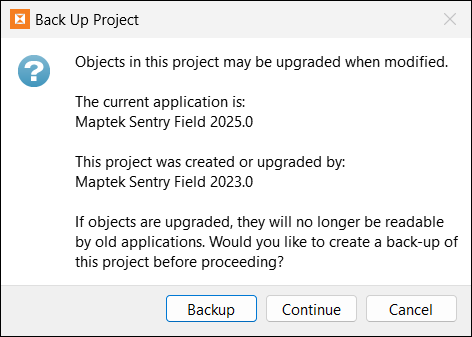
The upgrade process involves upgrading data structures within the project database, and re-arranging the project’s file structure on disk.
-
Choose Upgrade only to upgrade the project without creating a backup. The upgraded project will be a project named
<Name>.maptekdb, where<Name>is based on the name of the folder containing the originaldb.maptekdbproject database (typically the setup name). -
Choose Backup and upgrade to create a backup of your project when upgrading. The backup will just be the original project files.
Note: Backing up large projects may take a long time and will create copies of all existing data, including archived scan files, which can use a large amount of disk space.
-
Choose Cancel to quit without backing up or upgrading.
