Reporting
Source file: reporting.htm
Sentry provides three reporting options, described in this section.
Exporting a deformation map
To export a deformation map, in the scene viewer,  Deformation Map
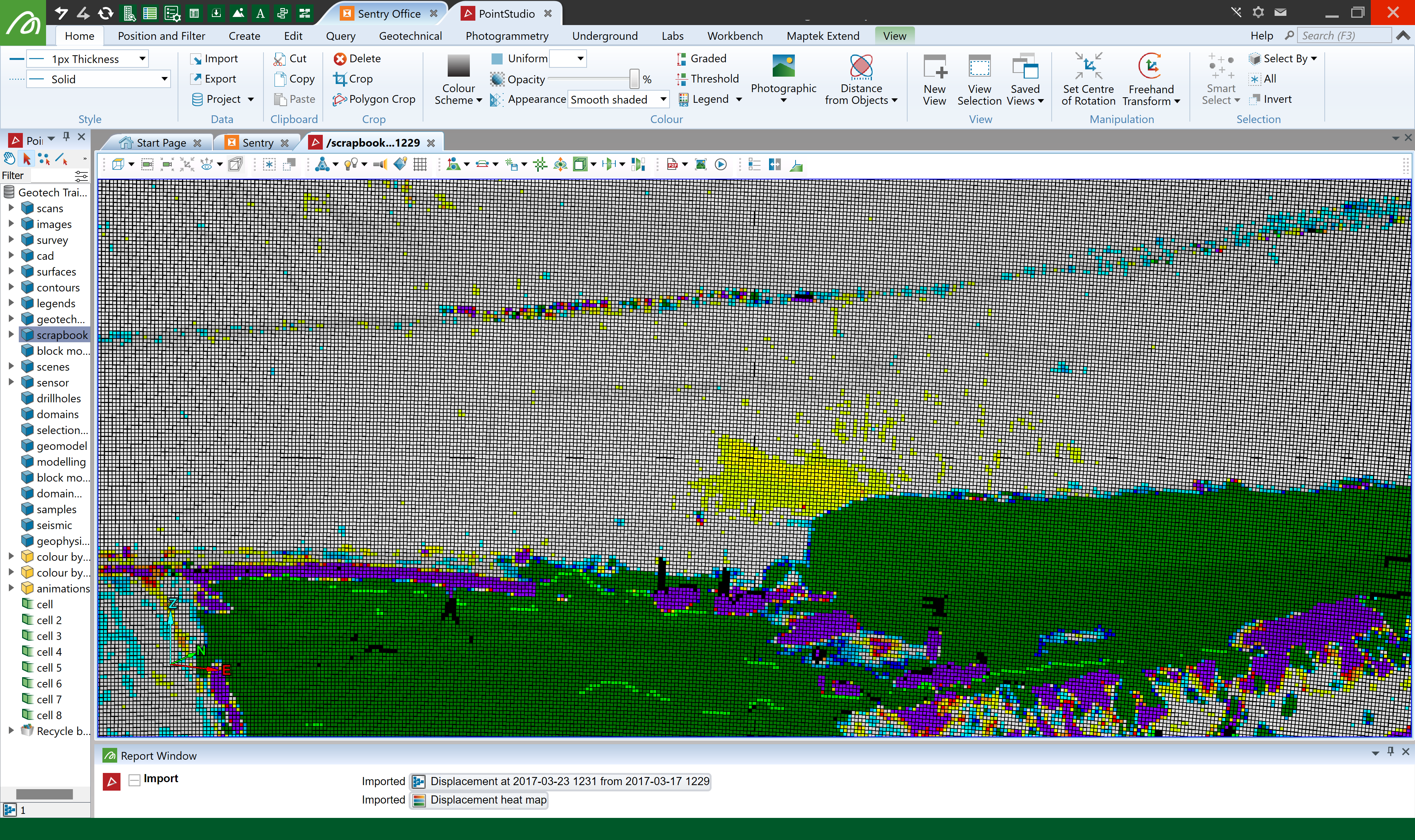
This gives the operator the option to export the current scene to either a Maptek object file (.maptekobj) or a comma-separated values (CSV) file (.csv).
Files exported to a .maptekobj can be imported into PointStudio for further analysis.
|
|
|
PointStudio with a scene imported from a |
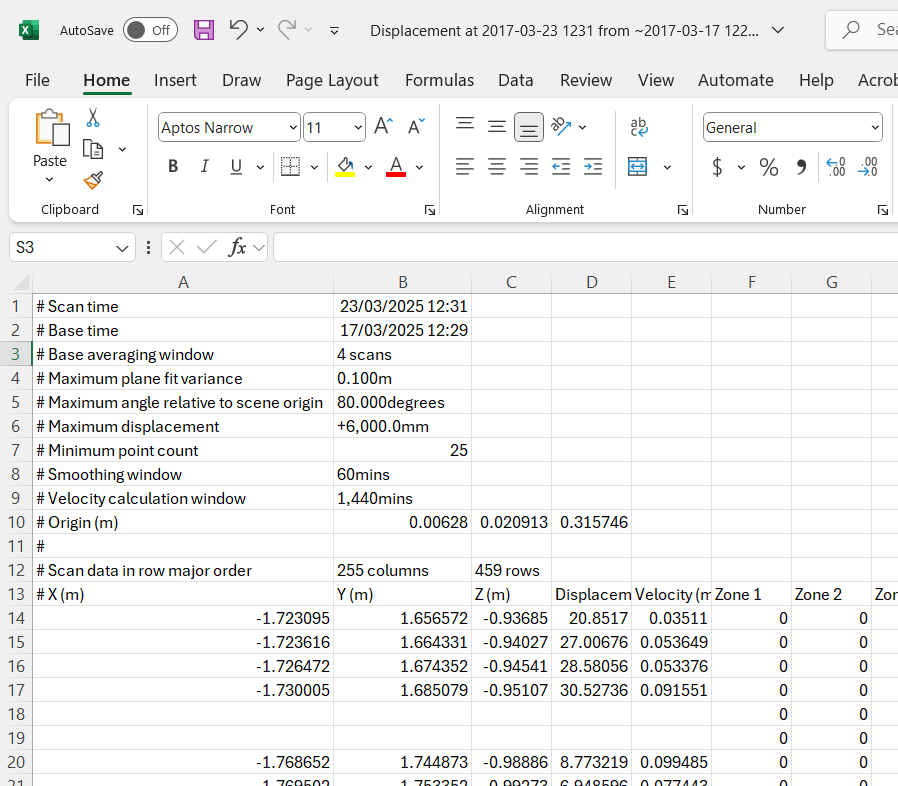
A scene exported as a CSV file will report all displacements for x, y, and z coordinates within that scan in the displacement unit configured in the preferences.
|
|
|
CSV file with displacement report |
Generating a timelapse video
Sentry can generate an animation AVI video file (.avi) of the scene view over a specified time range and with a nominated compression ratio. Current heatmap settings, as configured in the scene view (velocity or displacement, none or translucency), are used when generating the timelapse.
-
To generate an animation,
 Timelapse
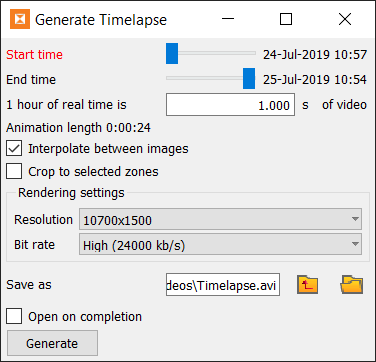
The Generate Timelapse panel will open.
-
Start time and Finish time: Drag the sliders to set the start and finish times of the video.
-
1 hour of real time is: Enter the video time in seconds that one hour of real time will be compressed into.
-
Interpolate between images: Select to reduce sharp transitions between frames.
-
Crop to selected zones: Select to exclude areas not required, reducing the video file size.
Note: Cropping will reduce the frame size, effectively decreasing video resolution.
-
Render settings: Set the required Resolution and Bit rate.
-
Save as: Enter or browse to a storage location for the video file and enter a file name.
-
Open on completion: Select to view the video automatically after it has been created.
Adjust the following settings as required, then click Generate.
Generating a displacement report
A displacement report gives a summary of the displacement of all zones in a scene.
To generate a displacement report on the scene:
-
 Displacement Report
 -
Navigate to the desired export location.
-
Enter a name for the report, select a file path, and click Save.
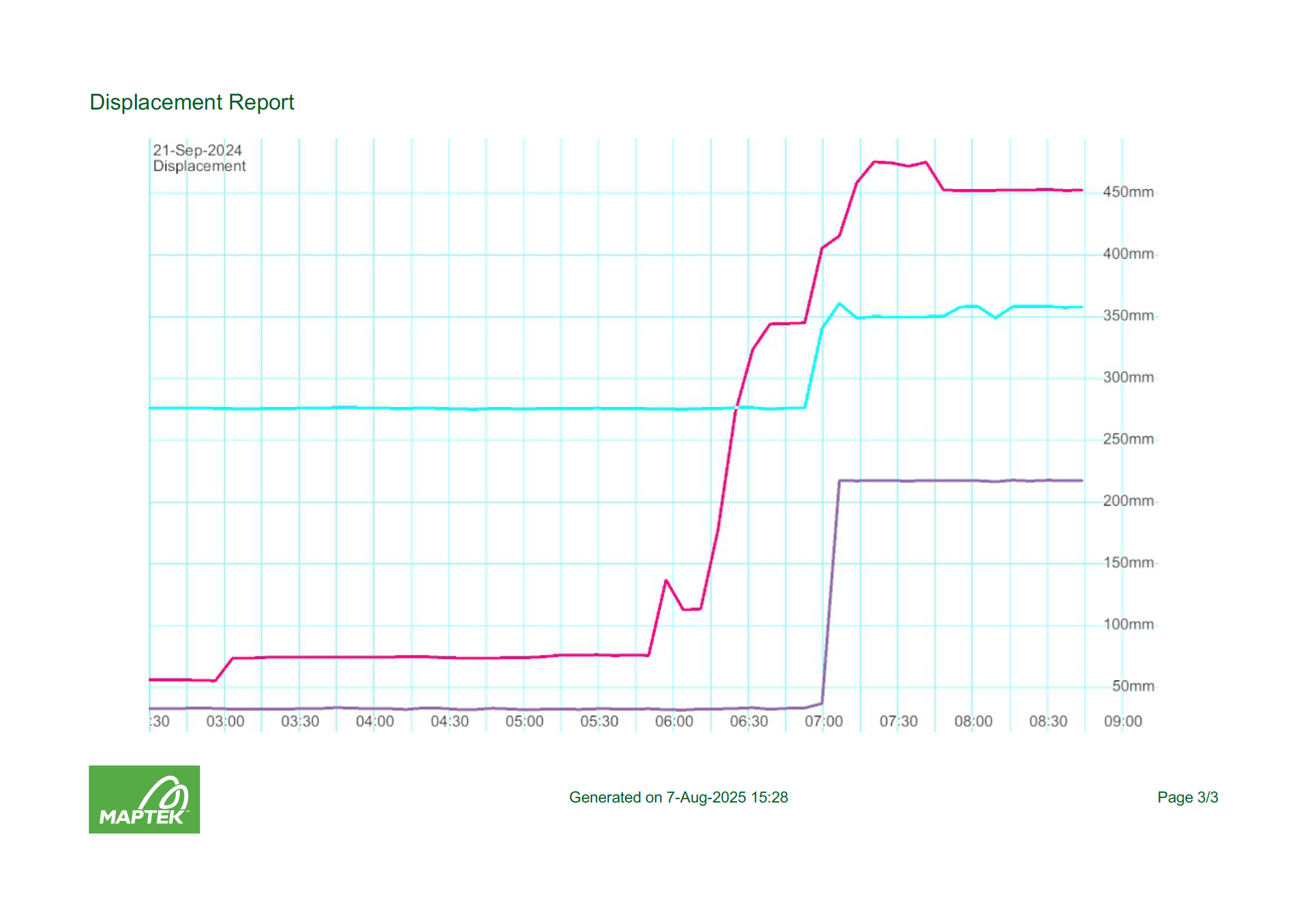
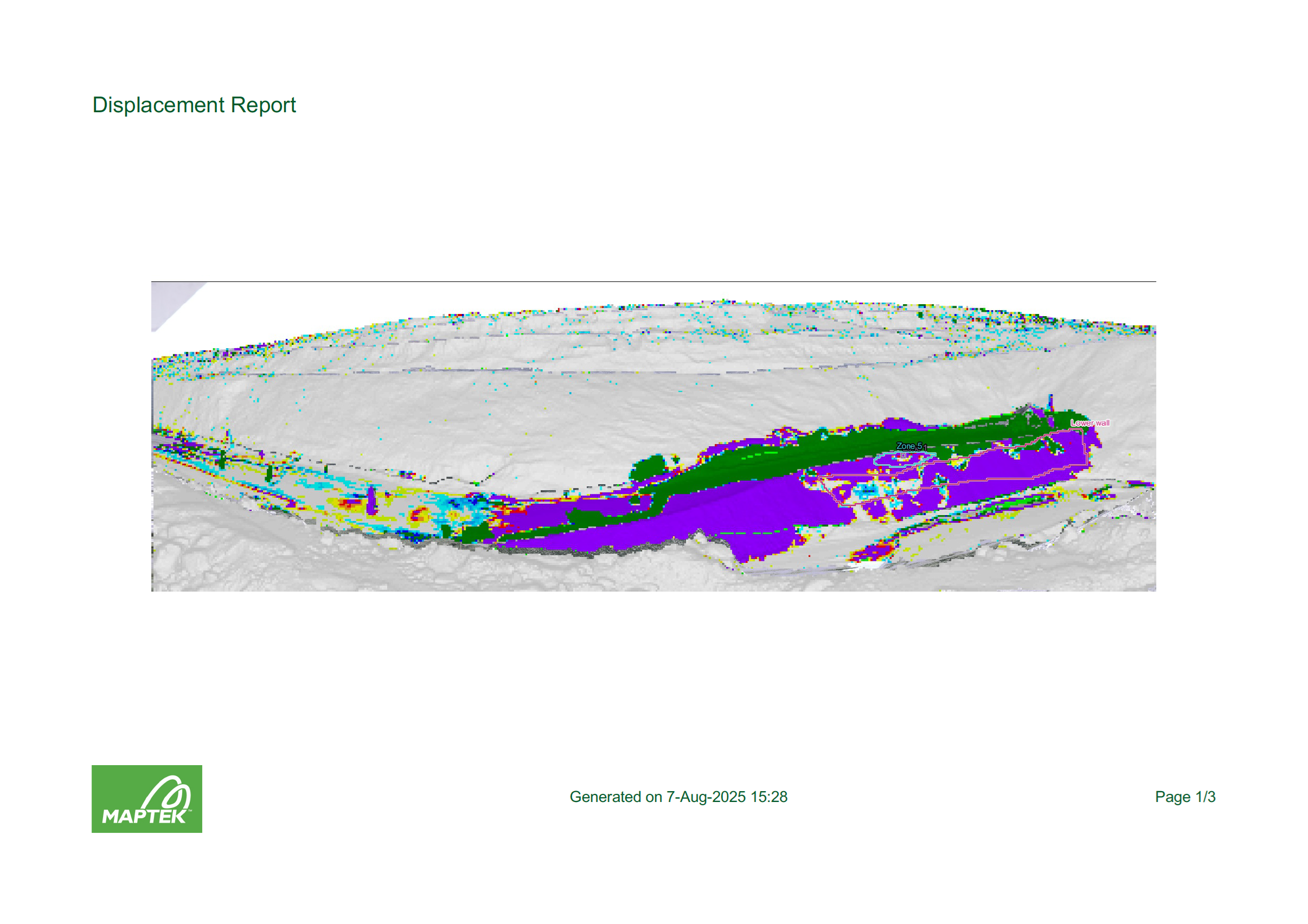
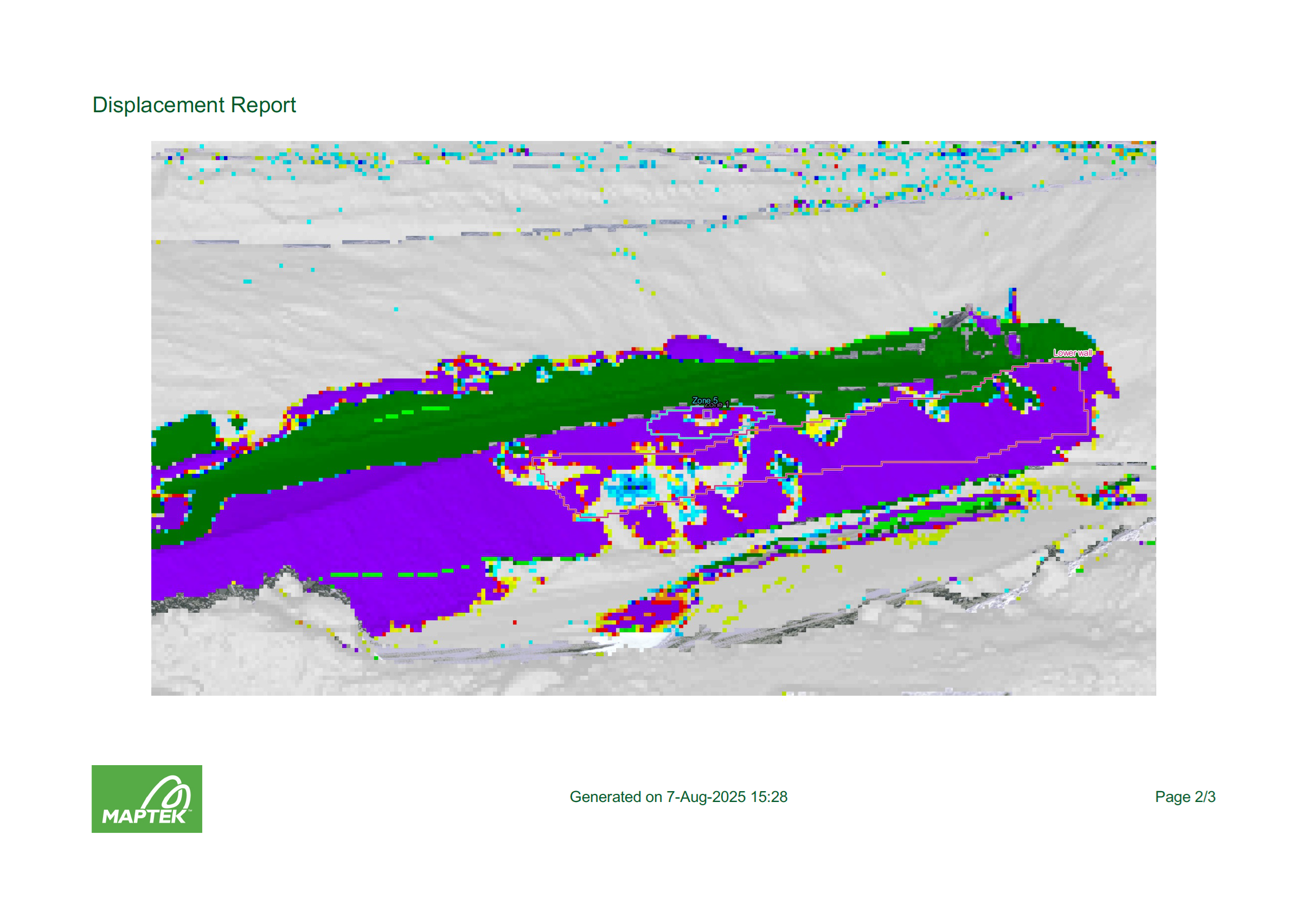
Sentry will generate the report and save it to a PDF document (.pdf). The report will consist of the complete scene and the graph view as displayed in the interface. If the scene is zoomed in more than 20% in the interface, the report will include that zoomed image as the second page.
|
|
|
First page shows the complete scene. |
|
|
|
Second page shows the zoomed scene (if zoomed more than 20%). |
|
|
|
Last page shows the displacement graph view as displayed in the interface. |