

Launching PointModeller
Launch PointModeller from the Maptek Workbench Start Page. Click on the application tile.
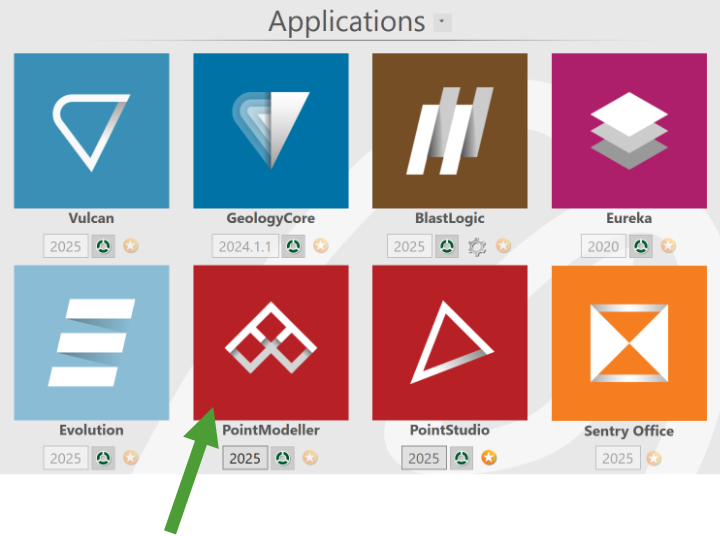
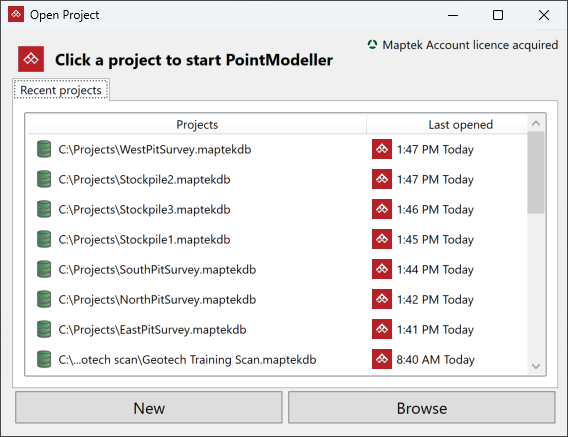
When you start PointModeller, the Open Project start-up dialog appears. Here you must choose a project to open. You can select an existing project, or start a new one.
-
To open an existing project, either select it from the Recent projects list, or navigate to its location by clicking Browse.
-
To start a new project, click New. In the browser window, navigate to a folder to save the project, enter a project name, and click Save.
PointModeller will start by loading the selected project. Existing projects will open to their last opened state.
For more details on projects, see Projects.
If you are running multiple monitors with different resolution settings, the following message will appear.
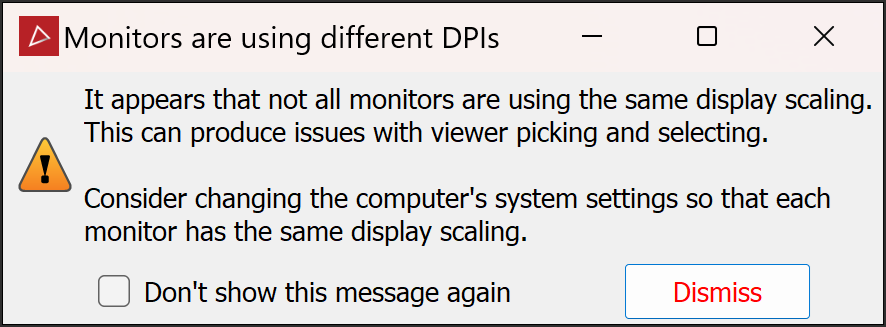
Adjust monitor settings to match for the best experience. Otherwise, restrict PointModeller activities to the primary monitor only.
