

Section Mode
Source file: section-mode.htm
Section Mode
Section mode enables you to view only a section or strip within the view window, with respect to the action plane. You can view section in front of, behind, or straddling the action plane. This allows you to load multiple objects and surfaces into the view, and view in detail the relative positions and potential interactions step by step. Advanced options provide more control on the strip sizing and increments (see Section Manager below for more information).
See also: Action Plane
To view a section, follow these steps:
-
Select the object.
-
In the view window toolbar, go to the Action Plane group and select a section mode from the
 (Section Mode) drop-down from the following options: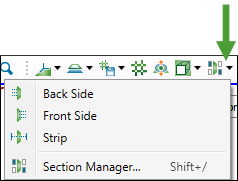
-
 Back Side to view a section on the rear of the action plane.
 -
 Front Side to view a section on the front of the action plane.
 -
 Strip to view a section straddling the action plane.
-
Section Manager
Section Manager provides more precise adjustment of settings for each of the section modes.
To enter the Section Manager pane, in the view window toolbar, go to the Action Plane group and select  Section Manager... from the (Section Mode) drop-down.
Tip: You can also use the keyboard shortcut Shift+/ to open the Section Manager pane.
The Section Manager pane will appear on the left-hand side of your screen.
Tip: Click  (Action Plane Visibility) on the view window toolbar (or press Shift+A) for the action plane to be displayed in your view.
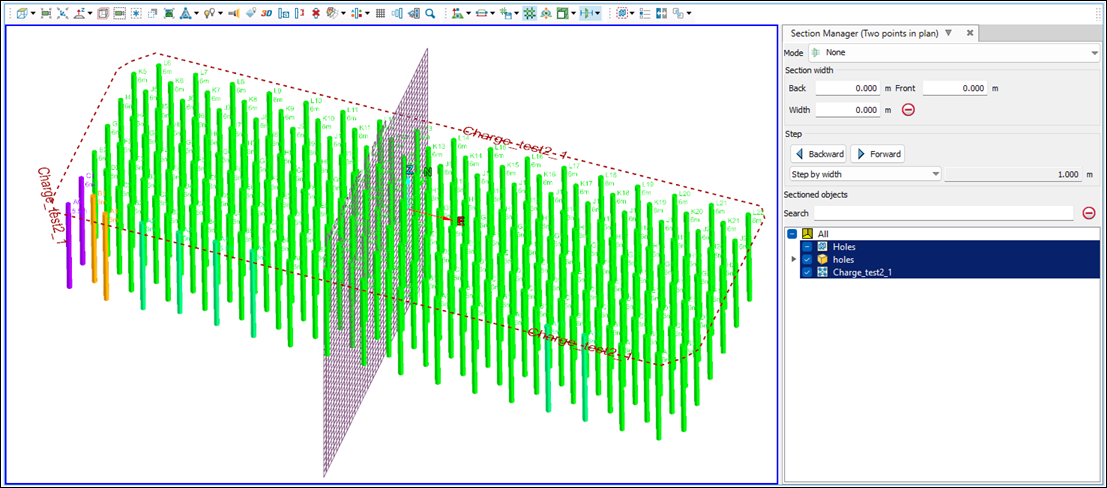
Define the required section plane using the action plane tools and adjust section settings as follows:
-
Mode. Use the drop-down to position the section relative to the action plane, as follows:
-
Front Side to put the section in front of the plane.
-
Back Side to put the section behind the plane.
-
Strip to straddle the plane.
-
 None to show all data.
-
-
Section width. Adjust the width of the section. This depends on the selected mode type. For the
Strip mode, the width will be divided equally between the Back and Front sections. For Front Side and Back Side modes, you can only change the front and back widths, respectively. -
Assign a step size from the drop-down as follows:
-
Step by grid cell size to use the value in the Width field.
-
Step increment of and enter a step size.
Each time you click
 Backward or
  Forward, the action plane will shift by the increment distance.
-
-
Under Sectioned objects, specify the objects to be sectioned, as follows:
-
In the Search field, enter a search term or middle-mouse click and drag an object to filter the list of objects shown.
-
Select the required objects from the list.
-
To clear the Search field, click the
 button. When you clear the field, all objects will be listed in the view.
-
-
Close the Section Manager pane to remove the section view and return to the full data display. The tool will remember the last used settings the next time you launch it.
