Tie-up
Source file: context-menus-tieup.htm
To view the context menu options for a tie-up, right-click on the tie-up in the 
Tie-ups container in project explorer.
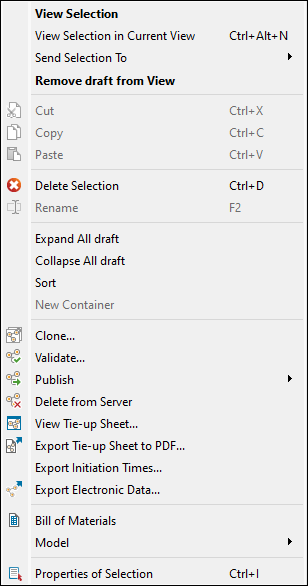
The tie-up context menu contains the following options:
| View Selection | Open the selected tie-up in a new tab in the view window. |
| View Selection in Current View |
Open the selected tie-up in the current tab in the view window. Tip: You can also press Ctrl+Alt+N to open the selected tie-up in your view. |
| Send Selection To | Open the selected tie-up in the selected tab in the view window. |
| Remove <tie-up name> from View | Remove the selected tie-up from the view. |
 Delete Selection Delete Selection |
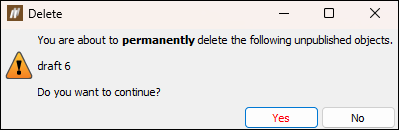
Delete the selected tie-up from your project explorer. BlastLogic will display a pop-up for you to confirm your selection.
Tip: You can also delete a tie-up by clicking on it and pressing Ctrl+D. |
| Expand All <tie-up name> |
Expand the container of the selected tie-up in the project explorer to view the items constituting the tie-up.
|
| Collapse All <tie-up name> | Collapse the selected tie-up container in the project explorer. |
| Sort | Sort the tie-ups into alphabetical order. |
 Clone Clone |
Clone the selected tie-up and add the cloned version to the blast’s Tie-up folder. The cloned tie-up will be unpublished and named as draft <consecutive number>, as shown in the example below.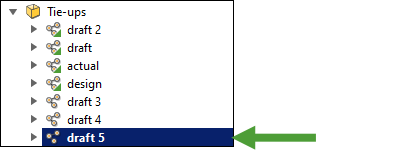 BlastLogic will also open the cloned tie-up in the new tab in the view window. |
 Validate Validate |
For more information on validating tie-ups, see Validate. |
 Publish Publish |
For information on publishing a tie-up, see Publishing a tie-up. |
 Delete from Server Delete from Server |
Delete the selected tie-up from the Server. Note: This option is only available for published draft tie-ups. |
 View Tie-Up Sheet… View Tie-Up Sheet… |
Open the Tie-up Sheet Designer panel to view and export a tie-up sheet.
Note: This option is only available for published tie-ups. |
 Design Tie-up Sheet... Design Tie-up Sheet... |
For information on designing a tie-up sheet, see Design Tie-up Sheet. Note: This option is only available for unpublished tie-ups. |
 Export Tie-up Sheet to PDF... Export Tie-up Sheet to PDF... |
Save the tie-up data in a PDF file. See Export Tie-Up Sheet to PDF for details. |
| Export Initiation Times… | See Exporting initiation times for details. |
 Export Electronic Data… Export Electronic Data… |
For information on exporting electronic data, see Exporting an electronic tie-up. |
 Bill of Materials Bill of Materials |
Open the Bill of Materials report in a new view window. This report contains a table of the quantities and symbols of the blast products used in the tie-up.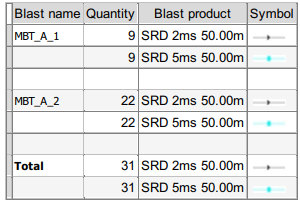 |
| Model | View the list of tools that can be used for the selected tie-up.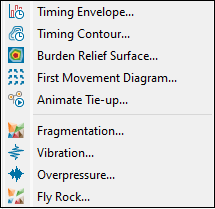 See Timing and Modelling for more information on the tools applicable to a tie-up. |
 Properties of Selection Properties of Selection |
View the properties of the selected tie-up in the Report Window. Tip: You can also click on a tie-up in project explorer and press Ctrl+I to view the properties of the tie-up. |