

Hole
Source file: context-menus-hole.htm
The context menu contains functions and tools that allow you to set the visibility of holes in your view, as well as to check and specify properties of a selected hole. To view the context menu options for the hole, right-click on the hole in the view window.
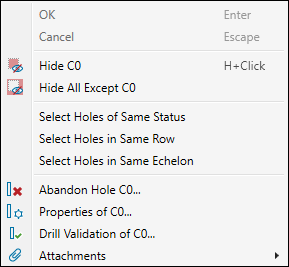
The hole context menu contains the following options:
 Hide <hole name> Hide <hole name> |
Hide the selected hole in the view window. Tip: You can also press H to hide the selected hole in your view. |
 Hide All Except <hole name> Hide All Except <hole name> |
Hide all holes from the view but the selected hole. |
| Select Holes of Same Status |
Select and highlight all holes with the same status in your view. Tip: You can assign colours to each hole status by going to the Home tab > Setup group > |
| Select Holes in Same Row | Select and highlight all holes located in the same row in the view window.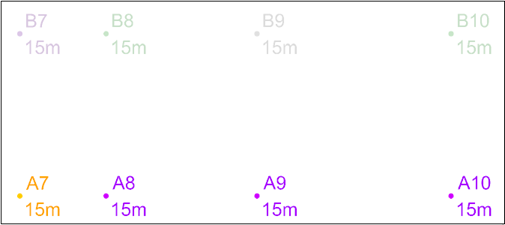 |
| Select Holes in Same Echelon | Select and highlight all holes located in the same row in the view window.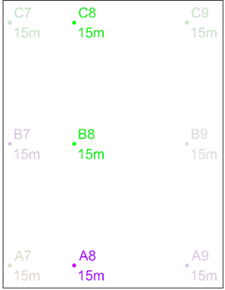 |
 Abandon Hole <hole name> Abandon Hole <hole name> |
Abandon the selected hole. The abandoned hole will not be considered 'fired' with the blast, but will still be associated with the blast. See Abandon Holes for more information. |
 Properties of <hole name> Properties of <hole name> |
Open the Hole Properties panel of the selected hole. See Hole Properties for more information. |
 Drill Validation of <hole name> Drill Validation of <hole name> |
Open the Validate Drilling panel of the selected hole. See Validate Drilling for more information. |
 Attachments Attachments |
View the data added in the form of attachments to a given hole. See Attachments for more information. |
 Site > Hole Properties. As shown on the image below, all Designed holes have been highlighted.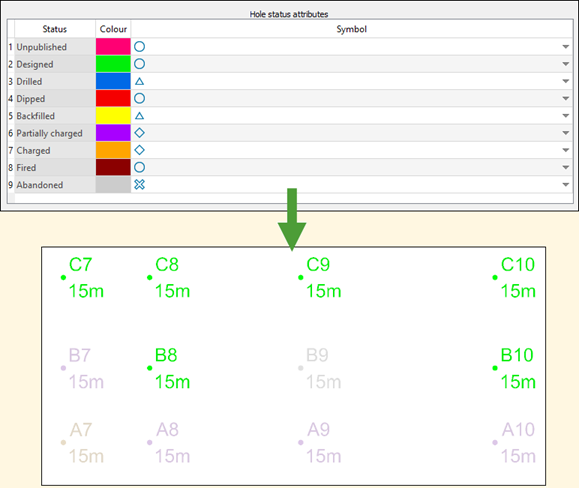
Was this page helpful?
