

Colour
Source file: geometry-colour.htm
The tools in the Colour group allow you to apply colours and set translucency to the objects in your view.

Uniform
Use the  Uniform tool to apply a consistent colour across the entire surface, as follows:
-
Select the surface to be coloured.
-
Go to the Geometry tab > Colour group, and select
Uniform.Alternatively, from the Surface context sensitive ribbon tab, go to the Colour group and select
Uniform. Note: You can also activate the
Uniform tool with a keyboard shortcut Ctrl+U. -
Left-click on the swatch to select a colour. The outline of the object will be coloured according to your selection.
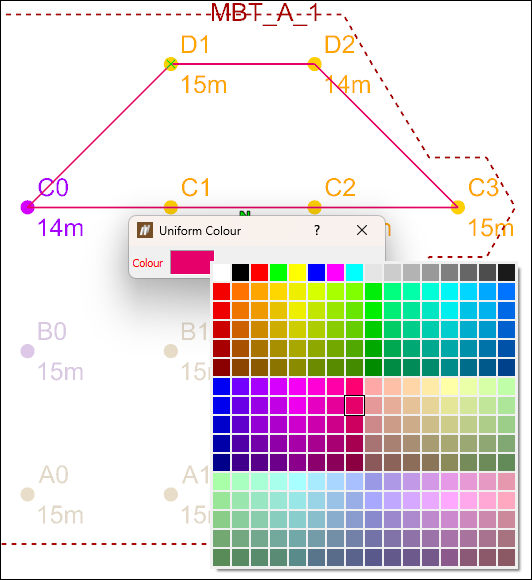 Tip
TipDouble-click the Colour box field to open Select a colour window with detailed colour settings.
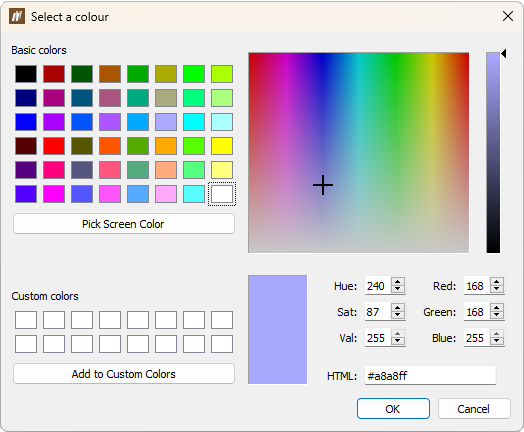
Translucency
Use the  Translucency tool to change the translucency of an object to any level between fully opaque and fully transparent. For example, a surface placed on top of a blast in the view can be set translucent so that the holes underneath it can be seen.
To apply translucency to an object, follow these steps:
-
Select the object to be modified.
- Go to the Geometry tab > Colour group, and select Translucency.
Alternatively, from the Surface context sensitive ribbon tab, go to the Colour group and select Translucency.
Note: You can also activate the
Translucency tool with a keyboard shortcut Ctrl+G. -
Adjust the slider until you reach the desired translucency.
