

Select
Source file: select.htm
The Select group of the Query tab contains tools to highlight holes in the view window based on certain criteria.

Holes by Properties
The  Holes by Properties tool selects holes based on the criteria you define.
To filter holes by specific properties, follow these steps:
-
Select the desired holes in the view window.
-
On the Query tab, in the Select group, select
Holes by Properties.
The Select Holes by Properties panel will appear.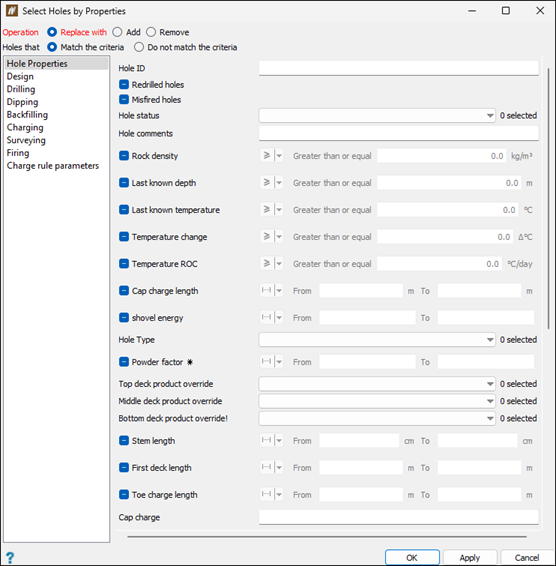
-
Select the required group of hole properties on the left-hand side of the panel.
-
Enter the appropriate values into the search fields and drop-downs to narrow down your search.
 Expand for tips on using the search filters.
-
Exclude data by selecting the Do not match the criteria option.
-
All the text fields support the following basic name matching:
-
You can suffix your search with an asterisk (*) that signifies that a name can be zero or more characters in length.
-
You can suffix your search with a question mark (?) that signifies the name is a single character.
-
-
All of the checkboxes have the following three states:

Do not search these criteria 
Search these criteria with the entered values 
Search for instances of these criteria that are undefined (do not have values entered)
-
-
Select OK or Apply.
BlastLogic will highlight the holes that match the selected criteria in the view window and provide the information on the number of selected holes in the Report Window.
Holes by Polygon
The  Holes by Polygon tool selects holes that fall within a polygon area you define.
To select holes that fall within a polygon area, follow these steps:
-
Open the desired blast in the view window.
-
On the Query tab, from the Select group, select
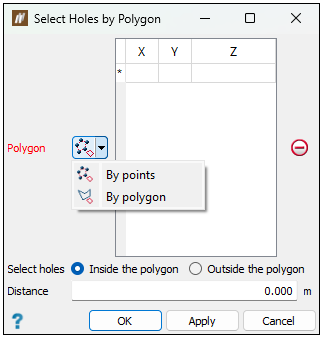
Holes by Polygon.The Select Holes by Polygon panel will appear.
-
Define a polygon. Select one of the following options from the Polygon drop-down:
-
 By points. Select the desired points in the view window. BlastLogic adds these points to the coordinate table.
 -
 By polygon. You must first create a polygon (
cad) object that BlastLogic can use to filter the holes. To create a polygon, see the Polygon section (Create tab > Draw group). You can then specify the location of this polygon in the Polygon field of the Select Holes by Polygon panel.
-
Select a filtering radio button. You can select holes by either of the following criteria:
-
Inside the polygon
-
Outside the polygon
-
-
Click OK. BlastLogic selects the holes based on the hole design collars.
Holes by Line
The  Holes by Line tool selects holes that fall within a vicinity to a line you define.
To select holes by line, follow these steps:
-
Open the desired blast in the view window.
-
On the Query tab, in the Select group, select
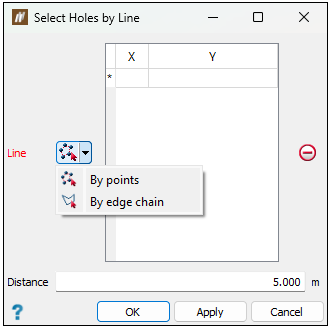
Holes by Line.The Select Holes by Line panel will appear.
-
Define a line. Select one of the following options from the Line drop-down:
-
By points. This option involves drawing a line in the window to specify the desired region. Click the desired points in the view window to form the line. BlastLogic joins a line between points selected consecutively and adds these points to the search criteria table.
-
 By edge chain. This option involves using an existing line to specify the desired region. You can either drag the line from the
 cadcontainer in the project explorer to the Line field using the middle mouse button or enter the location using the following format/cad/<line name>. To create a line, see the Line section of the draw group on the Create tab.
-
Enter a maximum line vicinity into the Distance field. BlastLogic will not select holes beyond this distance from the line.
-
Click OK or Apply.
Holes by Status
The  Holes by Status tool selects holes based on their current status.
To select holes by status, follow these steps:
-
Open the desired blast in the view window.
-
On the Query tab, in the Select group, select the
Holes by Status drop-down menu. -
Select a status type from the drop-down. You can select from the following statuses:
- Unpublished
- Designed
- Drilled
- Dipped
- Backfilled
- Charged
- Partially charged
- Fired
- Abandoned
BlastLogic will highlight the holes in the view window that match the type you select.
Holes by Row
The  Holes by Row tool selects all holes that belong to the same row as the currently selected holes.
To select holes by row, follow these steps:
-
Select one or more holes in the view window.
-
On the Query tab, in the Select group, select
Holes by Row. BlastLogic highlights the holes that exist in the same row as the holes you selected in step 1.
Holes by Echelon
The  Holes by Echelon tool selects all holes that belong to the same echelon (column) as the currently selected holes.
To select holes by echelon, follow these steps:
-
Select one or more holes in the view window.
-
On the Query tab, in the Select group, select
Holes by Echelon. BlastLogic highlights the holes that exist in the same echelon as the holes you selected in step 1.
Holes by Proximity to Neighbours
The  Holes by Proximity to Neighbours tool selects holes that are within a certain radius to their neighbouring holes.
To select holes by proximity to their neighbours, follow these steps:
-
Open the desired blast in a view window.
-
On the Query tab, in the Select group, select
Holes by Proximity to Neighbours. The Select Holes by Proximity to Neighbours panel will appear.
By default, BlastLogic sets the proximity radius to
5.000metres, as seen in the Radius field. In this case, BlastLogic will highlight all of the holes that exist within a five metre radius of each other.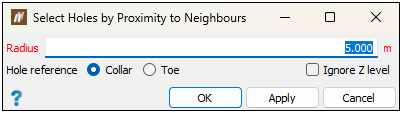
-
Configure the selection. You can define the following fields:
-
Hole reference. Select either the Collar or Toe options to set the reference point of the proximity calculations.
-
Ignore Z level. Select this checkbox to include only the X and Y components of the collar or toe in the distance between the holes measurements.
-
-
Click OK or Apply.
