

View Window
Source file: context-menus-view-window.htm
You can select from the following options when you right-click the view window:
 Hide Selection Hide Selection |
Hide the selected objects in the view window. Tip: You can also press H to hide the selected objects in your view. |
 Hide All Except Selection Hide All Except Selection |
Hide all objects except those that you have selected. Tip: You can also press Shift+H to hide all objects except for those selected. |
 Show last hidden Show last hidden |
Display the last hidden object. Tip: You can also press J to display the last object that was hidden in your view. |
 Show all hidden Show all hidden |
Show all hidden objects. Tip: You can also press Shift+J to show all objects that were hidden in your view. |
| Add Selection to View | Bring back the object that you have removed from your view. |
| Remove Selection from View |
Remove the selected objects from the view window. Tip: To add more objects to your last selection, select them while pressing Shift. |
| Remove All Except Selection from View |
Remove all other objects except those selected. Tip: To add more objects to your last selection, select them while pressing Shift. |
| Saved Views | Save and retrieve the state of the current view window (for example, zoom level, lighting and contents). See View for more information. |
| Saved Cameras | Save and retrieve the camera position. To save the set camera position, right-click in the view window and click  Save Camera in the Saved Cameras drop-down menu. The view will be saved by the default name Camera <consecutive number>. Save Camera in the Saved Cameras drop-down menu. The view will be saved by the default name Camera <consecutive number>.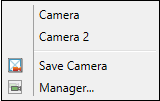 The views that you saved will be displayed above the Click
 Expand for more information on managing saved camera views Expand for more information on managing saved camera views
See Manipulating the view for more information on the concept of camera in BlastLogic. For information on camera shortcuts, see Camera. |
| Saved Selections | Save and retrieve the selections you have made (for example, the currently selected objects, points, edges, facets, or cells). To save the set selection, right-click in the view window and click  Save Selection in the Saved Selections drop-down menu. The selection will be saved by the default name <the number of selected objects> objects. Save Selection in the Saved Selections drop-down menu. The selection will be saved by the default name <the number of selected objects> objects.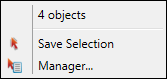 The selections that you saved will be displayed above the Click Expand for more information on managing saved selections.
For more information on selecting objects in BlastLogic, see Making a Selection and Selection toolbar. |
| Saved Action Planes | Save and retrieve the action plane's position and visibility. To save an action plane, right-click in the view window and click Save Action Plane in the Saved Action Planes drop-down menu.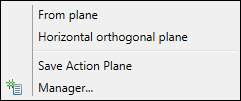 The action planes that you saved will be displayed above the Save Action Plane tool. Click Expand for more information on managing saved action planes
See Action plane for more information on available action plane types. |
| Show Axes |
Shows or hides the axes in the view window. Tip: You can also hide and bring back the axes to your view by pressing A. |
| Show Action Plane |
Shows or hides the action plane in the view window. Tip: You can also show and hide the action plane in your view by pressing Shift+A. |
| Spin Animation |
Animates the current view by spinning the objects around the current centre of rotation. Select this option to enable spin animation, then rotate the objects in the view. Tip: You can also enable spin animation by pressing Alt+.. Tip: To slow down the rotation speed, press the Shift key during manipulation. |
 Back Back |
Moves camera back to the previous position. Tip: You can also press B to move the camera to its previous position. |
 Forward Forward |
Moves camera forward to the next position. Tip: You can also press F to move the camera to its next position. |
 Previous Action Plane Previous Action Plane |
Moves to the previous action plane. Tip: You can also press Shift+B to move to the previous action plane. |
 Next Action Plane Next Action Plane |
Moves to the next action plane. Tip: You can also press Shift+F to move to the next action plane. |
| View Properties... | Opens the View Properties panel where you can set the background colour, as well as specify the line and point settings for objects such as holes, lines, and polygons.
You can also enter this panel from Home tab > Setup group >  Preferences. See Preferences for more information. Preferences. See Preferences for more information. |
 Manager… to open the Manage Saved Cameras panel.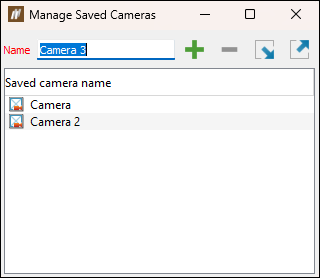
 (Save the active camera).
 (Delete selected saved cameras).
 (Import saved cameras from file) and select the required camera file (
 (Export saved cameras to file). BlastLogic will save it as a camera file (
 Manager… to open the Manage Saved Selections panel.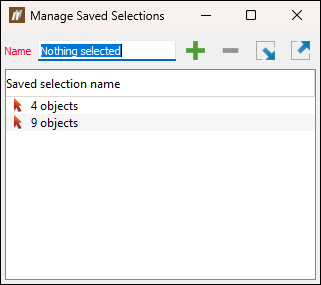
 Manager… to open the Manage Saved Action Planes panel.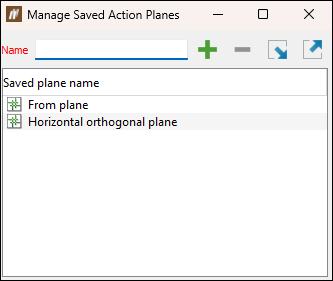
See also: View context sensitive ribbon tab, Viewing Objects, and View Window Toolbar
