

System Administration Tool
The System Administration Tool allows you to create and manage sites, roles, and users.
To open this tool, navigate to the Home tab > Setup group, and select  System Administration Tool.
Sites
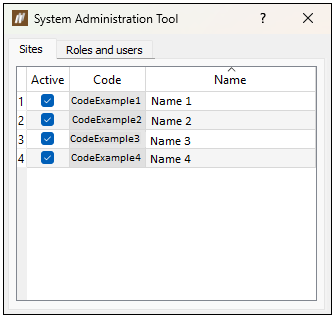
The Sites tab allows you to mark sites as active and inactive, using the Active column checkboxes. You can access only an active site to enter data.
Roles and users
The Roles and users tab allows you to define users and their roles on site. The top table displays the roles, including nine default roles, and the bottom table displays the users.
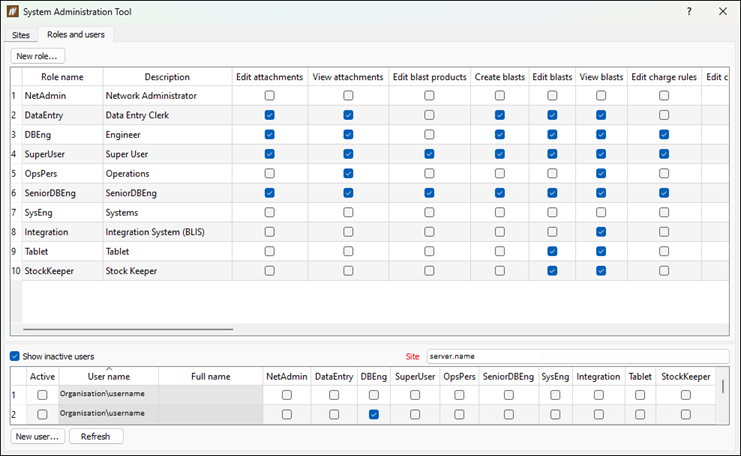
The table below lists the permissions and their scope, along with recommended additional permissions that should be granted together.
| Permission | Permission scope | Other recommended permissions |
|---|---|---|
| View attachments | Retrieving and searching attachment metadata, downloading attachment content. | |
| Edit attachments | Creating and editing attachments, uploading files, creating links between attachments and blasts or sheets. |
|
| Edit blast products | Adding and editing blast products in the site's blast product catalogue. | |
| Create blasts | Creating new empty blasts. |
|
| View blasts | Viewing blasts, tie-ups, sheets, holes, entries, events, and charge rules. | |
| Edit blasts | Editing properties of existing blasts. | View blasts |
| Edit charge rules | Creating and editing non-standard charge rules. | |
| Edit charging events | Entering data about individual charging events, such as loading of an individual deck or primer. |
|
| Edit drilling events | Viewing and editing drilling events. |
|
| Edit entries |
Entering data to existing entries on sheets. Note: To add new entries to a sheet, users must be also granted the Edit sheets permission. |
View blasts |
| Edit hole comments | Adding and editing comments for a hole. | View blasts |
| Edit hole designs | Editing the hole design parameters of existing holes. This includes moving holes between blasts, changing the hole ID, abandoning holes, editing custom hole properties, as well as editing holes drill and charge designs. | View blasts |
| Create holes | Adding new holes to a blast or pattern. This also includes creating ad hoc and redrill holes. |
|
| Edit inventory | Editing inventory and related comments. |
|
| View inventory | Viewing and searching inventory records. | View blasts (to retrieve relevant blast data for inventory usage) |
| Manage licensing | Editing Maptek Account credentials, establishing and terminating Maptek Account sessions, allocating tablet licences between sites and the shared pool. | |
| Edit patterns | Creating and editing patterns of holes. | View blasts |
| Edit process tolerances | Editing site process tolerances, contained within site settings. | Edit site settings |
| Edit roles | Defining new roles and editing permissions for a role. | |
| Edit sheets | Creating and updating dip, backfill, charge, and survey sheets. This also includes permission to create and edit entries on those sheets. | View blasts |
| Edit site resources | Editing the lists of personnel, crews, drill machines and loading trucks, as well as colour maps. | |
| Edit site settings | Editing site parameters, including colours, glyphs, process tolerances, pattern properties, and custom property schemas. | |
| Delete sites | Permanently deleting sites from the database. | |
| Create sites | Creating new sites in the database. | |
| Administer sites | Activating, deactivating, and renaming sites. | |
| Edit spatial measurements | Creating, updating, and deleting spatial measurements. | |
| Edit standard charge rule | Creating and editing standard charge rules and marking whether charge rules are standard rules or not. | Edit charge rules |
| Edit tenants | Creating Microsoft Entra ID tenants, inviting directories to onboard, and deleting tenants. | |
| Edit tie-up | Viewing and editing design and actual tie-ups. | View blasts |
| Edit user roles | Granting or revoking roles for other users. |
|
| List user roles |
Viewing the list of roles assigned to users on each site. Note: If the permission is granted globally, the user can view all roles assigned to all users. If the permission is granted per site, the user can only view roles assigned to users on the sites where they have this permission. |
List users |
| Edit users | Adding, editing, and deactivating user accounts in the system. | List users |
| List users | Obtaining a list of all users in the database. |
Adding a new role
To add a new role, follow these steps:
-
Click the New role... button at the top of the System Administration Tool panel.
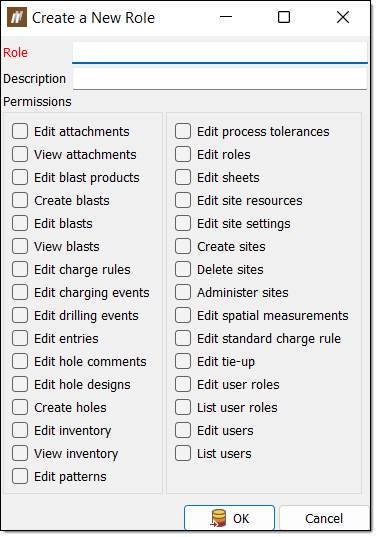
The Create a New Role panel will appear.
-
Enter the desired information into the Role and Description fields.
-
In the Permissions section, select the checkboxes of the permissions you wish to assign to this role.
-
Click OK. BlastLogic will add this new role into the table that lists the roles in the Roles and users tab.
-
Optionally, you can edit the permissions of the role by selecting or clearing the desired checkboxes in the role row of the table.
Adding a new user
To add a new user, follow these steps:
-
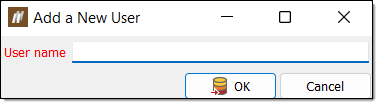
Select New user... at the bottom of the System Administration Tool panel. The Add a New User panel will appear.
-
Enter the name of the user into the User name field.
-
Click OK. BlastLogic will add the user to the table that lists the users in the Roles and users tab.
-
Edit the roles of the user by selecting the desired role checkboxes in the users table.
-
Optionally, you can mark a user as active or inactive by selecting or clearing the Active column checkbox.
