Charge Rule
Source file: context-menus-charge-rule.htm
A charge rule defines the location, quantity and types of products you plan to insert into each hole in a blast. For more information on charge rules, see Create Charge Rule.
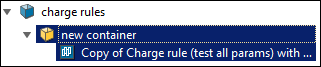
To view the context menu options for a charge rule, right-click on the charge rule in the 
charge rules container in project explorer.
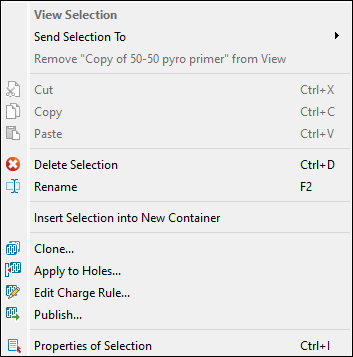
The charge rule context menu contains the following options:
 Delete Selection Delete Selection |
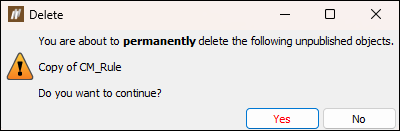
Delete the selected charge rule from your project explorer. BlastLogic will display a pop-up for you to confirm your selection.
Tip: You can also delete a charge rule by clicking on it and pressing Ctrl+D. |
 Rename Rename |
Rename the selected charge rule.
Tip: You can also rename a charge rule by slowly clicking on it twice, or by selecting it and pressing F2. |
| Insert Selection into New Container |
Create a top container and insert the selected charge rule into it.
Tip: To change the name of the new container, slowly click on it twice, right-click on it and select |
 Clone… Clone… |
Open the panel that allows you to create a charge rule based on the properties of an existing charge rule. For more information on cloning charge rules, see Cloning an existing charge rule. |
 Apply to Holes… Apply to Holes… |
To apply a charge rule to holes, select the holes in the view window and then click
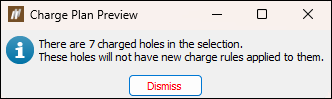
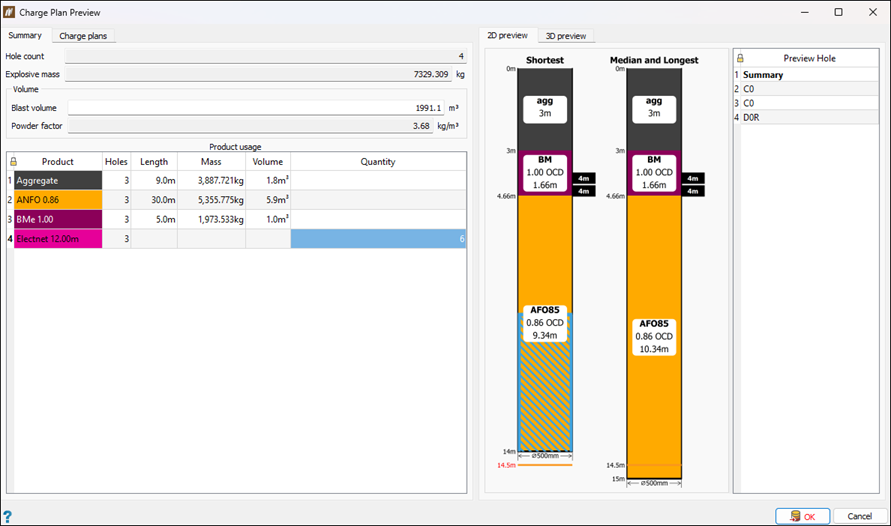
Click Dismiss to proceed. BlastLogic will display the Charge Plan Preview panel only for the holes that have not been assigned with a charge rule before.
Review the charge rule application preview and click OK to apply the charge plan to the holes. |
 Edit Charge Rule… Edit Charge Rule… |
For information on editing charge rules, see Edit Charge Rule. Note: Only unpublished charge rules can be edited. If a rule has been already published, the Edit Charge Rule Defaults… option will become available. |
 Publish… Publish… |
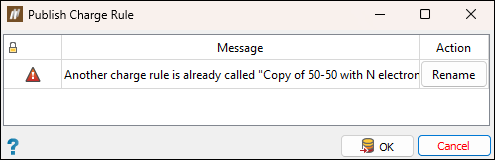
Open the Publish Charge Rule panel that contains information on the actions you have to take to publish the charge rule. Note: BlastLogic provides the
The
|
 Properties of Selection Properties of Selection |
View the properties of the selected charge rule in the Report Window. Tip: You can also click on a tie-up in project explorer and press Ctrl+I to view the properties of the tie-up. |

 icon indicates a critical issue that you have to resolve to publish a blast. In order to resolve the issue, click the button in the Action column to go to the related panel.