

Sheet
Source file: context-menus-sheet.htm
To view the context menu options for a sheet, right-click on the sheet in the 
Sheets container in the project explorer.
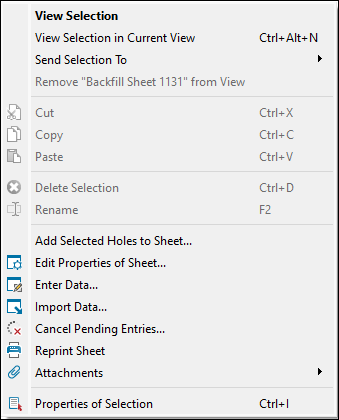
The sheet context menu contains the following options:
| View Selection | Open the selected sheet in a new tab in the view window. |
| View Selection in Current View | Open the selected sheet in the current tab in the view window. |
| Send Selection To | Open the selected sheet in the selected tab in the view window. |
| Remove <Sheet Name> from View | Remove the selected sheet from the view. |
| Add Selected Holes to Sheet… | Open the Adding Holes to <sheet name> panel. The panel allows you to record sheet instructions, as well as to set PDF, sheet, and Tablet properties by selecting the corresponding checkboxes.
All actions that need to be taken before adding holes to the sheet will be listed in the table at the bottom of the panel.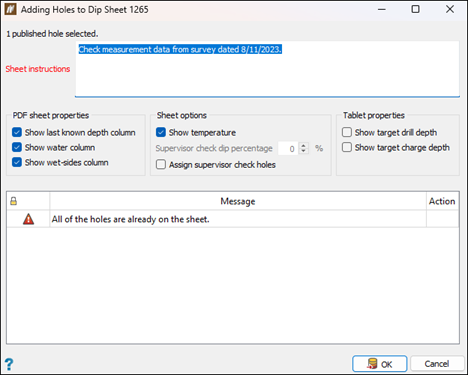 |
 Edit Properties of Sheet… Edit Properties of Sheet… |
Edit the properties of the selected sheet. See Edit Properties for more information. |
 Enter Data… Enter Data… |
For information on entering each type of data, see the following:
|
 Import Data… Import Data… |
Import data into the selected sheet. See Data for more information. |
 Cancel Pending Entries… Cancel Pending Entries… |
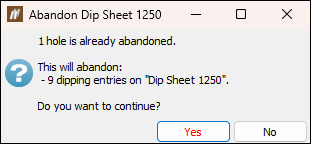
Open the Abandon <sheet name> panel where you can review the information on the pending entries. Click OK to abandon the pending entries.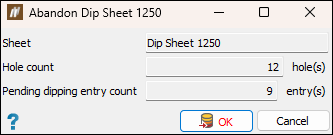 BlastLogic will display a pop-up window containing the information on the entries to be abandoned. |
 Reprint Sheet Reprint Sheet |
Open the selected sheet in the form of a PDF file in the view window. Click  to save the sheet as a PDF file on your computer, or click to save the sheet as a PDF file on your computer, or click  to print it. to print it. |
 Attachments Attachments |
View the data added in the form of attachments to a given sheet. See Attachments for more information. |
 Properties of Selection Properties of Selection |
View the properties of the selected sheet in the Report Window. Tip: You can also click on a sheet in project explorer and press Ctrl+I to view the properties of the sheet. |
Was this page helpful?
