Mining Direction
Source file: epoch-setups-viewer-mining-direction.htm
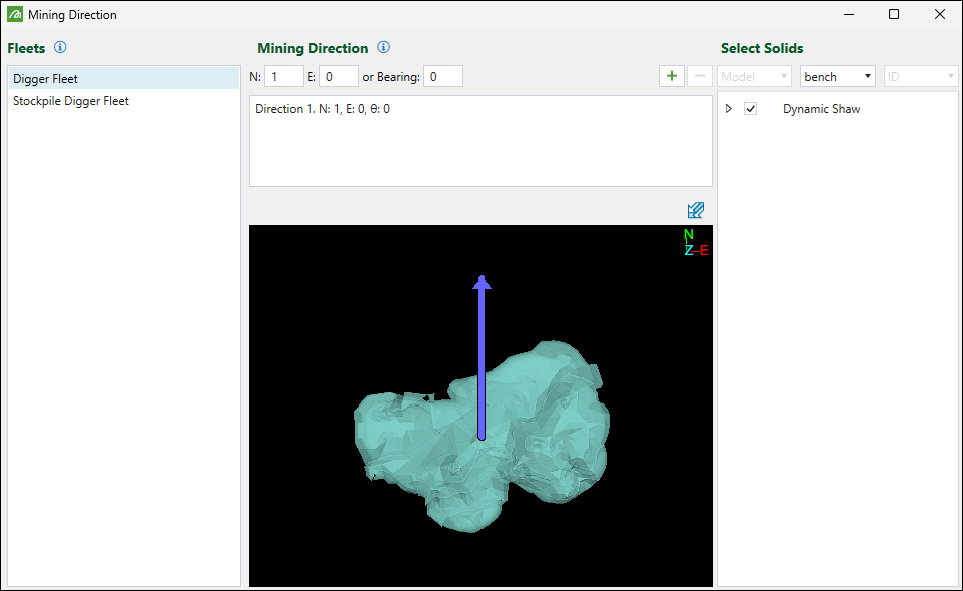
Use  Mining Direction to visualise the direction in which mining will progress as you step through your Epoch schedule.
Note: You can use this feature in Epoch setups that include either a solid pit model or a dynamic solids pit model.
Note: Mining Direction does not have any impact on the  Cut Solids functionality in setups with dynamic solids pits.
To add a mining direction, follow these steps:
-
Click
Mining Direction on the bottom toolbar in the viewer. -
Set the following:
-
Fleets. All fleets have North set as the default mining direction for all pit solids, but you can change it as required. To do that, select the required fleet from the list.
-
Solids. All solids are selected by default, but you can limit the selection to specific solids. To do so, choose the required attribute from the drop‑down, then use the checkboxes to specify which solids the mining direction should apply to.
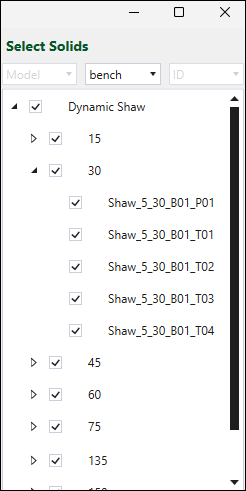
Important: When you create a mining direction, it is applied to all solids currently selected in the Select Solids panel. Therefore, you must select the required solids before creating a mining direction.
-
Mining Direction. Specify the direction in which vehicles of the selected fleet will mine the material for the selected solids. Evolution will create slices perpendicular to the mining direction to increase the accuracy.
There are a few ways to define the mining direction. Choose a method and follow the steps below.
 Enter coordinates or a bearing.
Provide the values in the northing (N) and easting (E) fields, or enter a value in the Bearing field, then click
 (Add). Evolution calculates the remaining values automatically.
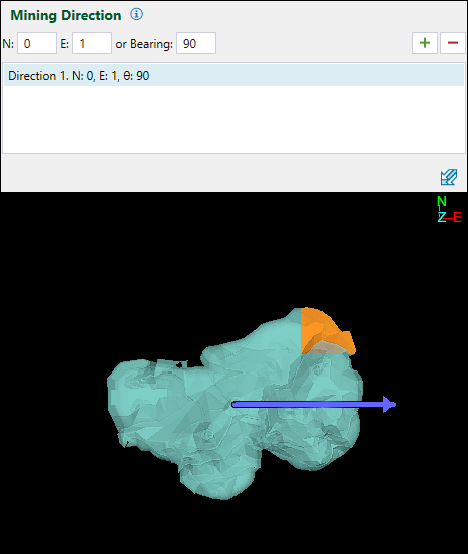 Assign mining direction from solid attributes.
To do so, follow these steps:
-
Click
(Assign Mining Direction From Solid Attribute).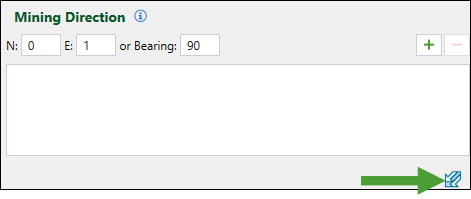
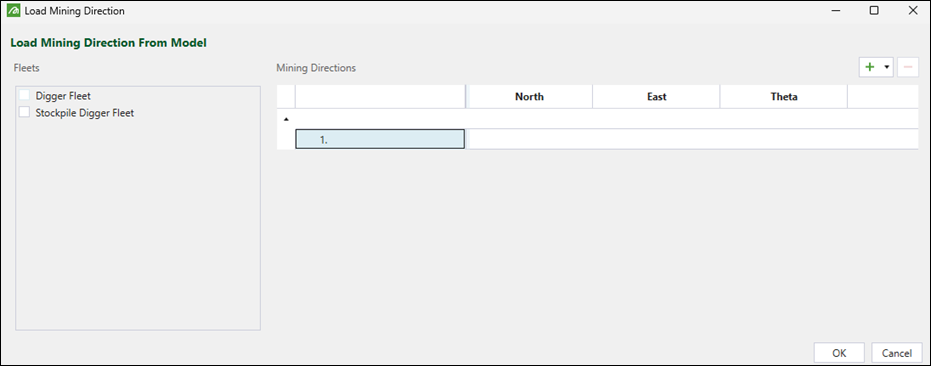
The Load Mining Direction panel will appear.
-
Select the checkbox corresponding to the required fleet.
-
Select the solid attributes from the North and South drop-downs or a solid attribute from the Theta drop-down to determine the mining direction.
-
Click OK to confirm. Evolution will add the mining direction to the list.
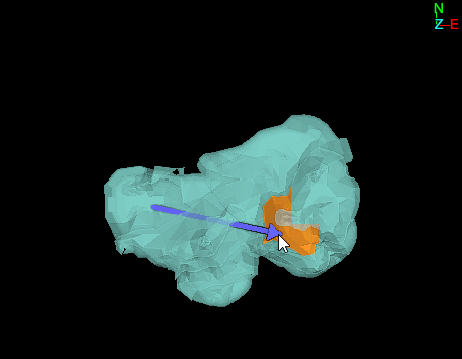
Specify the mining direction in the panel’s viewer.
Click once on the model, move the arrow in the required direction, and click again to set it. Evolution will add the mining direction to the list.
-
-
Select a mining direction in the list and click
 (Delete) to remove it.
-
-
Set the mining direction for other fleets, as required.
-
Click
 (Close) at the top of the panel.
-
Validate your setup, then step through the schedule to visualise the direction in which mining progresses.

The Mining Direction panel will appear.