

Import Haul Network Attributes with Trolley Data
To import trolley and other haul network attributes, you can assign attributes in Vulcan and then import the haulage network into Evolution.
Assigning attributes in Vulcan
-
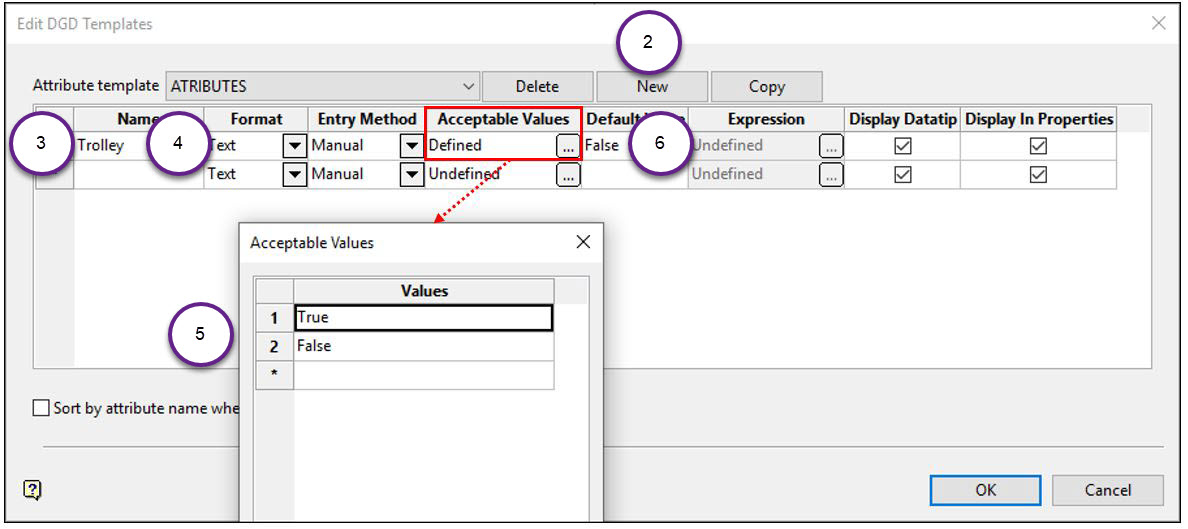
Go to Design > Templated Attributes > Edit DGD Templates.
-
Make a new template name.
-
Add the attribute name i.e.
trolley. -
Set the
Formatcolumn to text for trolley. -
Define the Acceptable Values that will be used for this attribute i.e. true or false.
-
Define a Default Value i.e. false.
-
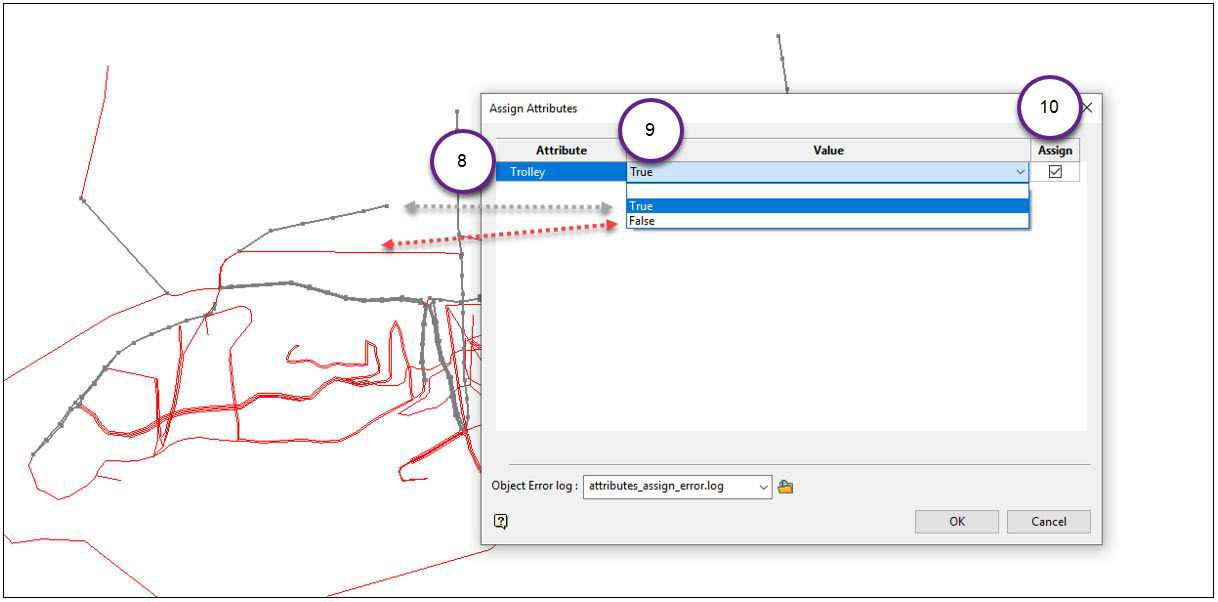
Go to Design > Templated Attributes > Assign Data.
-
Select the Attribute to apply.
-
Select the Value of the attribute to apply to the object or layer i.e. true or false.
-
Tick the Assign checkbox.
-
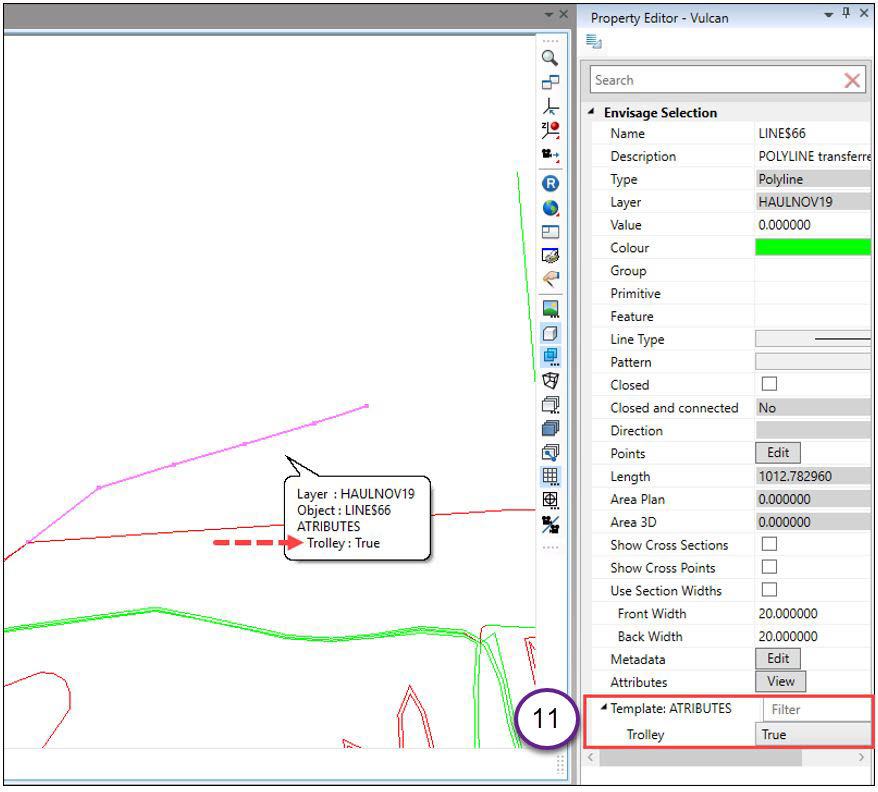
Check that the attribute has been assigned correctly by viewing the Property Editor.
See also: Road Networks in Evolution
