Surface
Source file: context-surface.htm
The Surface context sensitive ribbon tab contains tools specifically related to surfaces.

| Tool | Location on the ribbon | Operation |
|---|---|---|
 Freehand Transform Freehand Transform |
Surface context sensitive ribbon tab > Edit group > Freehand Transform |
For information on freehand transformation, see Freehand Transform. |
 Point Z from Attribute Point Z from Attribute |
Surface context sensitive ribbon tab > Edit group > Point Z from Attribute |
The Point Z from Attribute tool displays a selected attribute as height Z. To set this, proceed as follows:
|
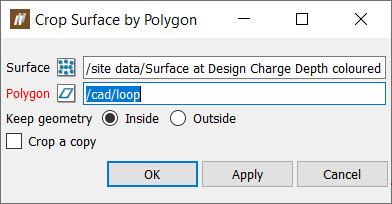
 Crop Surface by Polygon Crop Surface by Polygon |
Surface context sensitive ribbon tab > Edit group > Crop Surface by Polygon |
To crop a surface by a polygon, follow these steps:
|
 Properties Properties |
Surface context sensitive ribbon tab > Query group > Properties |
Select the Properties tool to view the properties of a surface. BlastLogic will print the surface properties to the report window. |
 Uniform Uniform |
Surface context sensitive ribbon tab > Colour group > Uniform |
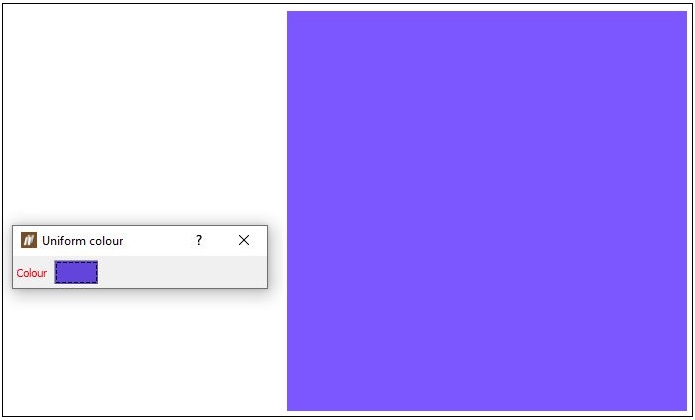
Uniform colour shades the entire surface a uniform colour.
|
 Translucency Translucency |
Surface context sensitive ribbon tab > Colour group > Translucency |
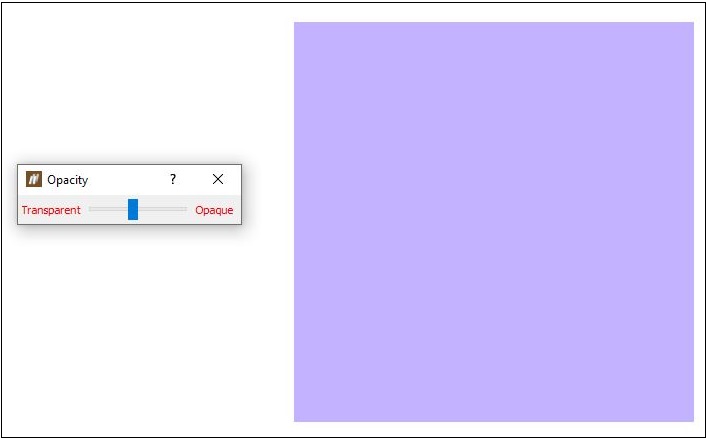
The translucency tool can be applied to an entire surface. For example, a surface placed on top of a blast in the view can be set translucent so that the holes underneath it can be seen.
|