

Appointments
The  Appointments tab provides you with a complete overview of site appointments during which equipment operation is suspended. These include general delays, maintenance, and global events such as public holidays and weekends. In this tab, you can view both the All Calendar Events tab and the Global Calendar Events tab, as well as add blasting appointments to your schedule.
All Calendar Events
Use the All Calendar Events tab to view all of the calendar events, including global events and events created through the Resource Groups tab. You can also create blasting appointments in this tab.
Note: Apart from the possibility to add blasting appointments, the All Calendar Events tab is read-only. To edit any existing events, go back to the calendar where you created the event. To remove blasting appointments, go to the  Resources tab > Resource Groups subtab.
Tip: Click the Day, Week, Month, Timeline, or Agenda subtab to change the calendar view.
Note: Use the button at the top right of the calendar to navigate to the required date, week, or month.
The time range displayed on the button will vary depending on the calendar view that you have set.
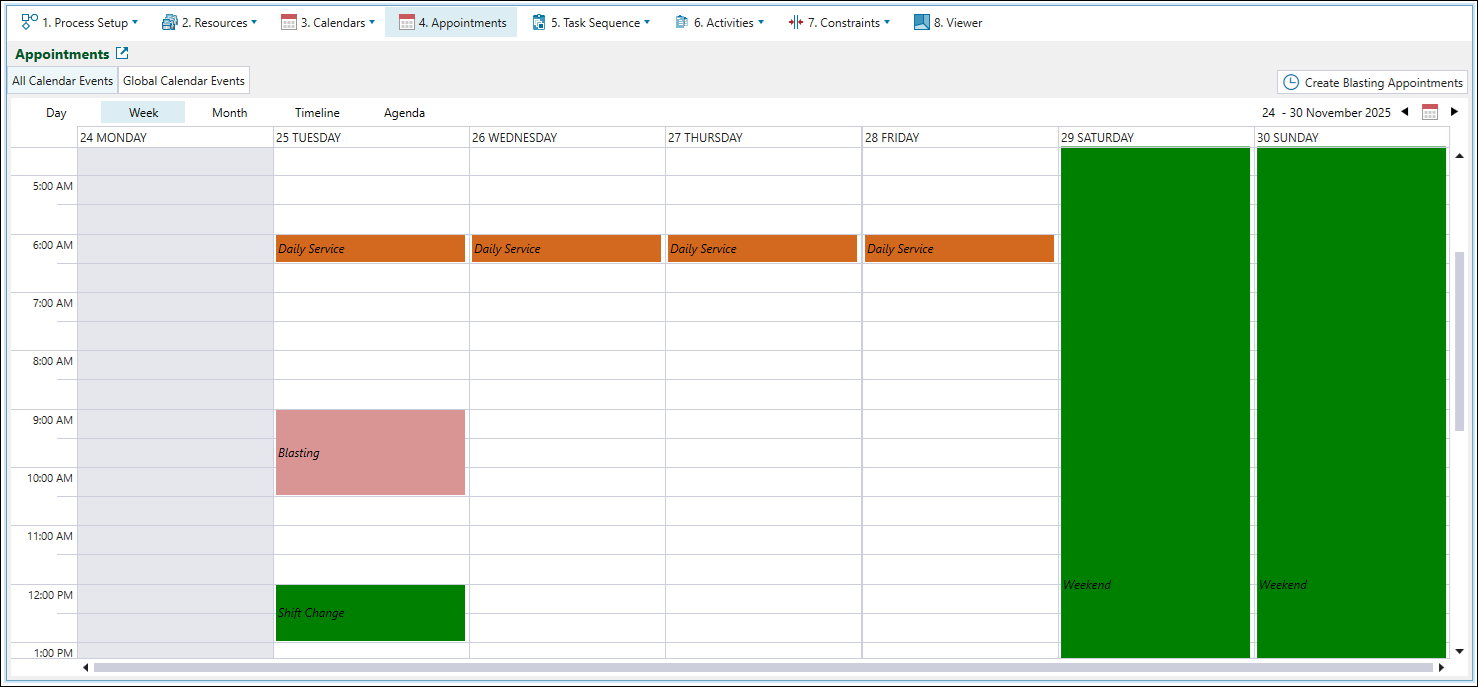
Creating blasting appointments
Follow these steps to create blasting appointments in the All Calendar Events tab:
-
Click the
 Create Blasting Appointments button at the top right of the calendar.
 -
In the Select Resources panel, choose the resources you want to assign to the blasting appointment.
Tip: Click the
 button to expand the resource category groups and view all listed crews and fleets.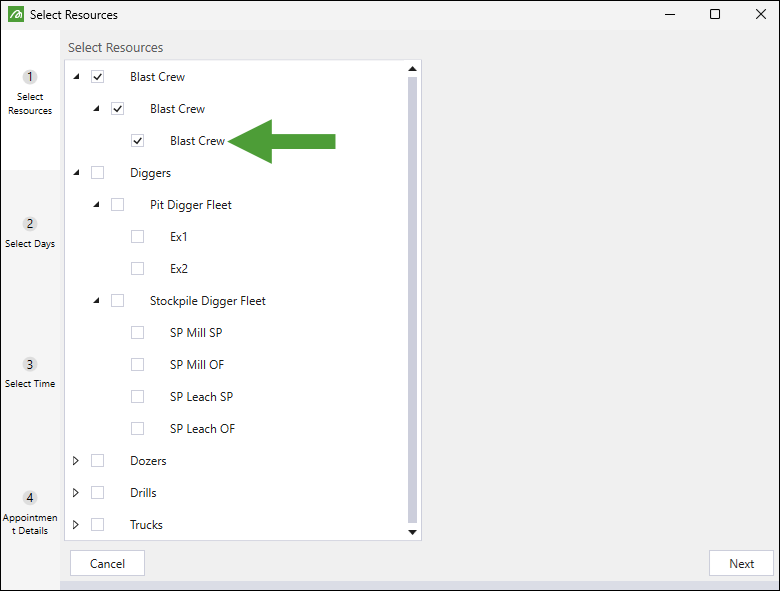
Click Next.
-
Select the days where you want the appointment to be scheduled, then click Next.
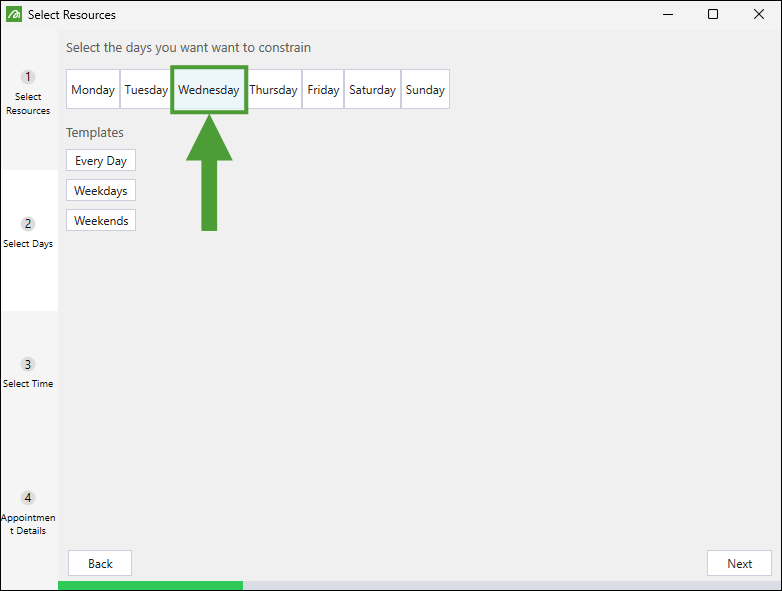
Tip: To select multiple days, hold down Ctrl while clicking each one. You can also use templates by clicking the Every Day, Weekdays, or Weekends button. To deselect a day, click it again.
-
Using the From and To fields, enter the times at which the appointment will occur.
TipUse the
 (Add times) button to add more time range fields.
Select the checkbox corresponding to a time range field you no longer require and click
 (Delete) to remove the field.
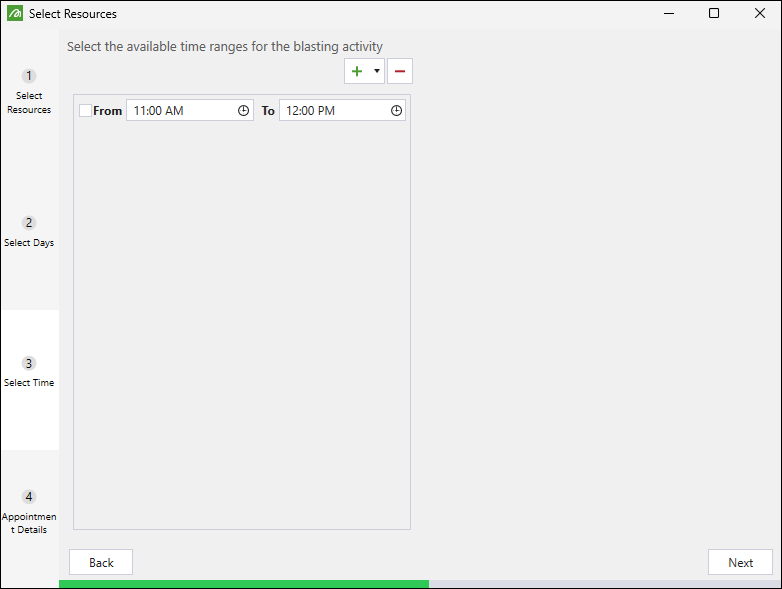
Click Next.
-
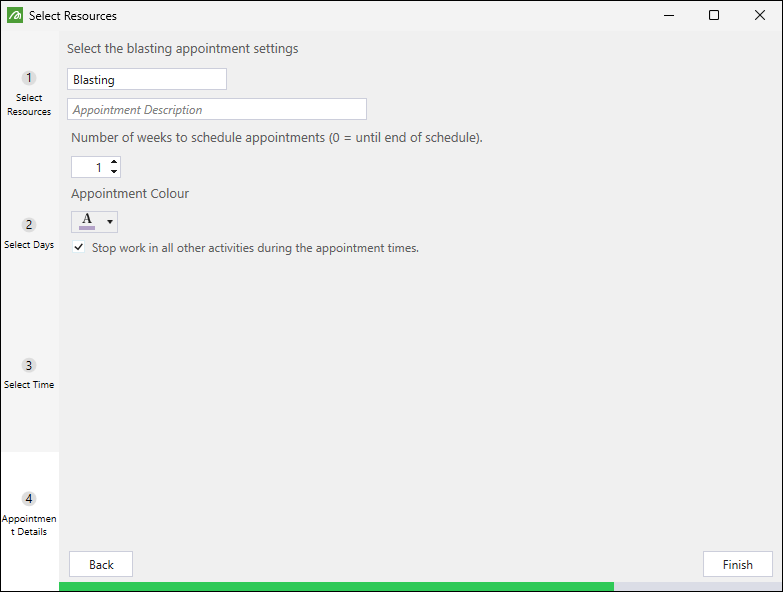
Configure the appointment by specifying the following:
-
The name of the appointment and, optionally, a description.
-
The number of weeks during which you want the appointment to be recurring.
Note: To add a single occurrence appointment, enter
1. To add the same appointment until the end of the schedule, enter0. -
The colour in which you want the appointment to be marked in the calendar.
Note: If there is an existing category with the same name in the
Resource Groups subtab, Evolution will use the colour of that category instead. -
Select the checkbox at the bottom of the appointment configuration fields if you want all other activities to stop while the blasting appointment is in progress.
-
-
Click Finish.
Evolution will add your blasting appointment to the calendar as follows:
-
Add the actual blasting appointment in the selected time slot in the All Calendar Events tab and in the calendar for the related resources in the
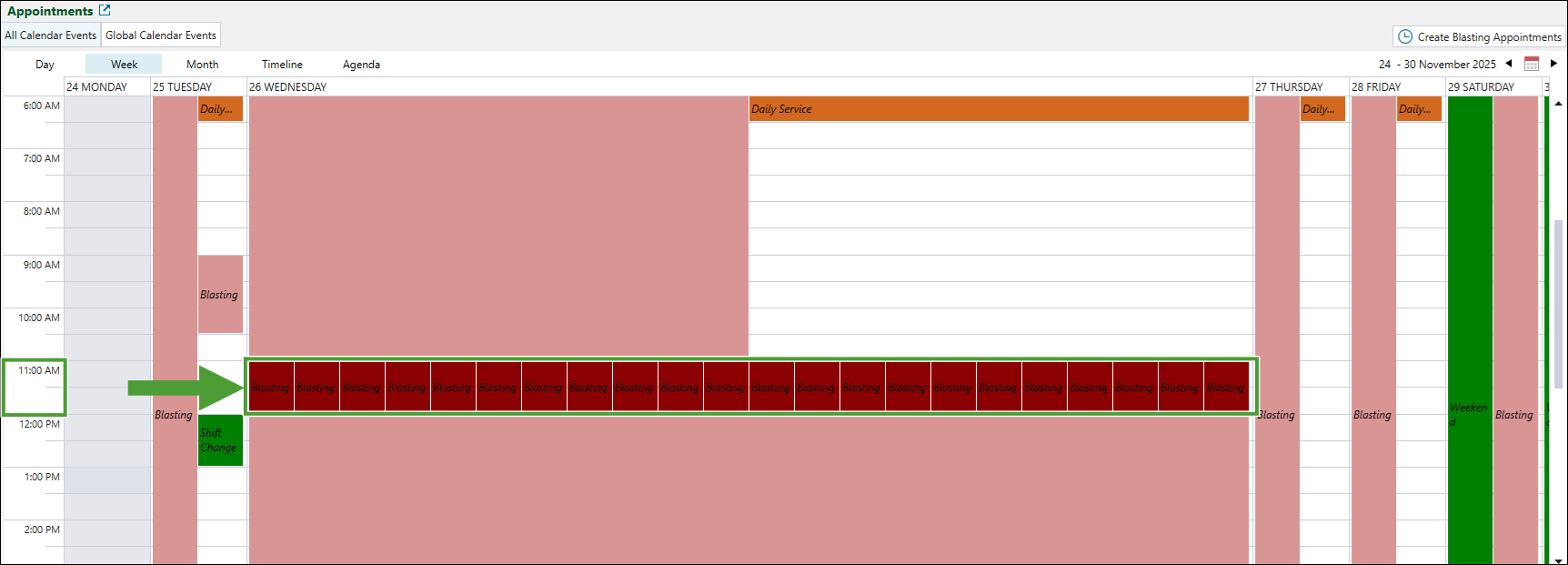
Resource Groups subtab.All Calendar Events tab When you have selected the Stop work in all other activities during the appointment times. checkbox in the blasting appointment configuration panel:
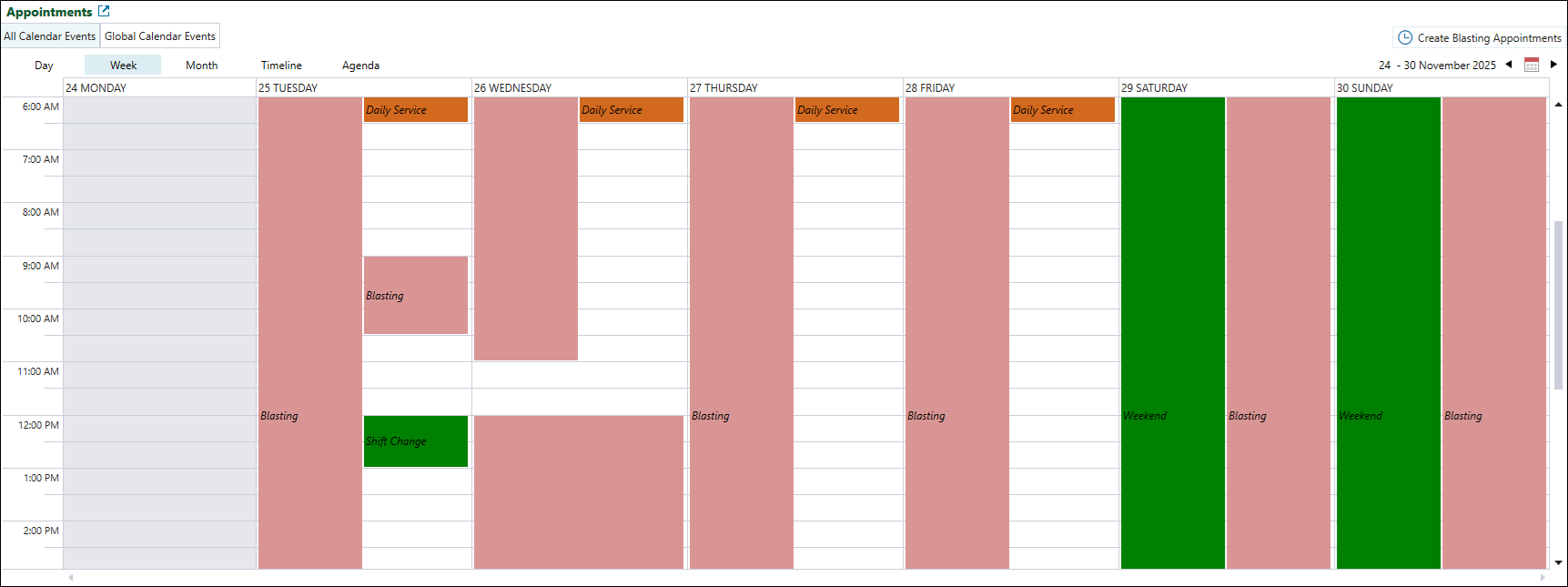
When you have not selected the Stop work in all other activities during the appointment times. checkbox in the blasting appointment configuration panel:
 Resource Groups subtab
Selected blasting crew 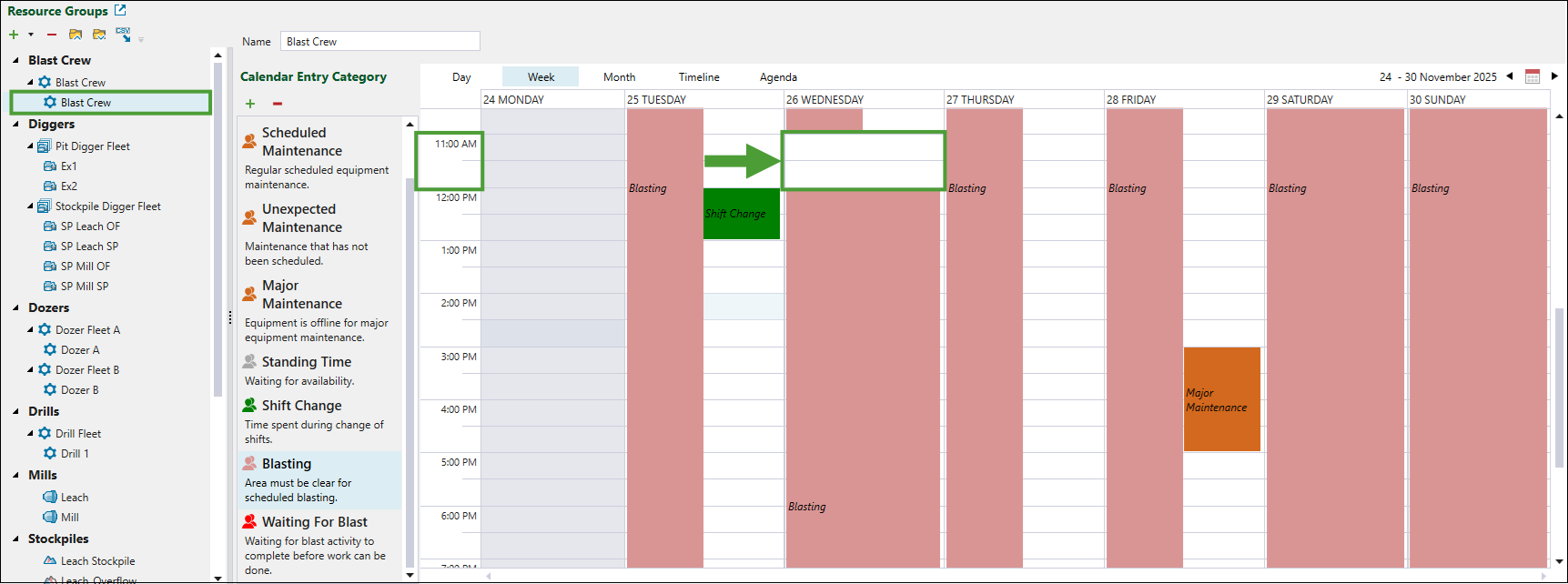
Note: The time slot is empty for the dedicated blasting crew to perform blast during that time.
Other resource groups 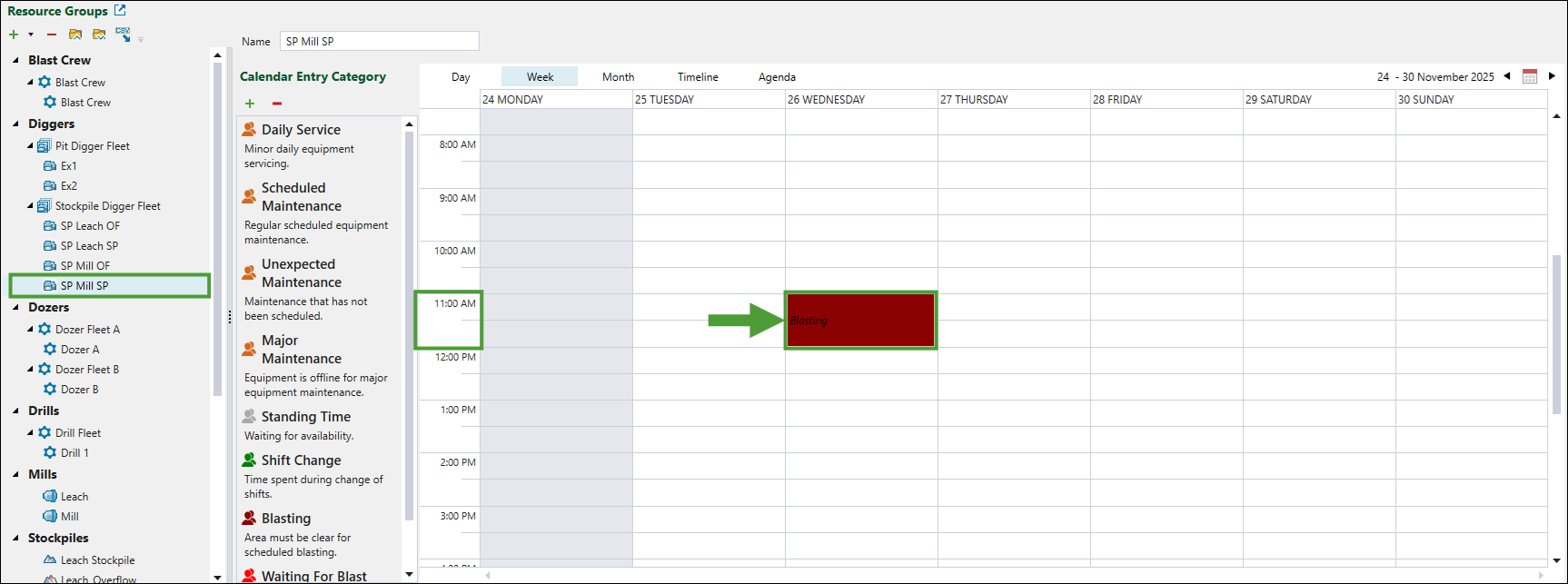
Note: For other resource groups that are unrelated to the scheduled blasting, the blasting appointment will be shown during the actual planned time slot if you have selected the Stop work in all other activities during the appointment times. checkbox in the blasting appointment configuration panel. This prevents other resource groups from working during blasting activities.
-
Mark other time slots in the
Appointments calendar as Blasting, but with a lighter colour to indicate that the site must be clear for scheduled blasting.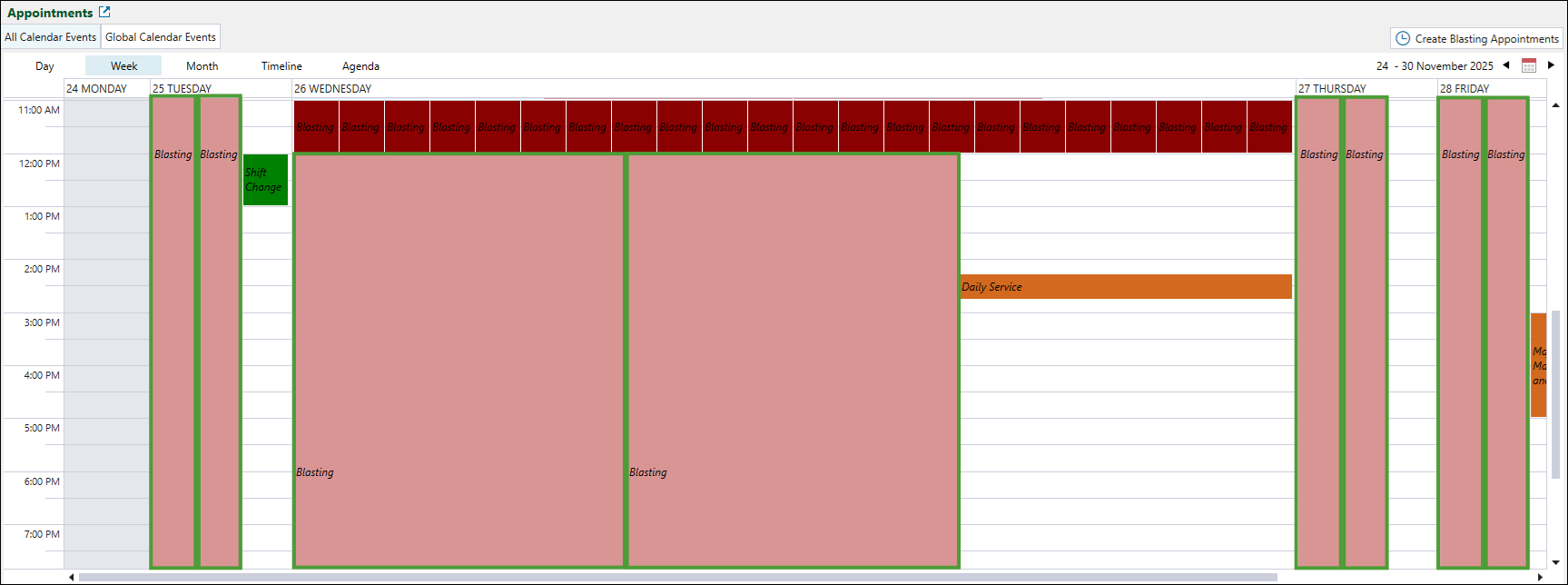
-
You can delete blasting appointments in the
Resources tab > Resource Groups subtab. To do that, in the Resource Groups calendar, navigate to the blasting appointment you no longer require and click x at the top-right of the appointment tile.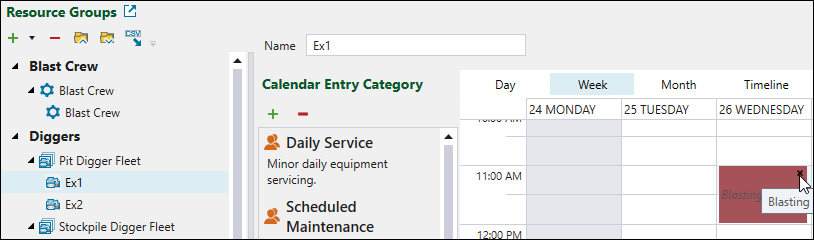
In the Delete Calendar Entry pop-up window, click OK to proceed with the deletion.
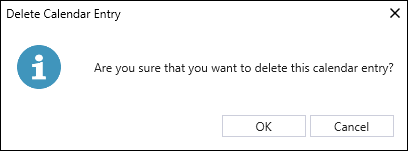
To completely remove the blasting appointment from the calendar, you must repeat the above steps for each listed resource.
Global Calendar Events
Use the Global Calendar Events tab to schedule and manage global site events during which no activity takes place on a site. Epoch automatically applies global events to all aspects of the site, including every resource in the setup.
Tip: Click the Day, Week, Month, Timeline, or Agenda subtab to change the calendar view.
Note: Use the button at the top right of the calendar to navigate to the required date, week, or month.
The time range displayed on the button will vary depending on the calendar view that you have set.
Global Calendar entries
The following entry categories are available in the Global Calendar by default:
-
Public holiday: A day off for all employees.
-
Weekend: Regular days with no scheduled work.
-
Standing Time: The period when the resources are waiting for availability.
-
Delay: A miscellaneous time delay.
To add a new category, follow these steps:
-
Click
 in the Calendar Entry Category section.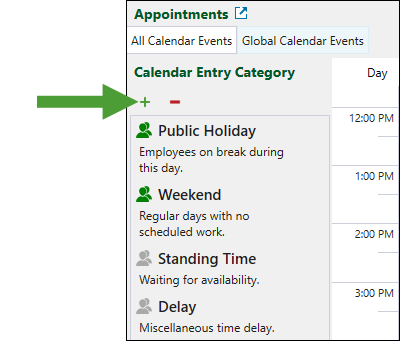
-
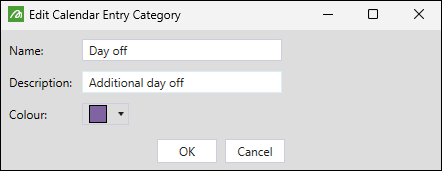
In the Edit Calendar Entry Category panel, enter the following:
-
The name and the description for the new calendar entry.
-
The colour in which the entry will be marked in the calendar.
-
-
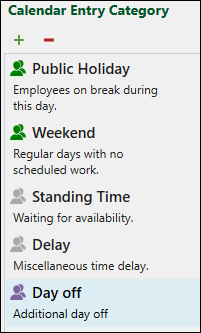
Click OK. The new entry category will be added to the list.
Note: To remove a category from the list, select it on the list and click the
 button in the Calendar Entry Category section.
To add an entry to the Global Calendar, drag the required entry category from the Calendar Entry Category section into the required time slot.
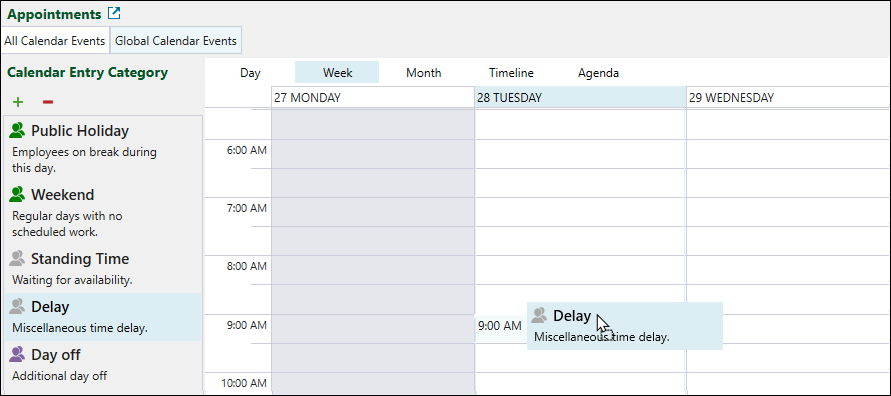
To adjust the time of the entry, click and hold it with the mouse while dragging the entry to the required day and time.
Note: For Public Holiday and Weekend entries, you can set an event lasting up to 24 hours (a full day). Standing Time, Delay, and any custom entries you add have a fixed duration of 30 minutes.
Note: The Global Calendar Events tab allows you to add blasting appointments the same way as in the All Calendar Events tab. See Creating blasting appointments for details.
