

Step 5: Fine Tuning
Go to the  Viewer tab and step through your schedule.
The result should look like the following animation:
Note: The colours applied to the activities shown in the viewer animation correspond to these assigned to each activity in the  Activities >
  Activity Sequence subtab.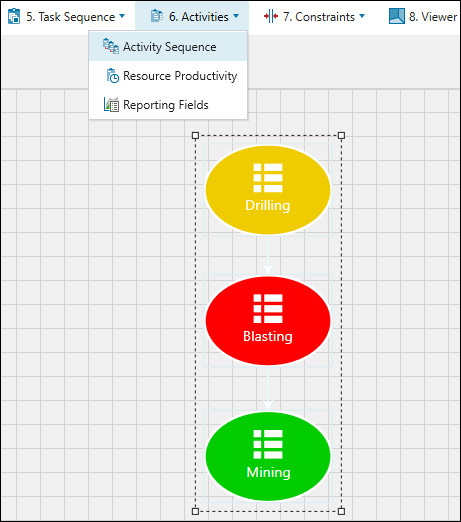
See Activity Sequence for more information.
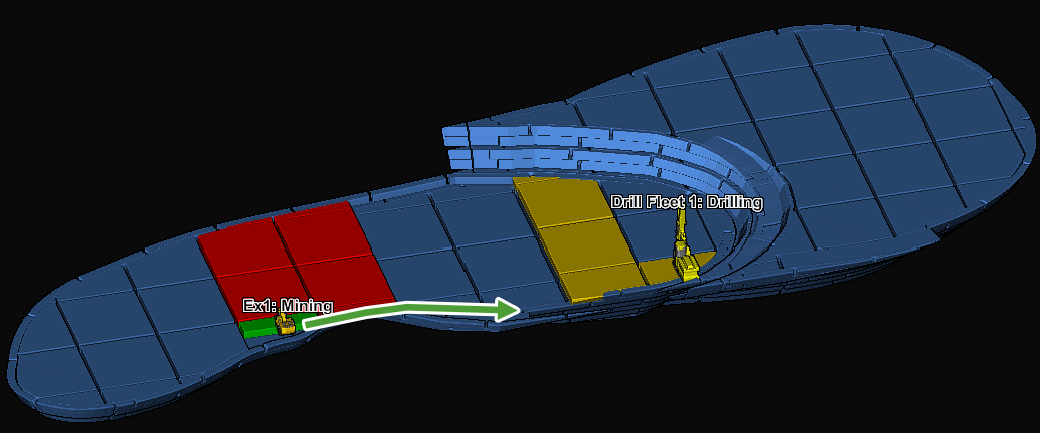
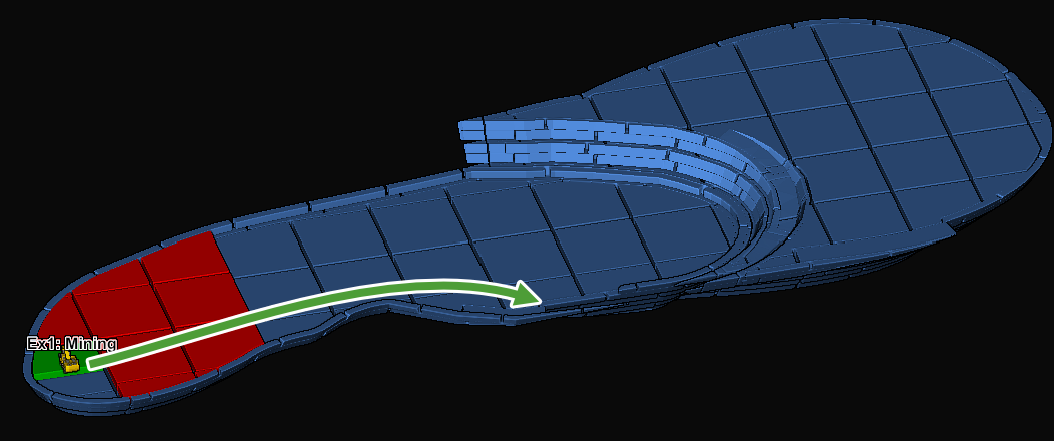
Upon closer examination, blast groups 2 and 4 appear to have haulage issues over the blasted material. The arrows marked in Figure 1 below show the path a truck must take. In the current schedule state, the trucks would have to go through unmined solids.
|
|
|
|
We can fix this by reordering Ex1 task list so the groups are mined from right to left, as follows:
-
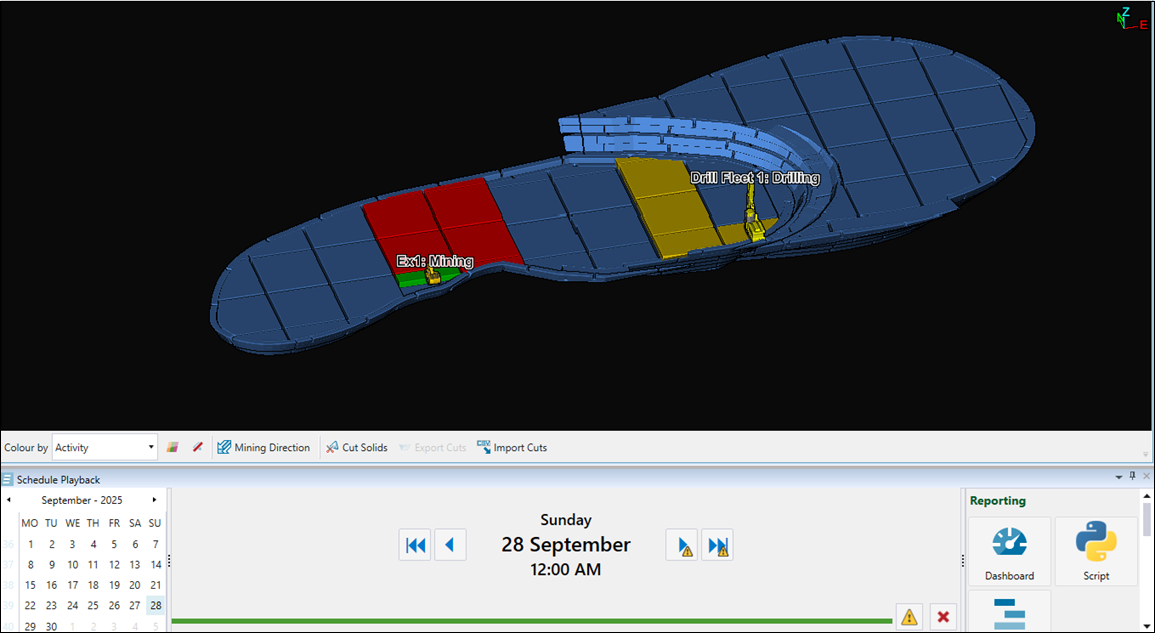
Step through your schedule up to the 28th of September.
-
Switch to the Task Lists tab and hover over the first solid that is mined in the viewer, as shown in the image below.
Note: Do not select the solid.
The task will be highlighted in the task list.
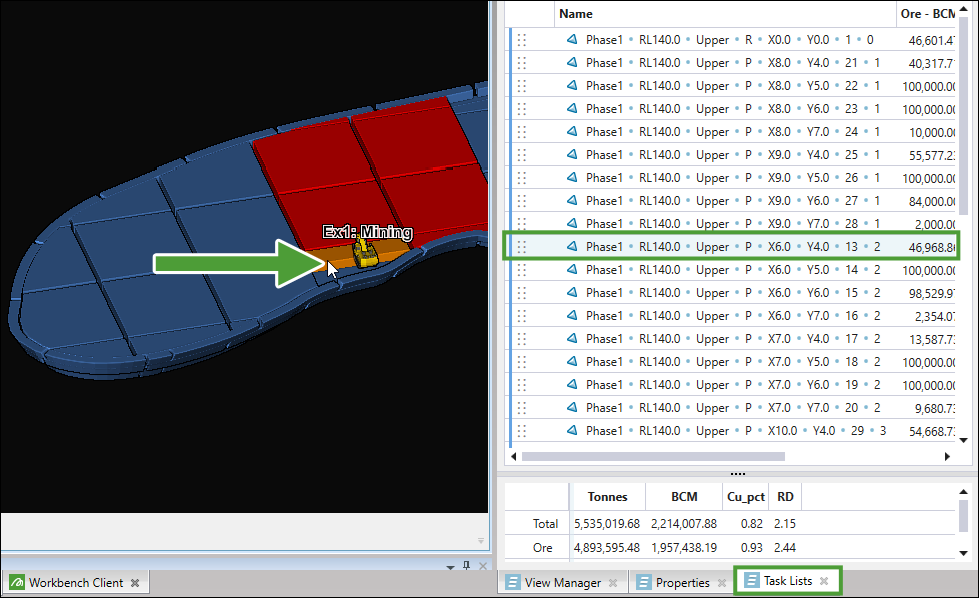
We will need to move the three solids to the right before this task in the list.
-
Hover over each of the three solids on the right of the blast group to see where they are in the task list. Select them all (with Ctrl+click), then drag them to appear before the task identified in the previous step.
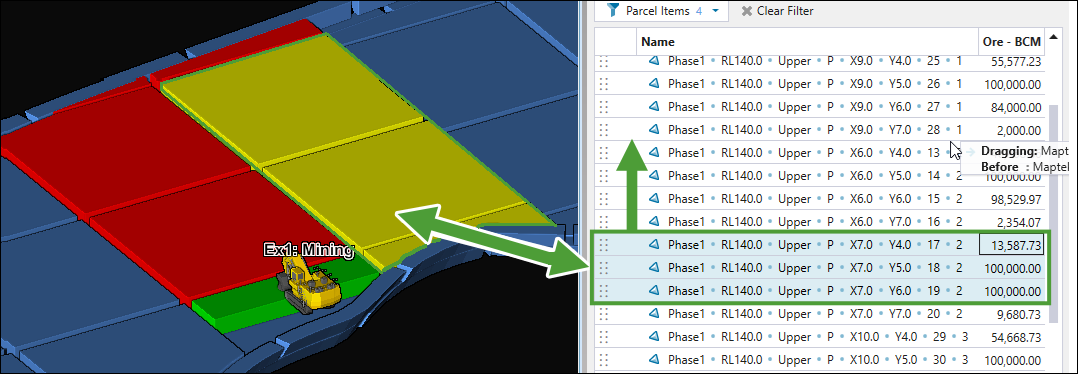

-
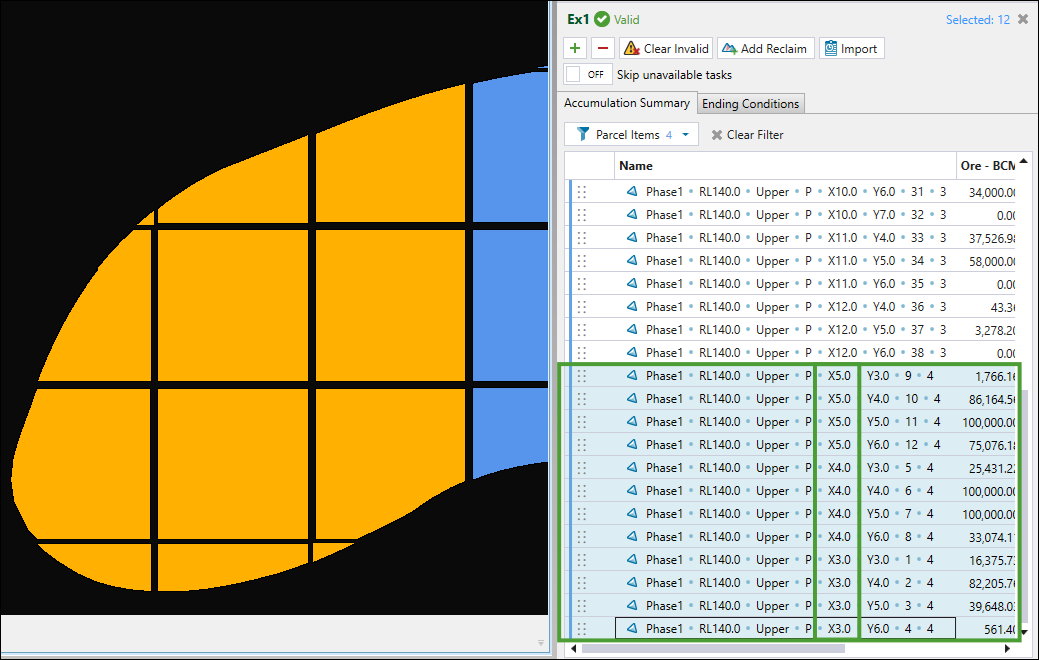
Drag the solids in Group 4 to the bottom of the task list, as shown in the image below.
Tip: To make identification and ordering easier, use the X value for each task.
See also: Generate and View the Schedule in Epoch
