

5. View the Schedule
Once you have downloaded your schedule, you can analyse your results using pivot reports (see Pivot Reporting for more information).
Exporting schedules to CSV files
Evolution also allows you to export your schedule results in a comma-separated values (CSV) file.
You can use the exported CSV outputs for the following:
-
Importing period values back to the block model in Vulcan.
-
Building databases for use with external programs.
-
Generating reports.
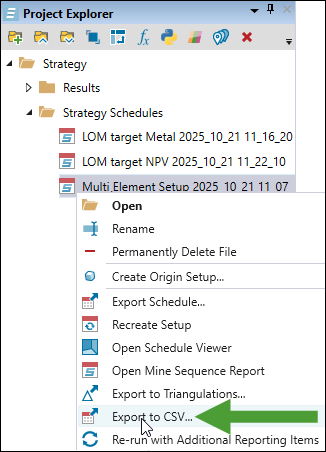
To export your schedule results to a CSV file, right-click the required schedule and select  Export to CSV… from the context menu.
The Export to CSV panel will appear. Select the data source from the drop-down, click Browse to choose the location where you want to save the file, and then click OK.
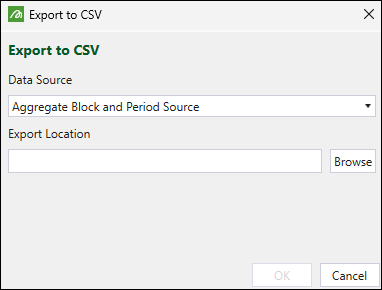
Note: Strategy schedules consist of multiple tables, and due to the diversity of data, some elements cannot be directly linked. As a result, exporting a single CSV containing all data is not feasible. Therefore, you must specify the data source when exporting your schedules to CSV.
Data sources
The following content outlines the scope of data included in each data source type.
Aggregate Block and Period Source
Aggregate Block and Period Source is the combination of process records and block model data that allows inspection of block model attributes in relation to when they were processed in the schedule.
This data source includes the following columns:
| Field | Type | Description |
|---|---|---|
| <FloatAttribute> | Number | Numeric block-model attribute copied from the source model |
| <StringAttribute> | Text | Text block-model attribute copied from the source model |
| Period | Integer | Period when the block is mined |
| Schedule | Text | Name of the contributing schedule |
Crusher Stage
Crusher Stage contains records of material processed at the crushers.
This data source includes the following columns:
| Field | Type | Description |
|---|---|---|
| Period | Integer | Schedule period |
| BenchIndex | Integer | Bench index |
| Bench | Number | Bench elevation |
| Stage | Text | Stage supplying the tonnes |
| StagePower | Integer | Stage power level |
| Name | Text | Crusher name |
| Tonnes | Number | Mass processed by the crusher |
End of Period Accumulation Constraint
End of Period Accumulation Constraint shows the state of sink rate and ore exposure constraints at the end of each period.
See also: Constraints in Strategy
This data source includes the following columns:
| Field | Type | Description |
|---|---|---|
| Name | Text | Constraint label (Sink-Rate, Stage-Sink-Rate‑<stage>, or Ore-Exposure) |
| Period | Integer | Period index |
| Value | Number | Recorded constraint accumulation |
Financial Data
Financial Data contains various financial records calculated from other tables in the schedule.
This data source includes the following columns:
| Field | Type | Description |
|---|---|---|
| Period | Integer | Period index |
| Process | Text | Material destination name |
| ModelName | Text | Pit (model) name |
| Stockpile | Text | Source stockpile (reclaim only) |
| ScheduleName | Text | Schedule name (when multiple schedules are combined) |
| Mass | Number | Tonnes represented |
| MiningCost | Number | Mining plus waste-haulage cost |
| ProcessingCost | Number | Processing cost |
| RehandleCost | Number | Rehandle cost for reclaimed material or rehabilitation cost for wasted material |
| Profit | Number | Profit contribution |
| <Element> Revenue | Number | Revenue for the named element |
| <Element> Selling Cost | Number | Selling cost for the named element |
| <Element> Grade | Number | Grade for the named element |
| <Element> Recovered Metal | Number | Recovered metal for the named element |
Fleet Report
Fleet Report shows records of equipment quantities and costs by period.
This data source includes the following columns:
| Field | Type | Description |
|---|---|---|
| Period | Integer | Period index |
| Name | Text | Equipment type |
| Quantity | Integer | Units required |
| Cost | Number | Capital cost for those units |
Mine Sequence
Mine Sequence contains processing records calculated from other tables, consistent with the mine sequence report.
This data source includes the following columns:
| Field | Type | Description |
|---|---|---|
| Period | Integer | Period index |
| PeriodName | Text | Calendar name for the period |
| StartDateFull | Date/Text | Calendar start date (ISO) |
| StartDateYear | Text | Start year |
| StartDateMonth | Text | Start month |
| EndDateFull | Date/Text | Calendar end date (ISO) |
| EndDateYear | Text | End year |
| EndDateMonth | Text | End month |
| Process | Text | Material destination name (reclaim rows displayed as Process Reclaim (Stockpile)) |
| Stockpile | Text | Source stockpile (reclaim only) |
| Lithology | Text | Material lithology |
| Stage | Text | Stage name |
| ModelName | Text | Pit (model) name |
| BenchIndex | Integer | Bench index |
| Bench | Number | Bench elevation |
| Tonnes | Number | Mass sent to destination |
| Mcost | Number | Mining plus waste-haulage cost |
| Pcost | Number | Processing cost |
| Rehandle | Number | Rehandle cost for reclaims or rehabilitation cost for wasted material |
| Profit | Number | Profit contribution |
| IncOreCost | Number | Incremental ore cost |
| Hours | Number | Equipment hours |
| Revenue | Array (numbers) | Element revenues (order matches the setup) |
| SellingCost | Array (numbers) | Element selling costs (same order) |
| Grade | Array (numbers) | Grades per grade item |
| RecoveredMetal | Array (numbers) | Recovered metal per grade item |
| <GradeName>_Grade | Number | Grade for the named grade item |
| <GradeName>_Metal | Number | Contained metal for the named grade item |
| <AccumulationName>_Accumulation | Number | Value for the named accumulation constraint |
Multi Element Process Cut-off
Multi Element Process Cut-off contains cut-offs generated by a multi-element setup.
This data source includes the following columns:
| Field | Type | Description |
|---|---|---|
| Name | Text | Multi-element cut-off name |
| Period | Integer | Period index |
| Value | Number | Cut-off grade for the element |
| ElementIndex | Integer | Element index within the cut-off definition |
Process
Process shows records generated from material being sent to processes.
This data source includes the following columns:
| Field | Type | Description |
|---|---|---|
| Period | Integer | Period index |
| Process | Text | Destination process |
| Lithology | Text | Material lithology |
| Stage | Text | Stage name |
| ModelName | Text | Pit (model) name |
| BreakdownField | Text | Optional subdivision label |
| BenchIndex | Integer | Bench index |
| Bench | Number | Bench elevation |
| Tonnes | Number | Mass routed |
| Mcost | Number | Mining plus waste-haulage cost |
| Pcost | Number | Processing cost |
| Rehandle | Number | Rehandle/rehabilitation cost |
| Revenue | Array (numbers) | Revenues per element |
| Profit | Number | Profit contribution |
| SellingCost | Array (numbers) | Selling costs per element |
| Grade | Array (numbers) | Grades per grade item |
| RecoveredMetal | Array (numbers) | Recovered metal per grade item |
| IncOreCos | Number | Incremental ore cost |
| Hours | Number | Hours required to move the parcel |
| <GradeName>_Grade | Number | Grade for the named grade item |
| <GradeName>_Metal | Number | Contained metal for the named grade item |
| <AccumulationName>_Accumulation | Number | Value for the named accumulation/constraint |
Process Cut-off
Process Cut-off contains cut-offs generated for a single-element setup.
This data source includes the following columns:
| Field | Type | Description |
|---|---|---|
| Period | Integer | Period index |
| Process | Text | Process name |
| Cutoff | Number | Single-element cut-off grade |
Stage Accumulation Constraint
Stage Accumulation Constraint shows records for Stage Accumulation constraints.
See also: Constraints in Strategy
This data source includes the following columns:
| Field | Type | Description |
|---|---|---|
| Period | Integer | Period index |
| BenchIndex | Integer | Bench index |
| Bench | Number | Bench elevation |
| Stage | Text | Stage name |
| StagePower | Integer | Stage power level |
| Name | Text | Constraint name |
| Value | Number | Constraint magnitude |
Stockpile Accumulation
Stockpile Accumulation shows the per-period state of accumulations at each stockpile.
This data source includes the following columns:
| Field | Type | Description |
|---|---|---|
| Period | Integer | Period index |
| Stockpile | Text | Stockpile name |
| Lithology | Text | Stored lithology |
| Lower | Number | Lower grade-bin bound |
| Upper | Number | Upper grade-bin bound |
| Tonnes | Number | Mass stored |
| Grade | Number | Primary grade |
| Metal | Number | Primary contained metal |
| BreakdownField | Text | Optional subdivision label |
| <GradeName>_Grade | Number | Grade for the named grade item |
| <GradeName>_Metal | Number | Contained metal for the named grade item |
| <ConstraintName>_Constraint | Number | Value for the named constraint |
| <ProcessName>_RecoveredMetal | Array (numbers) | Potential recovered metal for the named downstream process |
Stockpile Cut-off
Stockpile Cut-off contains cut-offs for process stockpiles.
This data source includes the following columns:
| Field | Type | Description |
|---|---|---|
| Period | Integer | Period index |
| Stockpile | Text | Stockpile name (regular or overflow) |
| Cutoff | Number | Cut-off grade |
Stockpile Period Start State
Stockpile Period Start State contains information about each stockpile at the start of each period.
This data source includes the following columns:
| Field | Type | Description |
|---|---|---|
| Period | Integer | Period index |
| Stockpile | Text | Stockpile name |
| Lithology | Text | Material present |
| Lower | Number | Lower grade-bin bound |
| Upper | Number | Upper grade-bin bound |
| Tonnes | Number | Mass on hand |
| Stage | Text | Stage provenance |
| Bench | Number | Bench elevation |
| BenchIndex | Integer | Bench index |
| Grade | Number | Primary grade |
| Metal | Number | Primary contained metal |
| BreakdownField | Text | Optional subdivision label |
| <GradeName>_Grade | Number | Grade for the named grade item |
| <GradeName>_Metal | Number | Contained metal for the named grade item |
| <ConstraintName>_Constraint | Number | Value for the named constraint |
| <ProcessName>_RecoveredMetal | Array (numbers) | Potential recovered metal for the named downstream process |
Stockpile Reclaim
Stockpile Reclaim contains records generated from stockpile reclaims.
This data source includes the following columns:
| Field | Type | Description |
|---|---|---|
| Period | Integer | Period index |
| Process | Text | Process receiving the reclaim |
| Lithology | Text | Lithology reclaimed |
| Stockpile | Text | Source stockpile |
| Tonnes | Number | Mass reclaimed |
| BreakdownField | Text | Optional subdivision label |
| Mcost | Number | Mining cost credited to the reclaim |
| Pcost | Number | Processing cost applied |
| SellingCost | Array (numbers) | Selling costs per element |
| Rehandle | Number | Rehandle cost |
| Revenue | Array (numbers) | Revenue per element |
| Profit | Number | Profit contribution |
| Grade | Array (numbers) | Grades per grade item |
| RecoveredMetal | Array (numbers) | Recovered metal per grade item |
| IncOreCost | Number | Incremental ore cost applied |
| <GradeName>_Grade | Number | Grade for the named grade item |
| <GradeName>_Metal | Number | Contained metal for the named grade item |
| <AccumulationName>_Accumulation | Number | Value for the named accumulation/constraint |
Context menu options
The schedule right-click context menu contains tools and options that allow you to work with your Strategy schedules, as follows:
 Open Open |
Open the schedule report. See Schedule Report for details. |
 Rename Rename |
Edit and save the name of your schedule. |
 Permanently Delete File Permanently Delete File
|
Remove the selected schedule from your project. Note: Once you remove a schedule, it cannot be restored. |
 Create Origin Setup… Create Origin Setup… |
Create an Origin Blocks setup based on your Strategy schedule. See also: Create an Origin Blocks Setup |
|
Export Schedule… |
Export your schedule as an Evolution Strategy ( Tip
To import Strategy schedules into your Evolution project, click the  Strategy button in the Evolution ribbon. Strategy button in the Evolution ribbon. Next, navigate to the required schedule file and click Open. The schedule will be added to the project explorer. |
 Recreate Setup Recreate Setup |
Create a copy of the source setup used to generate the given schedule. |
 Open Schedule Viewer Open Schedule Viewer |
Open the viewer showing how your schedule progresses through time. See also: Schedule Viewer |
|
Open Mine Sequence Report |
Open the report with a mine sequence that contains the summary of the quantities of material mined, the cut-off grade applied to the bench for the period, and the associated financial parameters. See also: Mining Sequence |
 Export to Triangulations… Export to Triangulations… |
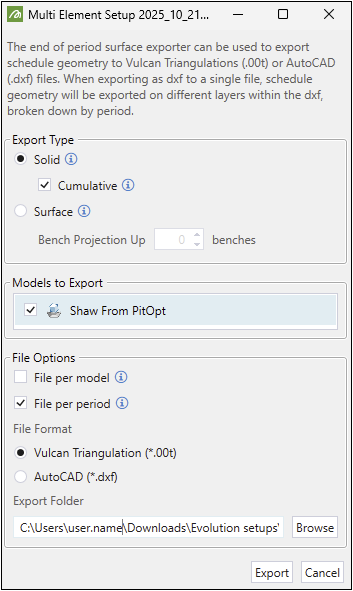
Export the schedule geometry (end-of-period surfaces) to Vulcan triangulation ( Note: When exporting in the After selecting
|
|
Export to CSV… |
Export your schedule data to a CSV file. See Exporting schedules to CSV files for details. |
 Re-run with Additional Reporting Items Re-run with Additional Reporting Items |
Re-run the setup that the schedule was generated from. Note: When re-running a setup, you can edit only the data in the Reporting Overview, Stockpile configuration in Strategy
|
 Reporting tab and stockpile grade items.