

Resource Groups
Source file: epoch-setups-resources-resource-groups.htm
Use the  Resource Groups subtab to specify the schedule of equipment and process flow components.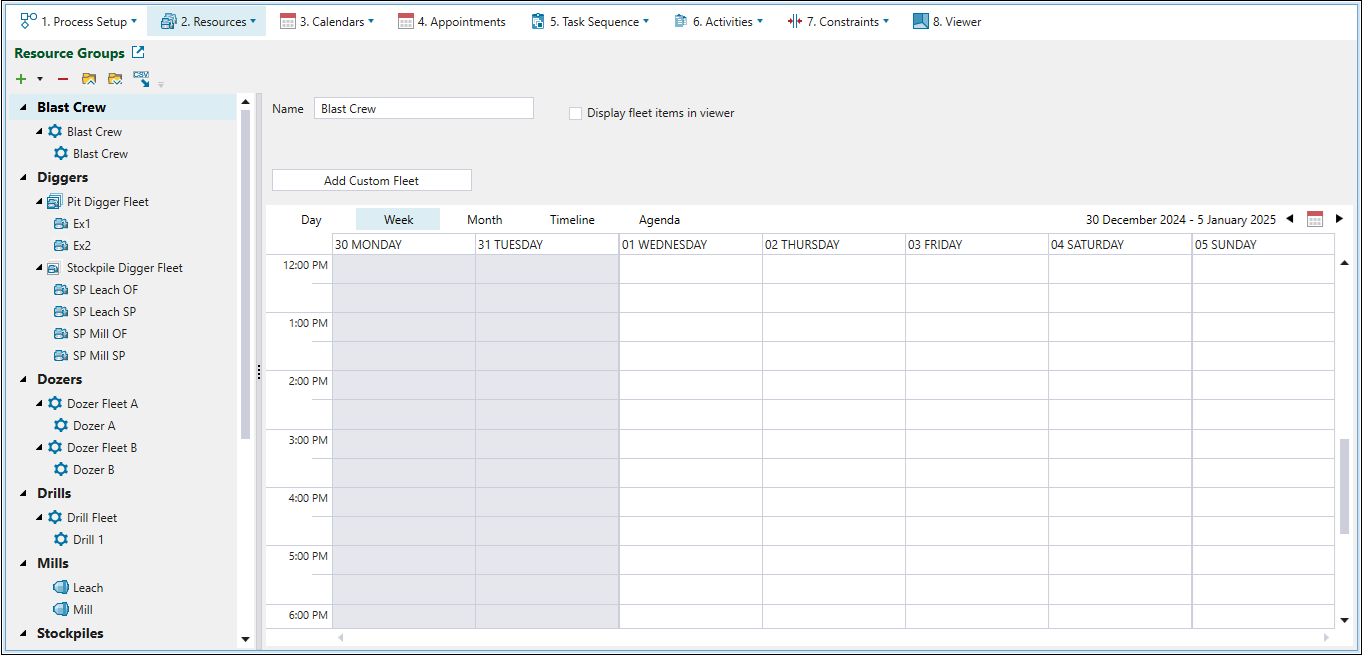
Resource group categories
Epoch considers the following categories as resource groups:
-
Diggers
-
Trucks
-
Drills
-
Custom Resources
-
Mills
-
Stockpiles (including Overflow Stockpiles)
-
Virtual Waste Dumps
-
Waste Dumps
You can configure the resource groups in your setup by using the following controls:
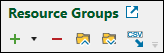

|
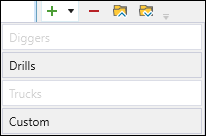
Add Resource
Note: You can have multiple Custom categories, but only one each of the Diggers, Drills, and Trucks categories in your setup. To prevent duplication, the resource categories that you have already added will be greyed out. Tip: For every custom equipment category that is added, you can choose whether to display the associated fleet items in the viewer. To include these items in the viewer, click on the category name, select the Display fleet items in viewer checkbox, then, using the Default viewer model drop-down, select the icon by which you want them to be displayed in the viewer. |

|
Delete Resources
Removes the selected item from the list. |

|
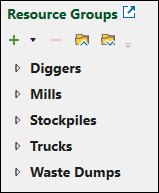
Collapse all
Hides all resource group items so that only category names are visible.
Tip: You can also hide the items included in an individual resource group or fleet by clicking the |

|
Expand all
Tip: You can also bring the previously hidden items included in an individual resource group or fleet by clicking the |

|
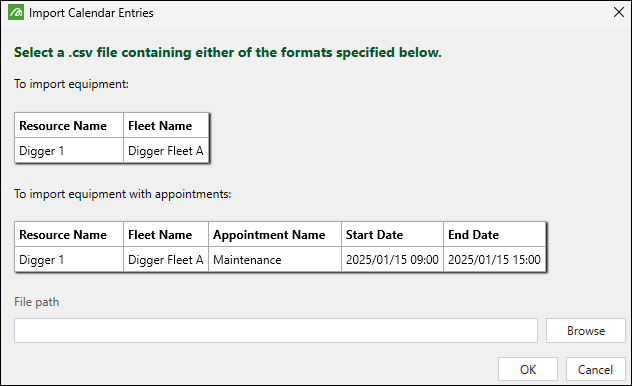
Import Calendar Entries Allows you to import equipment, or equipment with appointments from a CSV file. When you click this button, the Import Calendar Entries panel containing examples of the required file formatting will appear.
Click Browse to navigate to the required file, then click OK to import the data into the Resource Groups calendar. |

 button.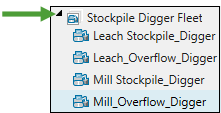
 button.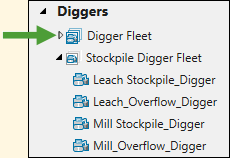
Adding resource group fleets and items
Once you have added a resource group to the list, you must add at least one resource fleet that will include items for your resource. To add a resource fleet, select the resource group from the list on the left-hand side of the screen, then click the Add <Resource Name> Fleet button (Add Drill Fleet in the example below).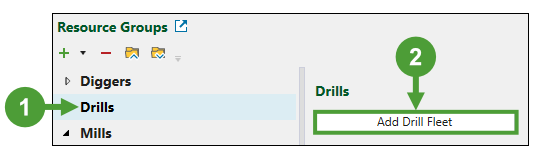
Note: You can only add fleets to equipment resource groups (Diggers, Drills, Trucks, and Custom). To add new items to process components’ resource groups (Mills, Stockpiles, and Waste Dumps), you have to add new process components and configure them in the  Material Flow subtab. See Material Flow for more information.
Important: You can only add truck fleets that you have already included in your project. If there are no truck fleets in your project yet, you will be prompted to add them. See Creating Trucks for more information on generating trucks in Evolution.
Note: The name of the newly added fleet will be assigned according to the <Resource Group name> Fleet convention. Fleets with the same name will be assigned a consecutive number. You can rename the fleet by clicking on it and entering a new name.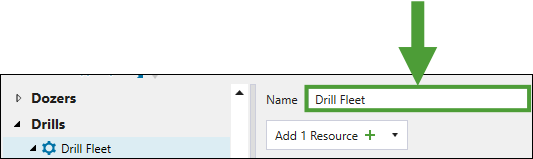
After adding the required fleet to your resource group, you must add items that will constitute the given fleet. To do so, select the fleet from the list on the left-hand side of the screen, then click  on the Add 1 Resource
  button.
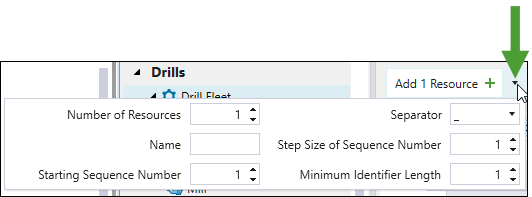
Configure the number and names of resource items to be added by specifying the following:
-
Number of Resources: Set the number of resources to be added to the fleet.
-
Name: Set the default name for the resource items.
-
Starting Sequence Number: Set the number to be used for the first resource.
Note: If a resource with the specified name already exists, Evolution will generate the resource with the next available number. Therefore, you can keep clicking the Add <number> Resource
number to generate more resources with the same configuration. -
Separator: Use the drop-down to set the separator to be used between the default name and the resource number. You can choose from _, -, Space, or None (no separator between the name and the consecutive resource number).
-
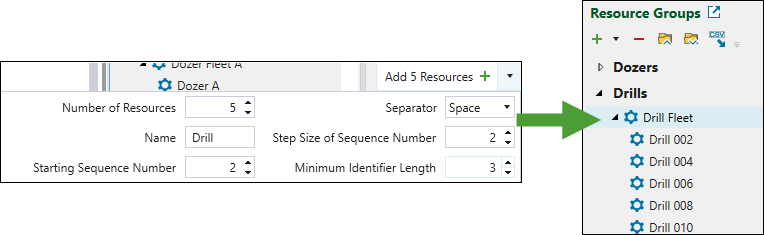
Step Size of Sequence Number: Set the increment between consecutive resource numbers. For example, if a starting number is
1, a step size of2will generate numbers in the sequence of 1, 3, 5,(...). -
Minimum Identifier Length: Set the minimum number of digits for the sequence number. If the number is shorter, it will be padded with leading zeros (e.g., 001, 002).
After applying your settings, click the Add <number> Resources button. The resources will be added to the selected fleet.
Example:
Configuring fleet items schedule
You can configure the schedule for each fleet item by adding events manually or importing them from a CSV file.
Adding calendar entries manually
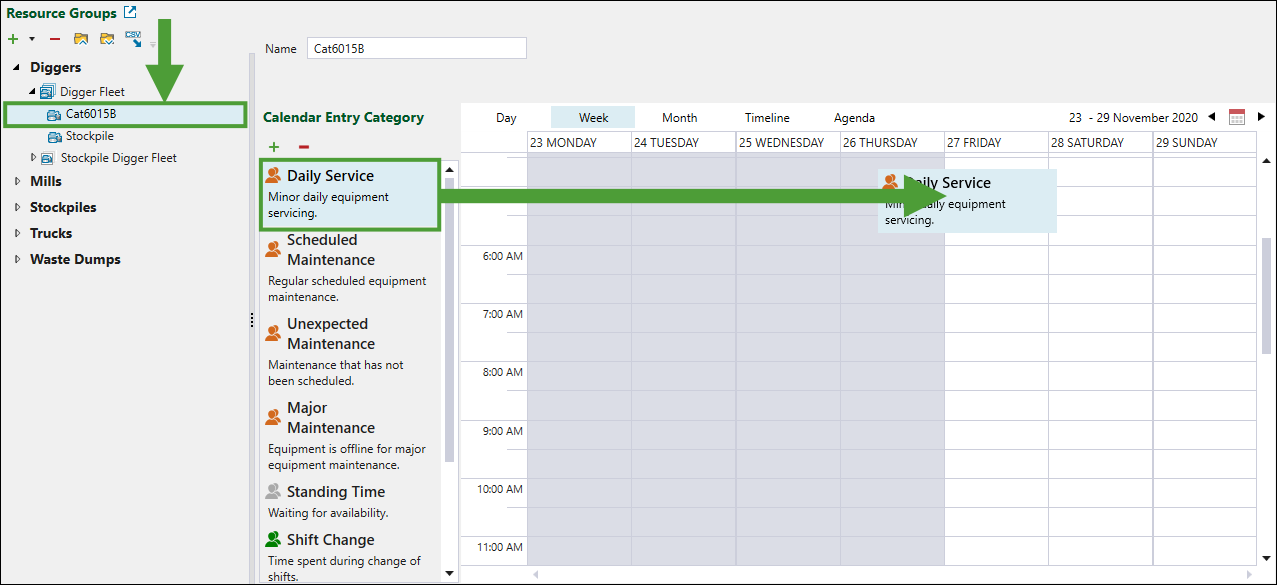
To add an entry to the calendar, click on the fleet item to which you want to assign a calendar entry, select one of the predefined categories in the Calendar Entry Category column, and drag it to the required time slot.
Note: No calendar entries can be added for overflow stockpiles as they use the same appointments as their associated mill.
Tip: You can add or remove calendar entry categories by clicking the  (Click to add a category) or (Click to delete the selected category) buttons.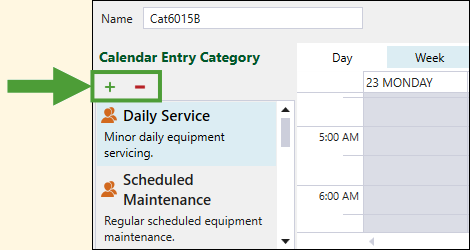
Alternatively, you can also add calendar entries by completing the following steps:
-
Click on the fleet item to which you want to assign a calendar entry.
-
Double-click the required cell in the calendar workspace.
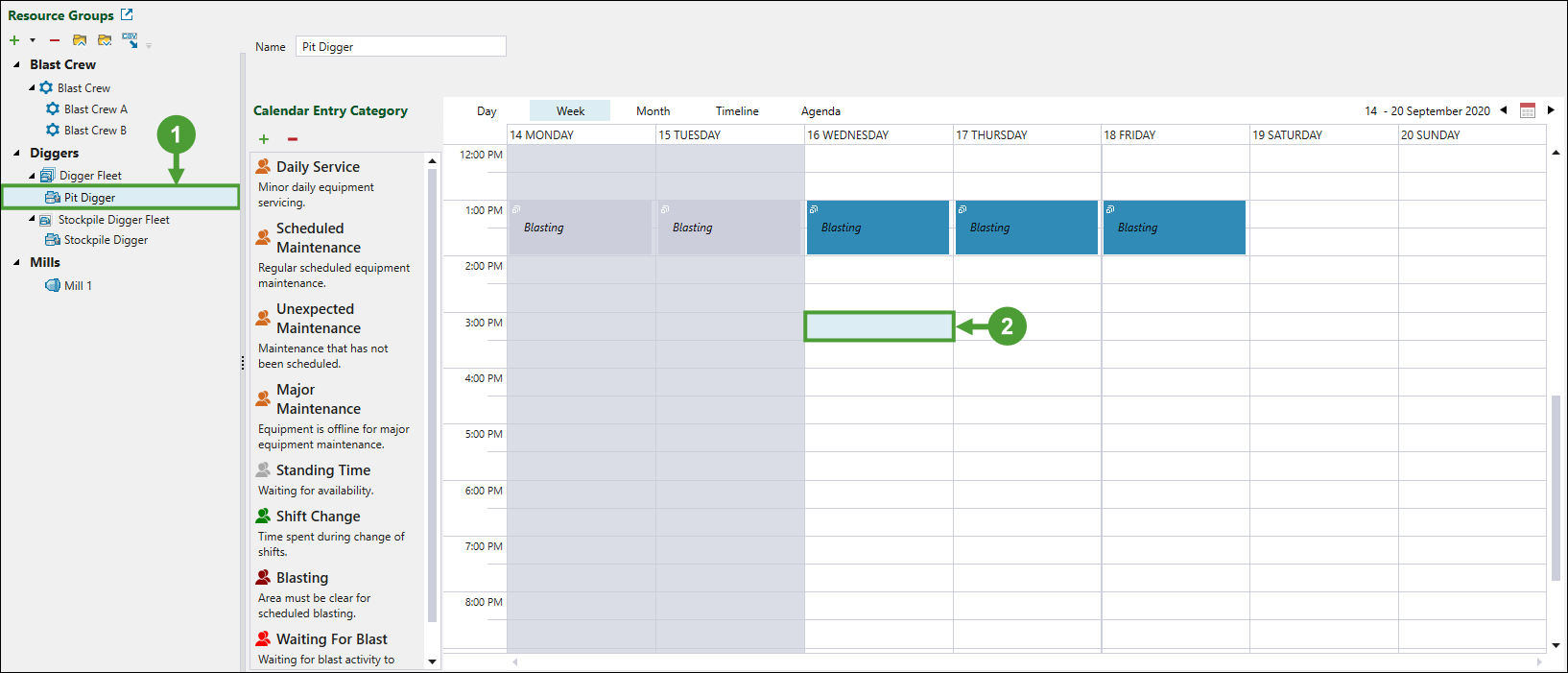
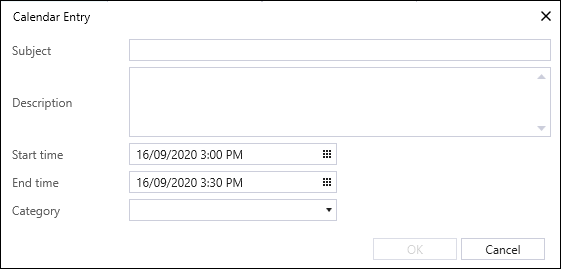
This will open the Calendar Entry window. -
Provide a Subject, Description, Start time, End time, and Category for the calendar event.
-
Click OK to apply the entry in your calendar.
Editing the existing calendar entries
You can edit the existing calendar entries the following ways:
-
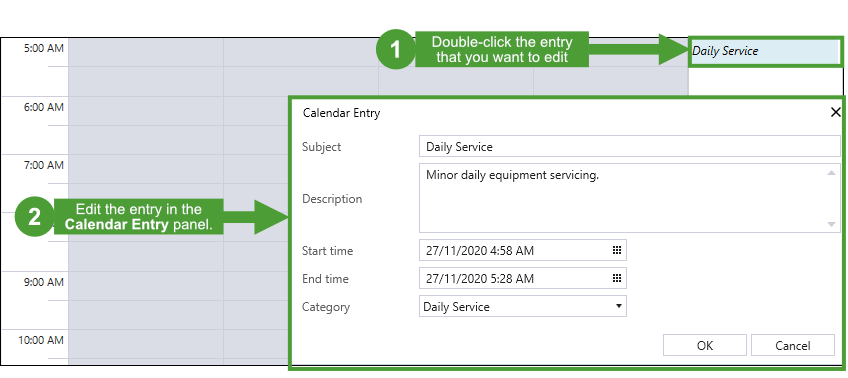
Double-click on the entry in the workspace. This will bring up the Calendar Entry panel where you can apply the required changes.
-
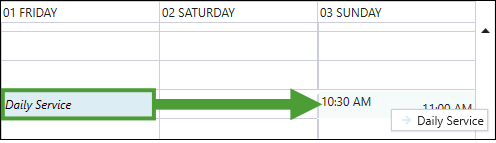
To change the time slot of a calendar entry, drag the entry to a different cell in the workspace.
-
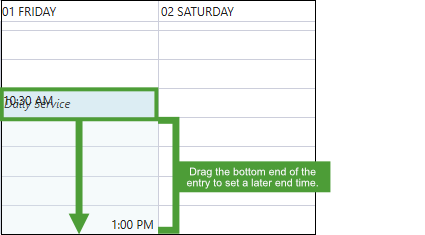
To extend the length of a calendar entry, drag either end of the entry (top end to set an earlier start time or bottom end to set a later end time).
Example:
-
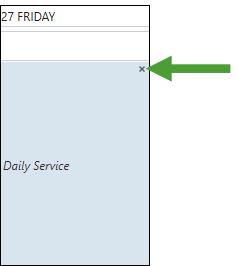
To delete an entry from the workspace, hover over it and click the x button in the top right corner.
Note: You can modify calendar entries only at the fleet item level.
