

Viewing a Road Network
If you import a road network, the viewing options will become available in the viewer tab. This will allow you to:
- Toggle between showing the entire haulage network or just the selected segments.
- Label the selected segments.
- Colour the selected segments by an attribute.
- Colour the selected segments by return cycle values.
Note: If you are viewing your setup on a small screen, the View Manager or project explorer may need to be minimised to view all of the road network viewing options.
Add Quick Colour/ Quick Filter
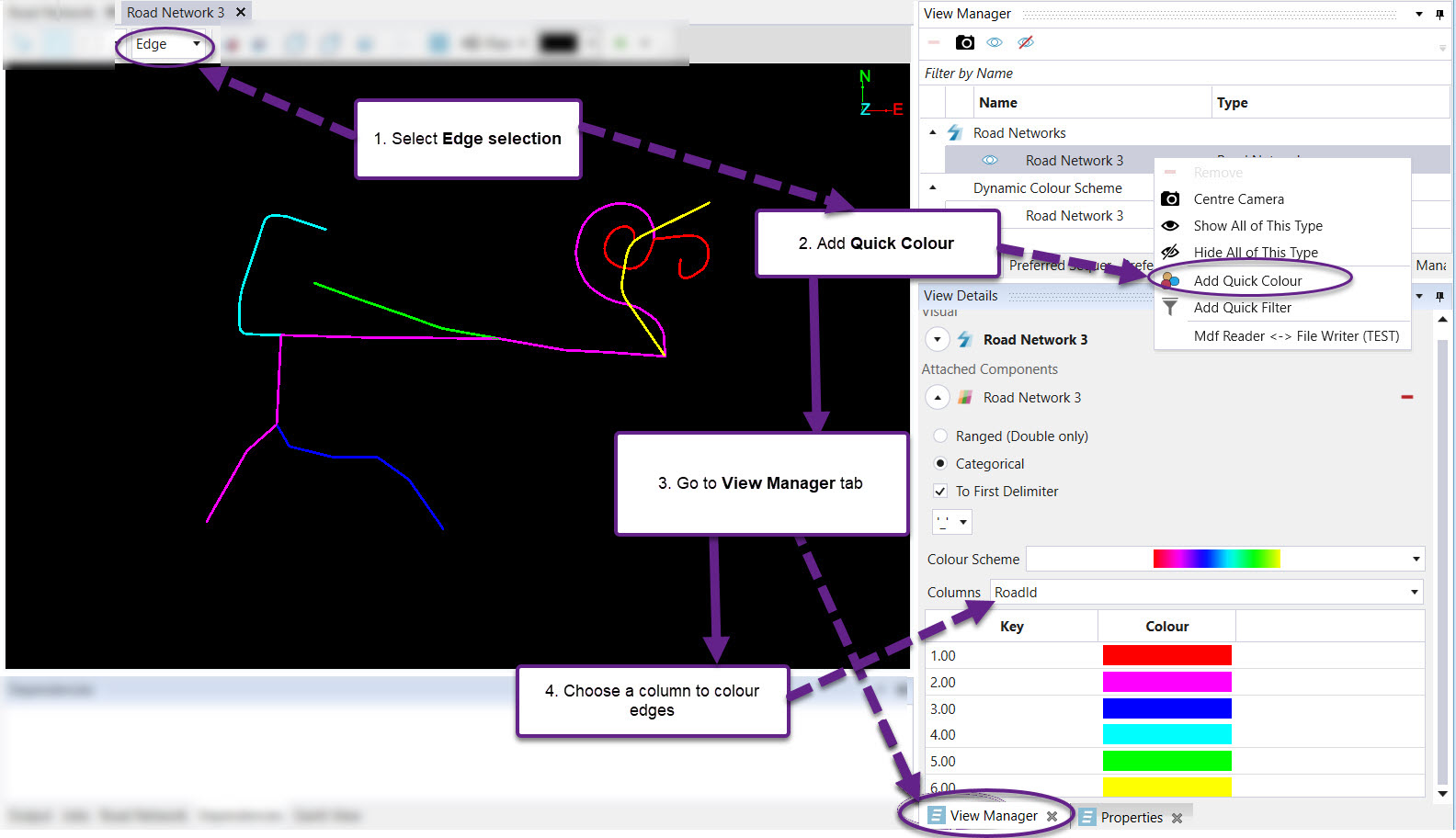
A Quick Colour can be applied to the road network in the viewer to display the attribute "label" as shown below.
This can help distinguish in-pit, ex-pit, dump, and other roads.
The procedure to add a quick colour is as follows:
- Select Edge selection.
- Right-click on the road network in the View Manager and select the Add Quick Colour option.
- Open the View Manager tab in the Options Window (see User Interface).
- Select the column according to which the road network will be coloured in the Options window.
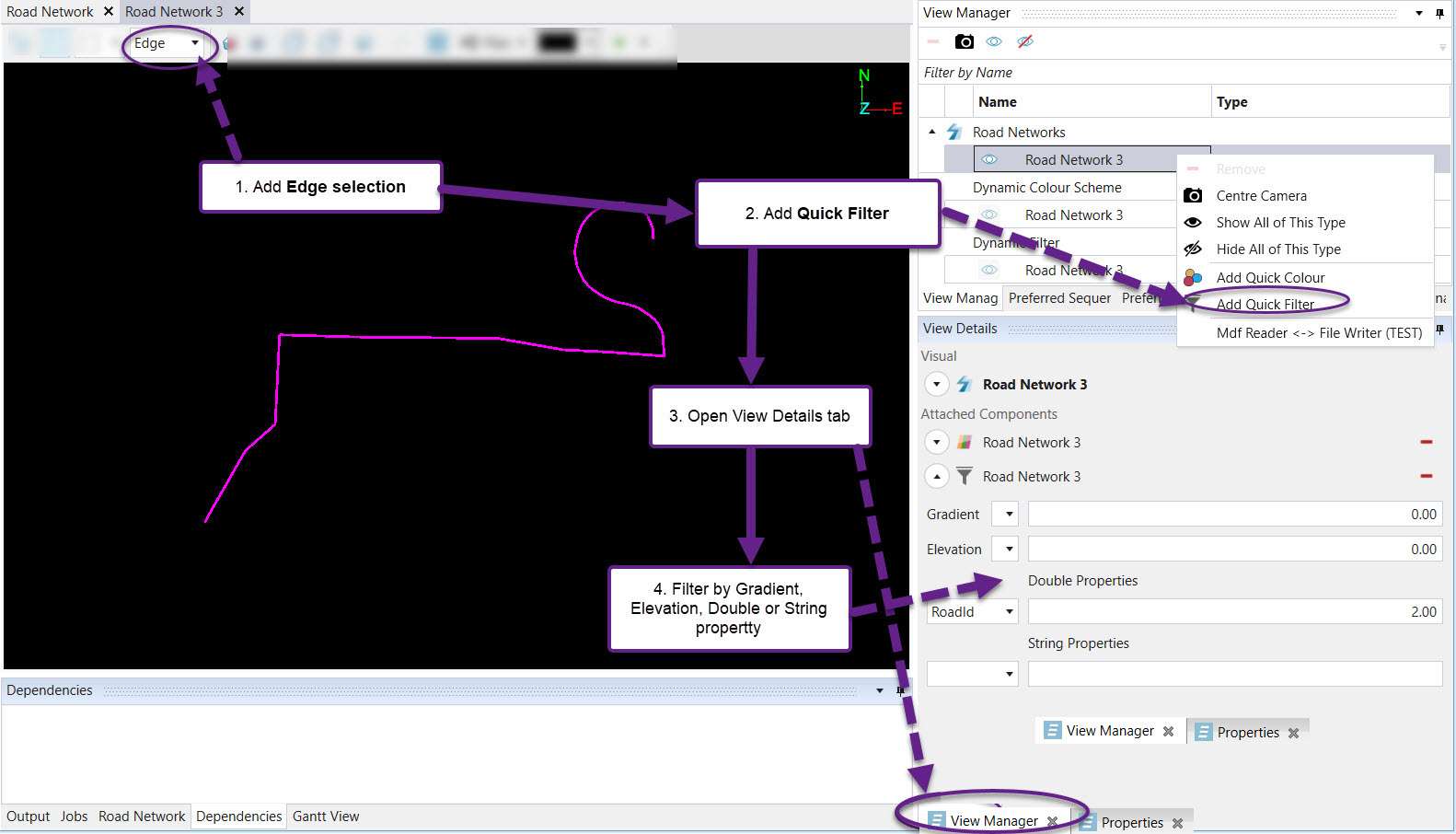
To add a quick filter, follow these steps:
- Set the Edge selection mode.
- Right-click on the road network in the View Manager and select the Add Quick Filter option.
- Open the View Manager tab in the Options window.
- Filter by Gradient, Elevation, or selectDouble Properties or String Properties to filter by.
Was this page helpful?
