

Style
The Style group on the Create tab is a quick-selection panel for setting the look of CAD objects that can be displayed as lines. Styles include sequences of dots, dashes, and spaces, and different thicknesses and colours.
Tip: You can also apply different styles to surfaces displayed in  Wireframe. See Appearance.

Set the look of selected objects with the following options:
Thickness
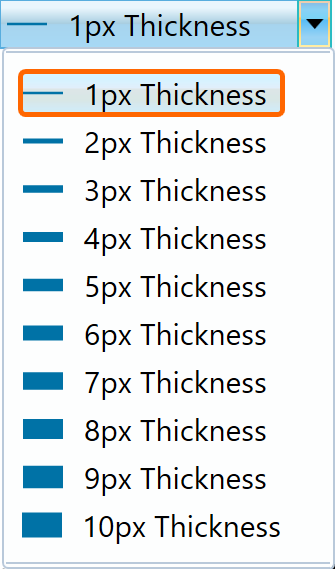
To change the thickness of a line, select an applicable object, then open the  (Line Thickness) drop-down list and select the required thickness, between 1 and 10 pixels.
Line style
Apply different styles to your lines.
Predefined pattern
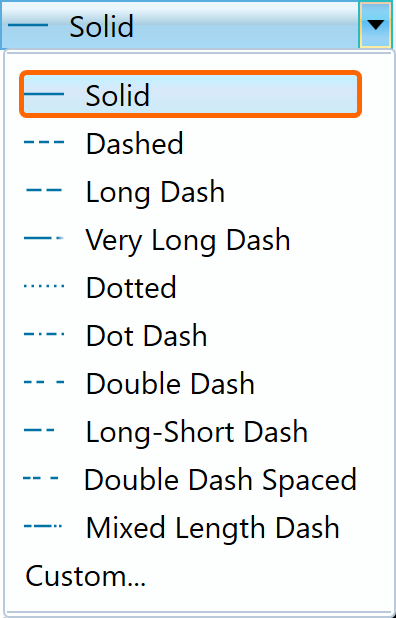
To apply a predefined line pattern, select an applicable object, then open the  (Line Style) drop-down list and select the required pattern.
Custom pattern
To create your own pattern:
-
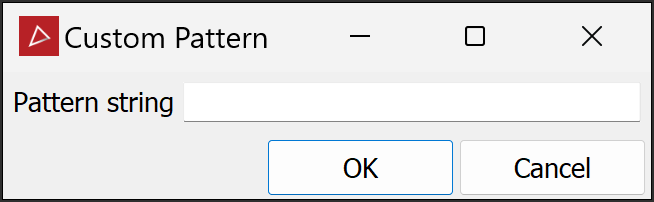
Click the Custom... option at the bottom of the Line Style drop-down list.
-
Type in the new custom pattern.
Note: The tool produces a linear on-off pattern along a line. Characters equate to on, or visible segments, taking the assigned line colour. Spaces equate to off segments or gaps between the visible segments.
-
Click OK.
Colour
Set the line colour by one of the following methods:
-
Select a standard colour. See below.
-
Create a custom colour. See Create a custom colour, below.
Or
Select a standard colour
To set a standard colour:
-
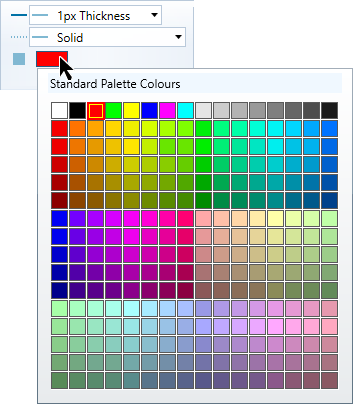
Single click the colour swatch.
The Standard Palette Colours panel will open.
-
Select the preferred colour.
Create a custom colour
To create a custom colour:
-
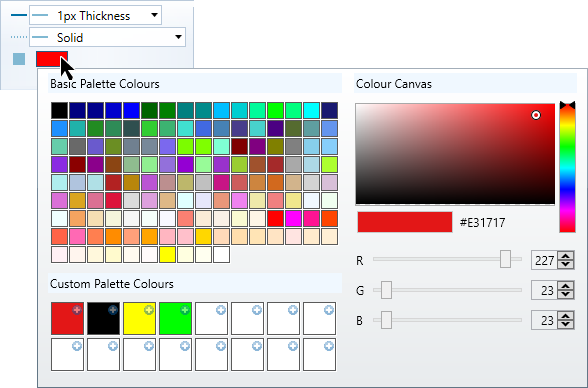
Double-click the colour swatch.
The advanced colour selector panel will open.
-
Select one of the basic palette colours.
-
Adjust the shade on the Colour Canvas by manoeuvring the circle, or enter a specific RGB colour code.
-
Choose one of the empty Custom Palette Colours and click its
 button to add the colour to the list.
 -
Repeat to create more colours.
-
Select the appropriate custom colour from the custom palette colours when required.
The line style with the chosen colour will be applied when new CAD objects are created.
