

Import
The Import group tools on the Labs tab enable you to import data from secondary Maptek projects and other external data, and to export data for other applications.

|
|
Import an Enhance Compression Wavelet image and apply to a surface. |
|
|
Import a |
Import ECW
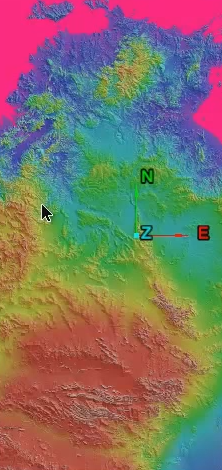
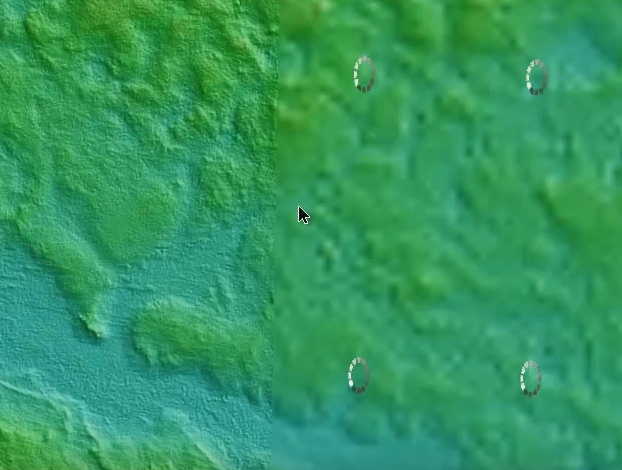
ECW (Enhanced Compression Wavelet) is a proprietary wavelet compression image format that is georeferenced and optimised for aerial and satellite imagery. The image can be updated as the viewer zooms in to effectively display a higher level of detail (LOD).
|
|
|
|
ECW image of aerial view (left). The tiles dynamically reload at high resolution when zoomed in (right). |
|
Importing an ECW
Import an ECW as follows:
-
On the Labs tab, in the Import group, click
 Import ECW.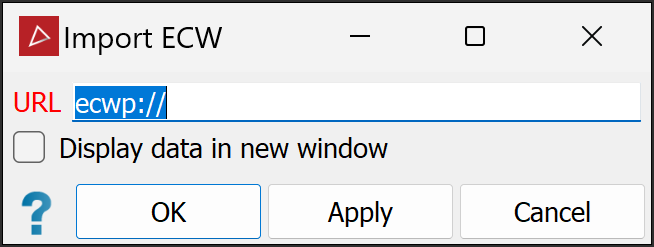
-
Enter the file URL.
-
Click OK to finish.
The image
is saved in the images container.
Draping an ECW image over a surface
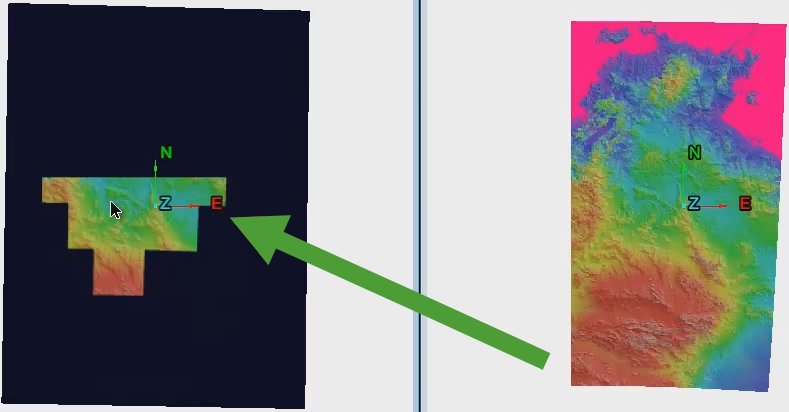
Once imported, you can drape a raster image conversion onto a surface or export it.
Note: This image is a standard type of bitmap and doesn't have the same LOD capability as the original ECW file. That is, when zooming in, the image can't increase detail.
-
Tile and tie the image window and surface window.
-
Drag the ECW image onto the surface.
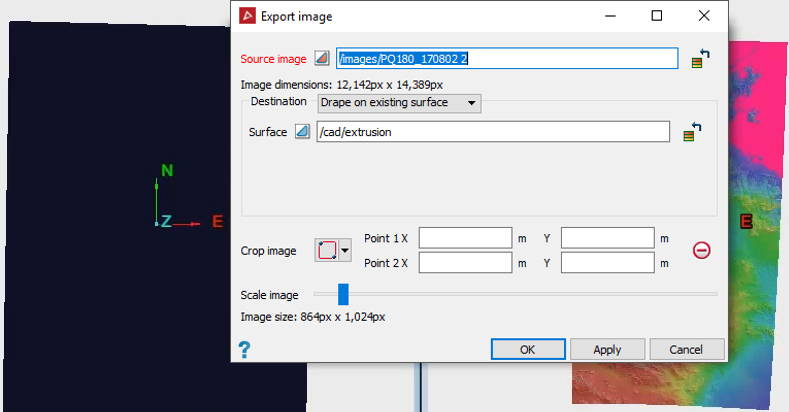
The Export image panel will open.
-
Adjust the Crop and Scale settings as appropriate.
-
Click OK or Apply to finish.
|
|
|
|
ECW image is converted to plain bitmap and draped onto surface. |
Import PPK Drive Scan
PPK
(post-processed kinematic) drive scan data consists of a standard .3dr drive scan file, and an associated .sbtc file, to provide proper alignment. When the .sbtc file
is created to match each .3dr file, the file pairs can be imported via the file input panel.
To import the PPK drive scan data:
-
On the Labs tab, in the Import group, click
 Import PPK Drive Scan.
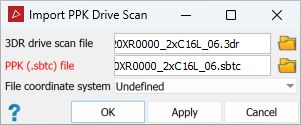
Select or navigate to the associated Maptek Drive scan file (
.3dr) and PPK file (.sbtc) in the corresponding fields on the import panel.Important: The
.sbtcfile should have the same name as the associated.3drfile.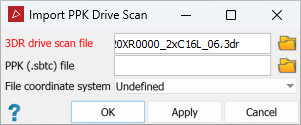
-
Click Apply to import and display the selected pair of PPK drive scan files.
-
Repeat for all pairs of files relevant to the scanned area.
-
Click OK when finished.
