

Scanline
The Scanline tool on the Geotechnical tab enables you to report on discontinuities along a scanline on a rock face.

A line, which can be at any angle, is drawn across the rock face. The required parameters are then detailed for each discontinuity crossing the line. This line is imagined as a straight line for input to PointStudio, much like a borehole, although an underground rock face is not planar, and the line follows irregularities in the face. Hence, it is not millimetre-perfect in practice.
Before doing a scanline query you must:
-
Extract discontinuities from the rock face. For more detail see Dip and Strike > Extract.
-
Draw a scanline on the rock face (see Create a 3D line). The line can be either a single segment defined by two points or a multi-point line. Refer to step 3, below.
And
When you have extracted discontinuities and drawn a scanline, do the following to report discontinuities:
-
On the Geotechnical tab, in the Scanline group, click
 Query Scanline.
 -
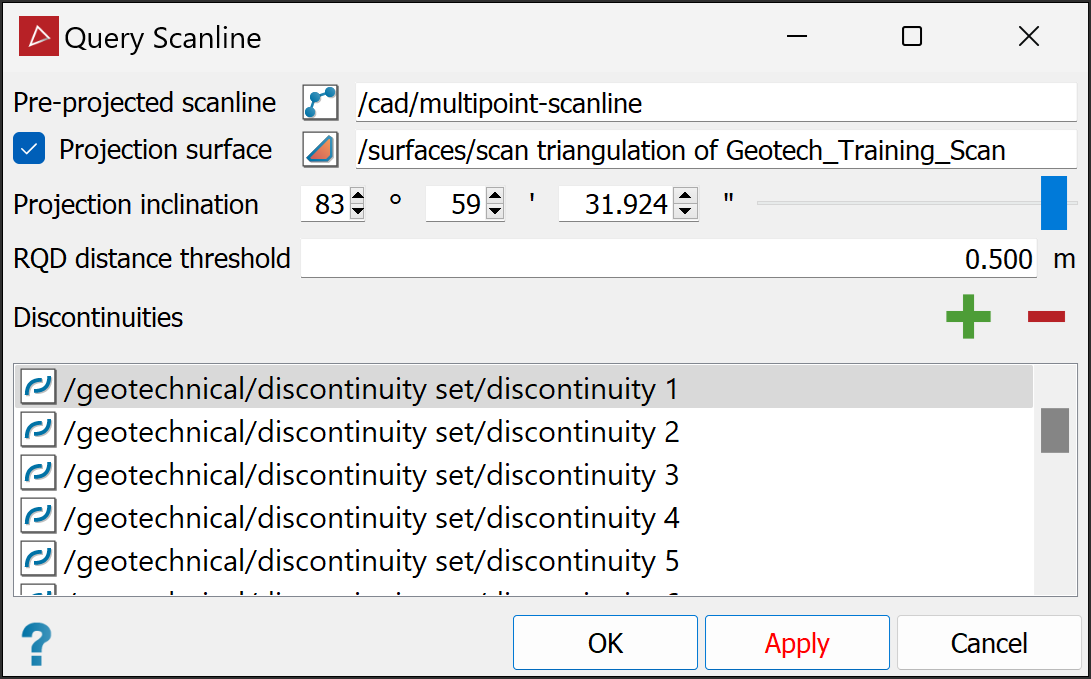
Select all the discontinuities
 on the rock face in the project explorer and click the
  button, or drag the discontinuities into the Discontinuities field.
Tip: Drag the relevant discontinuities container to add discontinuities in bulk.
Note: The first discontinuity object or container selected will automatically appear in the Discontinuities field.
To remove a discontinuity, select it in the Discontinuities field and click the
 button.
 -
Select a valid surface in the project explorer. The surface will automatically appear in the Projection surface field.
-
Set up the projection plane with appropriate one of the following methods, depending on whether the scanline is 2-point or multi-point:
-
Select the 2-point scanline in the project explorer or view window.
-
Select the Projection surface checkbox. The 2-point scanline label changes to Pre-projected scanline; select a multi-point line.
Or
Note: If the scanline field has already been populated, you must drag the required scanline into it.
The selected scanline will appear in the scanline field and PointStudio will display a plane-of-best fit to the scanline, with the plane's normal as a red arrow.
-
-
It is likely the plane will not be in the optimal orientation. Adjust the Projection inclination to ensure the plane captures as many of the discontinuities as possible.
-
Enter the required RQD distance threshold.
-
Click OK or Apply.
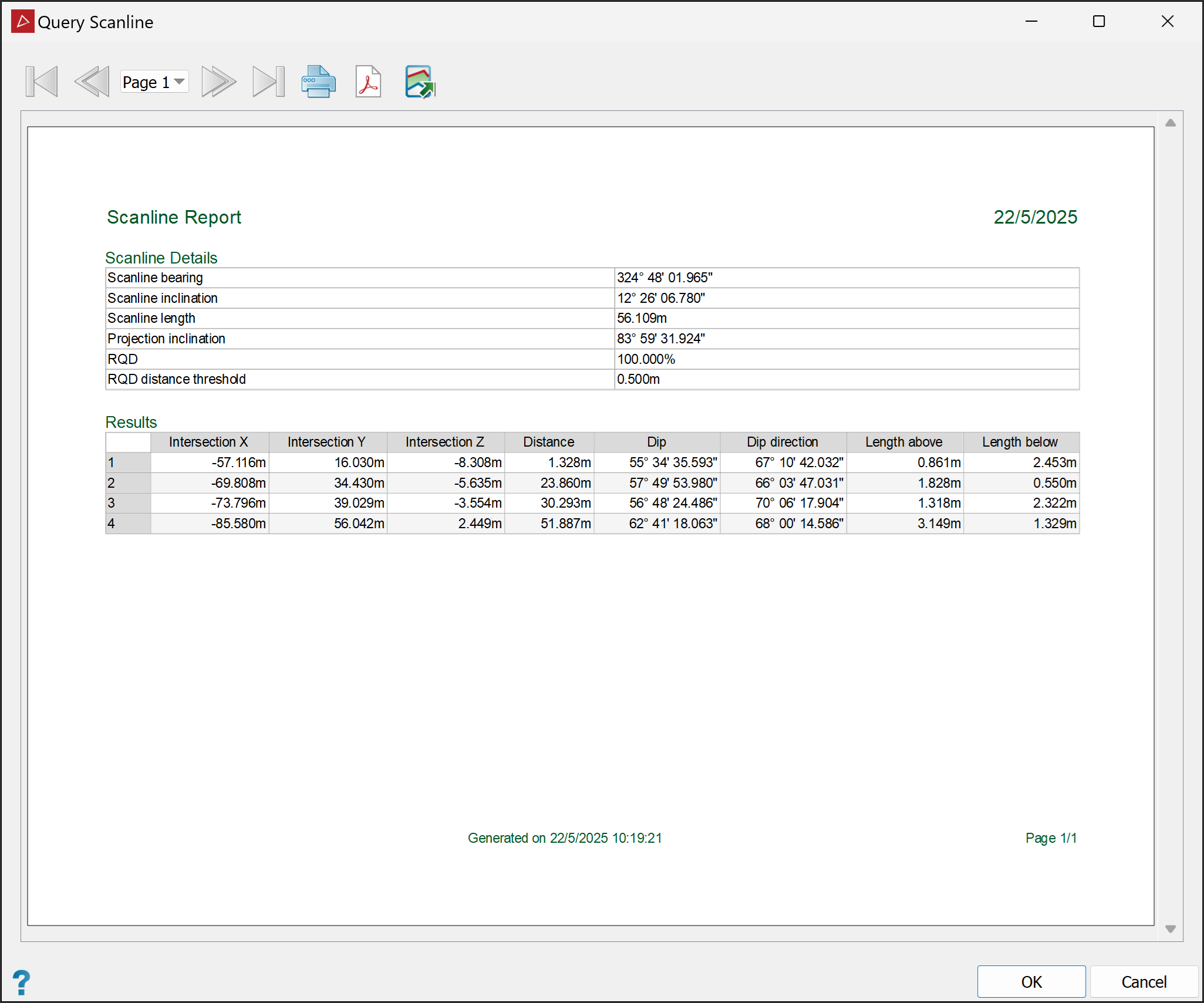
The scanline query tool will produce and display a results report containing details of each discontinuity, including intersection coordinates and distances, dip angle and direction, lengths above and below the scanline, and any attributes defined in PointStudio Preferences. See Preferences > Discontinuity Attributes.
-
Click the
 button to print the report.
 -
Click the
 button to save the report as a PDF.
 -
Click the
 button to save the report as a CSV or text file.
Note: Results are also saved as edge networks  called <discontinuity name> persistence, in a new container
  called Query scanline results in the
 scrapbook container.
