

Graded
The Graded Colour tool (Home tab > Colour group) colours objects by a selected property such as Intensity, Range, or Z coordinate. Intensity is a measure of the reflected laser strength, range is the distance from the scanner, and z-coordinate is the elevation of the point. Other properties may be available, depending on the data being coloured.
The unit used for range is the Distance value selected under Units in Workbench Preferences.
-
If you have previously coloured an object by distance (see Distance from Objects), the Attribute list will also include Distance from objects.
-
Any user-defined attributes with integer-type tags will also be available on the Attribute list.
To apply graded colours, follow these steps:
-
Select the data to be coloured.
-
On the Home tab, in the Colour group, click
 Graded.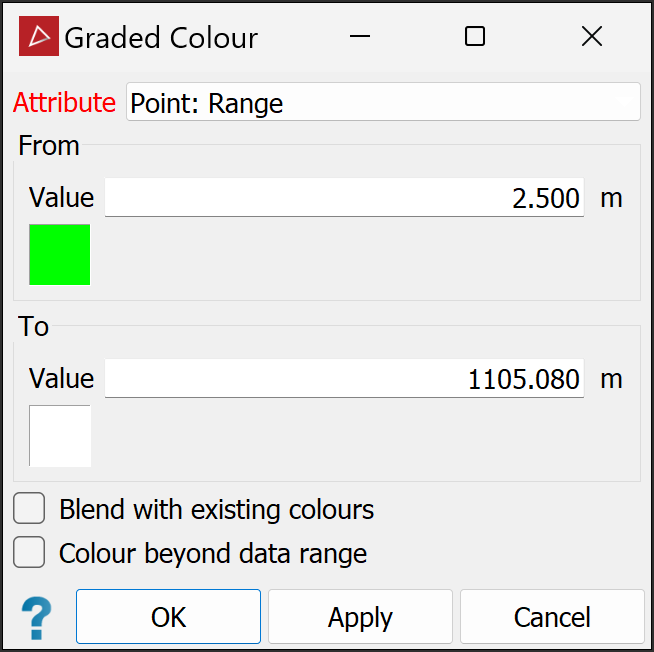
-
From the Attribute drop-down list, select the attribute by which the object will be coloured. When you select the required attribute, the From and To values will be set automatically to the lowest and highest values of that attribute. You can change the specific values as required.
-
Click on the colour boxes below the Value fields to define the From and To colours.
-
Select Blend with existing colours to merge the new scheme with the existing colouring.
-
Select Colour beyond data range to colour the values falling outside the data range with the From and To colours. Otherwise, data outside the range will be unchanged.
-
Click OK or Apply.
