

Manipulating Views
You can view your data from different positions, in different directions and at different magnifications using the methods described below.
Setting the manipulation mode
Use the view manipulation options to change the manipulation mode as described below.
|
|
Z Up Mode (Z) Constrains the Z axis to moving vertically in your viewing direction, regardless of camera location. |
|
|
Look from Mode (K) Fixes the viewpoint. View rotates around the viewpoint. |
|
|
Plan View Mode (P) Sets the view to look down on the data. |
|
|
Screen Mode (S) Enables unconstrained view rotation. |


-
To change manipulation mode, select the required mode from the
 Set Manipulation Mode drop-down list, found in either of the following locations:
-
From the Camera group of the View tab.
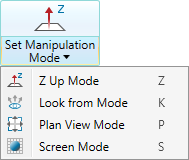
-
From the view window toolbar.
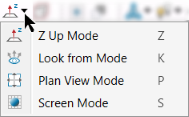
Or
-
Tip: To reset a view window to plan view and zoom to the data extents, click
 Predefined views.
Setting the centre of rotation
When rotating a view, the centre of rotation is at the origin of the axes in the view window.
Note: Set Centre of Rotation is only available in Z Up Mode and Screen Mode.
The simplest method of setting a new centre of rotation is to press C and pick the desired new point. You can also click  Set Centre of Rotation from the Camera group of the View ribbon, or from the view window toolbar.
For a more precise location for the centre of rotation, enter the coordinates into the status bar, then click  (Complete) or press Enter.

-
Set the centre of rotation near the area of interest in the dataset. This will ensure that the data you are interested in does not disappear when you rotate a view.
-
If the axes are blocking data from view, press A to hide them. Press A again to redisplay.
Rotating, panning and zooming
Manipulate the view by holding the Alt key and operating the mouse as follows:
| Operation | Combination |
|---|---|
|
|
Alt+left mouse button drag |
|
|
Alt+middle mouse button drag |
|
|
Alt+right mouse button drag Alt+scroll |
 Rotate
 Pan
Pan Zoom (to the view window centre)
Tip: Use Alt+scroll to zoom in to a specific point or area to see it in detail.
You can manipulate the view without holding the Alt key by using hands-free mode. To select hands-free mode, click the  (Hands free manipulation) button on the selection toolbar.

Note: While hands-free manipulation is active, you cannot make selections in the view window. For this reason, we recommend not using hands-free manipulation unless unavoidable.
Tip: In hands-free mode, you can still hold down Shift when manipulating the view to slow the rate of movement to 10% of normal speed.
You can also use the arrow keys on the keyboard to rotate and pan, depending on the manipulation mode. See Keyboard Shortcuts > View manipulation for details.
Viewing a scan from its origin
A scan origin is the location of the scanner when the scan was taken.
To view a scan from its origin, use one of the following methods:
-
Right-click on a point in the scan to open the context menu and select
 View Scan from Origin
 -
Select a scan and press O.
-
Select a scan and on the View menu, in the Camera group, click
View Scan from Origin.
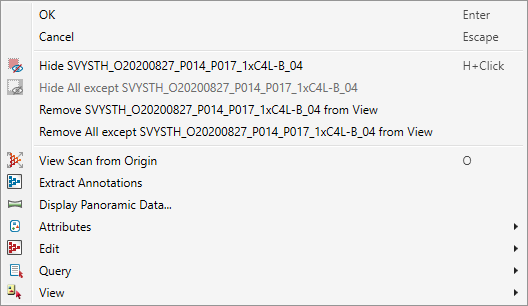
The scan will now re-orient to view all points from the scanner’s perspective.
Adjusting point sizes and line thicknesses.
You can increase or decrease point sizes and line thicknesses to enhance visibility as follows:
-
Press + to increase point sizes.
-
Press - to decrease point sizes.
-
Press 0 to increase line thicknesses.
-
Press 9 to decrease line thicknesses.
Displaying the panoramic data
To view and explore panoramic data, use either of the following methods:
-
Right-click on any point in the scan to open the context menu, then select
 Display Panoramic Data... to view the photo captured by the scanner.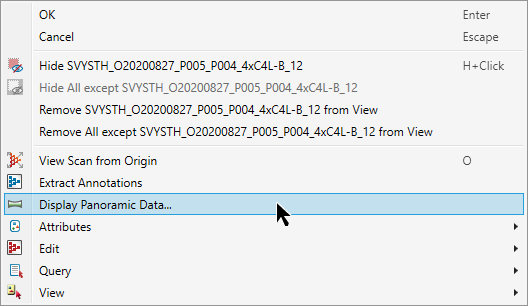
-
Select a scan, then on the View menu, in the Camera group, click
View Panoramic.
Or
The associated panoramic photo will be displayed temporarily, along with the following message box:
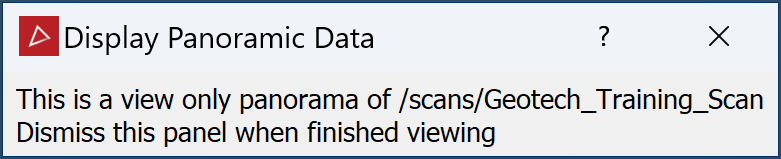
Use the standard Alt+mouse view manipulation techniques to pan around. Close the message box to return to the previous view.
Setting a camera view point
To view the scene from a specific point:
-
On the View tab, in the Camera group, click
 Set View Point or from the view window toolbar, click Set View Point.
 -
Enter the new camera position in the status bar, or pick the desired location in the view window.

-
Enter the camera orientation in the status bar, or pick the desired direction in the view window.

The view window will reorient to the new view.
See View Window Toolbars > View toolbar for more advanced viewing features.
